The leader in industrial automation and control solutions

Special Card Initialization Program Configuration
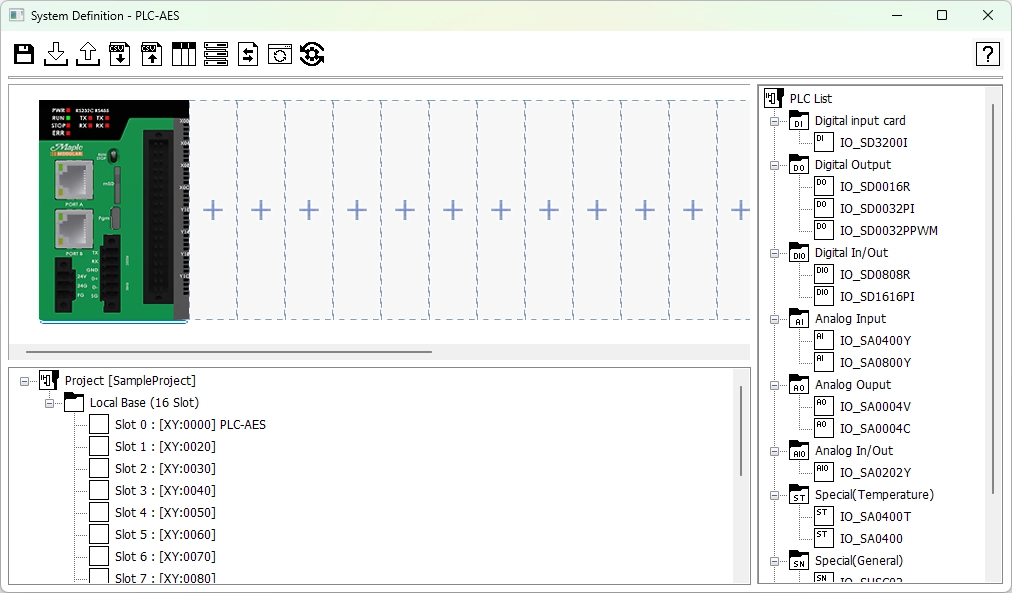
Special Card Initialization Configuration Window in MapleLogic, currently no slots have been allocated.

Modules can be added to the chassis for configuration.
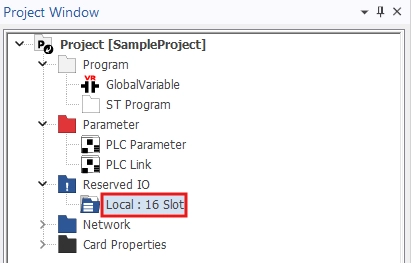
Allocate IO Modules to specific IO Slots by using the Special Card Initialization Window can be accessed by double-clicking the "Local: 16 slot" directory in the project window of MapleLogic.

To get to the Chassis configuration window, double-click “Local: 16 slot” in the Reserved IO tab.
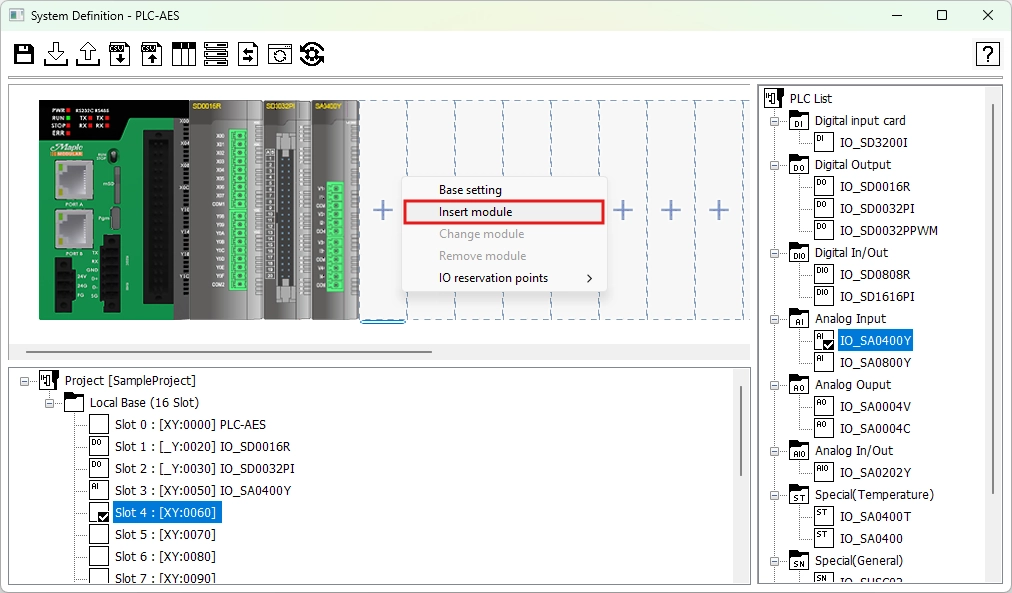
Left click empty slot and click "Insert Module" to start the IO module selection process in MapleLogic

Step 1: To add a module, right-click the + icon and left-click insert module.
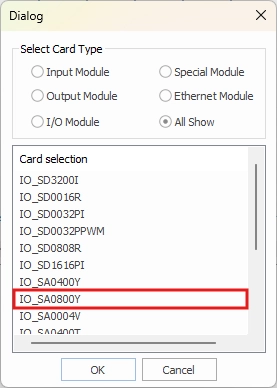
Select the IO module to assign to the PLC chassis slot and click "OK" within MapleLogic's Special Configuration Window Dialog window

Step 2: Select the module from the list and left-click OK.
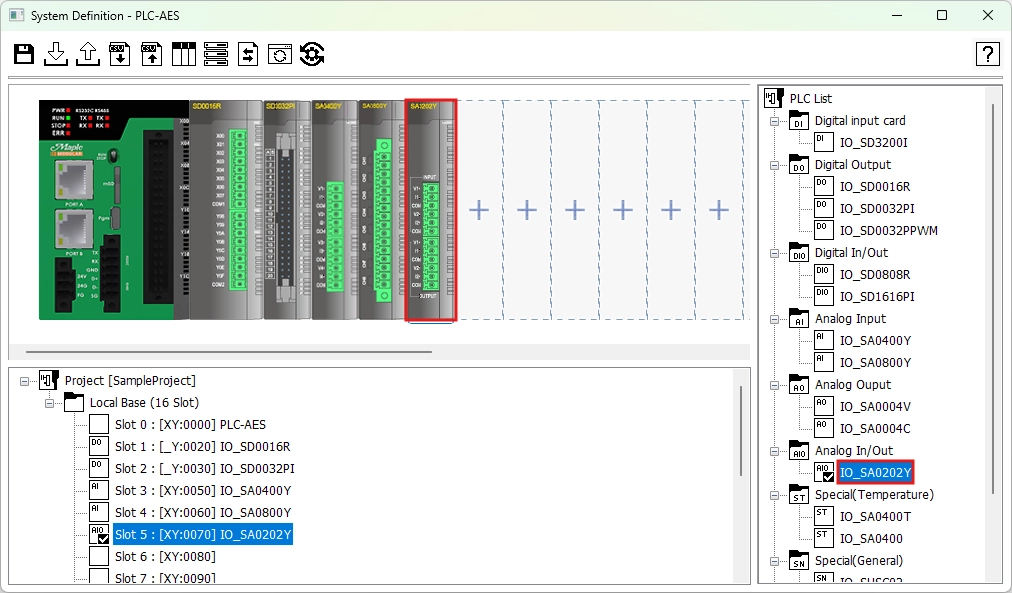
Alternatively, to add io modules in MapleLogic, drag-and-drop the io module from the right panel named "PLC List" or simply double click the io module

Optionally, drag-and-drop the module from the PLC list or double-click the module.

Step 3: To configure the module, double left-click the module.
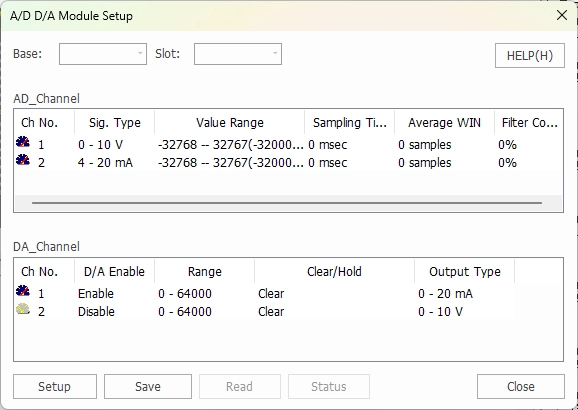
Configure a module by double-clicking the module (image of module) to open the Module Setup window in MapleLogic.

Changes made in the module configuration screen will be applied to the special card initialization program When downloaded to the PLC, the changes will be applied to the module.