
Download Project to PLC

Step 1: To download a project to the PLC, left-click Home and left-click Config.
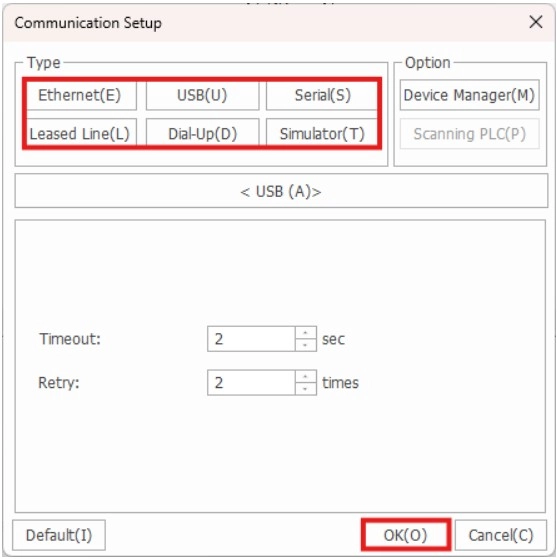
Step 2: Left-click the connection method and left-click OK.

Step 3: Left-click Download + to download and monitor the project on the PLC.
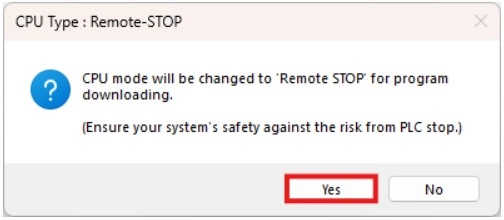
Step 4: Change the CPU mode to Remote STOP left-clickingYes.
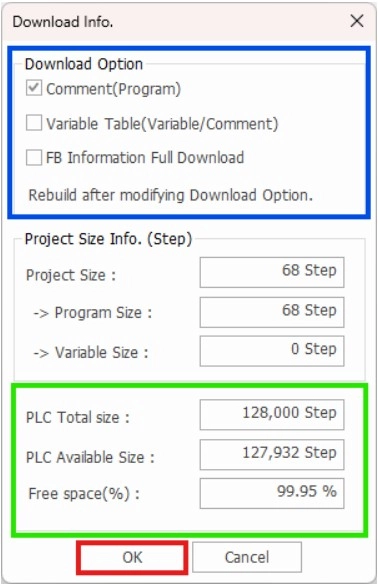
- The PLC memory type is calculated in Steps. Downloading program comments, variables, and function blocks contribute to the overall step size.
- Select which of the following should be downloaded to the PLC.
- Note: if options are left unchecked, when uploading the project from the PLC to PC, these will be unavailable to view in MapleLogic.
- The total project step size and available CPU step space is shown at the bottom.
- Select which of the following should be downloaded to the PLC.
Step 5: Left-click OK to continue.
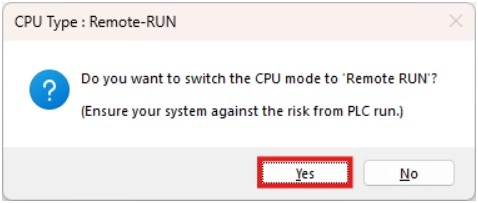
Step 6: Left-click Yes to switch the CPU mode back to Remote Run.
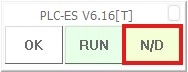
- The following watermark indicates the project is downloaded, and the PLC is being monitored. The N/D will allow you to force X and Y registers when in online mode.