
Program Password
A password can be set on individual PLC programs.
Set Program Password
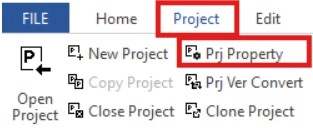
Step 1: To set a password for the project, left-click Project and left-click Prj Properties.
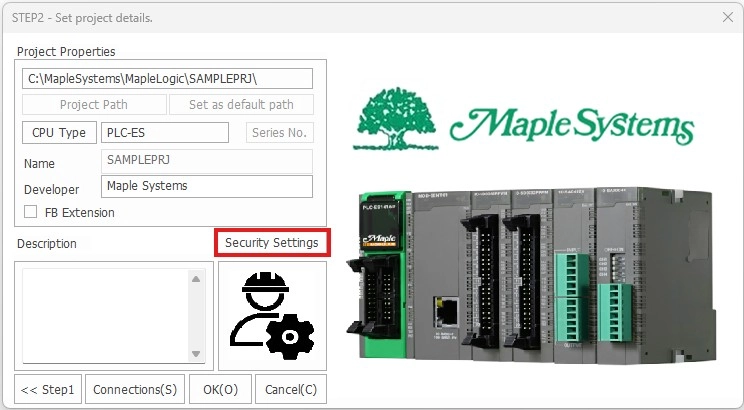
Step 2: Left-click Security Settings.
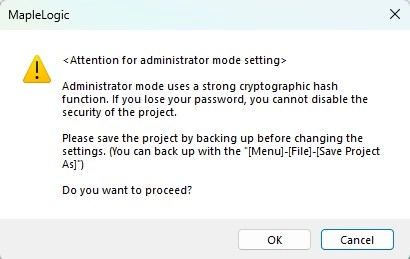
Step 3: Acknowledge the warning message. Left-click OK when finished.
| BACKUP PROJECT Create a backup of the project (if it previously exists) before continuing. If the password is lost, the project cannot be recovered. |
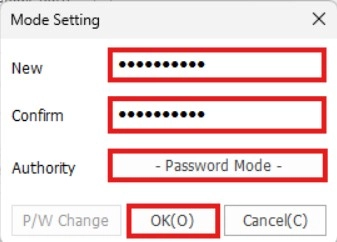
Step 4: Input the same password into the New and Confirm fields. Then, left-click Password Mode.
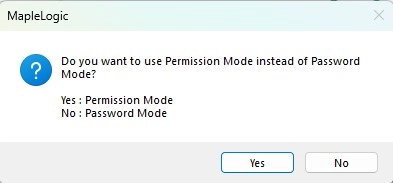
Step 5: To change to permission mode, left-click Yes.
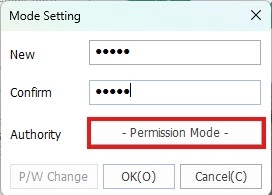
Step 6: When finished, left-click OK.
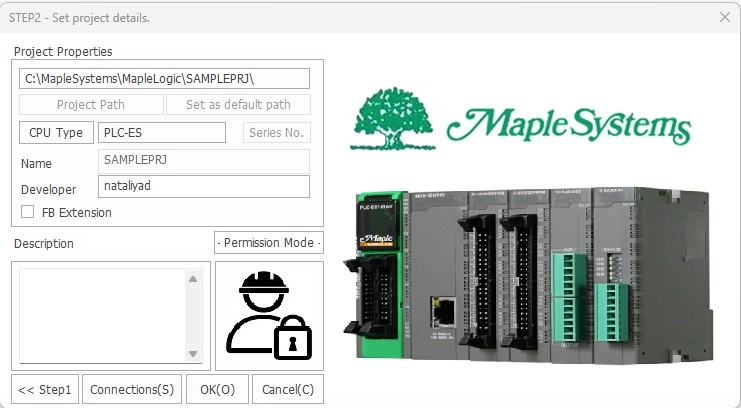
Step 7: Left-click OK.
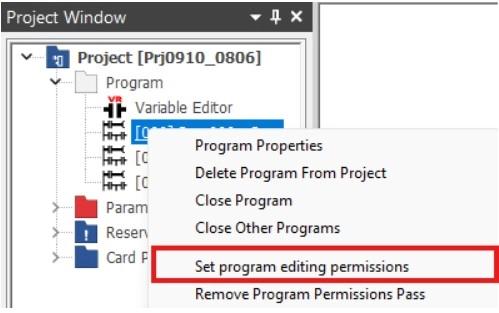
Step 8. Right-click on a program and left-click Set Program Permit.

- Optionally, left-click Project and left-click Set Program Permit.
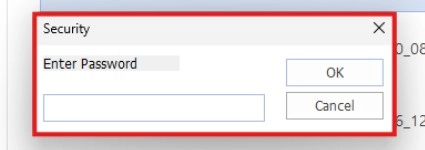
Step 9: Enter the password and left-click OK.
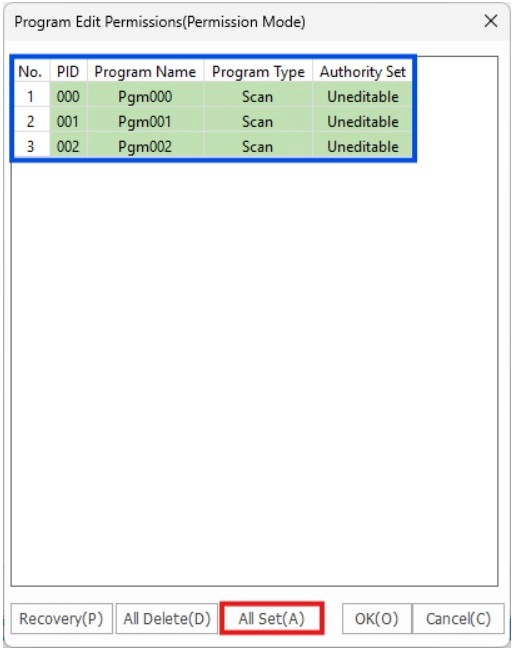
Step 10: Left-click All Set to change the Authority Set to Uneditable.
- Optionally, double click the individual program to change the authority.
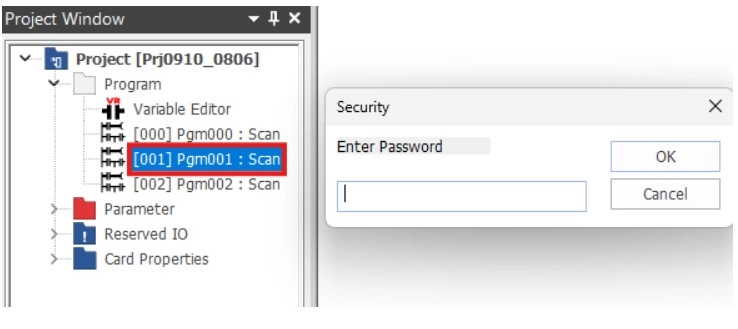
- When a program has the Uneditable authority, it requires a password to open.
| NOTE When enabling Permission Mode, the protected programs cannot be opened by uploading the project from the PLC. |