
PLC Password
MapleLogic provides the ability to password-protect PLCs.
| REMEMBER PASSWORD If the password is lost, the project cannot be recovered. |
Set Password
Ensure the PLC is connected to the computer beforehand

Step 1: Left-click Online and left-click PLC Password.
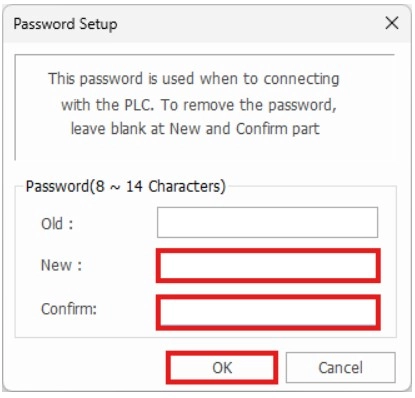
Step 2: In the Password Setup window, input the password in the New and Confirm box.
- These password must match.
- The password must be between 8 and 14 characters.
Step 3: Left-click OK when finished.
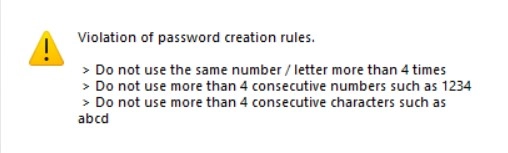
- If the password violates any of the above conditions, the warning box appears.
Remove Password
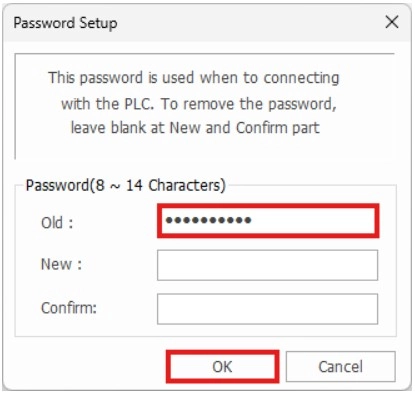
Step 1: To remove the PLC password, open the Password Setup window.
Step 2: Input the password to remove in the Old box.
Step 3: Leave the New and Confirm boxes blank and left-click OK.
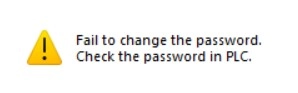
- If the password to remove is incorrect, the warning box appears.
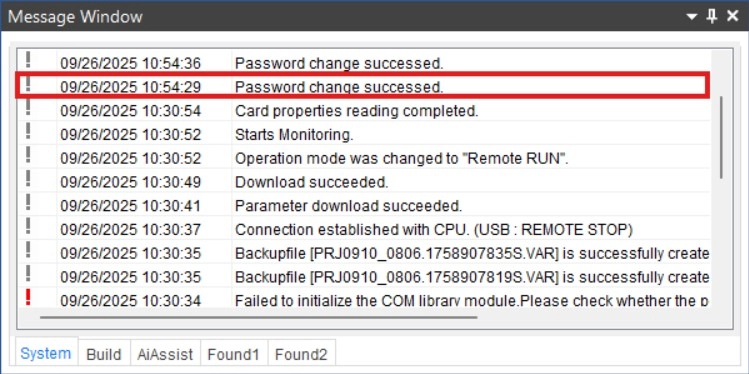
- If the password change was successful, the message will appear in the Message Window.