
Project Password
A password can be set on to the project itself.
| REMEMBER PASSWORD If the password is lost, the project cannot be recovered. |
New Project
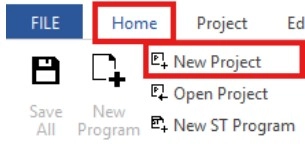
To add a password to a new project, first create the project by left-clicking New Project.
Existing Project
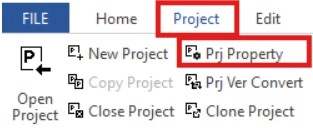
Step 1: To add a password to a new project, left-click New Project.
Set Project Password
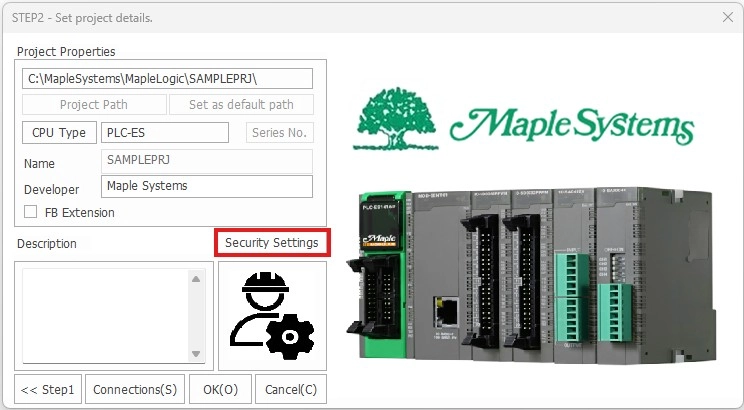
Step 2: Left-click Security Settings.
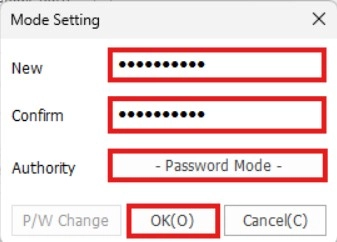
Step 3: Enter the password into the New and Confirm fields. Ensure Authority is set to Password Mode. Left-click OK.
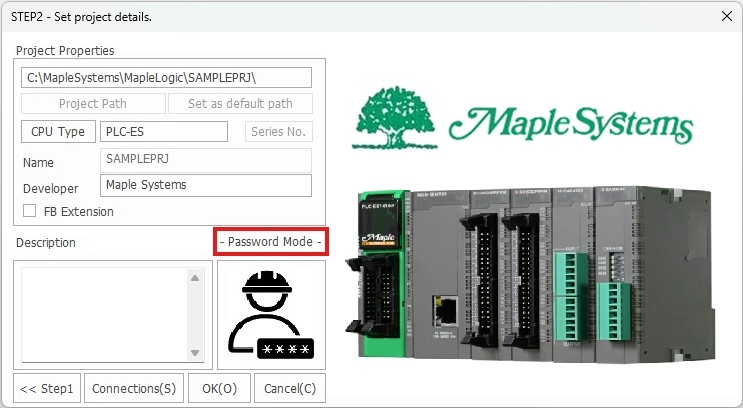
Step 4: The project details will now display Password Mode. Left-click OK to continue.
- After trying to open the project, a password is required.
Remove Project Password
Step 1: To remove the project password, left-click Project and left-click Prj Property.
Step 2: Left-click Password Mode.
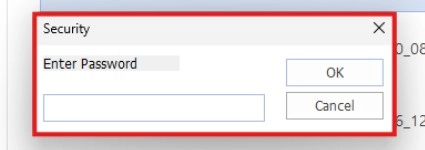
Step 3: Enter the password and left-click OK.
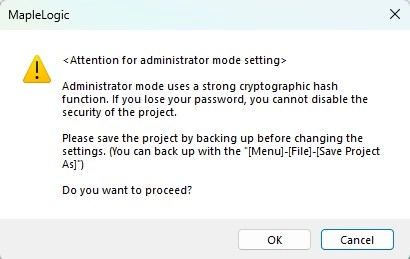
Step 4: Acknowledge the warning message. Left-click OK when finished.
Step 5: Left-click P/W Change.
Step 6: Acknowledge the warning message. Left-click OK when finished.
Step 7: Leave the New and Confirm fields blank. Left-click OK.
- The project details will display Security Settings instead of Password Mode.