
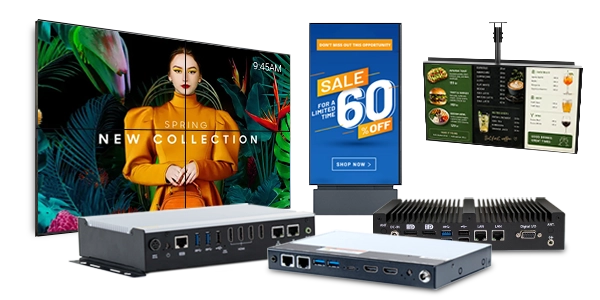
Choosing a digital signage PC involves more than simply comparing the processor speed, memory capacity, or price. The right digital signage computer must support the content you want to display, the software you’ll display it with, the real-world environment it’ll be installed in, and be stable enough to function while unattended.
With Maple Systems introducing digital signage PCs across dual- and quad-display performance tiers, this guide explains how to determine which specifications and reliability features an application actually requires. When choosing a digital signage PC, be sure to consider every aspect of the signage installation as a whole, not just a single specification. These systems are used across various industries and by businesses of all sizes to deliver engaging digital signs and interactive displays that improve the customer experience and support advertising across a wide range of applications.
What is a Digital Signage PC?
A digital signage PC is a purpose-built PC responsible for running signage or visualization software. A key advantage of these systems is their flexibility across different environments. The signage software is in turn responsible for receiving, storing, and rendering content to a digital signage display. Oftentimes you’ll also need your digital signage PC to connect to cloud-based content-management or device-management systems to update displayed content. In some cases you even need a digital signage PC and display to be an interactive touchscreen, or connect to external sensors and peripherals to create an engaging customer experience.
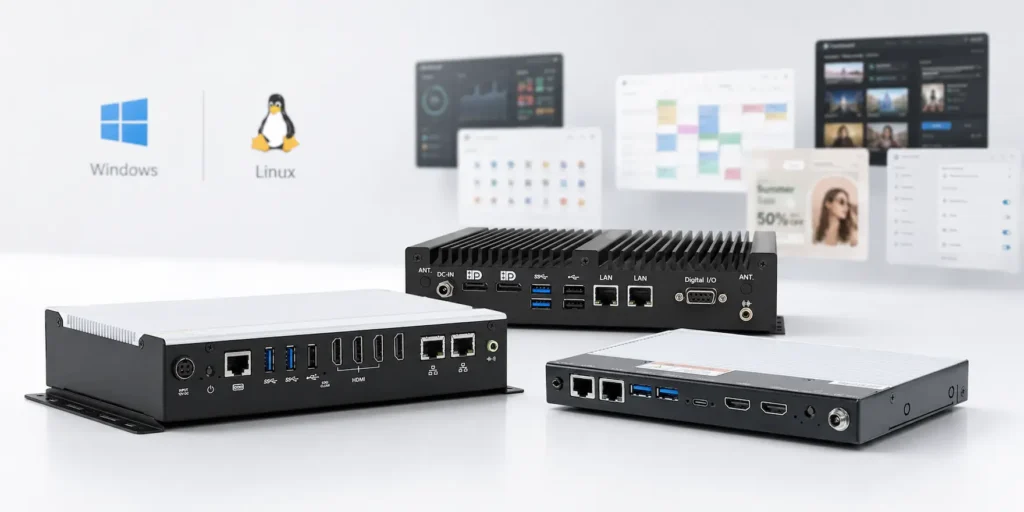
Some basic signage applications can be handled by a dedicated media player, but more complex applications benefit from the performance and flexibility of a full digital signage PC. If you’d like a deeper comparison between digital signage PCs and some other alternatives, you can read our comparison of digital signage PCs vs mini PCs vs industrial PCs.
When a PC is Preferable to a Basic Media Player

A standalone media player is a dedicated device designed to run straightforward digital signage content. These can be useful for displaying image slideshows, video loops, or cloud-managed playlists. But when you start needing to expand to multiple displays, show dynamic data, or even include interactive content, a full digital signage system becomes a better solution. A digital signage PC also allows you greater flexibility in software compatibility. These PCs come with full Windows or Linux operating systems, which allow for a wider range of equipment connections, peripherals, and more control over security and remote recovery. Once an application requires the flexibility of a full PC, the next step is determining how much processing power, memory, and storage the content actually requires.
Mini PC vs Digital Signage PC: Finding the Right Mini PC for Your Signage Needs
For lighter-duty applications, a compact mini PC can be an ideal choice for digital signage, especially in space-constrained installations. Mini PCs are compact and save space in digital signage, making them well suited to tight mounting locations behind a monitor or inside kiosks. This compact footprint simplifies setup in tight spaces. They consume less power than traditional PCs, enhancing energy efficiency, which can help reduce operational costs across a fleet of mini PCs and screens deployed in various industries such as retail, hospitality, and cafes.
Mini PCs should support multiple displays for effective signage, along with the ports and connectivity a project actually needs. Look for a mini PC with enough HDMI ports, USB connectivity, Wi-Fi, and Bluetooth support, plus a VESA mount for easy installation directly behind a TV or monitor. They can support multiple 4K displays for high-resolution content, which gives the right mini PC real versatility for businesses that need multiple screens without the footprint of a full-sized tower.
Some hobbyist installations use a Raspberry Pi as a lightweight alternative, but reliable operation is enhanced by using commercial-grade components, which is why many businesses choose a purpose-built mini PC with remote management support instead. Once an installation calls for advanced graphics, heavier processing, or industrial-grade reliability, a full digital signage PC becomes the more capable option. If you’re still deciding between the two, our comparison of digital signage PCs vs mini PCs vs industrial PCs can help identify the ideal choice for your application.
Match Processing, Memory, and Storage to the Content
Like any other PC, some of the first specifications to consider for a digital signage system are the processor, graphics capabilities, system memory (RAM), and storage.
Processor and Graphics Requirements
As digital signage content becomes more complex, hardware requirements increase. You may start only needing static images and text on a single monitor for your signage. But when you introduce UHD 4K videos and additional signage displays, your hardware workload increases. Hardware requirements climb further when you add independent displays showing animated web pages or live dashboards. Once you introduce live industrial data-processing or interactive applications, your processor performance can become a serious consideration.
CPU performance also isn’t the only determining factor. Other things to consider include the video codecs your content uses, such as H.264/AVC or H.265/HEVC, your desired resolutions and refresh rates, the number of simultaneous displays, and the requirements of your signage software. These workloads are shared between the CPU and graphics hardware. So a faster processor does not necessarily compensate for a graphics subsystem that cannot support the required display configuration or hardware-accelerated video decoding. Most signage systems find integrated graphics sufficient for their needs, but applications such as multi-monitor video walls, advanced real-time 3D rendering, or AI-powered workloads may call for a dedicated GPU. Confirming that a PC’s graphics hardware is compatible with your chosen digital signage software early on can prevent costly surprises later.
Operating System and Software Compatibility

Your operating system and signage software should also be considered before settling on the hardware. A signage platform may require a particular version of Windows or Linux, specific graphics drivers, browser technologies, or peripheral drivers. A processor or GPU may technically support a video codec or display resolution, but that capability is only useful if the operating system, graphics driver, and signage application can take advantage of it. So it is generally better to identify your signage software and supported operating systems first. All of Maple Systems’ digital media players are flexible in their OS options, helping bridge this gap.
Processing and graphics capability are only part of the equation. The amount of system memory and local storage can also affect how smoothly the signage application runs and how much content the PC can retain locally.
RAM, storage, and offline content
Raw processing power doesn’t tell the full story. In addition to the correct CPU, you’ll need an adequate amount of system memory (RAM) for your digital signage solution. Basic signage applications may run with relatively little memory, while browser-based dashboards, multiple displays, background monitoring services, and other simultaneous applications increase RAM requirements. Always start with the signage software’s minimum requirements and leave additional memory available for the operating system and any supporting applications.
An SSD is generally the preferred storage option for a digital signage PC for its speed of access and lack of moving parts. SSD storage requirements will typically be defined by any media you’ll have locally on the PC, from cached web content, offline playback media, or even maintenance logs. From there you’ll also need to account for operating system space and recovery partitions. But it generally is pretty straightforward to allow enough storage space for your digital signage needs.
Choosing the Right Digital Signage Software
The hardware only tells half the story, digital signage software is just as important as the PC running it. The right platform should let your create and schedule content, manage playlists, and push updates to every screen from a single dashboard, whether that’s static presentations, promotions, or full-motion video advertising.
When comparing platforms, look for software that is compatible with your chosen operating system, offers secure remote management, and supports interactive displays and touchscreen apps if your installation calls for them. Many platforms let you set a content schedule ahead of a key date, such as seasonal promotion, without needing to be on-site. A company that regularly updates its software and publishes a clear release date for new features is generally a safer long-term choice for retail, hospitality, and other customer-facing environments where visual appeal matters.
Ultimately, the platform you select should match the driving force behind your signage project. Whether that’s boosting sales through advertising, keeping customers informed, or simply improving the visual appeal of a space. Once the software is chosen, it becomes much easier to determine the remaining hardware requirements for your PCs.
Build a Stable Multi-Display System
Once the PC has enough processing power to render the content, the next question is whether it can deliver that content to every required display at the correct resolution and refresh rate.
Display Count, Resolution, and Refresh Rate
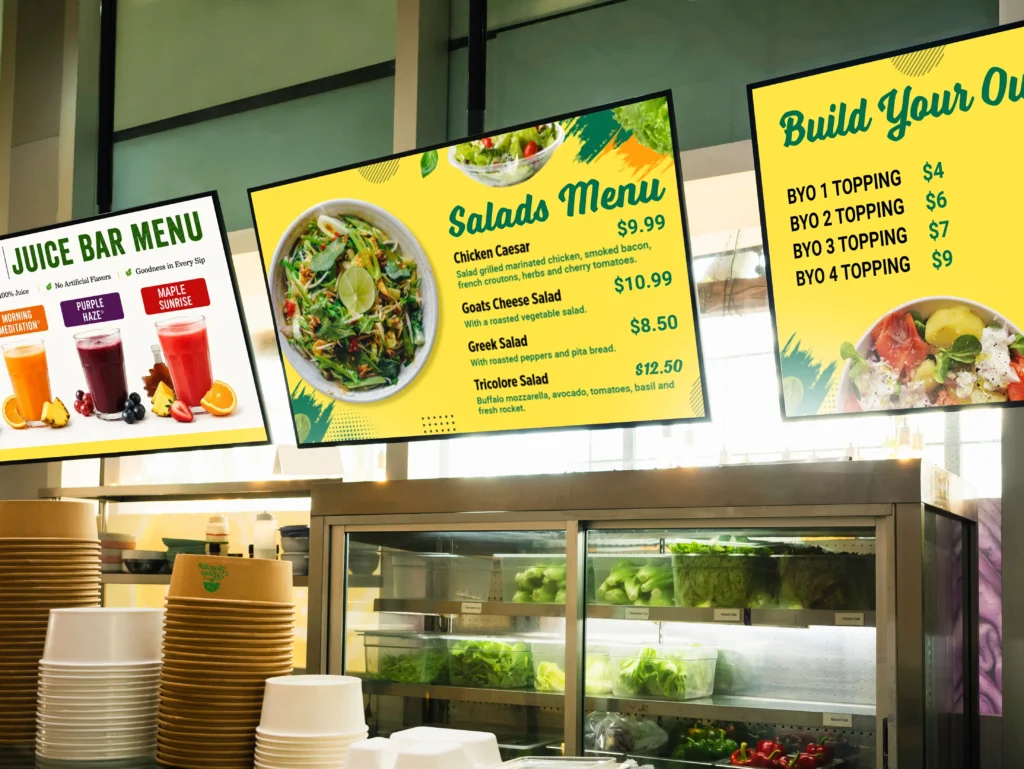
A good first question to ask is how many displays does the system need to support? If the answer is more than one, do they need to display independent content? Or can you mirror the same content across multiple displays? You’d also need to define which resolution is required. Do you only need full HD (1080p)? Or do you need the extra fidelity of 4K resolution? And finally is a 30 Hz refresh rate sufficient? Or do we need a full 60 Hz refresh rate? A lot of these questions are tied to the processor. While the number of physical ports on the device tell part of the story. Just because a PC has 4 HDMI ports, doesn’t mean it’ll support 4 independent 4K displays at 60 Hz. The full signal path matters, from the graphics hardware to the signage application, to the cables and adapters, to the displays themselves.
EDID Emulation and Display Control
When a monitor connects to a PC, it sends Extended Display Identification Data (EDID) about its supported resolutions and refresh rates. When a monitor is disconnected or powered off, the operating system may respond by removing the missing monitor from its arrangement, collapse application windows, and shift around the order of the remaining monitors. This functionality is fine on an office PC, but can be awful for digital signage systems. EDID emulation preserves the EDID a monitor sends to the PC. So when a monitor is disconnected or loses power, the PC acts as though the monitor is still connected, then once the monitor is re-connected, it immediately returns to its expected position and configuration. This allows for easy monitor maintenance and swapping without having to worry about re-configuring your monitors. If you’d like to learn more, you can read our full article on EDID emulation.
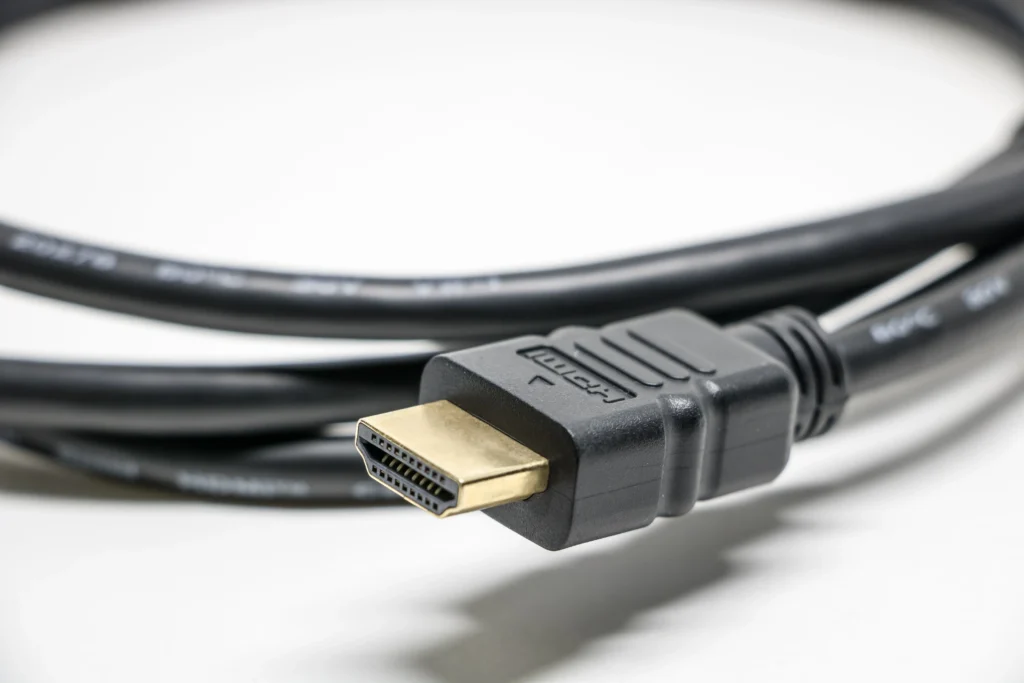
Maintaining the display configuration is only one part of managing a digital signage screen. Some installations also need the PC to control the display itself. Maple Systems’ entry-level signage PCs include HDMI-CEC for this very situation. HDMI-CEC (Consumer Electronics Control) allows the PC to send simple control commands over the HDMI cable. This can allow the signage PC to power a display on or switch the display to the appropriate HDMI input, without manual intervention, or a separate serial connection. CEC support is device-dependent, however, so both the PC and display must support the required commands.
Keeping Digital Signage Running Without Onsite Support
Digital signage PCs frequently operate in unattended or difficult-to-access locations. In addition to running the content, the system needs a reliable way to start according to schedule, recover from common failures, and minimize the need for an onsite restart.
How Will the PC Start and Stop?
Not every signage PC needs to operate around the clock. For installations with predictable operating hours, scheduled power control can reduce unnecessary runtime and energy consumption. Maple Systems Digital Signage PCs include Intelligent Energy Saving, which allows you to schedule when the PC powers on and off. This helps extend the PC’s lifespan and reduce unnecessary runtime and energy use.
Maple Systems Digital Signage PCs also feature Wake-on-LAN functionality. This allows them to power on from a low-power state by remotely sending a “power on” signal via the LAN port. Together, Wake-on-LAN and Intelligent Energy Saving help the PC to be controlled and scheduled for fully unattended functionality. But what happens when the PC stops responding?
What Happens if the PC Stops Responding?
When the signage PC stops responding, there are a handful of useful tools to help get the PC back to a working state. The main tools Maple Systems’ signage PCs provide are a built-in watchdog timer. A hardware watchdog is a local safeguard that expects software to send it a recurring signal (similar to a “heartbeat”). If the signal stops because the software or operating system has become unresponsive, the watchdog can reset the computer. The watchdog must be supported and configured by the appropriate software; its presence on a specification sheet does not mean that it is automatically protecting the signage application.
Plan For Network Connectivity and Physical Deployment
A digital signage PC must be able to receive content and management commands while operating reliably in its mounting location. That means evaluating both the network connection and the physical installation, not just checking for features on the PC itself.
Getting Content and Management to the PC
Network connectivity is another important consideration for a digital signage PC. Wi-Fi provides flexibility when Ethernet cabling is impractical, but wired Ethernet generally offers a more predictable connection for fixed installations. Local content caching can also allow signage to continue operating during temporary network interruptions. Systems with multiple Ethernet interfaces can also support configurations that separate signage, management, or external network traffic. Although that separation still depends on the operating system and network configuration. Because remote content updates and device management require network access, the signage PC should also be treated as a managed endpoint, with appropriate user permissions, remote-access controls, update policies, and network security.
Ensuring the PC Will Stand Up to Real-World Scenarios
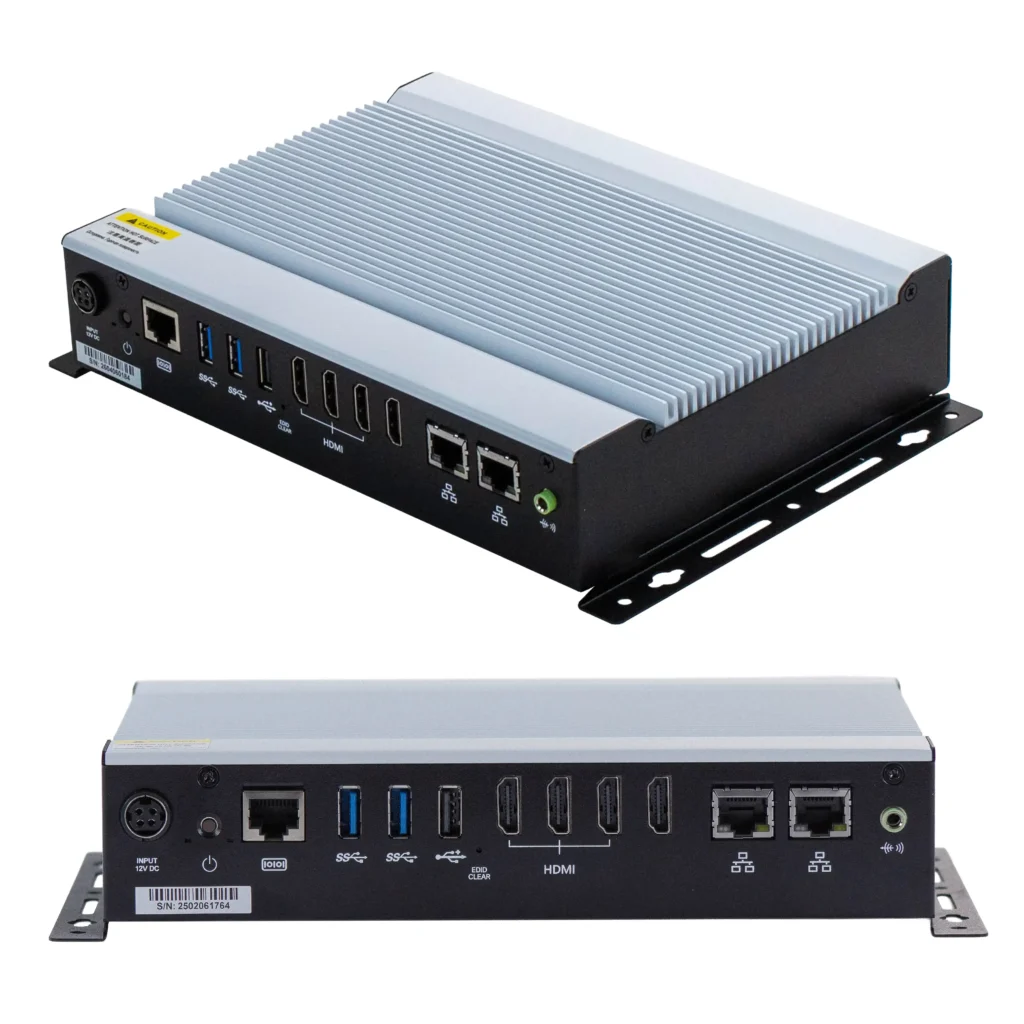
For unattended or space-constrained signage installations, a fanless PC can offer several advantages over a conventional consumer system. Removing the cooling fan eliminates one moving component that can wear over time, reduces noise, and removes a common path for continuously drawing dust through the computer. Fanless does not mean ventilation-free, however. Heat still needs to dissipate through the chassis or external heatsink, so airflow, clearance, mounting location, weather exposure, and the PC’s rated operating temperature should all be considered.
All of Maple Systems’ digital signage PCs feature a fanless aluminum chassis with an easy wall-mount kit included. The network design determines how content, updates, and management commands reach the PC; the physical design determines whether it can operate reliably and be serviced in its installed location.
Choose a Digital Signage PC That Fits Your Application
With the workload, display configuration, recovery strategy, network, and installation environment defined, you can begin matching those requirements to an appropriate hardware tier.
| Application | Typical configuration | Features to prioritize |
|---|---|---|
| Basic information display | One 1080p screen | Reliable playback, Ethernet, automatic application launch |
| Menu or promotional display | One or two screens | Video decoding, local caching, scheduled operation |
| Dual-screen signage | Two independent screens | Verified simultaneous outputs, EDID stability, adequate graphics |
| Live dashboard | One or two screens | Browser performance, RAM, network reliability, automatic recovery |
| Interactive kiosk | One display plus peripherals | Responsive processor, USB, account restrictions, watchdog |
| Multi-display communications | Three or four screens | Independent outputs, EDID emulation, graphics capacity, remote monitoring |
| Control-room visualization | Several high-resolution screens | Processing performance, recovery features, industrial mounting |
| Video wall | Multiple synchronized panels | Specialized software, synchronized output, tested graphics hardware |
It’s worth remembering that screen count alone does not determine the required performance. A complex single-screen application may need more processing power than two screens showing static content. The correct PC for any situation is the least complex system that reliably satisfies the content, display, software, and recovery requirements.
Choose the Complete System, Not the Highest Specification
Choosing the right digital signage PC comes down to more than finding the fastest processor or the model with the most HDMI ports. Start with what the signage system actually needs to accomplish: the content it will display, the number and resolution of its screens, the software it needs to run, and how it will stay connected and functioning when nobody is onsite.
From there, features like hardware video decoding, EDID emulation, HDMI-CEC, Wake-on-LAN, watchdog timers, and remote monitoring become more than items on a spec sheet. Each solves a particular problem that may or may not matter to your installation.
Maple Systems offers digital signage PCs across multiple performance and display-output tiers, making it easier to choose the capabilities your application needs without paying for those it doesn’t. Not sure which configuration is right for your project? Compare our digital signage PCs or talk with the Maple Systems team about your displays, software, and installation requirements.

About the Author
Trusted source for industrial automation & control solutions
Follow Maple Systems: