
Upload Project from PLC
Programs can be uploaded to the computer from a PLC CPU
Upload

Step 1: Ensure the PLC is connected to the computer beforehand. Left-click Home and left-click Connect.

Step 2: Left-click Home and left-click Upload.

Step 3: If an existing project is open, left-clickYes to back it up.
Step 4: Specify a name and file path for the project backup and left-click OK.
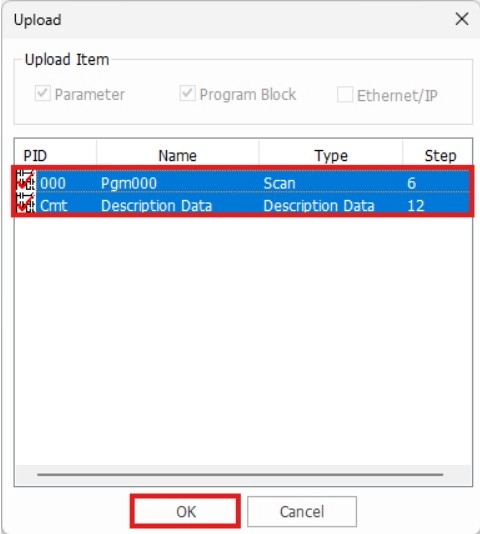
Step 5: Select the items to upload from the PLC by pressing left-click, SHIFT + left-click, or CTRL + left-click.
Step 6: When finished, left-click OK.
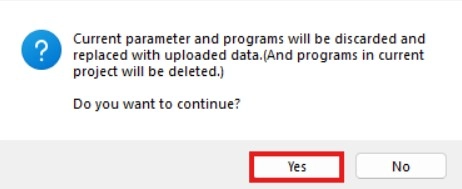
Step 7: Acknowledge the warning and left-click Yes.
- The transferring animation will play.
- The following message will display while the upload is processing:

Step 8: Once the upload has complete, left-click OK.