
Memory Monitor
To use the memory monitor, ensure the PLC is connected and program monitoring is on.
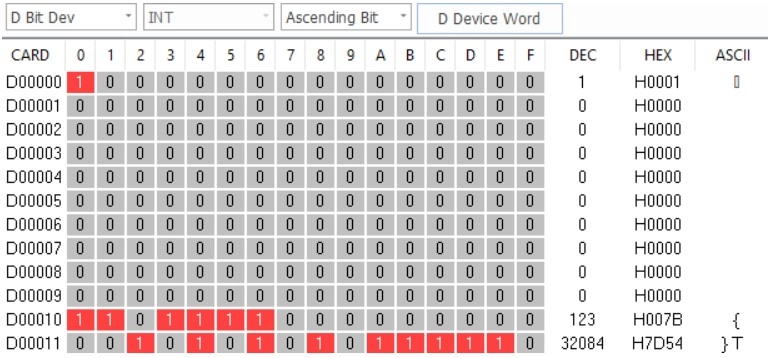
- While the PLC is online, the moemory monitor displays values for data registers.
- These values can manually be changed.

Step 1: To open the memory monitor, left-click Home and left-click Memory Monitor.
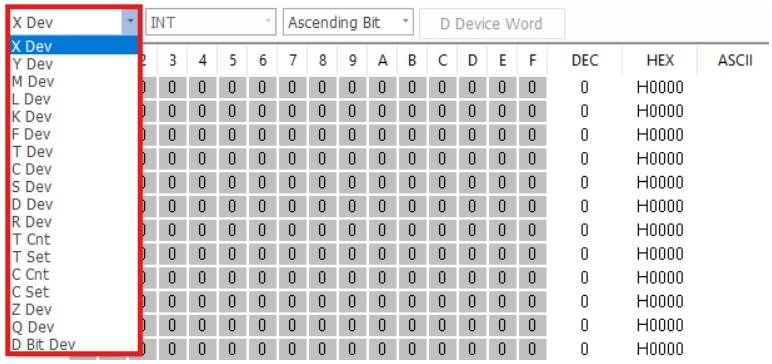
Step 2: Left-click the data register drop-down and left-click the data register to monitor.
Step 3: To monitor the bit level of a data register, left-click the Device Bit button (if applicable).
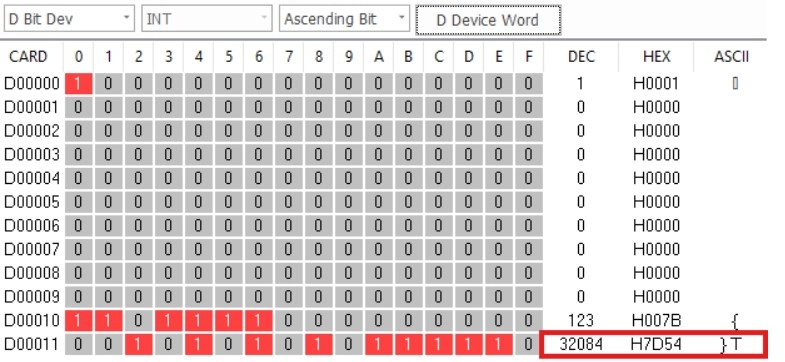
Step 4: Double left-click Dec, Hex, or ASCII to change the value of the data register.
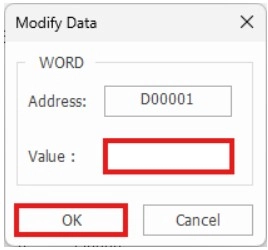
Step 5: Input the value for the data register, and left-click OK.
- This will change the value of the entire data register.

Step 6: Double left-click on a bit 0 ~ 9 or A ~ F to change the individual bit for the data register.
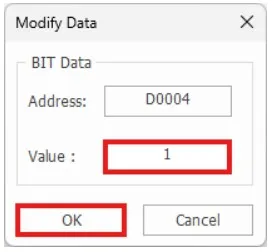
Step 7: Input the Value 0 or 1 for the bit.
- This will change the value of the data register by a factor of 2(bit number being changed).
- Example: bit 4 set to 1 → 24 = 16.
