Overview & Concepts
Web Streaming in EasyBuilder Pro allows an HMI to display live video from a USB camera connected directly to the device. By plugging a supported USB camera into the HMI, the system can capture and display real-time video within the project interface. This enables local visual monitoring without requiring network connectivity.
The HMI reads the video feed from the connected USB camera and renders it in a designated object or window. The stream updates continuously, allowing operators to observe live conditions alongside system data and controls.
Connecting a USB Camera to the HMI allows a viewer to connect to the HMI and view the video; the HMI acts as the server in this streaming configuration.
Key characteristics of USB camera streaming include:
- Direct connection to the HMI via USB
- No network configuration required
- Real-time video displayed within the HMI interface
Typical uses include:
- Monitoring machine operation at the control panel
- Viewing local processes or equipment conditions
- Providing visual feedback for operators during operation
By integrating a USB camera directly into the HMI, this feature provides a simple and effective way to add live video monitoring without relying on external network devices.
Note:
For showing USB Camera images on an HMI, please see the Video Input page.
Implementation
Configuration
With Web Streaming function, video from the USB camera on HMI can be streamed and viewed in web browsers or third party devices.
Instead of setting an object in EasyBuilder Pro, Web Streaming is controlled by system registers. To enable Web Streaming, please set bit addresses or use macros to add the following system registers into the project file.
- LB-12356: open(set on)/close(set off) web streaming server
- LB-12357: web streaming server status. (on: opened / off: closed)
Set LB-12356 on to start Web Streaming, and set LB-12356 off to stop Web Streaming.
LB-12357 indicates the streaming status. When LB-12357 is on, Web Streaming is enabled and running. When LB-12357 is off, Web Streaming is stopped.
Web Streaming cannot start when the USB camera is not connected.
Operation
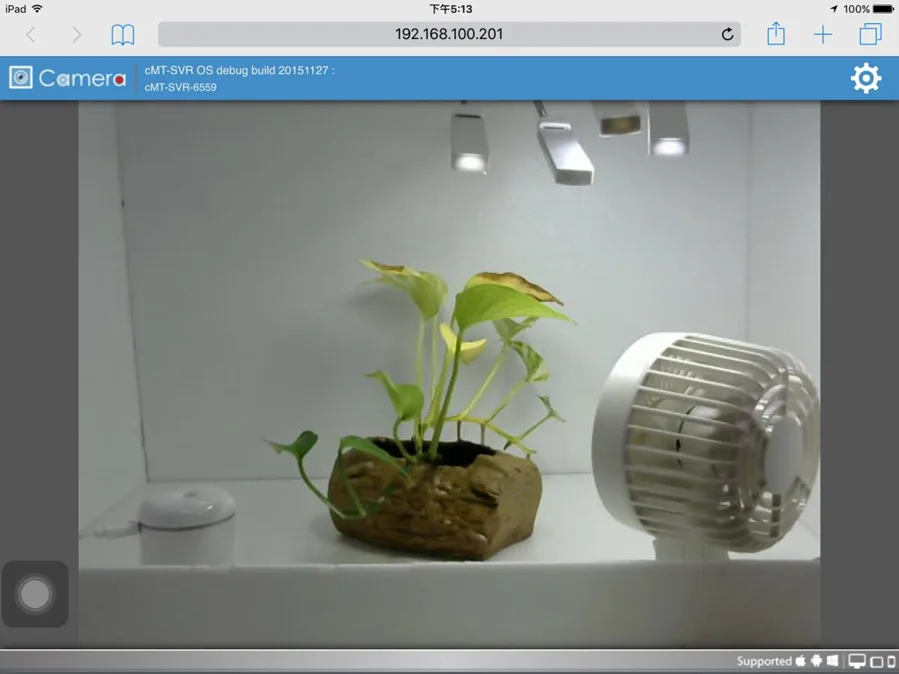
First, please make sure that the Web Streaming browser is enabled and running. To stream video on a browser, enter HMI’s IP address with port 8080.
For example, if the IP address is 192.168.100.201, please enter: http://192.168.100.201:8080
For Example: