
Overview & Concepts
MQTT implementation in EasyBuilder Pro allows an HMI to exchange data with external systems using the MQTT messaging protocol. MQTT is a lightweight publish–subscribe communication method commonly used in Industrial IoT (IIoT) systems to transmit machine data across networks. By supporting MQTT communication, the HMI can send operational data to cloud platforms, data brokers, or monitoring systems and also receive information from those systems.
In an MQTT architecture, communication occurs through a central MQTT broker that manages message distribution. The HMI connects to the broker and can publish data to defined topics or subscribe to topics to receive information from other devices.
Typical MQTT configuration includes:
- Defining the broker address and connection parameters
- Creating topics used for publishing or subscribing to messages
- Mapping HMI or PLC registers to the MQTT data payload
Common applications include:
- Sending machine or production data to cloud-based monitoring systems
- Integrating HMI data into IIoT platforms or enterprise systems
- Allowing external systems to monitor or influence machine operation through subscribed topics
By using MQTT messaging, the HMI can participate in distributed data systems and transmit structured operational data efficiently across networked environments.

Implementation
MQTT object can publish messages to an MQTT server, or subscribe to topics to receive messages from an MQTT server. HMI can serve as an MQTT server as well. When HMI serves as an MQTT server, it does not send message to another MQTT server.
Click [Object] » [IIoT] » [MQTT] in the menu to open the settings dialog box.
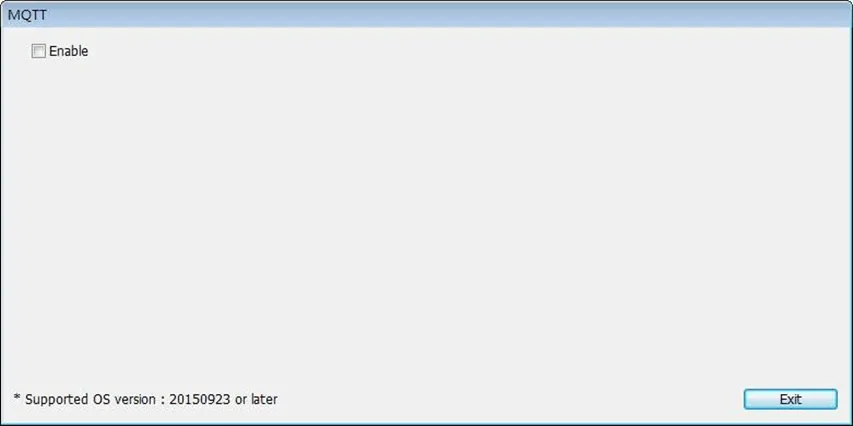
Server Settings
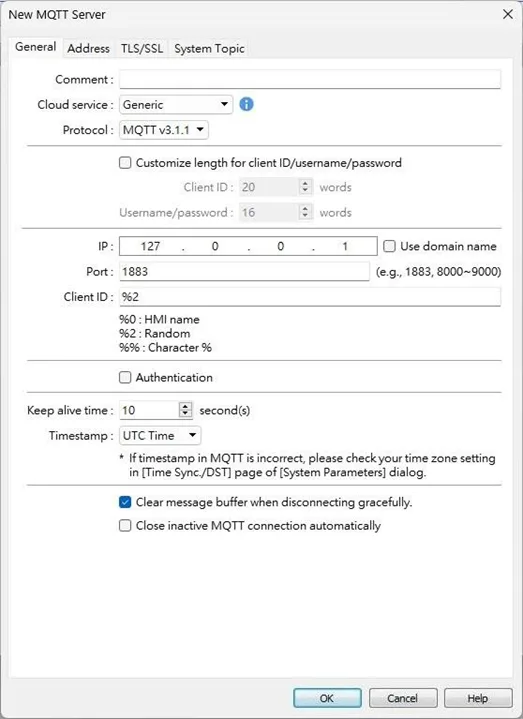
General Tab
| Setting | Description |
|---|---|
| Cloud service | Generic Use general MQTT publish-subscribe service. AWS IoT Use AWS IoT as a Broker, and use Thing Shadows service. For more information, please refer to the AWS IoT User Manual. Sparkplug B Sparkplug B is a specification designed based on the characteristic features of IoT applications. It helps define topics and messages not specified by standard MQTT, and allows non-MQTT terminal devices to transfer data with an MQTT Server through Edge of Network, which can be HMIs in this architecture. Please see Sparkplug B Quick Start Guide for more information. Azure IoT Hub Use Microsoft Azure IoT Hub as a Broker. Using this service can simplify setup by entering a Connection String. The Connection String can be found in Microsoft Azure > IoT devices. |
| Protocol | Supports MQTT v3.1, v3.1.1, and v5. (v5 is supported only for cMT / cMT X Series.) |
| Customize length for Client ID / username / password | Client ID: upper limit is 128 characters. Username / Password: upper limit is 256 characters. |
| IP | Enter the MQTT Server IP address for receiving the message. If 127.0.0.1 is entered, the HMI will run a local MQTT server. |
| Use domain name | A domain name can be used as the MQTT server IP address. |
| Port | Enter the MQTT Server port number for receiving the message. |
| Client ID | Enter the Client ID. Variables can be used; for example, entering %0 will make the HMI name the Client ID. |
| Authentication | If selected, connecting to MQTT Server will require Username and Password. |
| Username | Enter the username for connecting to MQTT Server. |
| Password | Enter the password for connecting to MQTT Server. |
| Keep alive time | When the MQTT Server does not receive a message from the HMI within the specified time, the HMI will be identified as disconnected. Note: When running simulation, the message may be delayed, but the delay will not exceed the Keep alive time. Messages from the HMI will still be sent immediately. |
| Timestamp | Local time Use local HMI time for timestamp. UTC time Use UTC+0 (Coordinated Universal Time) for timestamp. When timestamp is shown incorrectly, go to [System Parameters] » [Time Sync. / DST] to set the time zone. |
| Clear message buffer when disconnecting gracefully | Selected by default. When enabled, and disconnecting gracefully (by entering 2 for the command in MQTT’s control addresses), the message buffer will be cleared. Messages in the buffer are retained when this option is not selected. |
| Close inactive MQTT connection automatically | In this mode, the connection will automatically terminate if there is no data update for a specified period. The connection resumes once any data update occurs. The user can choose to publish initial values / topic list only at the first connection. In this mode, the start and stop commands are disabled. |
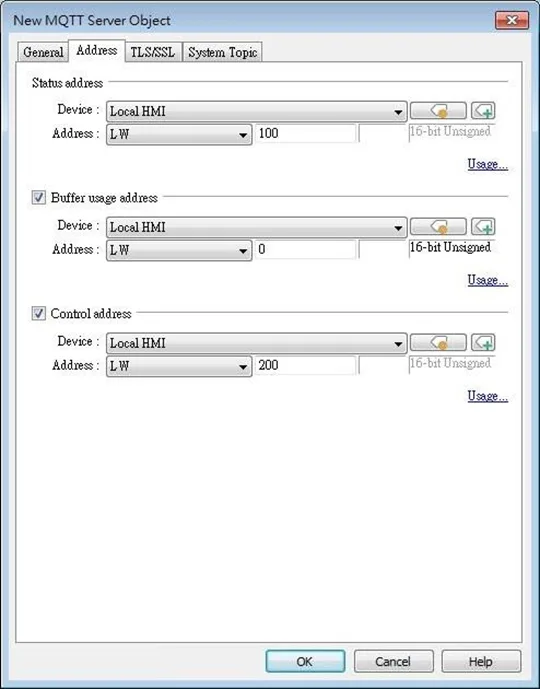
Address Tab
| Setting | Description |
|---|---|
| Status address | LW-n: Displays the connection status to MQTT Server. Value – Description 0 — Not attempting to connect to MQTT Server. 1 — Disconnected and can’t connect to MQTT Server. 2 — Connection succeeded. LW-n+1: Error indicator. Value – Description 0 — No error 1 — Unknown error 2 — Failed to connect 3 — Access denied 4 — Not allowed port number for built-in MQTT server 5 — Unresolvable domain name 6 — Buffer overflowed 32 — Incorrect client ID 48 — Failed to verify certificate 256 — Still connecting |
| Buffer usage address | Messages that have not been sent are stored in the buffer. The maximum buffer capacity is 10,000 messages. Buffer capacity is measured in percentage (%) and rounded up. LW-n: Shows buffer usage. |
| Control address | LW-n: Controls the operation of MQTT Server. Value / Description 0 — Ready 1 — Start 2 — Stop 3 — Update LW-n+1: Sets the IP address of MQTT Server. LW-n+5: Sets the port number of MQTT Server. LW-n+6: Sets the Client ID for connecting MQTT Server. LW-n+26: Enables / Disables authentication. Value / Description 0 — Disable 1 — Enable LW-n+27: Sets the username for connecting MQTT Server. LW-n+43: Sets the password for connecting MQTT Server. LW-n+59: Sets the domain name for connecting MQTT Server. When Azure IoT Hub is used: LW-n: Controls the operation of MQTT Server. Value / Description 0 — Ready 1 — Start 2 — Stop 3 — Update LW-n+1: Sets the Connection String (128 words). |
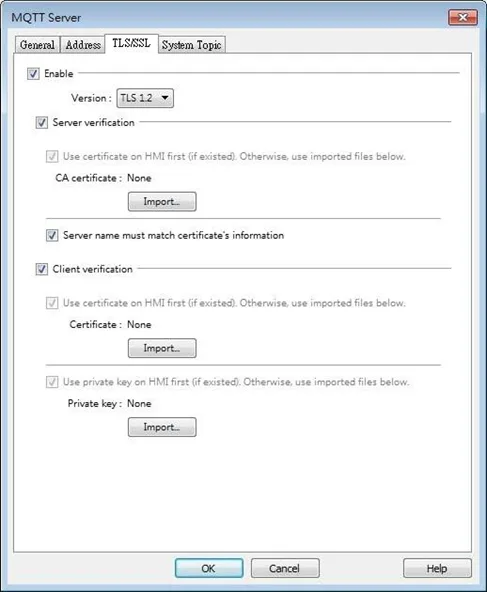
TLS/SSL Tab
| Setting | Description |
|---|---|
| Enable | Enables TLS/SSL authentication. TLS version can be selected from TLS 1.0, TLS 1.1, and TLS 1.2. To use TLS 1.1 and TLS 1.2, the HMI OS version must be 20180323 or later. |
| Server verification | Enable Verifies whether the server certificate is signed by a CA (Certificate Authority). The server certificate is sent from the server during connection. Server name must match certificate’s information Verifies whether the server’s domain name or IP matches the records in the server certificate. Domain name and IP records are stored in the Subject Alternative Name of the certificate. |
| Client verification | Private key and client certificate are required for the server to authenticate the client. |
System Topic
Several system topics can be enabled for HMI to publish. When a system topic is enabled for an HMI, the subscribers of that topic can view the list of available topics and connection status of that HMI.
| Setting | Description |
|---|---|
| Topic List | List of topics sent from HMI to the server upon connection. |
| Birth Topic | The message sent from the HMI after it is connected to the server. |
| Close Topic | The last message sent from the HMI before it disconnects knowingly from the server. |
| Last Will | The message received by the subscriber to Last Will when the connection between HMI and server is lost ungracefully. HMI updates its Last Will message when it connects to the server. |
| Topic | The actual topic name of the system topic. |
| Retain Message | When this checkbox is selected, the MQTT server will save the latest message. |
| QoS | MQTT provides three levels of reliability, known as Quality of Service (QoS). The reliability level determines the persistence of the message. QoS 0: At most once; messages are not persistent. QoS 1: At least once. QoS 2: Exactly once. |
| Content Format | JSON (Default): Use default content. |
Note:
- System Topics tab is not supported when using Sparkplug B and Azure IoT Hub cloud services.
MQTT Topic Publisher
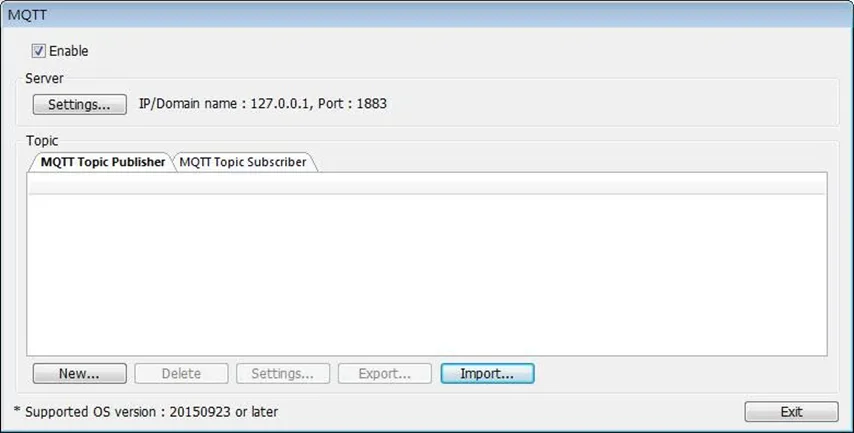
Click [New] to open General and Address settings, or click [Import] / [Export] to import or export an existing *.csv file. The maximum allowable number of topics is 255.
General Tab
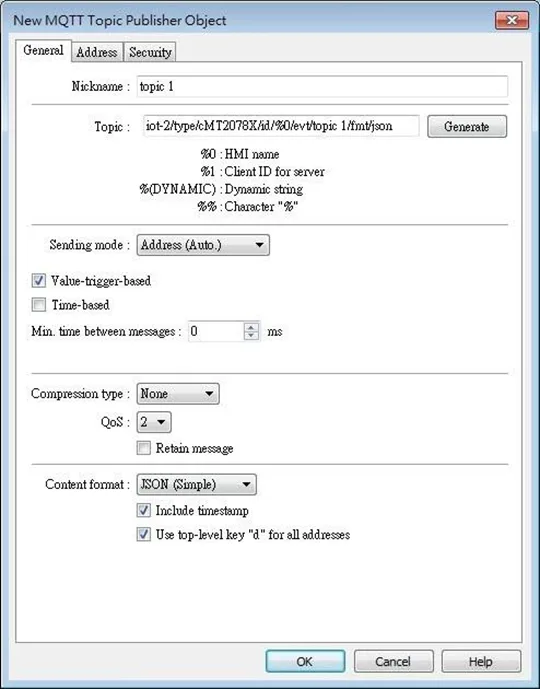
| Setting | Description |
|---|---|
| Nickname | Enter the nickname of the MQTT Topic for easier reference. |
| Topic | Specify the format of the message topic sent to MQTT Server. Variables can be used for Topic. Entering %(DYNAMIC) in the Topic field opens Dynamic String group box for designating a word address. %(DYNAMIC) can include multiple topic levels. For example: myhome/groundfloor.When Azure IoT Hub is used, users can only specify the last topic level. |
| Sending mode | Address (Auto.) Value-trigger-based: Sends MQTT message when any value changes. Time-based: Sends MQTT message in a time-based manner. Min. time between messages: Sends MQTT message in a specified time interval. When the value changes within a period shorter than the specified interval, the message is stored in the buffer and sent after the set wait time. This prevents the publisher from sending messages too frequently. Address (Bit trigger) Sends MQTT message when a designated bit is triggered. Event (Alarm) Log The topic source can be an Event Log. MQTT message can be sent when a single event or any event in a specific category occurs. |
| Compression type | The message will be compressed before being sent, and decompression is needed before reading the message. Messages in MQTT can be compressed / decompressed in zip, gzip, or with DEFLATE algorithm. |
| Retain message | If selected, the MQTT server will save the latest message. |
| Include timestamp | This option is available only when the format used is [JSON (simple)]. Selecting this option includes timestamp in the message. |
| Use top-level key “d” for all addresses | This option is available only when the format used is [JSON (simple)]. When selected, the message format uses “d” as the top-level JSON key containing all address values. When not selected, timestamp and address names share the same JSON level. Avoid using ts as an address name in this case. |
| QoS | MQTT provides three levels of reliability, known as Quality of Service (QoS). The reliability of the message determines the persistence of the message. 0: At most once — messages are not persistent. 1: At least once. 2: Exactly once. |
| Content Format | Supported formats include: Raw Data: Data in bytes. JSON (Simple): JSON format with all data placed in JSON member “d”. JSON (Advanced): JSON format with flexible JSON structure. |
Address Tab
The following explains the address settings for [Raw Data] and [JSON (Simple)] content formats.
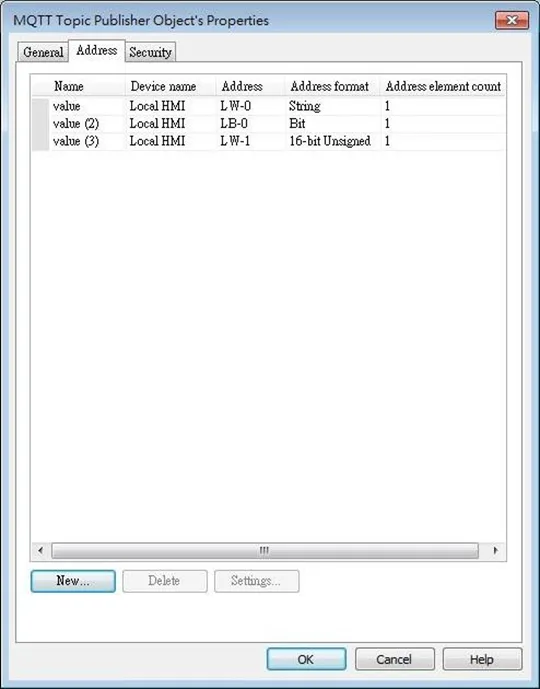
| Setting | Description |
|---|---|
| New | Add the source of the topic. The length of each address can be specified respectively. |
| Delete | Delete the address. |
| Setting | Change the name and address. |
| Included in all messages sent | When the value from one of the source addresses changes, the data in this address can be included in all the messages sent. This option is available when the content format is [JSON (Advanced)]. |
| Remove JSON array bracket “[“ and “]” | For JSON formatted messages, selecting this option can remove bracket “[“ and “]”. This option is available when the content format is [JSON (Simple)]. |
| Enable number of digits to the right of the decimal point | When data type is Float, the number of digits after the decimal point can be specified. This option is available when the content format is [JSON (Simple)] or [JSON (Advanced)]. |
| Auto escape special characters (cMT / cMT X Series) | This option is available when the data type is String, and the content format is [JSON (Simple)]. JSON formatted messages may contain special characters (e.g. “ and ) which can lead to JSON parsing errors. With this option selected, special characters in a string can be escaped (e.g. change from ” to ” and change from \ to \) for successful message parsing. |
Note:
- Maximum tag length: 255 words
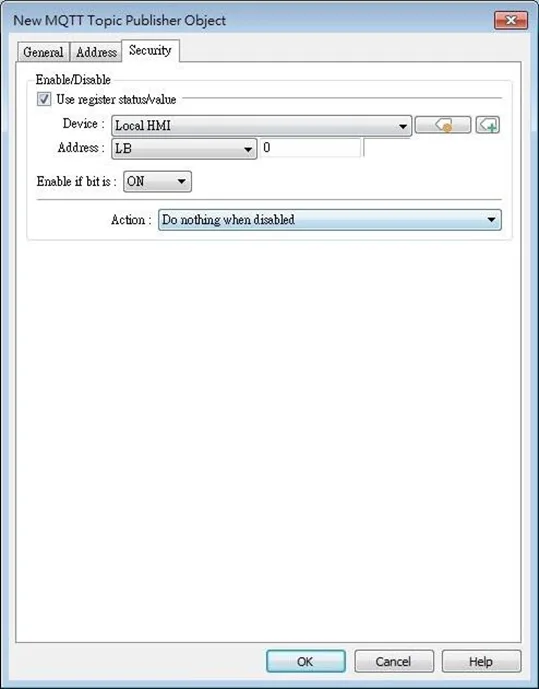
Security Tab
Messages will be published only when the state of the designated address meets the set condition. As shown below, the message will be published when LB-0 is ON.
Address Tab [JSON (Advanced)]
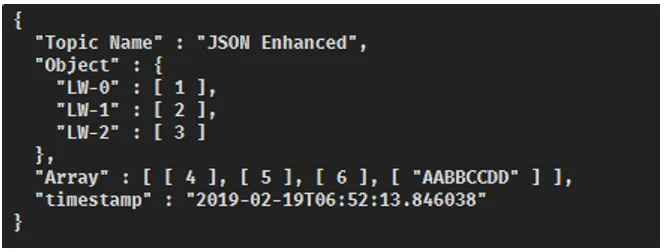
The following explains address settings for [JSON (Advanced)] content format. This is a nested format that allows using objects or arrays, and customizing timestamp and data name. Using this format provides a more flexible way of using MQTT.
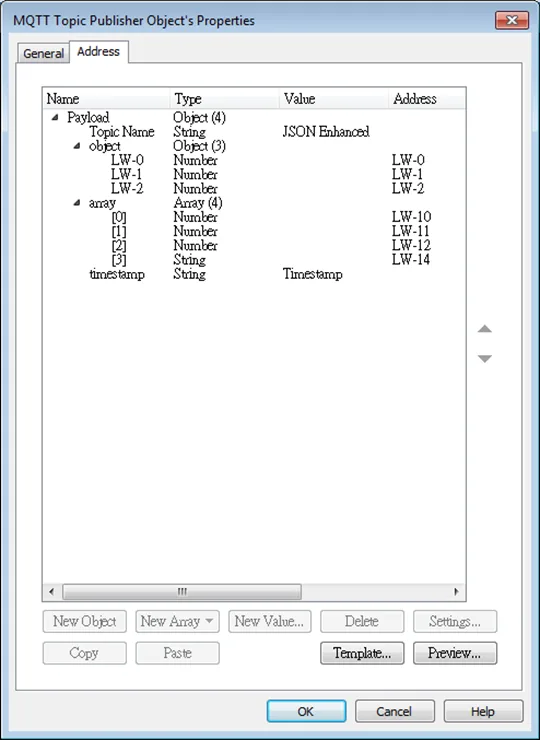
When configure the settings as shown in the above screenshot, the received MQTT message by the subscriber is as below.
| Setting | Description |
|---|---|
| New Object | Add a new object. The name, type and value of each item under the object can be configured. Items under the object are enclosed in curly brackets { }. |
| New Array | Add a new array. An array may contain multiple items but the name of the item is automatically generated and is unchangeable. Items under the array are enclosed in square brackets [ ]. |
| New Value | Add a new number, string, or timestamp. When the new value is a number or a string, fixed value can be selected, or an address can be designated as the data source. |
| Delete | Delete the selected item. |
| Settings | Configure the selected item. When the selected item is an object or an array, the user may only change its name. When the selected item is contained in an object or an array, its parameters can be configured. |
| Copy | Copy the selected item. |
| Paste | Paste the copied item to the selected row. |
| Template | By pasting JSON string into the window, the system will automatically adjust the data structure setting according to JSON structure, saving time for users. |
| Preview | Preview the JSON data in a reader-friendly format. |
Note:
- Maximum number of nodes for a Topic is 512 (payload included). Maximum tag length is 255 words.
MQTT Topic Subscriber
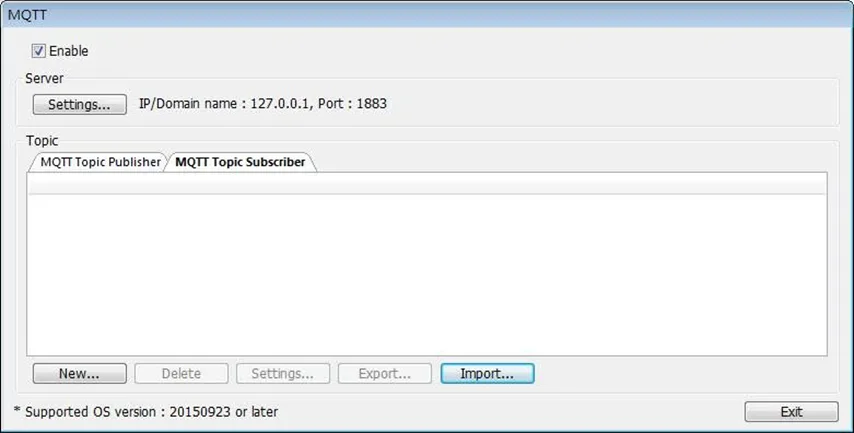
Click [New] to open General and Address settings, or click [Import] / [Export] to import or export an existing *.csv file. The maximum allowable number of topics is 255.
General Tab
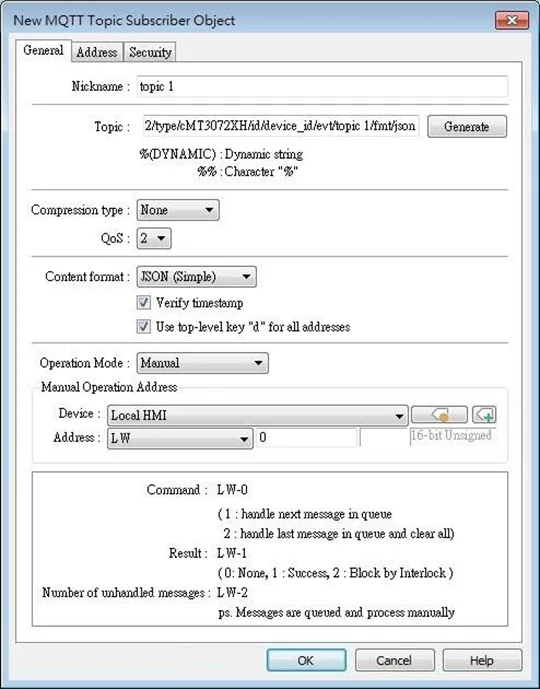
The following explains the address settings for [Raw Data] and [JSON (Simple)] content formats.
| Setting | Description |
|---|---|
| Nickname | Enter the nickname of the MQTT Topic for easier reference. |
| Topic | Subscribe to a topic in MQTT Server. The topic name can be dynamic. Entering %(DYNAMIC) in the Topic field opens Dynamic String group box for designating a word address. %(DYNAMIC) can include multiple topic levels. For example: myhome/groundfloor.When Azure IoT Hub is used, users can only specify the last topic level, and the topic level should be the same as in MQTT Topic Publisher. |
| Compression type | Configure with the same setting as MQTT Topic Publisher. |
| Verify timestamp | When timestamp is included in the message, selecting this option will verify whether the timestamp is increasing, and update will occur when the timestamp does increase; otherwise, the message will be treated as expired message and update will not occur. |
| Use top-level key “d” for all addresses | This option is available only when the format used is [JSON (simple)]. When selected, the message format uses “d” as the top-level JSON key containing all address values. When not selected, timestamp and address names share the same JSON level. Use the appropriate setting according to the data source. |
| QoS | MQTT provides three levels of reliability, which are known as qualities of service (QoS). The reliability of the message determines the persistence of the message. 0: At most once, messages are not persistent. 1: At least once. 2: Exactly once. |
| Content Format | Raw Data: Unformatted raw data. JSON (Simple): Single layer JSON format. JSON (Advanced): JSON format with user-defined JSON structure. |
| Operation Mode | Operation mode for subscribing topics can be selected. Process immediately: Write the value to the designated address immediately after receiving subscribed data. Manual: Place the subscribed data in a queue before processing the data manually. The queue can hold 100 records. |
| Control address | LW-n: Command 1 — Write the oldest data in the buffer to the designated address. If there are 10 records in the buffer, the user can enter command 1 for ten times to write the data to the address sequentially. 2 — Write the latest data in the buffer to the designated address, and then clear all data in the buffer. LW-n+1: Execution Result 0 — The buffer is currently empty. 1 — The command is executed successfully. 2 — The topic subscription is blocked so command execution failed. (see Security tab) LW-n+2: Number of unhandled messages Displays the number of messages in the buffer. |
Address Tab
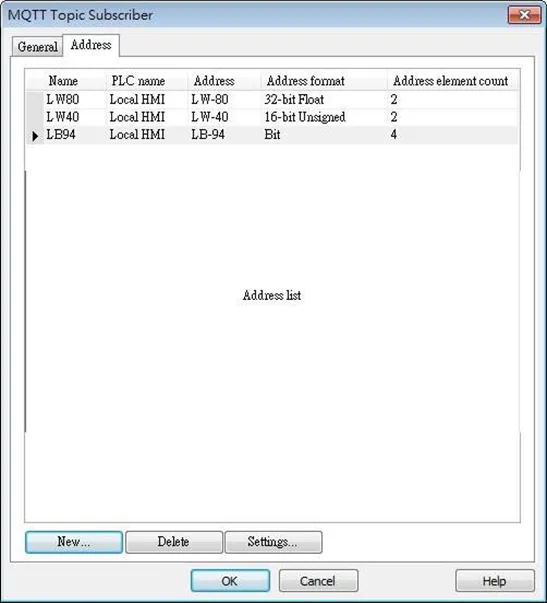
| Setting | Description |
|---|---|
| New | Add the destination address of the subscribed topic. The length of each address can be specified respectively. |
| Delete | Delete the address. |
| Setting | Change the name and address. |
| Required for incoming messages | When the value from one of the destination addresses changes, the data in this address must be included in all the messages received. This option is available when the content format is [JSON (Simple)] or [JSON (Advanced)]. |
| Remove JSON array bracket “[“ and “]” | For JSON formatted messages, selecting this option can remove bracket “[“ and “]”. This option is available when the content format is [JSON (Simple)]. |
| Accept null | Null can be accepted. This option is available when the content format is [JSON (Simple)] or [JSON (Advanced)]. |
| (Ending string) Permit data smaller than the preset size | A string that has a length shorter than the preset length can be accepted. This setting is effective only for the ending string, and it will not be effective when the string is followed by other values or bit data. This option is available when the content format is [Raw data]. |
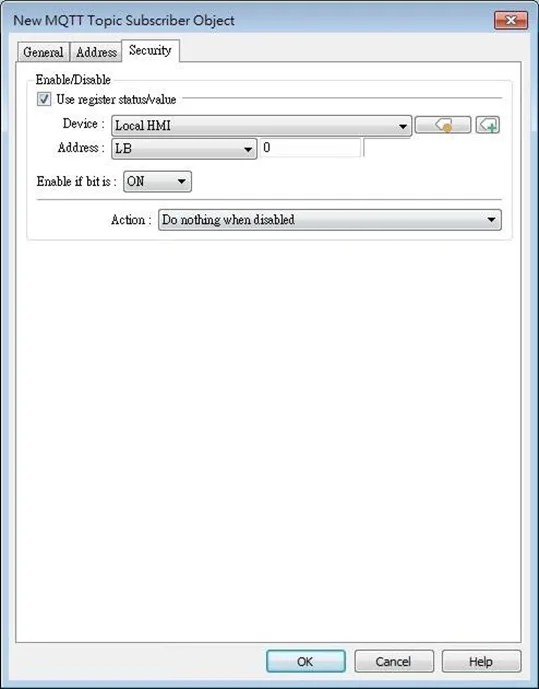
Security Tab
Messages will be subscribed only when the state of the designated address meets the set condition. As shown below, the message will be subscribed when LB-0 is ON.
Address Tab [JSON (Advanced)]
The following explains address settings for [JSON (Advanced)] content format. This is a nested format that allows using objects or arrays, and customizing timestamp and data name. Using this format provides a more flexible way of using MQTT.
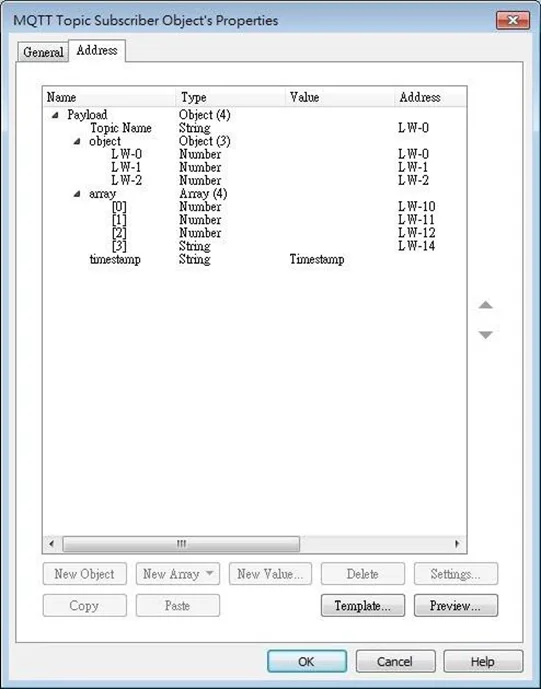
| Setting | Description |
|---|---|
| New Object | Add a new object. The name, type and value of each item under the object can be configured. Items under the object are enclosed in curly brackets {}. |
| New Array | Add a new array. An array may contain multiple items but the name of the item is automatically generated and is unchangeable. Items under the array are enclosed in square brackets []. |
| New Value | Add a new number, string, or timestamp. When the new value is a number or a string, fixed value can be selected, or an address can be designated as the data source. |
| Delete | Delete the selected item. |
| Settings | Configure the selected item. When the selected item is an object or an array, the user may only change its name. When the selected item is contained in an object or an array, its parameters can be configured. |
| Copy | Copy the selected item. |
| Paste | Paste the copied item to the selected row. |
| Template | By pasting JSON string into the window, the system will automatically adjust the content according to JSON structure, saving time for users. |
Note:
- Amazon Web Service (AWS) IoT Core supports standard MQTT protocol. However, please note the following restrictions:
- The maximum number of layers in a topic is 8 (iot-2/type equals to 2 layers).
- Authentication in General tab is not supported, please use TLS/SSL.
- Supports only QoS 0 and QoS 1.
- Retaining the latest message in MQTT server is not supported.
Sparkplug B
General settings and Device settings for cloud service Sparkplug B are as shown below.
General Tab
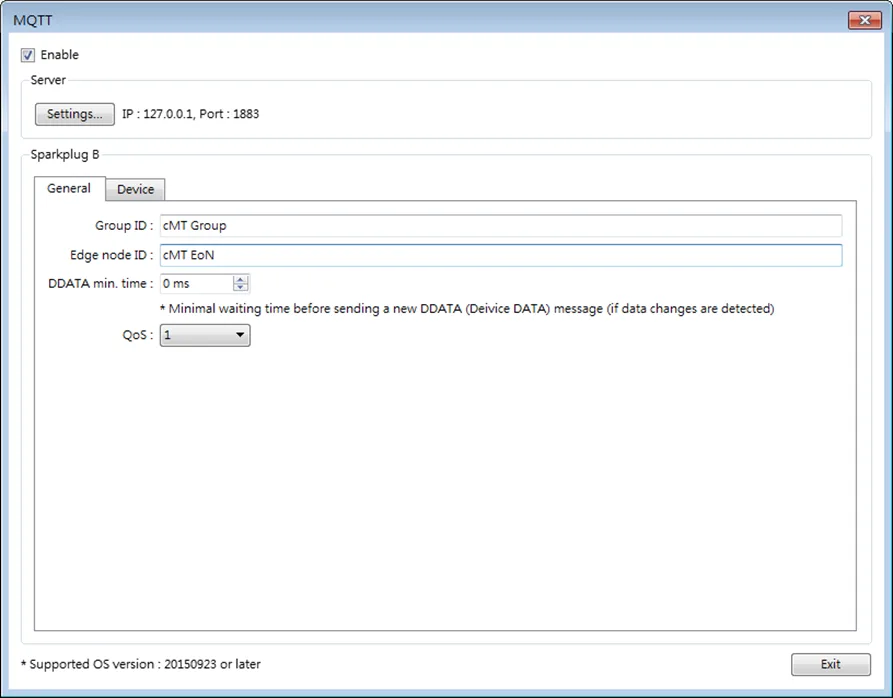
| Setting | Description |
|---|---|
| Group ID | The group ID that identifies the group in which the Edge of Network Nodes belong to. |
| Edge ID | The ID that identifies a specific Edge of Network Node. |
| DDATA min. time | The minimum-wait-time duration before a new DDATA (Device DATA) message is sent when data change is detected. |
| QoS | MQTT provides three levels of reliability, which are known as qualities of service (QoS). The reliability of the message determines the persistence of the message. 0: At most once, messages are not persistent. 1: At least once. 2: Exactly once. |
Device Tab
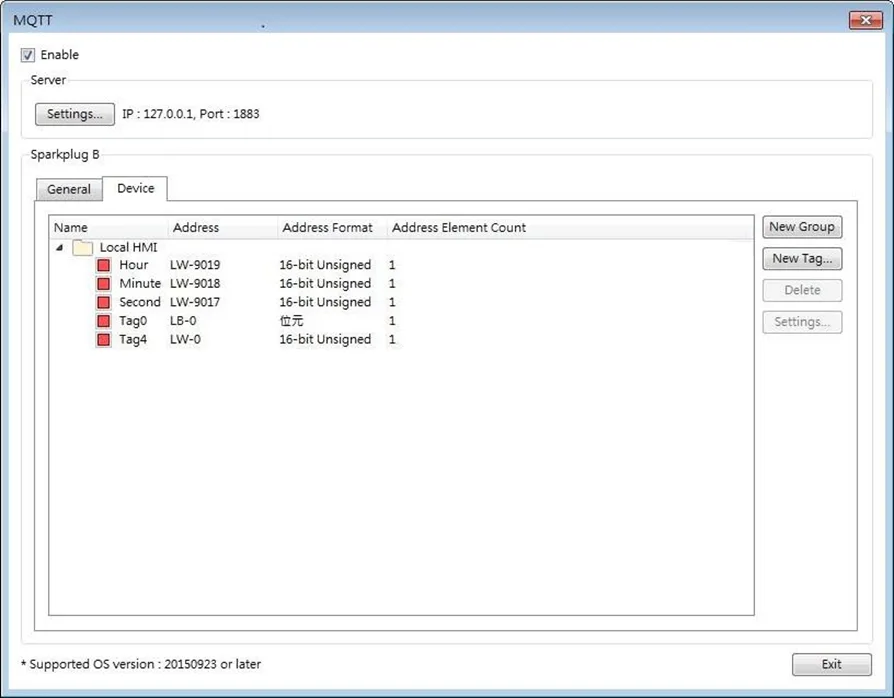
| Setting | Description |
|---|---|
| New Group | Add a group to manage the tags. |
| New Tag | Add the tags of this EoN node monitored by MQTT engine. Please note that the Name field should not be blank. |
| Delete | Delete an existing group or tag. |
| Settings | Configure an existing group or tag. |