
Overview & Concepts
The System Settings Editor (EasySystemSetting Tool) is a utility that allows users to view and modify certain HMI system settings through a dedicated interface. Instead of changing these parameters directly in the project configuration, the System Settings Editor provides a runtime-accessible method for adjusting system-level settings on the HMI device.
The editor presents system parameters in an organized format so they can be reviewed and updated when necessary. These settings control operational characteristics of the HMI and may affect communication behavior, device configuration, or other runtime system functions.
The most common usage of the System Settings Editor is for duplicate setup of multiple HMIs – it saves the engineer time by creating a single set of System Parameters within EasyBuilder Pro, and then downloading the project and System Settings together to all the HMI units to be deployed.
Key capabilities of the System Settings Editor include:
- Presetting HMI parameters such as IP address, passwords and the like.
- Allowing authorized users to modify supported system settings
- Applying changes directly to the running system configuration
The System Settings Editor is typically used during commissioning, maintenance, or troubleshooting when system parameters need to be verified or adjusted without rebuilding the project. By providing controlled access to these settings, the tool allows system configuration changes to be made efficiently while maintaining the overall structure of the HMI project.

Implementation
The System Settings Editor (EasySystemSetting) Tool allows updating hardware system settings which can be downloaded along with the project, or can be uploaded separately, via a USB flash drive or SD card.
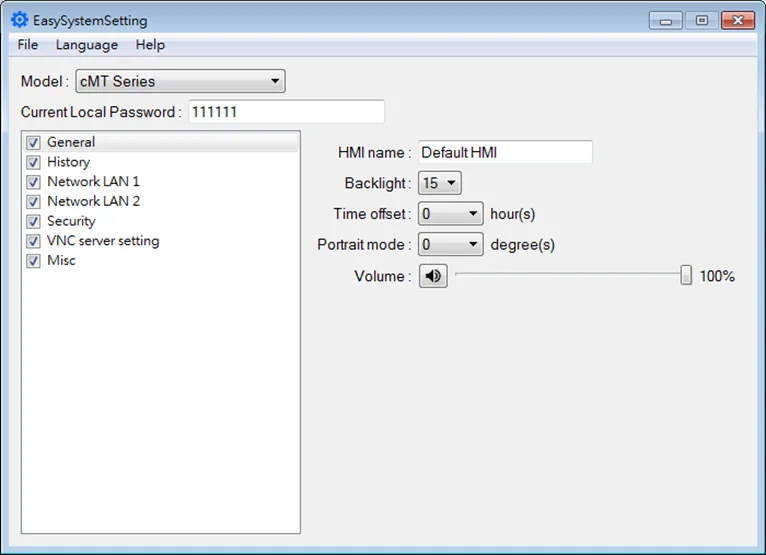
To enter the System Settings Editor Tool, click [Tool] » [SystemSetting] Editor in EasyBuilder Pro
| Setting | Description |
|---|---|
| Current Local Password | Please enter the password used to log in System Parameter Settings. |
| General | [HMI name] Enter HMI name. The name should only contain [A~Z], [a~z], [0~9], [_] and [.]. [Back light] Adjust LCD backlight brightness. [Time offset] Set the HMI RTC with offset. For example, if the current RTC time is 15:00:00, and the time offset is set to -3, the updated time will be 12:00:00. [Portrait mode] Set the display mode. [Volume] Adjust sound volume. |
Configuring the EasySystemSetting Tool
Open EasySystemSetting and change any of the settings as shown below.
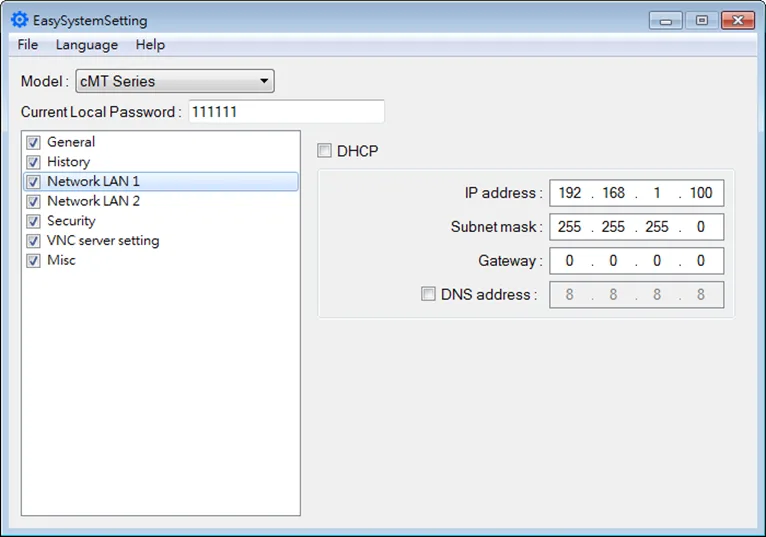
Click [File] » [Save] to generate a “systemsetting.conf” file.
Close EasySystemSetting.

Downloading Project and System Setting file on USB or SD Card
How to Download Project and System Setting file on USB or SD Card
Follow these steps to bundle the project and system settings files together on a USB or SD card, and install onto an HMI.
Instructions: How to Download Project and System Setting file on USB or SD Card
Choose the Project File and System Settings File created earlier
In EasyBuilder Pro click [Build Download Files], select [Use system setting], and browse for the systemsetting.conf file.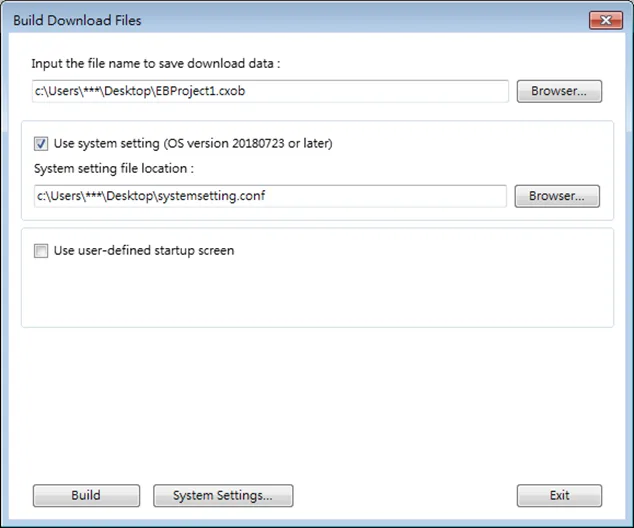
Click Build
Click [Build] to generate a compiled file and a system setting file with the same filename (EBProject1.cxob & EBProject1.conf). Save these files in the same directory in an external device.Insert the USB stick or SD card into the HMI
Insert the external device to HMI and the Download/Upload dialog box appears; click Download.Download the files
Browse for the project file, enter the password, and then click Download.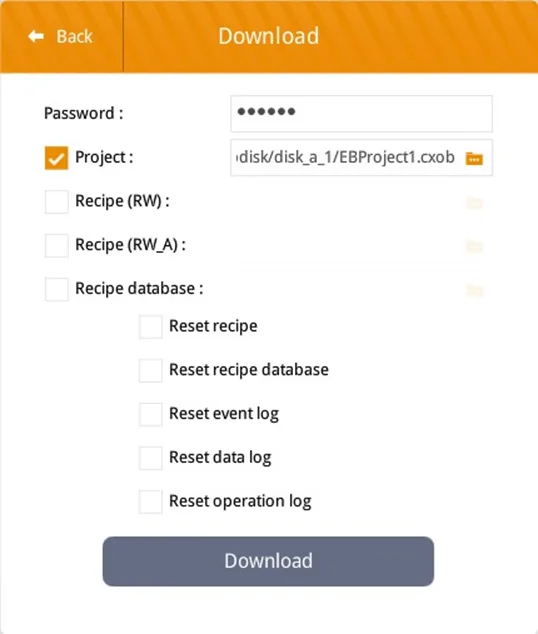
Success
Your Project and system settings files are both now installed into the HMI.

Downloading Project and System Setting file together via EasyBuilder Pro
How to Download Project and System Setting file together via EasyBuilder Pro
Alternately, the configured System Settings file can be downloaded directly to the HMI along with the project by the EasyBuilder Pro software Download utility.
Instructions: How to Download Project and System Setting file together via EasyBuilder Pro
Download project, click “Use System Settings”
In EasyBuilder Pro Project Download window, select the “use system settings file” option (shown below)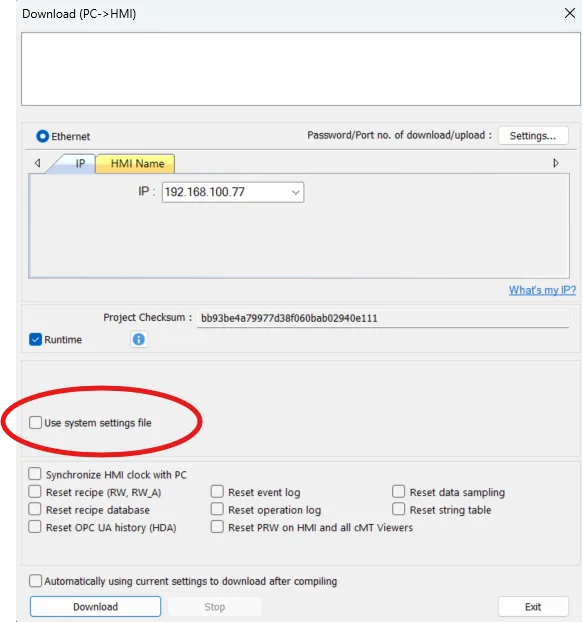
Select the System Settings File and Download
Click the box and navigate to the folder location where the System Settings file was saved.
Select the file, and then when the Download button is clicked, the open EasyBuilder Pro project file as well as the configured HMI System Settings will be downloaded into the HMI.
Success
Your Project and system settings files are both now installed into the HMI.