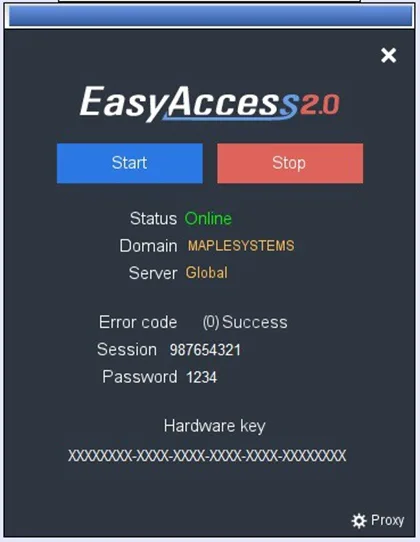
Frequently Asked Questions
Q: My HMI has broken down and I am sending back my machine back for repair. Can I use my old EasyAccess 2.0 license on my replacement HMI?
A: This depends upon the extent of the repair. Please notify our customer service department that the HMI sent in for repair has an EasyAccess 2.0 license when receiving an RMA#.
Q: I cannot activate while using PC Activator. The ‘Hardware Key’ text field is showing “Not Supported.”
A: Please check the HMI’s OS version and refer to the PC Activator – OS Support section.
Q: I do not see the EasyAccess 2.0 tab on the HMI.
A: Please check the HMI’s OS version and refer to the References – Model and OS Support section below.
Q: On the EasyAccess 2.0 tab, it says “Connection to the server failed?” in red.
A: This means that the HMI cannot connect to the internet with the current network configuration.
Please make sure that Internet access is available to the HMI. Double-check the IP address, Gateway, and DNS address settings applied to the HMI under System Settings. If the HMI has an OS version prior to 20140814, you might see this message too. This indicates that the security certificate on the HMI has expired and cannot work with the EasyAccess 2.0 server. To use EasyAccess 2.0 again, you must update the certificate manually.
The update procedure is as follows:
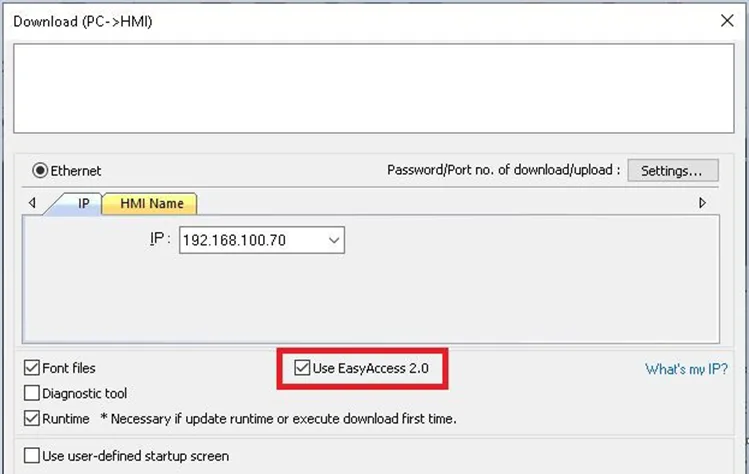
- Using the latest version of EBPro, download a project with the EasyAccess 2.0 Settings window (or any project which allows LW-10820 to be set to ‘1’) onto the HMI. While downloading, make sure the ‘EasyAccess 2.0’ option is checked (applies to some models).
- On the HMI, click the “Start” button (or set LW-10820 to ‘1’); the security certificate update will begin.
- Check the activation status again in the system information page.
Q: I notice that the Virtual IP address assigned to the HMI changes between sessions sometimes. Is this normal?
A: Yes, it is perfectly normal. EasyAccess 2.0 connections are established on demand, consequently the VPN (Virtual) IP address may change. On PC or Android devices, any IP address starting with “10.8.” denotes a connection made in point-to-point (P2P) mode as opposed to VPN mode. In general, P2P mode allows higher data rate than VPN does. The program will automatically determine the best mode to use based on current network conditions.
Q: When I try to connect to EasyAccess 2.0 by writing a value of ‘1’ to LW-10820, nothing happens.
A: Please make sure that the EasyAccess 2.0 client program has been downloaded to the HMI (applies to some models). It should have been downloaded to the HMI during project download. If not, check the version of EBPro being used. Also, look for a file called “easy_access_client.e30” in the firmware folder. While the project is downloading you should see this file listed, as seen in the screenshot below:
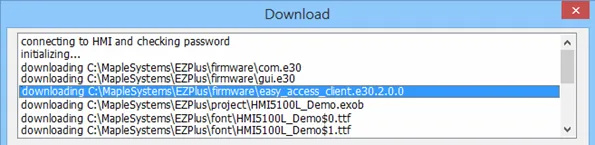
Note:
- Some models require selecting the EasyAccess 2.0 client in the download window, others do not.
Q: I’ve just updated my OS to the latest release, but my Activation has disappeared. Do I have to re- activate the HMI?
A: From the EasyAccess 2.0 tab, click on the [Refresh] button. EasyAccess 2.0 will be re-activated if the same HMI had been activated previously.
Q: I’m using Windows 8 (or Windows 10) and the SmartScreen warns me that running this software may put my PC at risk. Should I be concerned?
A: If you obtained EasyAccess 2.0 from Maple Systems website (https://maplesystems.com/), you can rest assured that the software is safe. Proceed by clicking on “More info”, and then click “Run Anyway” to continue.
References
System Restrictions
| Restriction | Description |
|---|---|
| Data Rate and Usage Limit | Data rate at 100 kB/s for the first 1GB and throttled to 5 kB/s after hitting this threshold. Usage count restarts on the 1st day of each calendar month. (Use a Top-up Card to restore full data rates.) |
| # of Domains in which an HMI can be registered | No more than 1 |
| # of Users that can simultaneously connect to an HMI remotely using EasyAccess 2.0 | 3 Users. See also: “Occupied” status section.. |
| # of HMIs a User can connect to at a time | Unrestricted |
| Service Port | HTTPS port (443) |
| Ethernet-Ethernet Pass-through IP Addresses | 6 IP addresses |
Model and OS Support
HMI OS versions that support EasyAccess 2.0
| Model | Minimum OS Version |
|---|---|
| HMI5070P | 20140624 |
| HMI5070Pv2 | All versions |
| HMI5121P, HMI5150P * | 20140701 |
| HMI5070L, HMI5070LB, HMI5070DL, HMI5100L | 20140626 |
| HMI5043L, HMI5043LB, HMI5070NLv2 | 20140624 |
| HMI5097NXL, HMI5097XL, HMI5097DXL | All versions |
| HMI5121XL, HMI5150XL | 20140624 |
| RMI5001 | 20140815 |
| RMI5010/cMT-SVR | 20140715 |
| All other models | All versions |
* EasyAccess 2.0 is not available for HMI5121P and HMI5150P models shipped prior to June 2012.
Terminology
(Online Status) Online:
When an HMI goes online, it continuously sends information to the VPN authentication server and lets all EasyAccess 2.0 clients know it is ready for a connection. In this state, there are no established connections between the HMI and any EasyAccess 2.0 client.
(Online Status) Occupied:
When an EasyAccess 2.0 client connects to the HMI, then the HMI is occupied and no other EasyAccess 2.0 client can connect to it until this session has been terminated (unless the multi-user connections has been enabled).
Note:
- It is possible for the Administrator of the Domain to force a client to disconnect from an HMI. For example, if someone forgets to disconnect their EasyAccess 2.0 client from the HMI:
- Log in to the EasyAccess 2.0 app using the Administrator’s credentials; click on the red circle in front of the word “Occupied”; then click “OK” to confirm the force-disconnect.
EBPro System Tags
A number of system tags are added to EBPro for exclusive use by EasyAccess 2.0.
| System Tag | Function |
|---|---|
| LW-10820 (16bit) | Connect/Disconnect EasyAccess 2.0 0: Disconnect 1: Connect |
| LW-10828 (16bit) | EasyAccess 2.0 Online Status 0: Disable 1: Offline 2: Online 3: Occupied 4: Download client update |
| LW-10829 (16bit) | Error code provides information about error status while the HMI is going online using EasyAccess 2.0. 0: Success. (Connection successful) 1: Not activated. (The EasyAccess 2.0 function is not enabled on the HMI) 2: Log-in timeout (Outbound connection failed; or the VPN server is down) 3: Certificate expired (License Key has expired. Please check with Maple Systems.) 4: HMI client not ready (Wait a couple minutes and try again to connect) 5: HMI client will update (Update has been downloaded and is ready) 6: HMI client does not exist (Client program does not exist in HMI memory) 7: Download HMI client failed 8: Download HW Key failed 9: Parse HW Key failed 10: Write HW Key failed 100: Register HMI error 201: Network gateway error 202: Network DNS error 203: Proxy error 204: Ping AuthServer fail 205: SSL Certificate error 206: Ping account server fail 207: Timeout SSL connect 208: Not able to connect to server |
| LW-10821 (5 words, ASCII) | Session ID. This is used to add an HMI to a Domain. |
| LW-10826 (2 words, ASCII) | Session Password. This is used to add an HMI to a Domain. |
| LW-11210 (20 words, ASCII) | Hardware Key |
| LW-11296 (16 bit) | Location of EasyAccess 2.0 server 0: Global 1: China |
Note:
- “Window 76: EasyAccess 2.0 Settings” uses these system registers.
Preparing the EasyAccess 2.0 Settings Window
Here are the steps to prepare the EasyAccess 2.0 Settings window using the window template file in EasyBuilder Pro
Instructions: Preparing the EasyAccess 2.0 Settings Window
Create new Project with “Use Template” option selected.
Create a new project with the “Use template” option selected, and you will see Window #76 as shown here: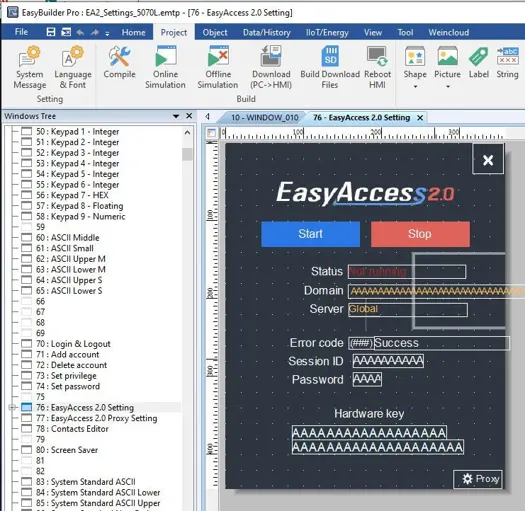
Create a Function Key to display the template window
On window #10, add a [Function Key] object to display a popup of Window #76.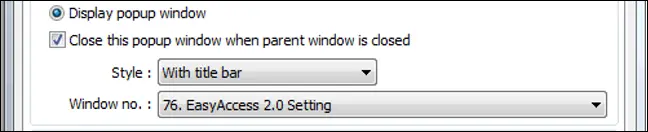
Download project
Download the project to the HMI.Display the Popup Window
On the HMI, click on the [Function Key] object that was just added to display the pop up for Window 76 (the “EasyAccess 2.0 Settings” window).Click the Start Button
Click the “Start” button. If the network settings of the HMI are applied correctly and the HMI can access the Internet, you should see the State change to “Online”.
At that time a Session ID/Password will be generated.
Once the HMI has established a connection to the EasyAccess 2.0 server, these steps should not need to be repeated. You can keep the VPN Service running on the HMI indefinitely; only assigned Users can access it remotely.