
Siemens S7-200 PPI and S7-300 MPI PLC models support Pass-Through Mode, which allows PLC project access through the HMI unit.
Siemens Pass-Through in EasyBuilder Pro allows a computer to communicate with a Siemens PLC through the HMI instead of connecting directly to the PLC. The HMI acts as a gateway, forwarding communication between the PC and the PLC.
In practice, the HMI is already connected to the Siemens PLC using its configured driver. A PC then connects to the HMI—either locally (Ethernet or USB tethering) or remotely (EasyAccess 2.0). The HMI passes the communication through, making it appear as if the PC is directly connected to the PLC.
This setup is commonly used with Siemens engineering tools like TIA Portal or STEP 7 for programming, monitoring, and troubleshooting.
Typical benefits include:
- No need to physically connect to the PLC
- Ability to access the PLC remotely through the HMI
- Simplified troubleshooting and maintenance
Overall, Siemens Pass-Through turns the HMI into a bridge that enables easy and flexible access to the PLC from a local or remote computer.
Implementation
EasyBuilder Pro Settings
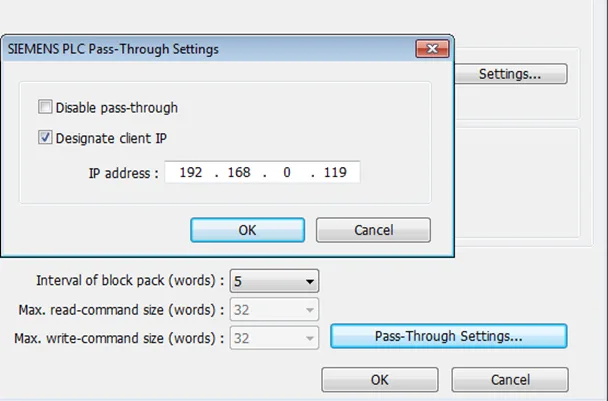
Launch EasyBuilder Pro, go to [System Parameter Settings] » [Device list], and then add SIEMENS S7-200 PPI or S7-300 MPI device. Click [Pass-Through Settings] and the following dialog box appears.
| Setting | Description |
|---|---|
| Disable pass-through | Select this check box to disable pass-through mode. By default this check box is not selected. |
| Designate client IP | Designate client HMI IP address used in pass-through mode. |
S7-200 PPI Connection
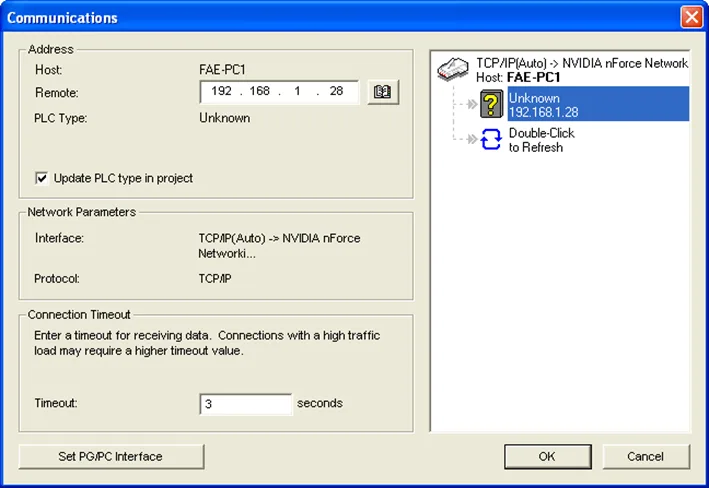
Confirm that the HMI used in pass-through communication is started and connected to the network. Launch STEP 7 Micro/Win, open [Communications] dialog box, and then search for the HMI IP address. Connect the HMI to communicate.
S7-300 MPI Connection
Connect via virtual COM port or Ethernet.
Connect via Virtual COM Port (Serial)
Connect to an S7-300 via Virtual COM Port (Serial port connection)
Instructions: Connect via Virtual COM Port (Serial)
Start Pass-Through Mode
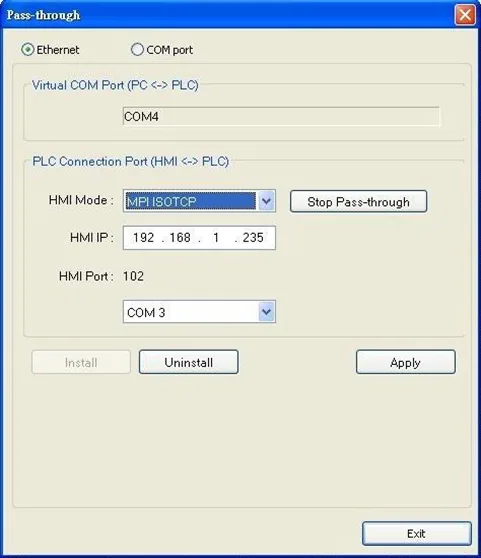
In Utility Manager Pass-Thrrough [HMI Mode] select “MPI ISOTCP” to install virtual serial port driver, if not already installed.
Set the HMI IP address and the COM port that connects PLC, and then start Pass-through.
Virtual Serial Port Driver must be installed.
Select COM Port
In STEP 7, go to [Option] » [Set PG/PC Interface].
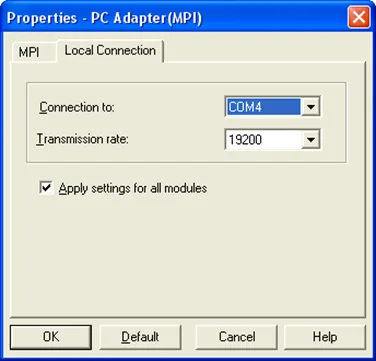
Confirm that the interface used is “PC Adapter(MPI)”, and then click [Properties].
Select the same COM port as the virtual serial port; in the example COM 4 is used.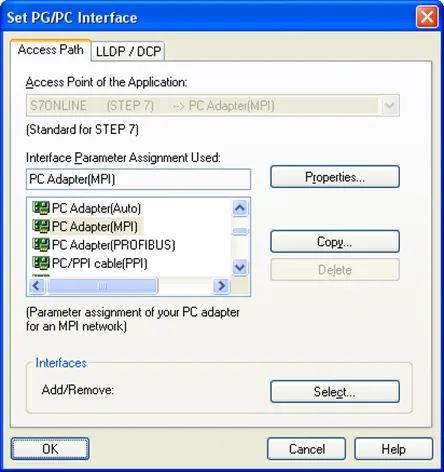
Done!
When finished, STEP 7 can be used to Upload / Download PLC program via HMI.
Connect via Ethernet
Connect to an S7-300 via Ethernet Connection
Instructions: Connect via Ethernet
Select the Ethernet Connection
In STEP 7 go to [Option] » [Set PG/PC Interface]. As shown in the following figure, select “TCP/IP(Auto) -> the name of the network interface card”.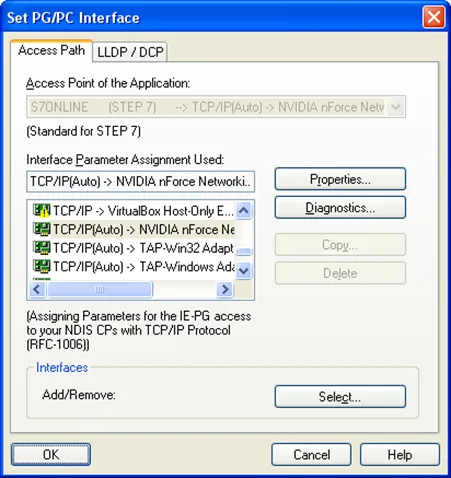
Enter the Network Credentials of the HMI.
Go to [PLC] » [Update station to PG], in [Target Station] select [Can be reached by means of gateway].
From left to right columns enter MPI, PLC station number, S7 Subnet ID, and HMI IP address.
When finished, S7 can upload PLC program to STEP 7 via HMI.
![Go to [PLC] » [Update station to PG], in [Target Station] select [Can be reached by means of gateway]. From left to right columns enter MPI, PLC station number, S7 Subnet ID, and HMI IP address. When finished, S7 can upload PLC program to STEP 7 via HMI.](https://media.maplesystems.com/wp-content/uploads/2026/04/image-931.webp "STEP 7 Select Node Address window")
Registers of Siemens Pass-Through
System registers from LW-10850 to LW-10864 are used to set or indicate pass-through status of SIEMENS devices.
During pass-through mode, LW-10863 indicates errors and LW-10864 displays error code. The following table lists the error codes, the description of each code, and the possible reason. (The client usually refers to STEP 7 PLC program)
| Error Code | Description | Possible Reason |
|---|---|---|
| 0 | Successfully executed | |
| 1 | Prohibit client from connecting HMI | HMI is already running pass-through and won’t accept any request from other client. |
| 2 | Prohibit client from connecting HMI | When LW-10850 is set to 1, the client IP for connecting HMI is different from the IP specified in LW-10858 ~ LW-10861. |
| 3 | Invalid communication protocol | Incorrect setting in LW-10853. |
| 4 | Invalid PLC station number | The PLC station number specified in LW-10852 does not exist. |
| 5 | Delayed communication | PLC connection failure. |
| 6 | Busy communication | PLC does not accept pass-through request, please confirm PLC settings. |
| 7 | Invalid pass-through request | Environment setup failure. |