
Overview & Concepts
The Condition object in EasyBuilder Pro is used to evaluate logical expressions during runtime and execute configured actions when specified criteria are satisfied. It allows the HMI to monitor register values and respond automatically based on defined comparison rules, reducing the need for macro-based logic.
A Condition is configured by defining:
- The register or value to monitor (PLC or Local HMI memory)
- The comparison operator (equal to, not equal to, greater than, less than, within range, etc.)
- The comparison value or second register
- The action to execute when the condition evaluates as true
When the defined expression evaluates as true, the assigned action executes.
Typical applications include automatically changing windows when a value reaches a threshold, enabling system functions when a condition is met, or triggering internal HMI actions based on machine state. Because it is configuration-based and evaluated continuously at runtime, the Condition object provides a structured and reliable method for implementing conditional behavior within a project without writing macros.

Implementation
Click [Object] » [Condition] icon on the toolbar to open a Condition object property dialog box. Click [New] to add a new condition, and then click [OK] to create a Condition object.
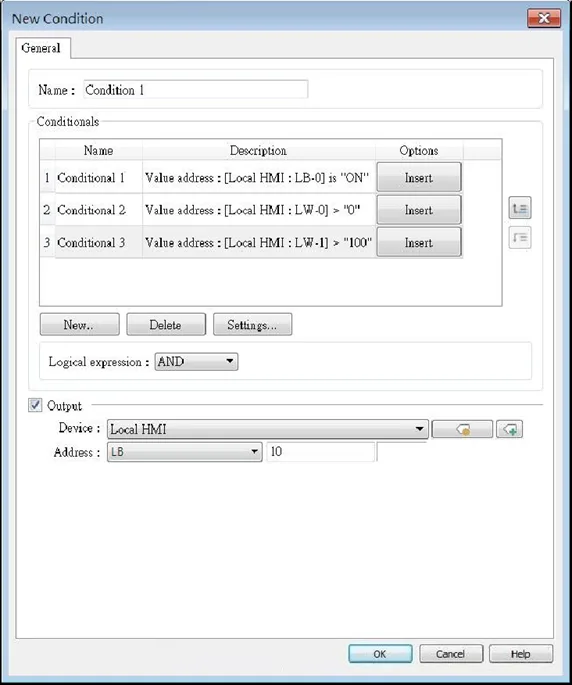
Object Configuration Setting Options
| Setting | Description |
|---|---|
| Name | Enter the name of this object. |
| Conditionals | Set trigger conditions. |
| Type | Value Address: Select an address type from Bit / Word. Condition Object: Select another Condition object. |
| Logical expression | AND: The Condition object is effective when all the specified conditions are met. OR: The Condition object is effective when one of the specified conditions is met. Customized: Customize logical expressions involving combinations of AND, OR, and ( ) parentheses. The trigger condition is determined based on the evaluation of the logical expression. |
| Output | With this option selected, when the conditions are met, the specified bit address will be set ON. When the conditions are not met, the specified bit address will be set OFF. |
Notes:
- At most 128 Condition objects can be created in a project.
- At most 8 conditions can be created in a Condition object.
Usage Example
Here is an example of using Condition object to replace the if-else statement in macro. The macro below contains three conditions.
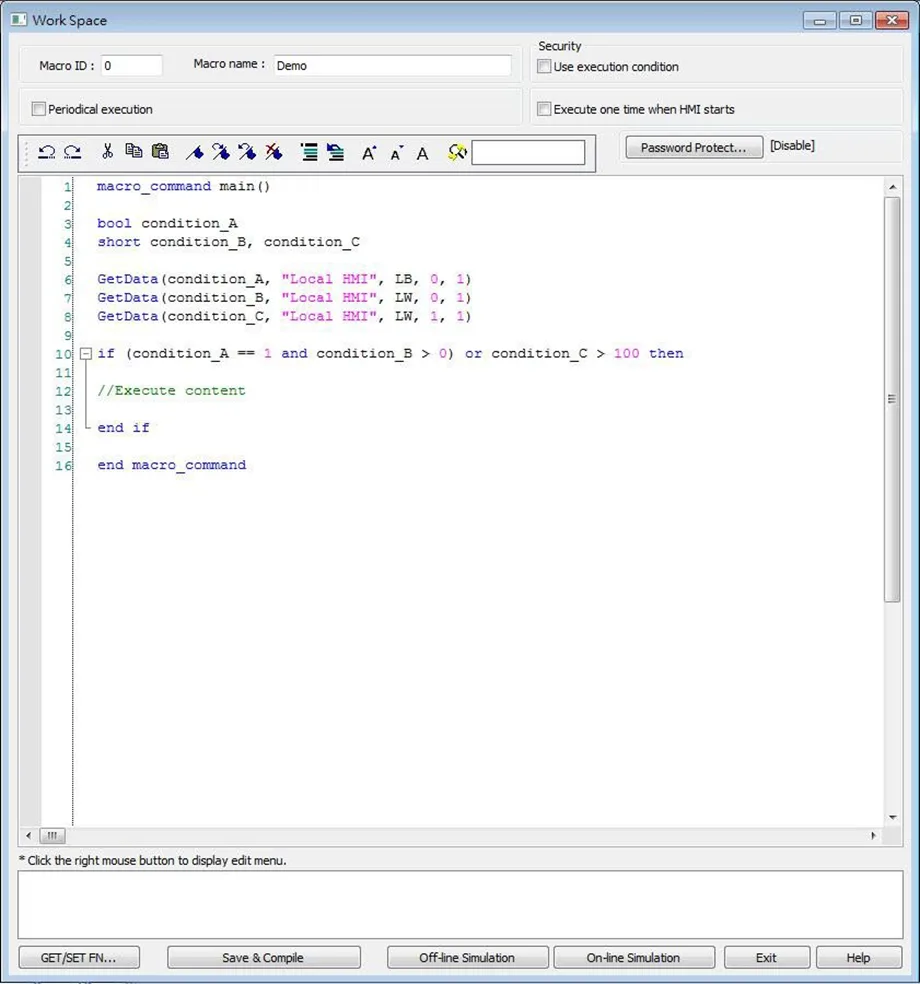
Create a Condition object, add condition_A, condition_B, condition_C and then customize a logical expression “(${1} AND ${2}) OR ${3}” as shown below.
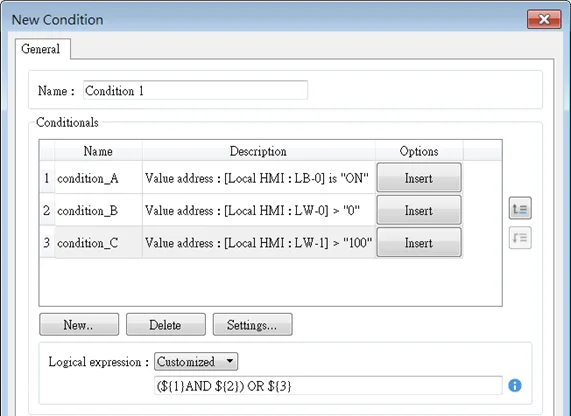
Now the Condition objects can do the same thing as the macro, which triggers actions according to the conditions.