
Overview & Concepts
The Backup object in EasyBuilder Pro is used to export historical and system data from the HMI to external storage devices such as a USB disk or SD card. It allows project data—including Event Log, Operation Log, Recipe data, and Data Sampling records—to be saved externally for archival, recordkeeping, or transfer to other systems.
Rather than transferring register blocks like Data Transfer, the Backup object works at the file and history level. It creates structured output files from internal data storage areas within the HMI. This makes it suitable for long-term data retention, production record export, or maintenance analysis.
Backup operations are defined by selecting:
- The data type to export (Event Log, Operation Log, Recipe, Sampling, etc.)
- The storage destination (USB disk or SD card)
- The execution method
The Backup object supports two primary operating modes:
Trigger-Based Backup
- Executes when a configured control bit turns ON
- Used for event-driven exports, such as end-of-batch archiving
Global Backup
- Executes independently of screen interaction
- Can be configured for scheduled or automatic operation
When a backup operation runs, the HMI writes the selected historical data to the external device without requiring the project to stop. A system status bit indicates backup operation status during execution.
Typical use cases include:
- Archiving production logs at the end of each batch
- Periodically exporting Event Logs for compliance documentation
- Allowing maintenance personnel to retrieve stored history without accessing internal memory
Because the Backup object is configuration-driven, it provides a controlled and repeatable way to move stored project history from internal memory to removable media. It is commonly used when operational traceability, compliance, or external analysis of HMI data is required.


Implementation (Page-Specific & Global Trigger-Based)
On the toolbar click [Object] » [File Operation] to find [Backup (Trigger-based)] and [Backup (Global) objects.
Open [Backup (Trigger-based)] object property dialog box, set up the properties, press OK button, and a new Backup (Trigger-based) object will be created.
When using a cMT / cMT X Series model, [Backup (Global)] object is available. Open [Backup (Global)] object managing dialog box, click [New] to open the object property dialog box, set up the properties, press OK button, and a new Backup (Global) object will be created.
General Tab
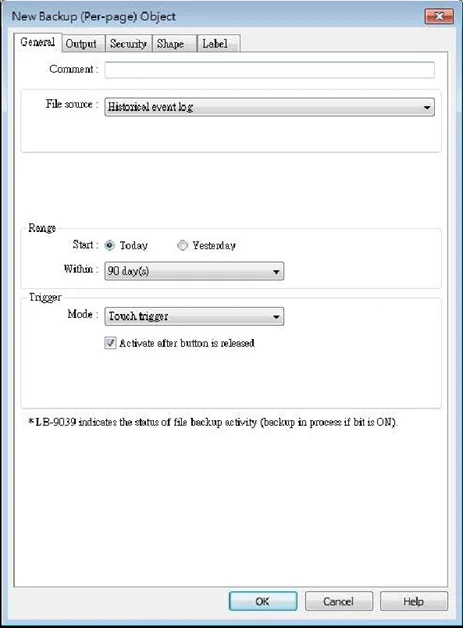
Per-Page (Page-Specific) Trigger-Based:
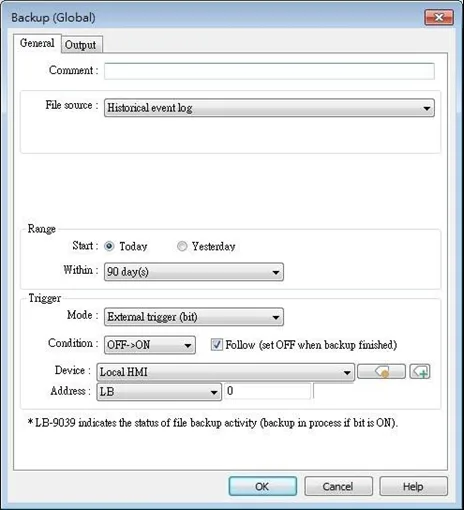
Global Trigger-Based:
| Setting | Description |
|---|---|
| Source | [RW], [RW_A], [Recipe database], [Historical event log], [Historical data sampling], [Operation log], [SQL Query] Select one from the above for the source. When backing up [Historical data sampling], use [Data Sampling object index] to select the one to back up. Options other than RW, RW_A will be available only when they are used in the project file. |
| Event category range | This groupbox will be available only when backing up a historical event log in CSV format. Two options can be found in this group box: All and Partial. Selecting partial and entering “3, 5, 8” in the field will backup events in categories 3, 5, and 8. Selecting partial and entering “3-8” will backup events in categories 3 to 8. |
| Range | Historical data sampling Select a number of files. For example, if [Start] is set to [Current], and [Within] is set to [5 file(s)], the latest five files in memory will be backed up. Historical eventlog Select a number of days. For example, if [Start] is set to [Yesterday], and [Within] is set to [2 day(s)], the files obtained yesterday and the day before yesterday will be backed up. Select [All] to save all files, and the maximum is 90 days. |
| Trigger | Mode There are three ways to activate Backup function. Touch trigger Touch the Backup object to activate backup operation. External trigger (bit) Register a bit device to trigger the backup operation. Select whether the backup operation is activated after Off to ON, ON to OFF transition, or at both of the changes of state. External trigger (word) Users can specify the number of days to backup data using [Trigger address]. [Trigger address] usage (suppose LW-n is used): LW-n: Will start to back up when the value changes from 0 to 1. LW-n+1: The start date of backup. LW-n+2: The number of days for backup. (The maximum: 90 days). On cMT-SVR, Backup (Trigger-based) object only supports [Touch trigger] mode but not [External trigger (bit)] and [External trigger (word)] modes. |
| Trigger Address | When the state of the designated register is set ON, the backup operation is activated. When the backup operation is done, the state of the designated register is set OFF |
Notes:
- All history files should have been saved in memory, either HMI memory, USB disk or SD card. Otherwise, the Backup object will not work.
- The maximum number of days for backup is 90 days.
- When saving files to USB disk or SD card, the capacity of a FAT32 folder depends on the length of the file names. Fewer files can be saved when the file names are longer.
- For cMT / cMT X Series, see the Event Log and Data Sampling sections that explain the mechanism of synchronizing data to external device.
Output Tab
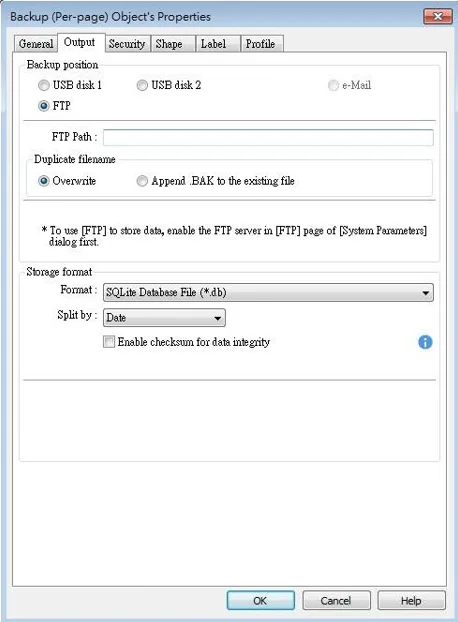
| Setting | Description |
|---|---|
| Backup position | Select the destination where the source files will be saved to. SD card / USB disk The external device connected to HMI. To send backup using e-mail, go to [System Parameters] » [E-Mail] tab to configure first, and then open Backup object’s e-Mail tab to configure the recipient address, subject, and message. FTP To save backup to an FTP server, go to [System Parameters] » [FTP] tab to enable the FTP function first, and then open Backup object’s Output tab to set the FTP path and the way to handle duplicate filenames. Add BOM (Byte Order Mark) to file header for EXCEL can interpreting non-ASCII strings correctly. To back up history logs in .csv format, open the csv file in EXCEL. The BOM (Byte Order Mark) can be added to the file header so that the .csv file containing non-ASCII strings can directly be opened in EXCEL. The title, export time, occurrence count, and elapsed time can be included or omitted in the backed-up .csv file. Enable checksum for data integrity This option is provided for using Backup object to generate a backup file with checksum. EasyConverter can then be used to examine data integrity. |
E-Mail Tab
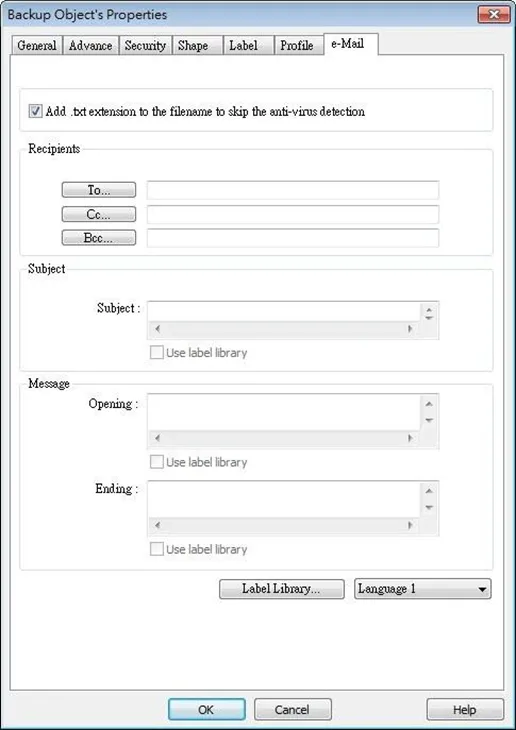
| Setting | Description |
|---|---|
| Add .txt extension to the filename to skip the anti-virus detection | If selected, when sending backup data as an email attachment, the filename extension .txt will be added to the file name. This prevents the mail server or anti-virus software from blocking emails. |
| Recipients, Subject, Message | Back up the email address of the recipients, the subject of the email, and the message content. |