
BACnet (Building Automation and Control Network) is a communication protocol supported in EasyBuilder Pro that allows HMIs to interface with building automation systems over a network. It is commonly used in applications such as HVAC, lighting, and facility management, where multiple devices need to share data in a standardized way.
In EasyBuilder Pro, BACnet is implemented through a device driver that allows the HMI to communicate with BACnet-enabled controllers. The HMI can read and write data to these devices, enabling it to monitor and control building systems alongside traditional industrial equipment.
BACnet communication is structured around objects, where each object represents a specific function or data point (such as temperature, status, or setpoint). The HMI accesses these objects to retrieve or modify system values.
EasyBuilder Pro also features a BACnet Schedule Object, which can be configured to view and access schedule data in a BACnet/IP controller with graphical UI.
From the Maple Systems perspective, BACnet support allows our HMIs to integrate into building automation environments in addition to industrial systems. This makes it possible to use a single HMI platform for both industrial control and facility monitoring.
In practice, BACnet is used to:
- Monitor building systems such as HVAC or energy usage
- Adjust setpoints and control parameters
- Integrate multiple building devices into a unified interface
Overall, BACnet provides a standardized method for connecting HMIs to building automation systems, enabling centralized monitoring and control across a wide range of facility applications.
Implementation:
BACNet driver is selected in EBPro, and imported device files from the driver. Tag based communication, connect to BACnet device and import tags.
Implementation: BACnet Schedule Object
BACnet Schedule helps visualize and access schedule data (Schedule) in BACnet IP controller with a graphical UI. This feature is only applicable for cMT / cMT X Series HMI.
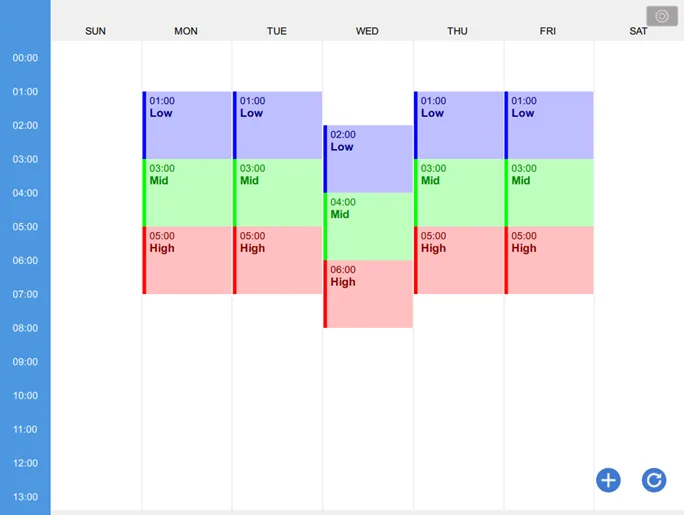

Configuration
Add BACnet/IP driver into the device list in System Parameter Settings and check whether a Schedule is contained in the scanned BACnet/IP device or the imported tag file.
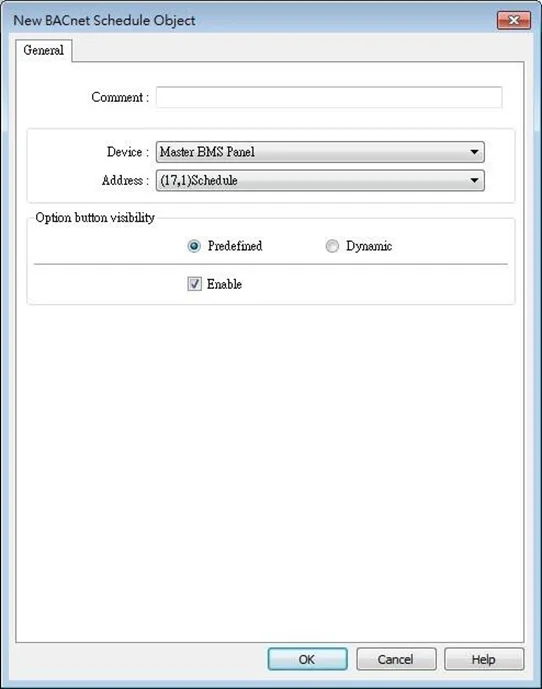
Click [Object] » [Time Related] »[BACnet Schedule] icon on the toolbar to open the BACnet Schedule property dialog box. Configure the parameters and then click OK, a BACnet Schedule object is created.
General Tab
| Setting | Description |
|---|---|
| Device | Select the BACnet/IP device to be read. |
| Address | Select the address tag of the Schedule to be read. |
| Option button visibility (cMT / cMT X Series) | Show or hide the option button ⚙️ Predefined Select [Enable] to show the option button Dynamic Designate a bit address to control option button visibility. |
Example
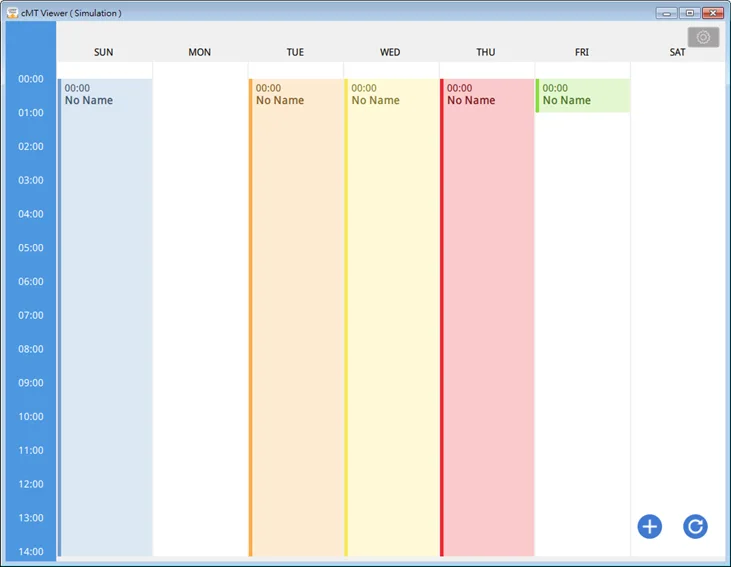
After downloading the project to HMI, the HMI will automatically read the schedule settings in the BACnet IP device as shown below.
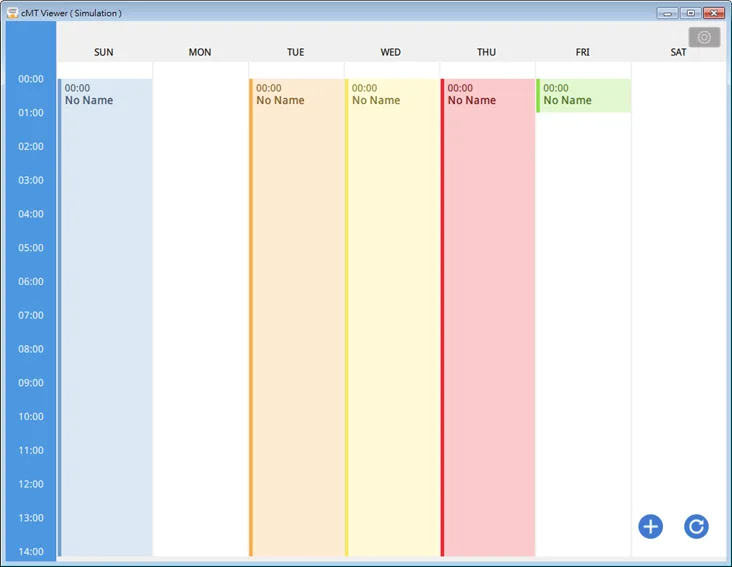

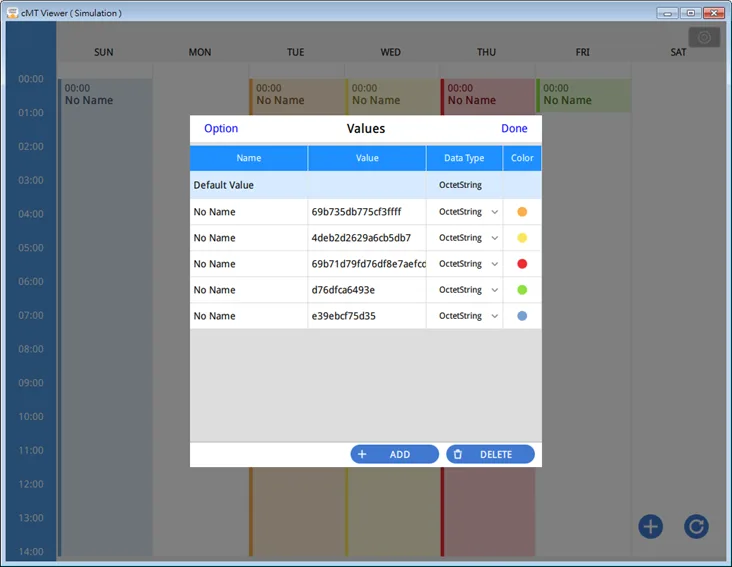
Click the settings button and then select Value Editor to configure the Values table containing these columns: Name, Value, Data Type, and Color, as shown below.

Click this icon to add a schedule setting.

Click this to refresh schedule data by reading from the BACnet device.
As shown in the following screenshot, in a schedule settings window, the Weekday, start time (From), end time (To), and Value should be configured. Value can be selected from the value table.
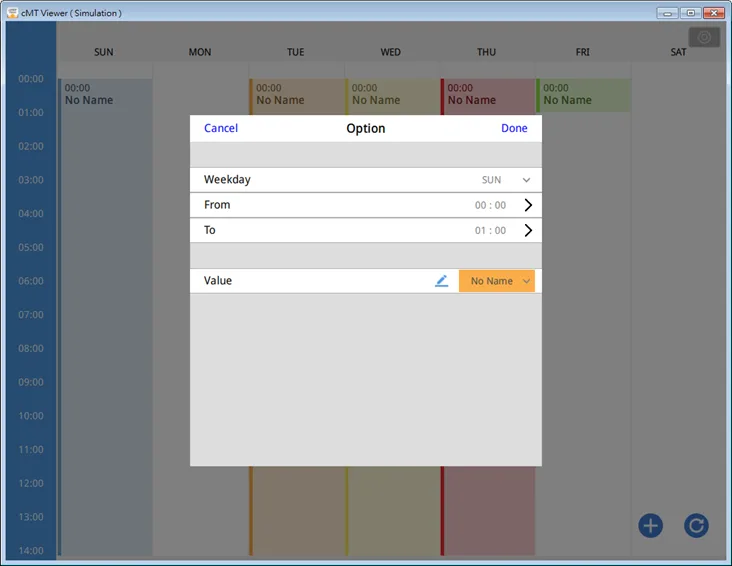
After the time settings are completed, the values will be written to the corresponding schedule tags in BACnet device.