
The PC activator allows the user to quickly perform HMI activations which would otherwise have to be done through the web interface. Instead of having to record and type in Hardware Keys for each activation, with PC Activator the user now can quickly search for HMI’s that are on the network, check the current activation status, and activate each with an Activation Code. This is especially useful for bulk activation purposes. In addition, PC Activator also lets users add an HMI to a Domain without having access to the Session ID and Password information.
Two main features are supported by the PC Activator:
- HMI activation by Activation Code
- Adding an HMI to a Domain
HMI Activation
Activate via Activation Code
Here is how you use the PC Activator program to activate an HMI.
Instructions: Activate via Activation Code
Open PC Activator Program
Run PC Activator, then click on the Activate tab.Enter domain admin credentials
Enter the Domain Administrator’s credentialsEnter Activation Code
Enter the Activation Code listed on the Activation Card.Select the HMI to be activated
From the HMI list, select the device to be activated. The Hardware Key will be loaded into the display field.Only HMIs that have been already added to the domain are able to be activated using this method.Click the Activate button
Click on the “Activate” button to complete activation.Depending on the HMI’s current activation status, the button may show “Activate”, “Already Activated” or “Not Supported”.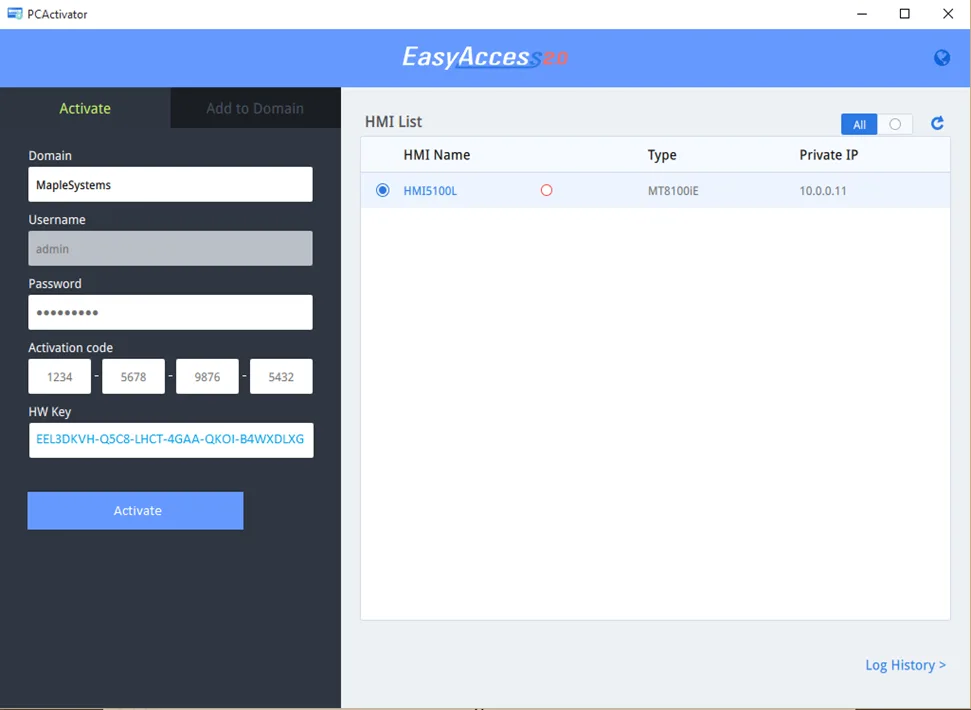
Success
The HMI has been activated.
Note:
- The Use China Servers option is not available for Maple Systems HMIs.
Add HMI to Domain
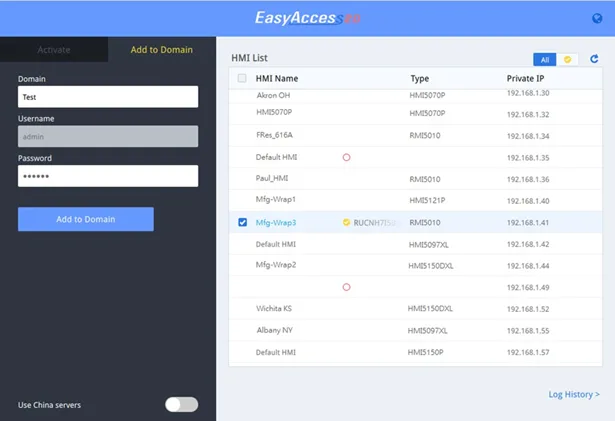
PC Activator also allows the user to Add an HMI to Domain directly without explicitly having gained access to the Session ID/Password. Simply enter the Domain name and admin password, and then select an HMI that can be added.
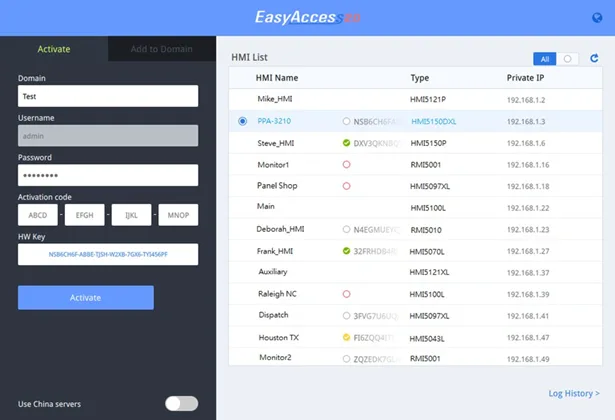

HMIs with a yellow checkmark icon have been activated but not assigned to a domain yet. These can be selected and added to the Domain using PC Activator.
OS Support
HMI OS version with support for PC Activator
| Model | Minimum OS Version |
| HMI5070P | Not supported |
| HMI5070Pv2 | 20150603 |
| HMI5121P, HMI5150P | 20140701 |
| HMI5070L, HMI5070LB, HMI5070DL, HMI5100L | 20150508 |
| HMI5043L, HMI5043LB, HMI5070NLv2 | 20150527 |
| HMI5097NXL, HMI5097XL, HMI5097DXL | 20150603 |
| HMI5120XL, HMI5121XL, HMI5150XL | 20150603 |
| RMI5001 | 20150508 |
| RMI5010/cMT-SVR | 20151127 |
| All other models | All versions |