
Overview & Concepts
The Video Input object in EasyBuilder Pro is used to display live video directly within an HMI screen. It allows the HMI to present real-time visual feedback from connected camera sources, enabling operators to monitor equipment or processes alongside standard control and data interfaces.
The object supports two primary video sources:
- USB cameras connected directly to the HMI
- IP cameras that provide a compatible RTSP stream over the network
When configured, the HMI connects to the selected video source and continuously renders the live feed within the object. For IP cameras, the HMI uses the camera’s RTSP stream address to retrieve video over Ethernet.
Key characteristics of the Video Input object include:
- Displays real-time video within an HMI window
- Supports both local (USB) and network (RTSP IP camera) sources
- Integrates live video with operator controls and system data
Typical applications include:
- Monitoring machine operation or production processes
- Observing remote or hazardous areas from the control interface
- Providing visual confirmation of system conditions during operation
By combining live video with process data on a single interface, the Video Input object enhances operator awareness and supports more informed decision-making during system operation.
Implementation
HMI provides the video In feature that enables users to monitor sites with cameras. The images/video can also be stored in external devices for further analysis. Sampling applications include site monitoring, or vehicle/building surveillance…etc.
cMT and cMT X Series devices can perform both image capture and video recording functions, from either connected USB or IP Cameras.

Configuration
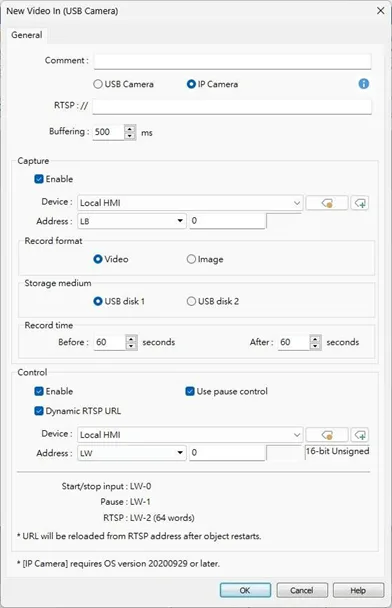
Click the Video In icon on the toolbar to open the property dialog box. Set up the properties, press OK button, and a new Video In object will be created.
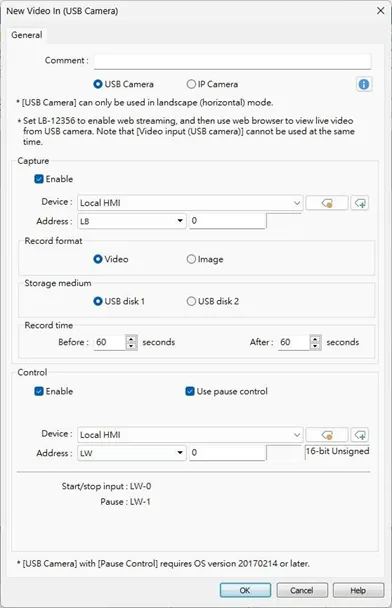
USB Camera
IP Camera
| Setting | Description |
|---|---|
| Input channel | Select the Video Input channel from channel 1 or channel 2. (Analog video systems) |
| Encode format | Select the format from NTSC or PAL. (Analog video systems) |
| RTSP | Enter the IP camera’s RTSP address. When account and password are required for accessing the IP Camera, an RTSP address with credentials embedded can be used. For example:admin:[email protected]:554/cam/realmonitor?channel=1&subtype=0 Streaming over TCP Select this check box to stream video over TCP. |
| Buffering | This setting allows adjustment of the buffering time between 200 milliseconds and 5 seconds to provide more stable video playback when the network is unstable. |
| Capture address | Select [Use capture function] check box and configure the settings. A non-cMT model can capture images while a cMT / cMT X model not only can capture images but also can record an .avi video from n seconds before to n seconds after the triggering time of the designated address. Capture address Designate the address that triggers image capturing. Storage medium Designate the storage device. Information about storage type and input type: USB Camera: SD Card Storage only (except cMT3092X) IP Camera: SD Card or USB disk storage Record time The camera records the video from and to the specified recording time (n seconds before and after the triggering time of the designated address). The video is then saved to the specified storage device. Please note that after the video is recorded, the HMI may take a while to compress the video. The time needed for compressing the video may differ between models depending on CPU performance. A red dot appears in the object indicating that recording or compressing is in progress. The HMI will not record the next video during compression. |
| Control address | If enabled, enter certain value to the control address and the following addresses can control Video Input object. For example, if the designated control address is LW-n (n is any address), enter certain value to the designated addresses will execute commands as the following table. USB Camera / IP Camera Address: Value: Command LW-n:0: Stop displaying image LW-n:1: Start displaying imag LW-n+1: 1: Pause/resume the video LW-n+2: string: RTSP Address for IP camera (max 64 words) |
- After changing the value in [Control address (LW-n)], the system will keep the new value.
- After changing the value in [Control address + 1 (LW-n+1)], the system will execute the command and then reset the value to 0.
- If [Use control function] check box is not selected, the system will play the image of the selected channel.
Notes
- Only one channel can be opened at a time, regardless of the type of camera used.
- Compressing the recorded video may take a period of time depending on the video length.
- When HMI is compressing a video, it will not record new video even if the designated address is triggered.
USB Camera
- USB Camera models that have specifically been tested and are known to work:
- Logitech C170
- Logitech C310
- Logitech C910
- LifeCam VX-2000
- USB camera cannot be viewed on cMT Viewer.
- When the USB Camera is disconnected during video playing, video will not resume when camera is connected again. If [Control address] is used in the project, please use the control address to stop and restart video. If [Control address] is not used, switch to another screen and then return, or restart HMI in order to resume the video.
- When using a USB Camera, the display resolution of the run-time video is determined by the resolution supported by the USB Camera that is closest to the size of the object. The resolution supported by the USB Camera may not be identical to the size of the object. Therefore, it is good practice to adjust the size of object according to the actual resolution of the video.
- When using a USB Camera, the right and bottom edge of the Video In object will keep a distance of 50 pixels away from the window edge to prevent the run-time video from exceeding the window.
- When using a USB Camera, the background color of Video In object is black. If the resolution of the run-time video is smaller than the object, the empty area is colored black. Therefore, it is good practice to adjust the size of object according to the actual resolution of the video.
IP Camera
- Viewing IP camera on cMT Viewer may be possible on a Windows PC, provided that appropriate third-party codecs are used.
- As compatibility may vary, testing with an actual device is recommended.
- An RTSP address is required for using IP camera. The RTSP address can be found in the configuration tool of the IP camera, or possibly from an online repository.
- When the IP Camera is disconnected during video streaming, video will not resume when the camera is connected again. If [Control address] is used in the project, please use the control address to stop and restart video. If [Control address] is not used, switch to another screen and then return, or restart HMI in order to resume the video.
- When using an IP camera, the display resolution of the run-time video will be same as that of the object drawn in the EasyBuilder Pro project. If the actual video resolution is different from the size of the object, the resolution will be adjusted to fit the object, which may cause distortion of video image. Therefore, it is good practice to adjust the size of object according to the actual resolution of the video.
- Use the IP cameras that comply with ONVIF standard, and use RTSP for video streaming
- To ensure the quality and smoothness of the video, and not to affect HMI’s general performance, adjust the settings of IP camera when video lags or high CPU loading is observed. As the project complexity and hardware specs vary from one case to another, please fine-tune the video parameters accordingly.
- Recommended video specification:
| Resolution | 960 x 544 (max) |
| Format | H. 264, MJPEG |
| Refresh Rate | 15 fps |
| Transmission Speed | 800 kbps (max) |