
Understanding EasyAccess 2.0
EasyAccess 2.0 technology is quite different from the traditional method of establishing remote access. Here are some notable points:
| Traditional remote connection (blue links) | EasyAccess 2.0 (green dotted links) |
| Traffic must pass through a number of firewalls, which means there are layers of network settings | The PC and HMI both connect to a dedicated VPN server, through which data is exchanged |
| Network/Router reconfiguration is mandatory; therefore, coordination with the IT department is crucial | No network settings need to be modified |
| For any one WAN IP, only one device can be connected at a time | With one WAN IP, multiple devices can be connected at the same time |
| For a device behind two or more routers, connection might not be possible | Being behind several routers does not affect EasyAccess 2.0 connectivity at all |
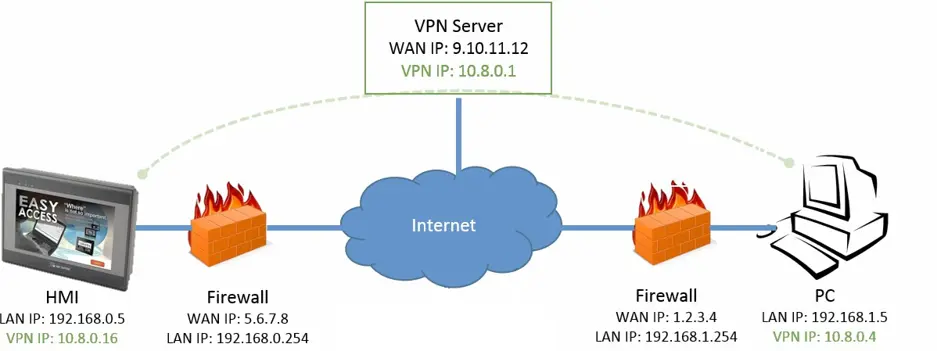
EasyAccess 2.0 Network Overview
Understanding the Domain, HMI Groups, and Users
The basis of management for your EasyAccess 2.0-enabled devices is the Domain Management System (DMS), under which HMIs, HMI Groups, and Domain Users exist. An HMI, upon activation, can be added to a Domain and assigned to a user who is a member of that Domain.
Activation: Some HMIs ship with an EasyAccess 2.0 license pre-activated. Other models are EasyAccess 2.0-ready but do not ship pre-activated; these HMIs must be activated. To use the feature on these HMIs, you must first purchase an EasyAccess 2.0 license (activation card).
IMPORTANT: Once an HMI has been activated, its license cannot be transferred to another HMI.
Domain and Domain Admin: The basis of HMI management. One Domain Account may be used to manage and oversee any number of Users, HMIs, and HMI groups. However, each HMI can belong to only one Domain at a time. The Domain Administrator manages all aspects of the Domain through the web-based Domain portal at: https://weincloud.net. Once a user is assigned to a Domain Account, they can use the EasyAccess 2.0 application to log in to the user account.
HMI Group: A subset of HMIs within a Domain. A user assigned to an HMI Group can access all HMIs in that group. For the Domain Administrator, HMI Groups provide an easy way to manage user access to the HMIs. An HMI can belong to more than one HMI group at a time.
User: A user account must be set up for each individual who wishes to log in and access devices that are part of a given EasyAccess 2.0 Domain. Users are allowed access to HMIs they have been directly authorized to use, but they can also access any HMI within an HMI group to which they belong. The User access privileges (per HMI, and per HMI Group) are managed by the Domain Administrator.
The primary principle governing HMI management in EasyAccess 2.0 is that an HMI can belong to only one Domain at any given time.
Example:
Consider the following figure for an illustrative example of Domain-based management:
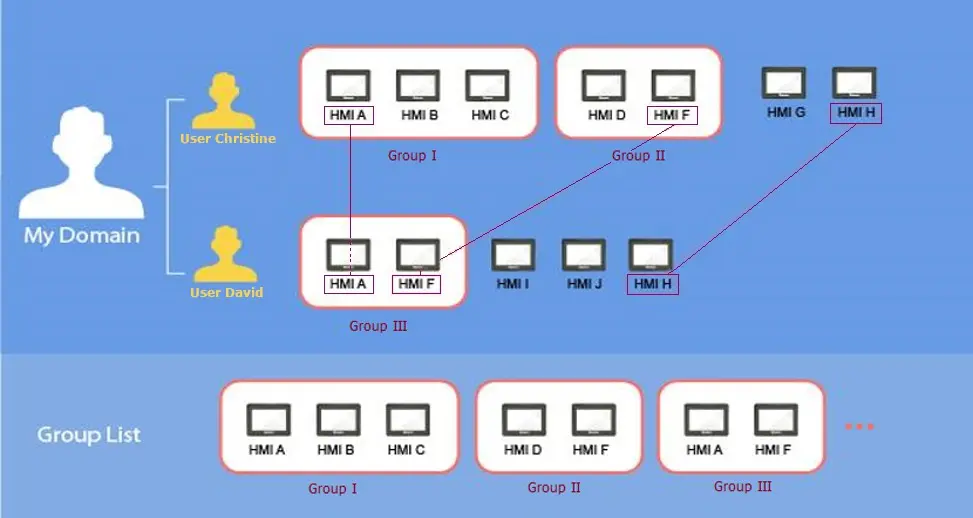
- In this example, the domain, named “My Domain” has two users, Christine, and David.
- HMIs are grouped together into Group I, Group II, Group III, etc.
- Two HMIs belong to more than one group. (HMI A and HMI F)
- Users can belong to many groups and have access to the HMIs in any group to which they belong. (For example, Christine belongs to Group I and Group II.)
- Users can be directly associated with any given HMI. A User will have access to any HMI to which they have been assigned. (For example, David has access to HMIs H, I, and J.)
- Multiple users can access the same HMI, whether via Group Assignment (e.g. HMI A) or by direct association or assignment (e.g. HMI H).
All these tasks are performed by the Domain Administrator. The Domain Management System allows for flexible User, HMI, and HMI Group management.
Setup Checklist

Please review the following checklist before you start using EasyAccess 2.0. See the appropriate Section(s) describing each function for more information.
| Check | Section of Manual |
| Create a Domain to manage Users and HMIs | Managing the Domain |
| Activate the EasyAccess 2.0 license on the HMI (if it did not ship pre-activated) | Activate an HMI or PC Activator |
| Add the HMI to your Domain | Activate an HMI or PC Activator |
| Download an EBPro project onto the HMI, which allows access to Window #76 (the ‘EasyAccess 2.0 Settings’ window) | Activate an HMI (Connect the HMI to the EasyAccess 2.0 Server) |
| Create a User account, provide login credentials to Users, and assign the HMI to Users or to an HMI Group | Managing the Domain |
| Install the EasyAccess 2.0 app on your smartphone, tablet, or PC | Installing EasyAccess 2.0 Application on PC EasyAccess 2.0 on Android EasyAccess 2.0 on iPad/iPhone |
After the Domain is set up and the steps listed above have been completed, the User may then initiate a remote connection to the HMI.