
Overview & Concepts
The VNC Server capability allows an HMI to share its screen with remote devices over a network using the VNC (Virtual Network Computing) protocol. When enabled, the HMI acts as a VNC server, allowing computers, tablets, or other compatible clients to connect and view or interact with the HMI interface remotely.
The VNC Server feature works by broadcasting the HMI’s active display over the network. A remote device running a VNC client connects to the HMI using its IP address and is then able to see the same screen that is displayed on the HMI after authentication.
Key characteristics of VNC Server operation include:
- Allows remote devices to view the HMI screen over Ethernet
- Enables remote interaction with the HMI interface through a VNC client
Typical uses include:
- Remote monitoring of an HMI from a computer or mobile device
- Allowing maintenance personnel to access the HMI interface without being physically present
By enabling VNC Server functionality, an HMI can provide remote access to its interface while continuing to operate normally on the local device. This capability is commonly used for maintenance, troubleshooting, and remote monitoring of industrial systems.
Implementation (HMI System Settings Menu)
Access to the VNC Server needs to be enabled from the local HMI System Settings menus, and can be configured within those menus as well as through the EasyBuilder Pro software.
cMT / cMT X Series (Newer models, OS versions 20231201 and later)
Click the System Settings button located in the upper left corner of the HMI, and scroll down to the “VNC” tab:
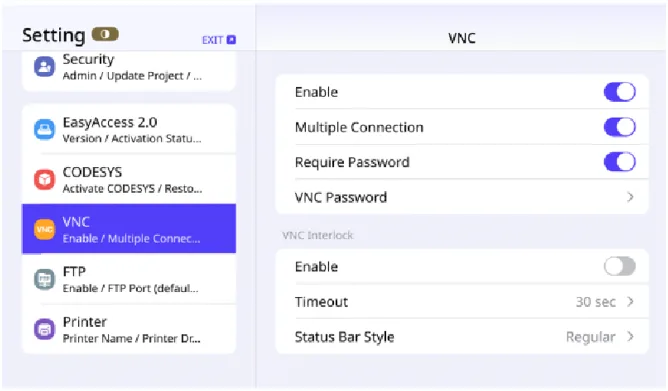
VNC
Enable
- When VNC function is enabled, VNC client devices can connect to the HMI. This allows remote users to view and operate the HMI.
Multiple Connection
- Allows multiple VNC client devices to connect. Please note that the more VNC client devices connected simultaneously, the more it may impact the communication speed of the HMI
Require Password
- To protect system security, a password can be set so that only VNC clients entering the correct password can connect to the HMI.
VNC Interlock
Enable
- Enable VNC interlock function to enhance system security and management.
Timeout
- Set the timeout period for VNC interlock. If there is no operation within the set time, the session will be automatically disconnected.
Status Bar Style
- Choose the display mode of the status bar, which can be adjusted as needed.
cMT / cMT X Series (Older models, OS versions prior to 20231201)
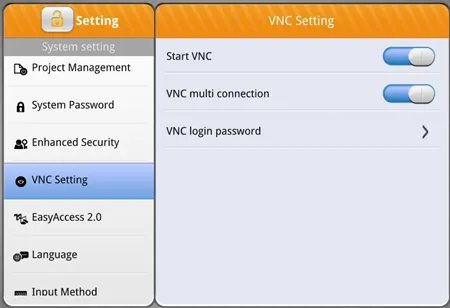
VNC Setting
Start VNC
- Allows connections from VNC client devices.
VNC Multi Connection
- Allows multiple VNC client devices to connect. Note that the more VNC client devices connected simultaneously, the more it may impact the communication speed of the HMI.
Implementation (EasyBuilder Pro Menu)
In the EasyBuilder Pro System Parameters Menu Remote Tab, you will find VNC Server Connection settings:
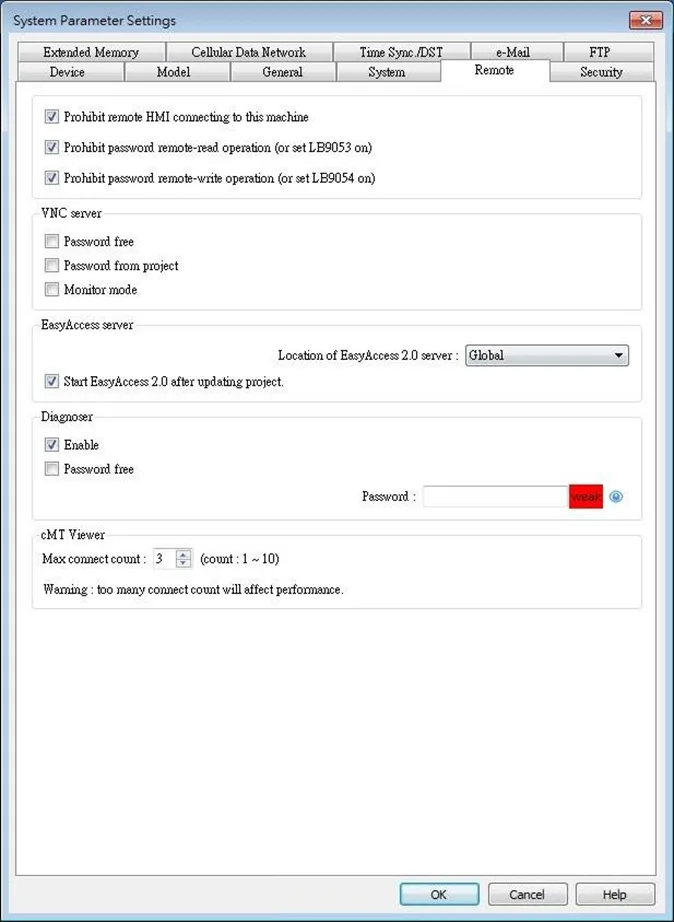
| Setting | Description |
|---|---|
| VNC Server | If [Password free] check box is selected, the client can connect with HMI via VNC without entering the password. If [Monitor mode] check box is selected, the HMI connected via VNC can only be monitored but not controlled. If [Password from project] check box is selected, set the password for VNC login. |