How to Use WebView
Overview
cMT X Series HMI can be monitored and controlled using an internet browser (Windows Edge, Chrome, or Firefox). Up to 4 users can log in simultaneously.
Enabling WebView
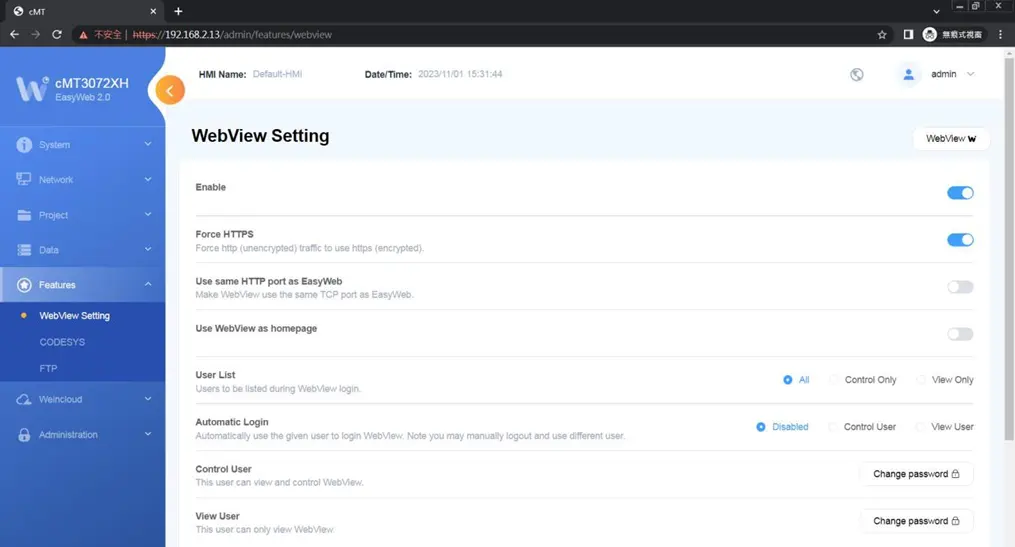
Log in Easyweb 2.0, open WebView Setting page and toggle on [Enable]. In this page, whether a password is required for logging in WebView can be set.
Force HTTPS: Enabling this will make WebView use HTTPS.
Use same HTTP port as EasyWeb: Enabling this will make WebView use port 80 to connect to the VNC server when accessed via HTTP.
Log Into WebView using an Internet Browser
Follow these steps to log into WebView via an Internet Browser
Instructions: Log Into WebView using an Internet Browser
Connect to the HMI via Web Browser
Open internet browser and enter HMI’s WebView address (e.g.: 192.168.2.121/app/dashboard). In WebView settings, if “Set as homepage” option is selected, then simply enter the IP address (e.g.192.168.2.121). WebView interface opens after entering the password.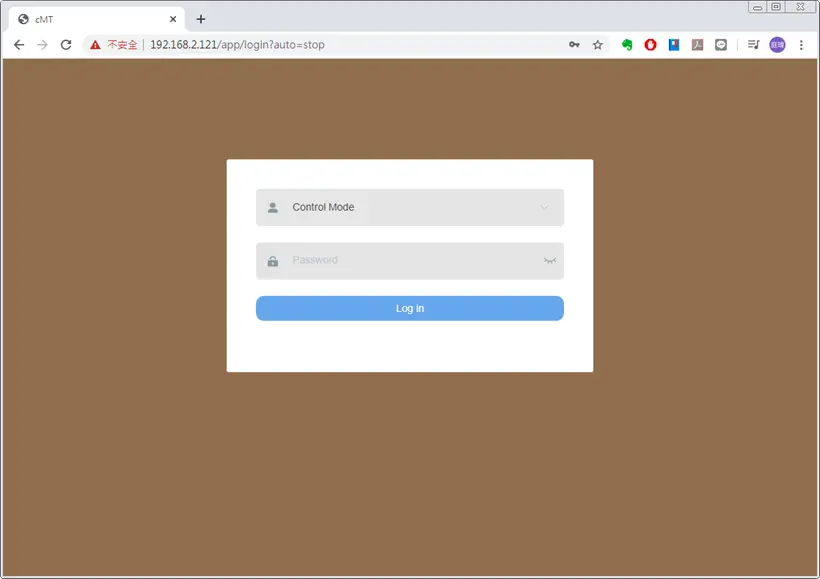
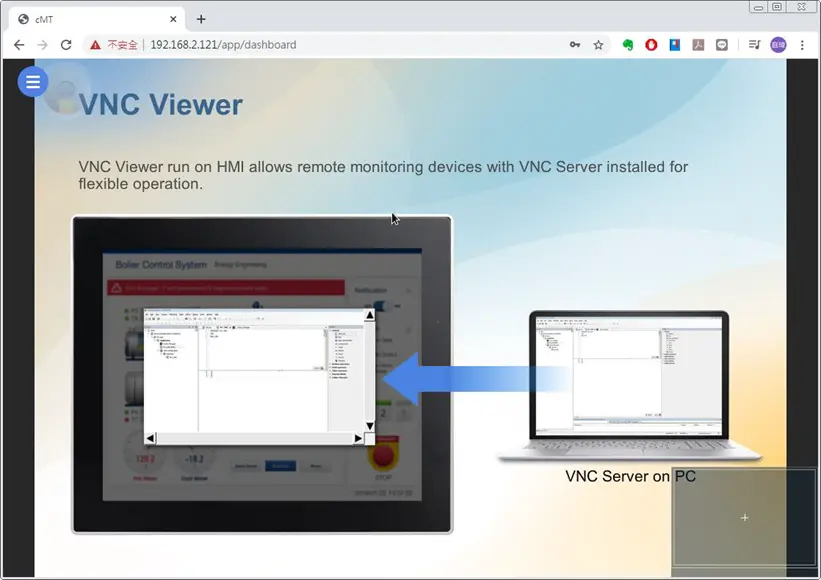
HMI Screen Shows in Browser Window
The HMI screen is displayed in the browser window.Certain HMI screen resolutions may exceed the browser window size..
When this happens, to change the view area, drag the white frame that represents browser window in the lower-right corner and move within the gray area that represents HMI screen.
Navigation Toolbar explained
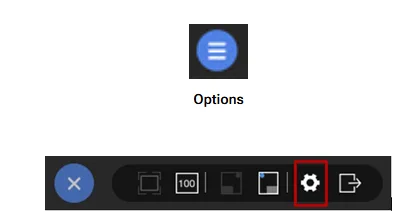
The toolbar that opens by clicking the three-line icon in the upper-left corner of the window is shown below.From left to right, the toolbar is separated into three groups of items.
In the first group, the HMI screen can be resized to fit in the browser window, or displayed with HMI’s actual screen resolution.
In the second group, the position of the icon that opens the toolbar and the dragging panel that moves the view area can be changed.
In the third group are the system settings icon and the logout icon.
Note:
- When “Set as homepage” is selected in WebView, the WebView interface can be opened by directly entering HMI IP address. When login password is forgotten, please enter https://HMI_IP/admin to return to the default system settings page. This prevents the situation where WebView functions cannot be used once password is forgotten.
If WebView Doesn’t Open
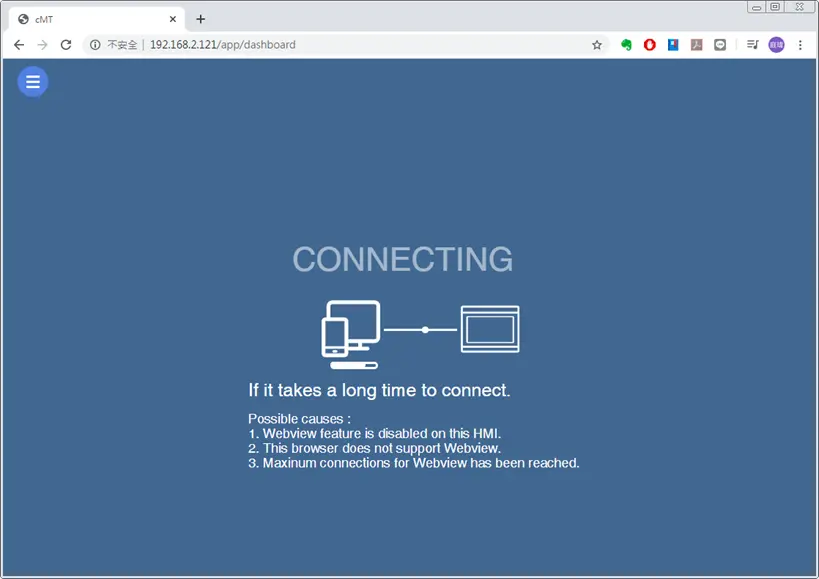
If a login attempt fails and the page below shows, try the following ways to troubleshoot:
- Check whether WebView is enabled for the HMI.
- Check whether the browser supports WebView, and please use recommended browsers such as Windows Edge, Chrome, or Firefox.
- Maximum number of users may be exceeded (4 users at a time).