
Overview & Concepts
The FTP Connection feature in EasyBuilder Pro allows the HMI to communicate with an FTP server to upload or download files over an Ethernet network. It enables remote file transfer between the HMI and external systems, supporting data exchange for historical logs, recipes, sampling data, or other stored project files.
An FTP connection is configured by defining:
- The FTP server IP address or domain
- Login credentials (username and password)
- Communication port and connection parameters
- The file path for upload or download operations
Once configured, the HMI can transfer files programmatically based on defined conditions or system operations. Typical uses include automatically uploading production logs to a central server, retrieving updated recipe files from a remote location, or backing up historical data without requiring physical access to the HMI.

Implementation
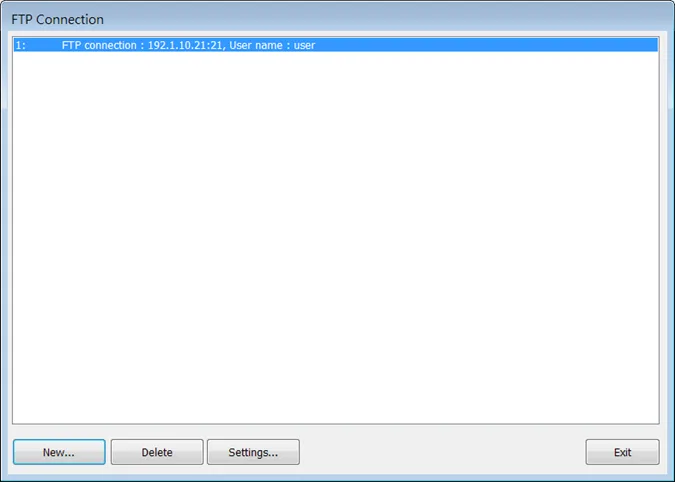
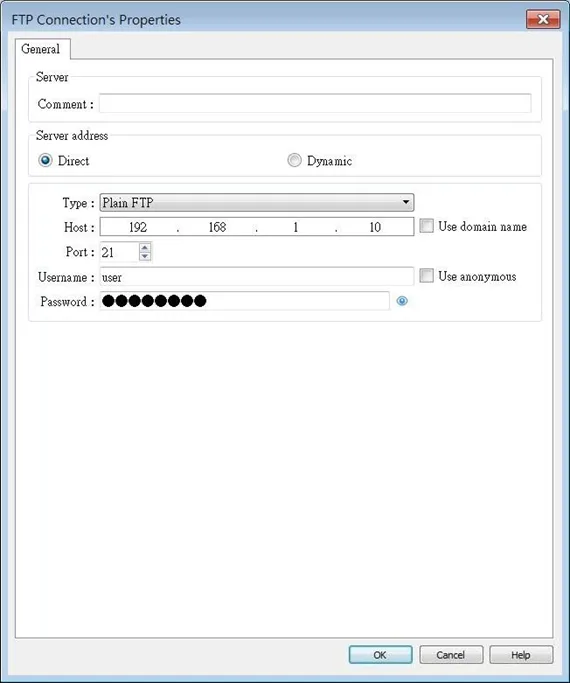
Click the FTP Connection icon in Data/History tab to open the property dialog box. Set up the properties to add a new FTP connection.
| Setting | Description |
|---|---|
| Server address | Direct Use the server address related settings (e.g. Type, IP, Port…etc.) in EasyBuilder Pro. Dynamic Specify an address for setting FTP connection parameters dynamically on HMI. |
| Type | Plain FTP No encryption. Implicit FTP over TLS The entire connection is encrypted. Default TCP port is 990. Explicit FTP over TLS Encryption begins following authentication request (AUTH TLS). Default TCP port is 21. |
| Host | FTP server’s IP address or domain name. |
| Port | FTP server’s port number. |
| Username | FTP server’s username. |
| Password | FTP server’s password. |
Note:
If “This server is used and cannot be deleted” message shows while deleting an FTP connection, please disable FTP function in [Home] » [System Parameters] » [FTP] tab.