
Overview & Concepts
Pass-Through mode in EasyBuilder Pro allows a computer to communicate with a PLC through the HMI as an intermediary device. In this configuration, the HMI acts as a communication bridge between the engineering software running on the PC and the PLC connected to the HMI. This makes it possible to program, monitor, or troubleshoot the PLC without connecting directly to the controller.
Pass-Through communication can be established through the HMI’s Ethernet or serial interfaces. When enabled, the PC connects to the HMI, and the HMI forwards the communication requests to the PLC using the configured driver and communication port.
Typical uses of Pass-Through mode include:
- Programming or monitoring a PLC remotely through the HMI
- Troubleshooting PLC communication without disconnecting the HMI
- Allowing engineering access to the controller through the existing HMI connection
By using the HMI as a communication bridge, Pass-Through mode simplifies maintenance and engineering access while keeping the PLC connected to the running HMI project.
Implementation (Serial Pass-Through)
There are two modes of Serial Pass-through – Ethernet Mode and COM Port mode. Ethernet mode uses the Ethernet connection of the HMI and Development PC as a Virtual Serial Port, eliminating the need for the Development PC to be equipped with serial COM ports.
Ethernet Mode
Virtual Serial Port Driver Installation
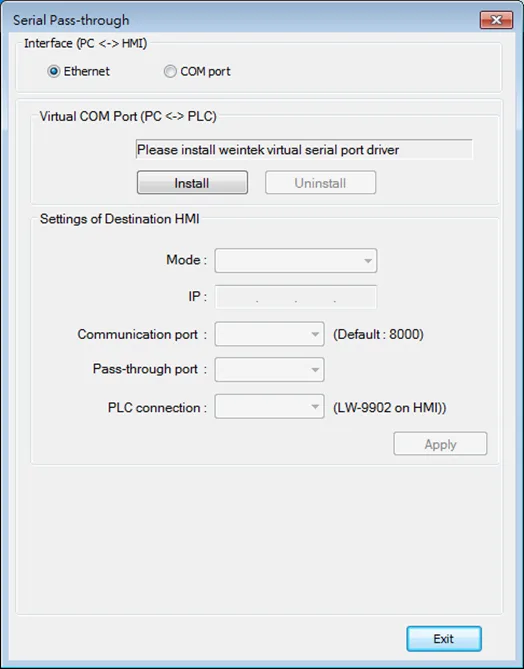
First, you must install the Virtual Serial Port Driver. Open the Utility Manager software and check if the driver has been installed. In the below screenshot, the driver is not installed, as shown by the [Please install weintek virtual serial port driver] message.
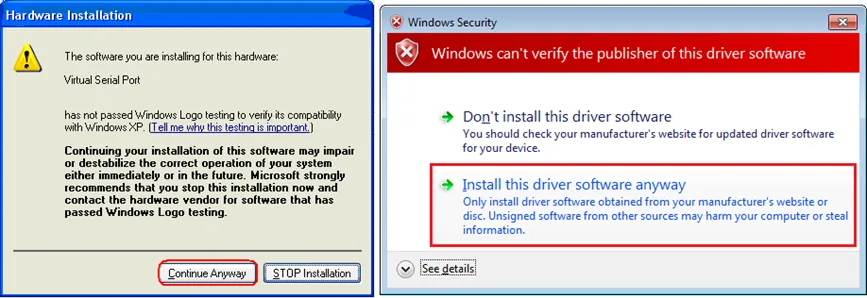
If a Security dialog pops up asking for verification, please select the [Continue Anyway] option.
Changing the Virtual Serial Port Number
Open your PC’s Device Manager as Administrator and find the Virtual Serial Port.
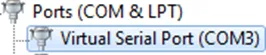
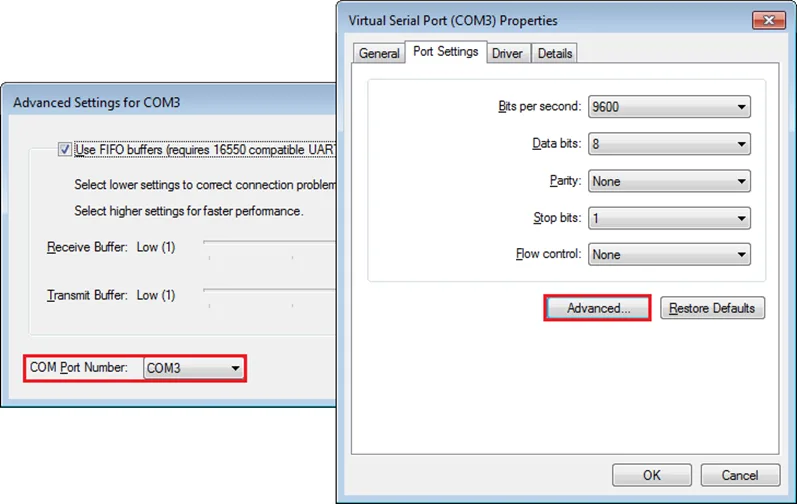
Double-click it to open, and navigate to [Port settings] -> [Advanced]. Here, you can assign a different COM designation to the Virtual Serial Port.
Ethernet Mode Settings
After installing the virtual serial port driver, follow the steps to use Ethernet mode of pass-through feature.
- Set the IP address of the HMI connected with PLC.
- Set the communication port and the serial port that connects HMI with PLC.
- Click [Apply], to apply the settings
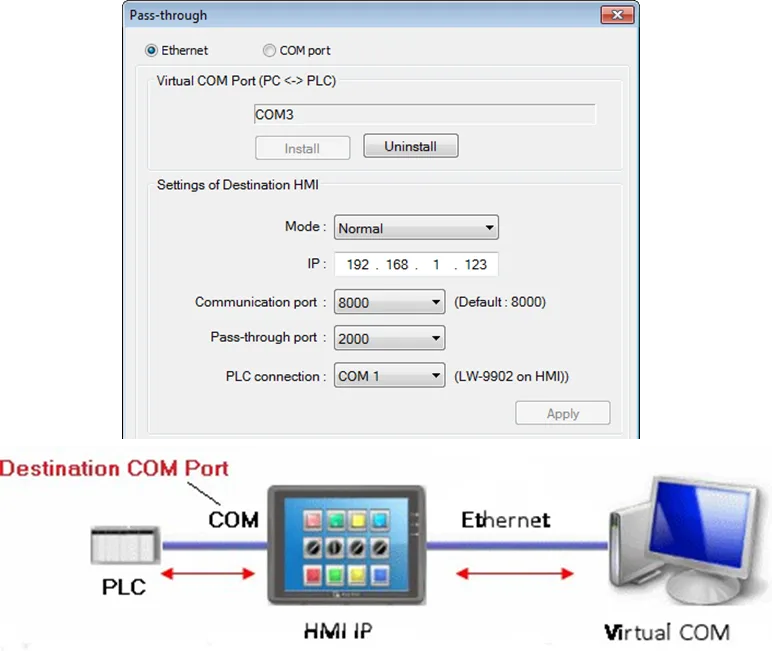
- When running PC application, set COM port to the used virtual serial port. For example, in Mitsubishi application, if the virtual serial port is COM 3, set [PC side I/F Serial setting] » [COM port] to COM 3
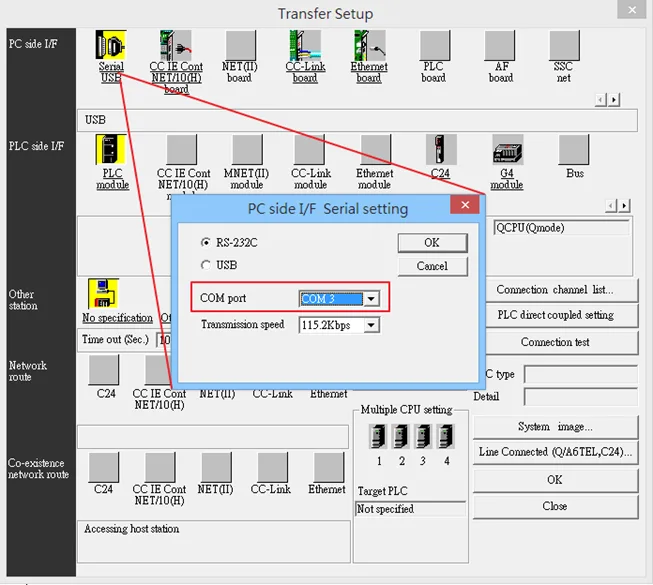
- With the correct configurations, upon execution of PLC application on PC, HMI will be automatically switched to Pass-through mode. During Pass-through, the PLC is controlled by PC via the virtual serial port. Pass-through mode will be turned off when the application ends.
COM Port Mode
This mode uses the Development PC’s built-in Serial COM ports to connect to the PLC, via the HMI. See the figure below for an illustration of the concept.
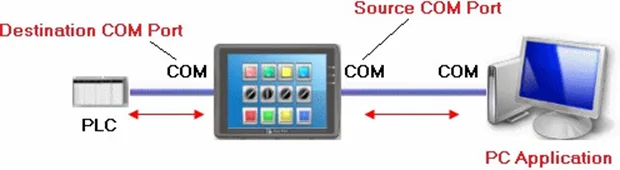
[Source COM Port] The port connects HMI with PC.
[Destination COM Port] The port connects HMI with PLC.
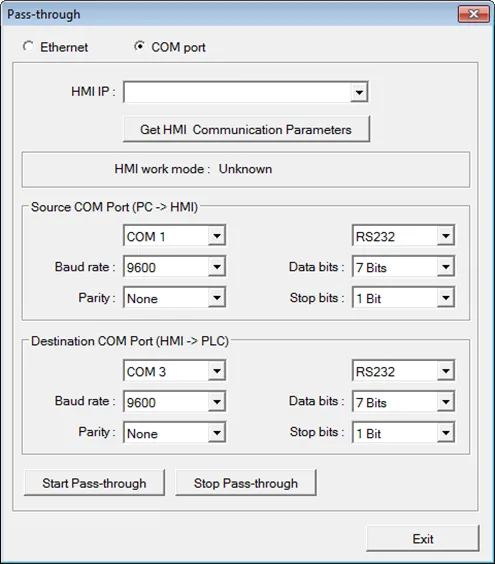
To use [COM port] mode of Pass-through, please set the properties of Source COM Port and Destination COM Port correctly.
Click [Serial Pass-Through] button in Utility Manager to set the communication parameters as shown in the following figure.
| Setting | Description |
|---|---|
| HMI IP | HMI IP address. |
| Get HMI Communication Parameters | Reads the settings of Source and Destination COM port. Click this button to update the communication parameters. |
| Source COM Port (PC->HMI) / Destination COM Port (HMI->PLC) | The communication parameters of Source and Destination COM Port are displayed.The settings will be applied when [Start Pass-through] is clicked. |
| Baud rate / Data bits / Parity / Stop bits | Source and Destination COM Port parameters should be set to be same. Since [Source COM Port] connects PC, select RS-232 mode in most situations; [Destination COM Port] connects PLC, so the setting depends on the PLC type, and can be one of RS-232, RS-485 2W, or RS-485 4W. |
Implementation (Ethernet Pass-Through)
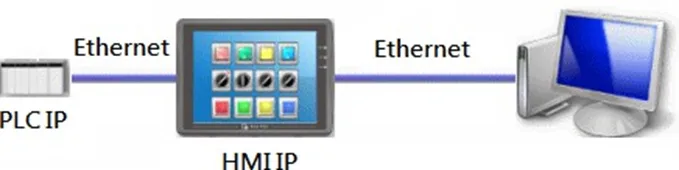
Ethernet Pass-through feature is available when both PLC and PC connect to HMI via Ethernet. Ethernet Pass-through allows running the application on PC to control PLC through HMI. This feature is only supported on cMT / cMT X Series models.
Launch the Utility Manager program, select “cMT / cMT X Series”, and open the Analysis & Testing tab:
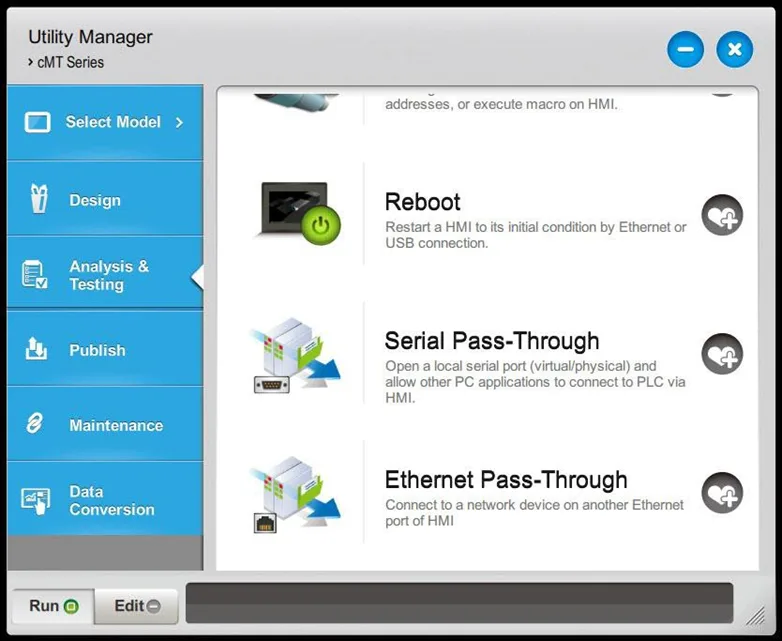
Click “Ethernet Pass-Through” and then fill in the appropriate communication parameters:
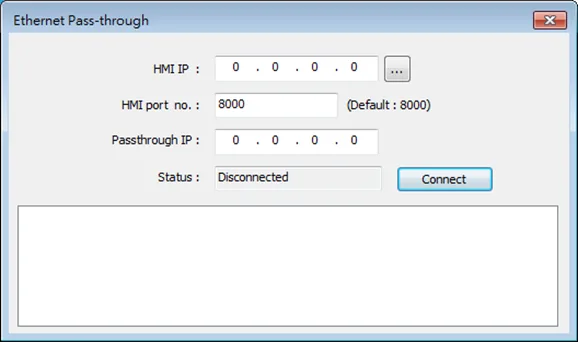
| Setting | Description |
|---|---|
| HMI IP | Enter HMI’s IP address. |
| HMI port no. | Enter the port number used to connect to HMI.By default the port number is 8000. |
| Passthrough IP | Enter the IP address of the device to be controlled under Ethernet Pass-through mode. |
| Status | After filling in the communication parameters, click [Connect] to see the connection status. |