
Overview & Concepts
The File Browser object in EasyBuilder Pro provides an interface within the HMI project that allows users to view and manage files stored on supported media devices, such as USB disks or SD cards. It displays directory contents and enables file navigation directly from the HMI screen. This object is typically used to access exported logs, recipes, data sampling files, or other stored project-related files.
The File Browser operates at the file system level rather than the register level. It does not transfer memory blocks or manipulate device registers directly; instead, it allows browsing and interaction with files that have already been created or stored on the HMI or external media.
The object supports:
- Displaying file and directory lists
- Navigating folder structures
- Selecting files for use within the project (where applicable)
Typical applications include:
- Allowing operators to review exported Event or Operation Log files
- Selecting recipe files stored on external media
- Verifying that backup operations completed successfully

Implementation
Click the File Browser icon on the toolbar, or select [Object] » [File Browser] to open a File Brower object property dialog box and set up the properties.
General Tab
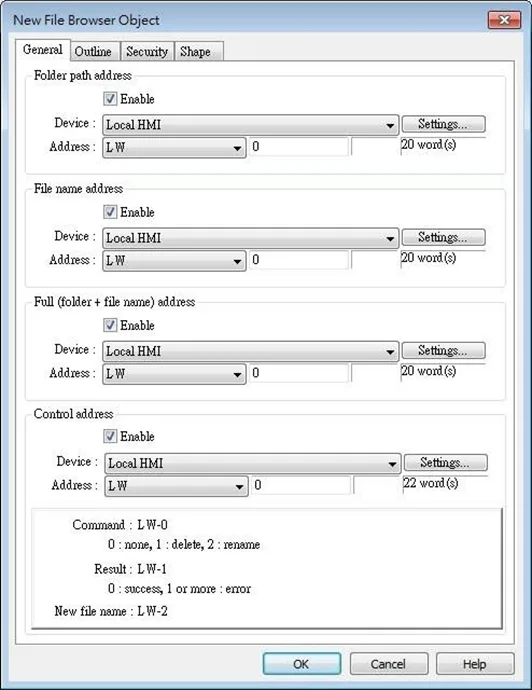
| Setting | Description |
|---|---|
| Folder path address | Current directory. |
| File name address | The file name of the currently selected file. |
| Full (folder + file name) address | The full directory and file name of the currently selected file. |
| Control address | Designate the control address used for deleting a file or changing file name in File Browser. Command: Control Address 0: None 1: Delete 2: Rename 3: Select (only supported on cMT / cMT X Series models) Result: Control Address+1 0: Success 1 or more: Error New File Name: Control Address +2 |
Outline Tab
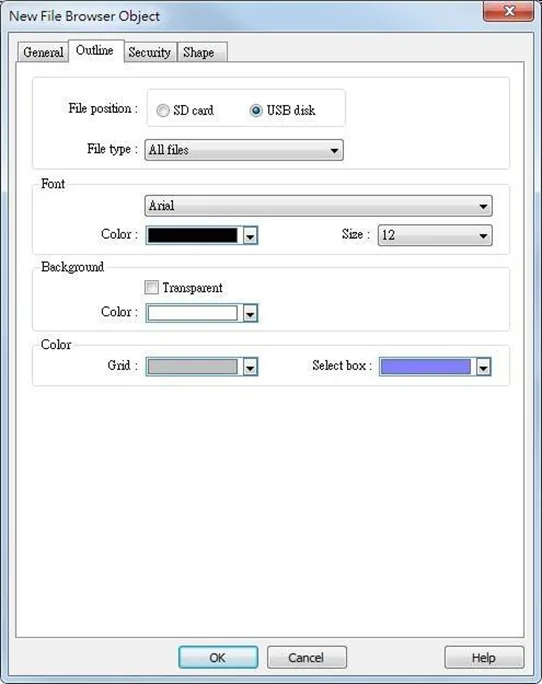
| Setting | Description |
|---|---|
| Folder position | Select the position of the file from SD card or USB disk. |
| File type | File types to be displayed. Options include all files, CSV files, or image files. For cMT / cMT X Series models, there is also a PDF file option for use in conjunction with PDF reader. |
| Font / Background / Color | Set the attributes and font of the object. |
Notes:
- The file name and the directory of the selected file will be written to the designated address. To change file selection in File Browser to another file by changing the address, please enter the position of the file and then use the select command (=3).
- The system will read the folder path address and file name address when the HMI is restarted or when an external device is inserted to the unit. If valid data is can be read from the designated address, the system will then automatically navigate to the appropriate directory and highlight the file according to the data read.
- If [Folder path address] is not enabled, the data at Full (folder + file name) address will be read.