Overview & Concepts
Object-Level Security in EasyBuilder Pro allows developers to protect individual interface objects so that only authorized users can operate them. Instead of limiting access to entire screens, security can be applied directly to specific controls such as buttons, switches, input fields, or configuration commands.
During runtime, the HMI checks the permissions of the currently logged-in user before allowing interaction with the protected object. If the user does not have the required authorization, the object may remain visible but cannot be operated.
Object-level security is commonly used to:
- Restrict configuration or setup functions to authorized personnel
- Prevent operators from modifying critical system parameters
- Limit maintenance or diagnostic controls to qualified users
By applying security directly to individual objects, developers can protect important system functions while still allowing the rest of the interface to remain accessible to general operators.
In order for object-level security to exist, the security features within the project need to be enabled and user/access classes configured. Please refer to the “User Management and Access Classes” page to enable security prior to configuring object-level security functionality.
Implementation
The settings in an object’s Security Tab allow users to configure conditions such that the object is operable or visible when the underlying condition is met.
Take the Combo Button Security tab below:
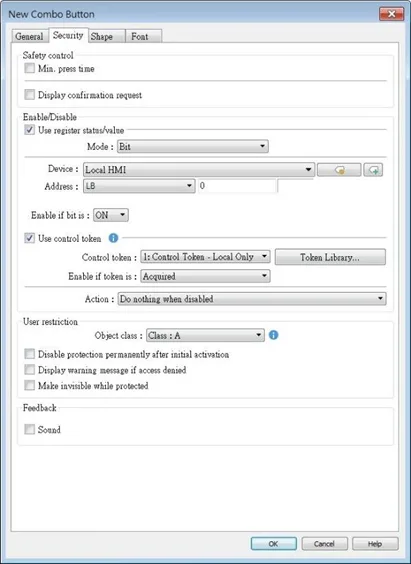
| Setting | Description |
|---|---|
| Min. press time (sec) | Press and hold the object for longer than the [Min. press time] set here to activate the object. |
| Display confirmation request | After pressing the object, a dialog appears for operation confirmation. If the response to this dialog comes later than the set [Max. waiting time (sec)], this dialog disappears automatically and the operation will be canceled. |
When [Use register status/value] or [Use control token] is selected, whether the object is operable is determined by the status of the designated address or acquisition the control token, respectively.
Using Control Token
As shown in the following figure, only when LB-0 is in OFF state and “2: Control Token” is acquired will this object be operable.
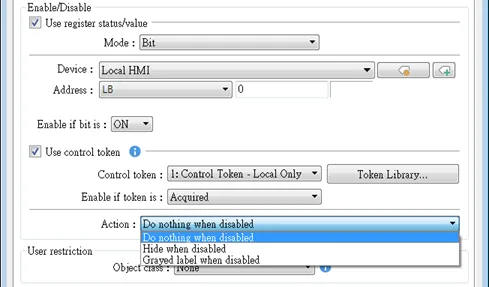
The following table describes the action the object will take when the control token is NOT acquired:
| Setting | Description |
|---|---|
| Do nothing when disabled | When the control token is not acquired, the object is still displayed. |
| Hide when disabled | When the control token is not acquired, the object is hidden. |
| Grayed label when disabled | When the control token is not acquired, the label of the object turns gray. |
Note:
- For more information about operation of the Control Token feature of cMT / cMT X Series HMIs, please see the Control Token page.
Using Register Status / Value
When selected, the status of the designated bit/word addre
ss determines whether the object is operable.
| Mode | Description |
|---|---|
| Bit | The object is operable when the designated bit is in On/Off state. |
| Word | When [Use Register Status/Value] and [Word] are both selected, the status of a designated word address determines whether the object is operable. Enable if value is: >, <, ==, <>, >=, <= When the value in the word address reaches the condition specified here, the object is operable. Tolerance: This setting is available for <> and ==. <>: The object will be operable when: value in address > [value in address + tolerance] or value in address < [value in address – tolerance] ==: The object will be operable when: value in address is between [value in address + tolerance] and [value in address – tolerance] (including value in address ± tolerance) |
| Condition object | When [Use Register Status/Value] and [Condition object] are both selected, whether the object is operable is determined by the On/Off state output by the specified Condition object. |
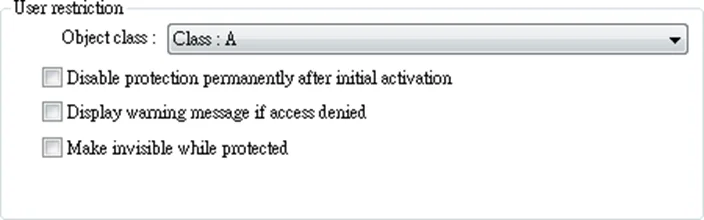
User Restriction Options
| Setting | Description |
|---|---|
| Object class | “None” means any user can operate this object. Only account “admin” can operate “Administrator” object class. |
| Disable protection permanently after initial activation | Once the permitted class of the user matches that of the object, the system will stop checking the security class permanently, that means, any user can operate this object freely after it is unlocked. |
| Display warning message if access denied | When an unauthorized user attempts to operate the object, a warning dialog (Window no. 7) appears. The content of the message in the dialog can be modified. |
| Make invisible while protected | When the user’s privilege does not match the object class, the object will be hidden. |
Changing Security Settings of Multiple Objects at Once
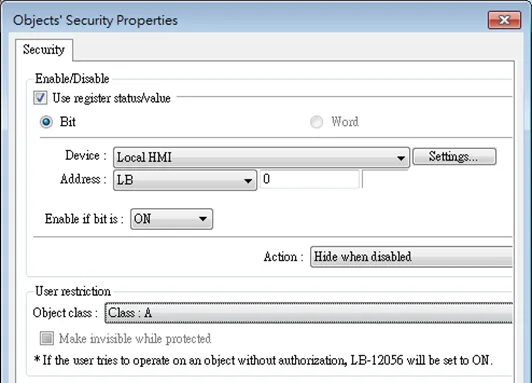
Selecting multiple objects in a group and then selecting [Security settings] in the right-click menu can open an Objects’ Security Properties window that allows users to change the security settings of all the selected objects at a time.
![Selecting multiple objects in a group and then selecting [Security settings] in the right-click menu can open an Objects’ Security Properties window that allows users to change the security settings of all the selected objects at a time.](https://media.maplesystems.com/wp-content/uploads/2026/04/image-586.webp "Changing security settings of multiple objects at once")
Note:
- When the selected objects have different security settings pages, Objects’ Security Properties will automatically adjust and show the settings that users are allowed to change. The rest of the settings will be hidden or greyed out. The following is a window that shows when selecting a Bit Lamp and a Numeric object.