
Basic MQTT Features
Overview
Designed to be light weight, open, and simple, MQTT is a subscriber/publisher messaging transport
protocol that is considered a great solution for applications where a small code footprint is required
and/or network bandwidth is scarce. It is particularly suitable for continuous monitoring of sensory data such as temperature, pressure, water level, energy monitoring…etc.
Publisher, Subscriber, and Broker are three important roles in MQTT protocol. As shown in the following figure, when the Publisher publishes a message to the Broker, the Broker will deliver the message to the subscriber.
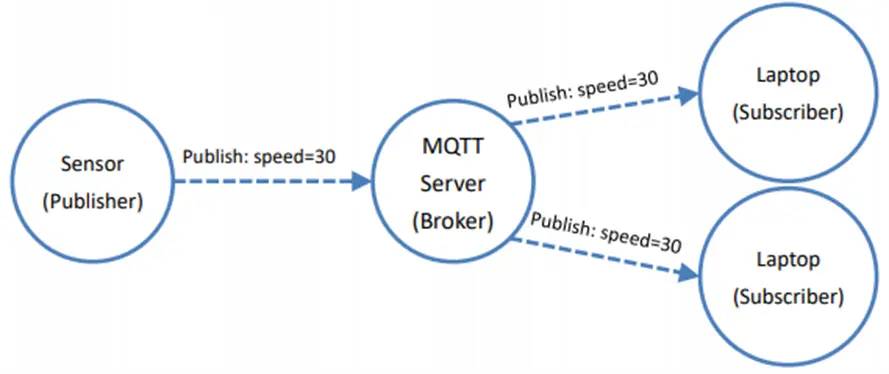
HMIs and MQTT
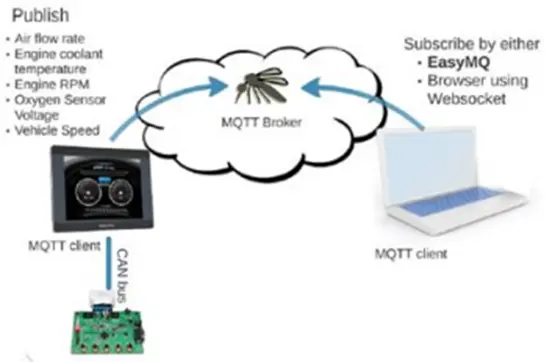
The Advanced HMI and cMT products can function as publishers, subscribers, and/or brokers. The HMI processes data from PLCs and can publish messages to an external MQTT broker, which will handle message delivery to the subscribers. In this manner, message publishing is possible even when the HMI is positioned behind firewalls and access to the HMI is difficult.
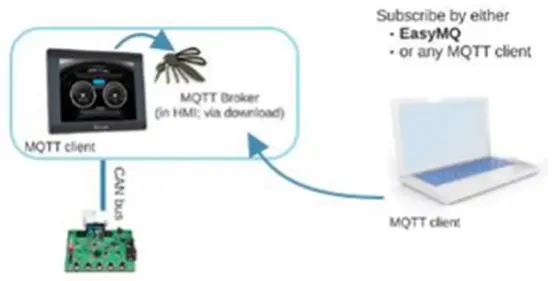
Alternatively, an external broker is not necessary. MQTT messages can be published to a built-in internal MQTT broker, and an MQTT client can subscribe directly to the MQTT broker inside the HMI to receive message updates. This scheme can be realized even remotely as long as the MQTT client can connect directly to HMI, such as with VPN or EasyAccess 2.0.
MQTT support was introduced in EZwarePlus version 5.03.02.026. The current feature set described in this manual is based on EasyBuilder Pro (the next generation of EZwarePlus) version 6.01.01.117. Not all features may be present in earlier versions. MQTT support is available in the Advanced HMI Series and the cMT Series. Some advanced features are limited to the cMT Series and are described later in this manual.

EasyBuilder Pro Settings
In EasyBuilder Pro, select [IIoT/Enery] » [MQTT] from the ribbon to open the MQTT settings.
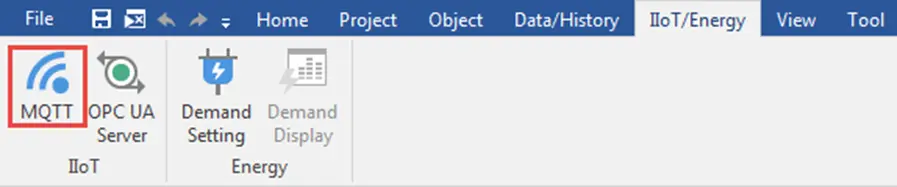
Server Settings – General Tab
First, the MQTT Broker information must be entered. The IP address or domain name of the server is the IP address or domain name of the MQTT broker. When the local address (127.0.0.1) is used, messages will be published to the built-in broker in the HMI.
To designate a broker by a domain name, select the [Use domain name] checkbox and enter the domain name in the IP field. To prevent unauthorized subscribers from connecting to the broker, select [Authentication] checkbox. With this checkbox selected, connecting MQTT Broker will require Username and Password.
In [Auto-connection] mode, the connection will be automatically terminated if there’s no data update for a specified period of time. Topic list shows the topics that can be subscribed on current HMI. To avoid publishing topic list every time when connecting the broker, select [Publish topic list only at the first time].
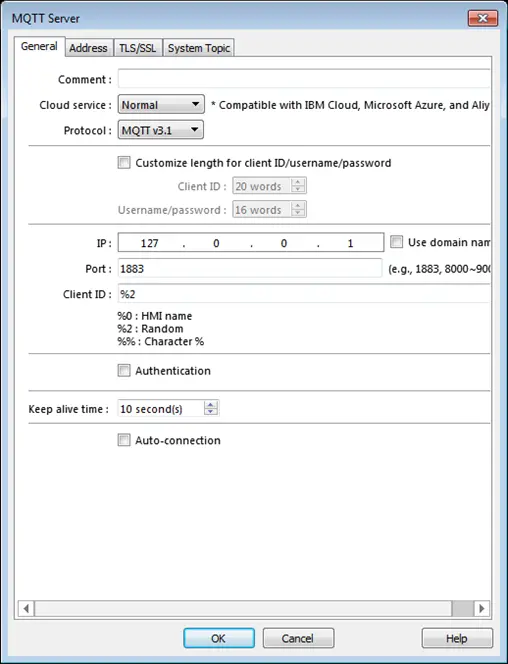
| Setting | Description |
|---|---|
| Cloud service | Normal Use general publish-subscribe service. AWS IoT Use AWS IoT as a Broker, and use Thing Shadows service. For more information, see AWS IoT page Sparkplug B Uses the Sparkplug B specification for use with Ignition SCADA software and other Sparkplug B module implementations. For more information, see Sparkplug B Page |
| Protocol | Supports MQTT v3.1 and v3.1.1. |
| Customize length for registration ID/ username/ password | Registration ID: The upper limit is 128 words. Username/Password: The upper limit is 256 words. |
| IP | Enter the MQTT Broker (Server) IP address or domain name for receiving the message. If 127.0.0.1 [Localhost] is used, the HMI will run an MQTT broker locally. |
| Use domain name | A domain name can be used as MQTT Broker’s IP address. |
| Port | Enter the MQTT Broker port number for receiving the message. Commonly 1883 for standard MQTT connections, or 8883 for encrypted MQTT connections. |
| Client ID | Enter the client/registration ID. |
| Authentication | Check if selected MQTT Broker requires a [Username] and [Password]. |
| Username | Enter the username for the MQTT Broker. |
| Password | Enter the password for the MQTT Broker. |
| Keep alive time | If the MQTT Broker does not receive a message from HMI beyond the specified time, the HMI will be identified as disconnected. Note: When running in simulation mode, messages may be delayed, but the delay will not exceed the [Keep alive time]. In production mode, the HMI sends messages immediately. |
| Auto-connection | In this mode, the connection will be automatically terminated if there’s no data update for a specified period of time. The connection will resume once any data update occurs. The user can choose to publish initial values / topic list only at the first connection. In this mode, the start and stop commands are disabled. |
Server Settings – Address Tab
LW addresses can be designated to dynamically control the MQTT connection or display MQTT status during HMI run time. After designating an address, its relative addresses (+1, +2, +3…etc.) will correspond to different attributes or parameters, as shown in the following EasyBuilder Pro settings dialog box. For instance, if MQTT_STATUS is set to LW-110, then LW-110 shows the status and LW-111 shows the error code.
Messages that have not been sent are stored in the buffer. The maximum buffer capacity is 10000 messages. When the buffer is full, the earliest message will be deleted.
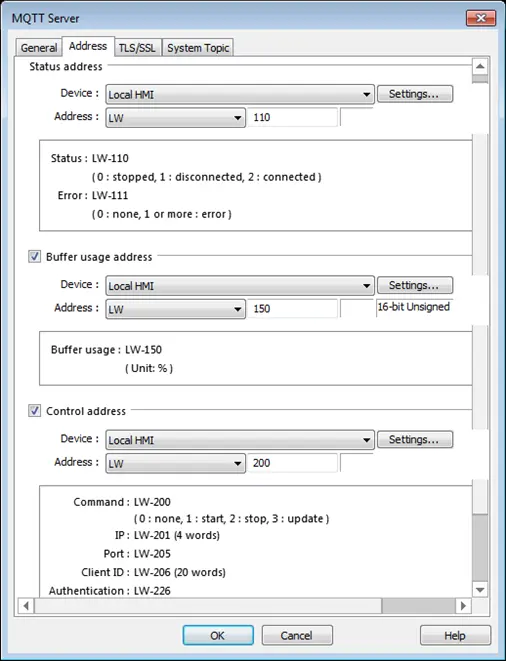
The MQTT_COMMAND control addresses can be designated to set control parameters, and the corresponding addresses include MQTT_COMMAND+1 ~ MQTT_COMMAND+70…etc. The status addresses can show connection status, and the corresponding addresses include MQTT_STATUS and MQTT_STATUS+1.
The MQTT settings can be changed dynamically during HMI run time by using the control addresses. By default, the HMI will automatically try to connect to the MQTT Broker on startup.
During HMI run time:
- Setting MQTT_COMMAND to 1 connects HMI with the broker.
- Setting MQTT_COMMAND to 2 disconnects HMI with the broker.
- Setting MQTT_COMMAND to 3 after updating the control parameters will connect HMI with the broker using the new parameters.
| Setting | Description |
|---|---|
| Status Address | LW-n: Displays the connection status to MQTT Broker Value 0: Not attempting to connect to MQTT Broker Value 1: Disconnected and can’t connect to MQTT Broker Value 2: Connection succeeded LW-n+1: Error Indicator Value 0: No Error Value 1 or more: An Error Occurred |
| Buffer Usage address | Messages that have not been sent are stored in the buffer. The maximum buffer capacity is 10000 messages. The buffer capacity is measured in percentage (%), rounded up. LW-n: Shows buffer usage. |
| Control | LW-n: Displays the connection status to MQTT Broker Value 0: Ready Value 1: Start Value 2: Stop Value 3: Update LW-n+1: Sets the IP address of MQTT Broker. LW-n+5: Sets the port number of MQTT Broker. LW-n+6: Sets the Registration ID for connecting MQTT Broker. LW-n+70: Enables / Disables authentication: Value 0: Disable Value 1: Enable LW-n+71: Sets the username for connecting MQTT Broker. LW-n+199: Sets the password for connecting MQTT Broke |
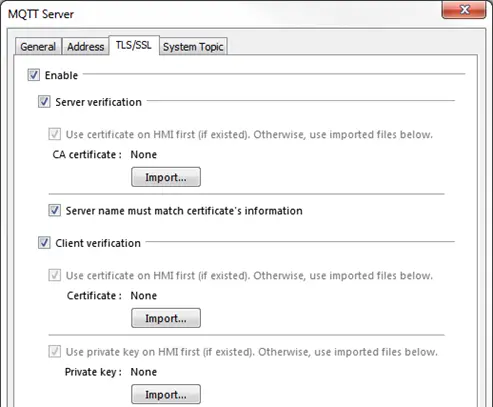
Server Settings – TLS/SSL Tab
Enabling TLS/SSL authentication opens two verification methods:
- [Server verification]: Verify whether the server certificate is signed by CA (certificate authority) certificate.
- [Client verification]: By providing a private key and certificate, the server can verify the client faster, skipping login by username or password.
Server Settings – System Topic Tab
By default, when the HMI is the publisher and is connected to the broker for the first time, two default topics published at QoS2 will be sent from HMI. These messages can be edited or disabled.
- iot-2/type/mt/id/<Client ID>/evt/topics_update/fmt/json
This topic contains the messages sent from the HMI, and shows whether the messages are compressed. - iot-2/type/mt/id/<Client ID>/evt/status/fmt/json
This topic shows the connection status between HMI and broker.
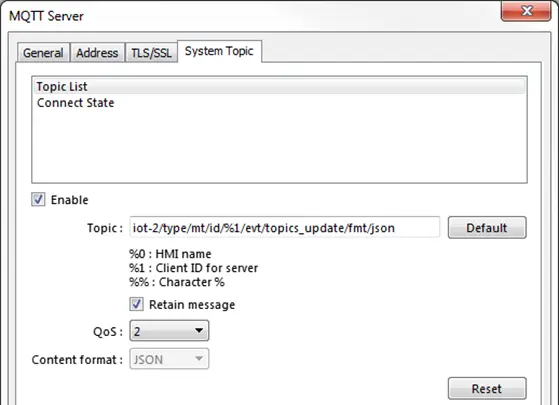
| Setting | Description |
|---|---|
| Topic List | Enable Selecting this checkbox puts the specified topic into the broker’s topic list, which includes topics published by different HMIs. At the first time the subscriber connects to the broker, the broker will send the specified topic to the subscriber. Alternatively, the subscriber can subscribe to this topic to view the available topics in the broker. Retain message When this checkbox is selected, the MQTT broker will save the latest message. |
| Connect State | Enable Selecting this checkbox displays the connection state between the broker and the HMI (publisher). At the first time the subscriber connects to the broker, the broker will send the specified topic to the subscriber. Alternatively, the subscriber can subscribe to this topic to monitor the connection state between the broker and other HMIs (publisher). Retain message When this checkbox is selected, the MQTT broker will save the latest message |
Topic Publisher Settings
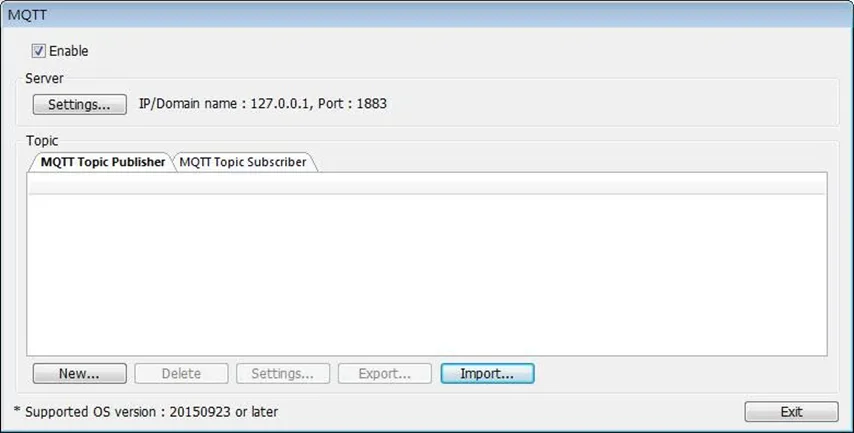
Click [New] to open General and Address settings, or click [Import] / [Export] to import or export an existing *.csv file. The maximum allowable number of topics is 255. Each topic contains a number of messages to be sent.
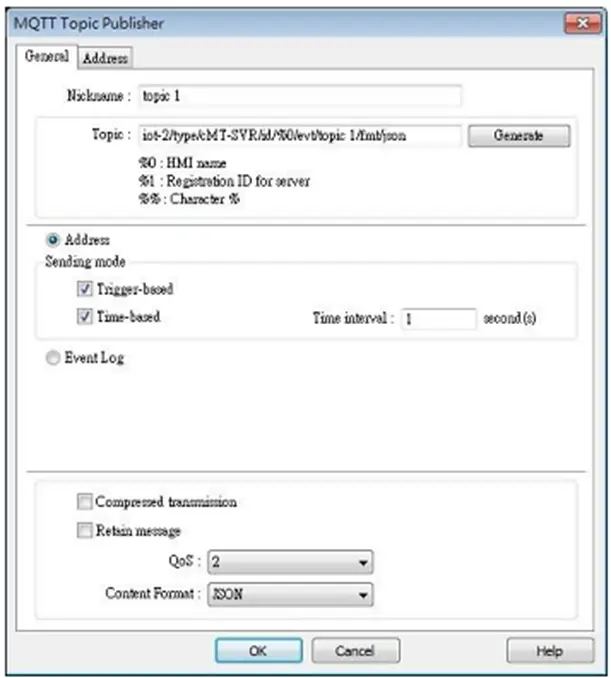
The name of the Topic can be user-defined, and by using the character % followed by certain codes, HMI name/Server setting can be used in Topic name as well.
For example: iot-2/type/cMT-SVR/id/%0/evt/topic 1/fmt/json
%0 stands for HMI name. To find out HMI name, open System Settings on HMI, or use system register LW-10884. If the HMI name is “Default HMI”, then the topic should be written as: iot-2/type/cMT-SVR/id/Default HMI/evt/topic 1/fmt/json
Sending Mode: If Trigger-based is selected, the MQTT message is sent when any value in the Topic changes. If Time-based is selected, data is published at a fixed time interval.
Apart from Address sending mode, when an Event Log is created, [Event Log] option can be found in the MQTT Topic Publisher settings dialog.
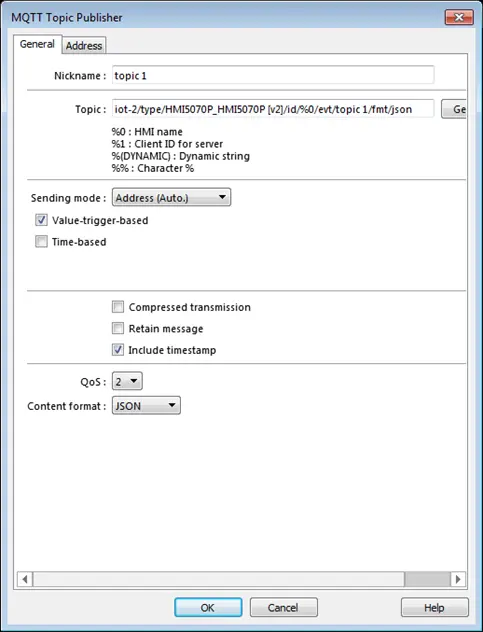
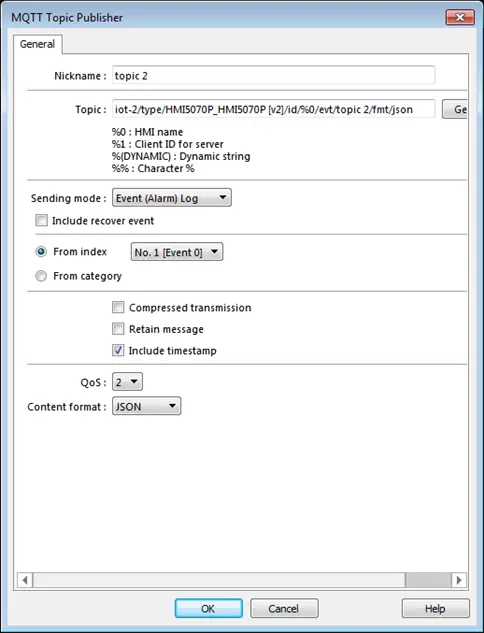
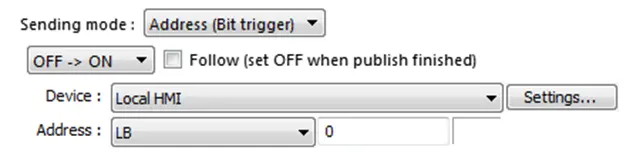
| Setting | Description |
|---|---|
| Nickname | Enter a nickname for easier reference. |
| Topic | Specify the format of the message topic sent to MQTT Broker. |
| Sending mode | Address (Auto) The HMI can publish data when any data in the topic changes [Value-trigger-based] or at a pre-defined time interval [Time-based], or both. Address (Bit trigger) The HMI only publishes data when a defined control bit changes. Available option include rising-edge detection, falling-edge detection, both with optional reset, or both rising and falling-edge detection (any change). Event (Alarm) Log The topic source can also be an Event Log. |
| Compressed transmission | The message will be compressed before being sent, and decompression is needed before reading the message. Messages in MQTT are compressed / decompressed with DEFLATE algorithm. |
| Retain message | If selected, the MQTT Broker will save the latest message. |
| Include timestamp | When the format used is JSON, selecting this option can include timestamp in the message. |
| QoS | MQTT provides three levels of reliability, which are known as qualities of service (QoS). The reliability of the message determines the persistence of the message. 0: At most once, messages are not persistent. 1: At least once. 2: Exactly once. |
| Content Format | The supported formats are: JSON and Raw Data. |
When the sending mode is [Address], in Address tab, set the data composition that will be contained in the topic. The addresses can be consecutive or nonconsecutive, and of different data types and lengths.
![When the sending mode is [Address], in Address tab, set the data composition that will be contained in the topic. The addresses can be consecutive or nonconsecutive, and of different data types and lengths.](https://media.maplesystems.com/wp-content/uploads/2026/04/image-20-1.webp "Address tab configuration")
MQTT provides three levels of reliability, which are known as qualities of service (QoS). The reliability of the message determines the persistence of the message.
0: At most once, messages are not persistent.
1: At least once.
2: Exactly once.
For more information on QoS, click here.
[Compressed transmission]: The message will be compressed before being sent, and decompression is needed before reading the message. Messages in MQTT are compressed / decompressed with DEFLATE algorithm.
[Content format]: The supported formats are: JSON and Raw Data.
Below is an example that shows the difference between JSON and Raw Data.
When publishing four values in the following address formats:
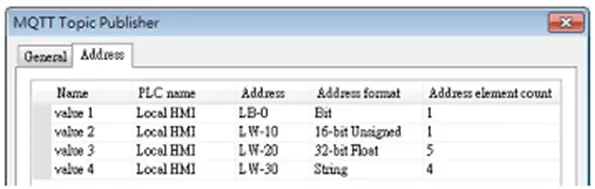
JSON:
{
“d” : {
“value 1” : [ false ],
“value 2” : [ 2 ],
“value 3” : [ 1.20000005, 0, 0, 0, 0 ],
“value 4” : [ “ABCD” ]
},
“ts” : “2017-04-18T17:36:52.501856”
}
Raw data:
0002 009A 9999 3F00 0000 0000 0000 0000
0000 0000 0000 0041 4243 4400 0000 00
Topic Publisher – Address Tab
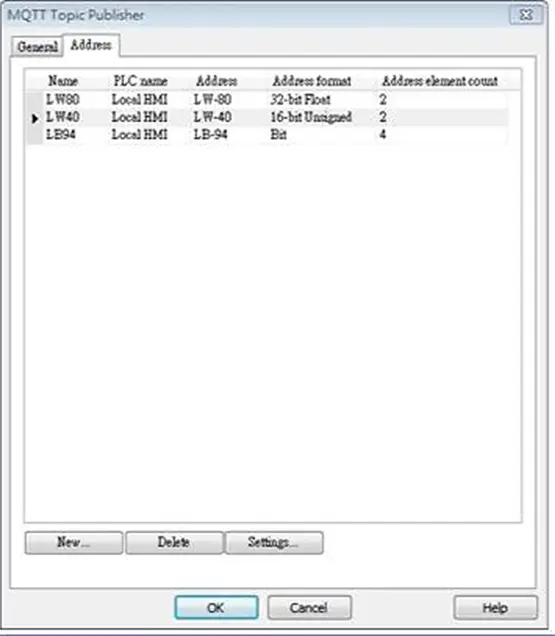
| Setting | Description |
|---|---|
| New | Add the source of the topic. The length of each address can be specified respectively. |
| Delete | Delete the address. |
| Setting | Change the name and address. |
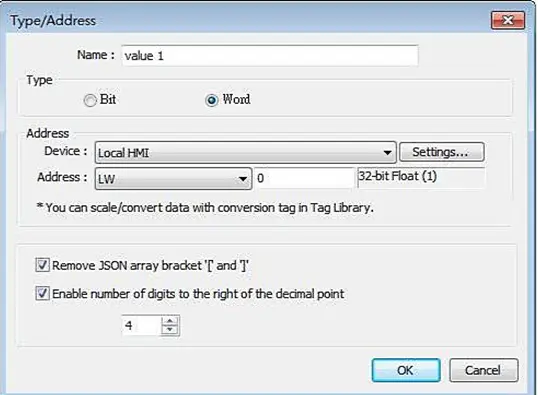
| Setting | Description |
|---|---|
| Remove JSON array bracket “[“ and “]” | For JSON formatted messages, selecting this option can remove bracket “[“ and “]”. |
| Enable number of digits to the right of the decimal point | When data type is Float, the number of digits after the decimal point can be specified. |
Topic Subscriber Settings
Advanced and cMT Series HMIs can subscribe topics from other MQTT Brokers. The settings are similar to Publisher settings demonstrated in the preceding chapters. Subscribing to Event Logs is not supported.
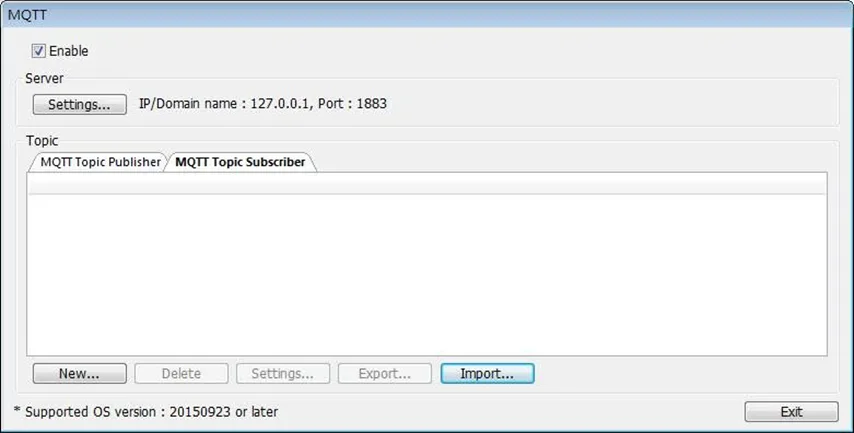
Click [New] to open General and Address settings, or click [Import] / [Export] to import or export an existing *.csv file. The maximum allowable number of topics is 255.
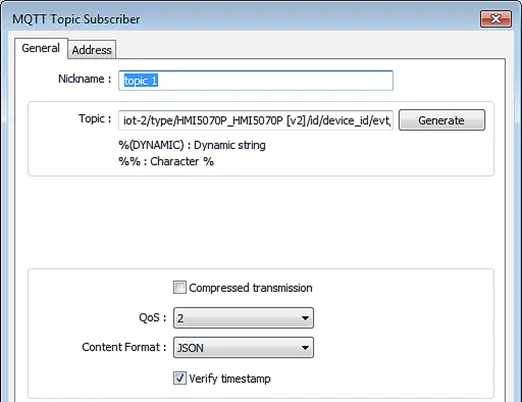
| Setting | Description |
|---|---|
| Nickname | Enter a nickname for easier reference. |
| Topic | Subscribe to a topic in an MQTT Broker. The topic name can be dynamic. |
| Compressed transmission | Configure with the same setting as the MQTT Topic Publisher. |
| QoS | MQTT provides three levels of reliability, which are known as qualities of service (QoS). The reliability of the message determines the persistence of the message. 0: At most once, messages are not persistent. 1: At least once. 2: Exactly once. |
| Content Format | The supported formats are: JSON and Raw Data. Select a format that is supported by the publisher. |
| Verify timestamp | When a timestamp is included in the message, selecting this option will verify whether the timestamp is increasing, and will only update when the timestamp does increase. Otherwise, the message will be indicated as an earlier message and discarded. |
The address format should be specified according to the subscribed topic. For example, if the topic contains the following address formats: Bit, 16bit-unsigned, String (length 4). The address settings should be:
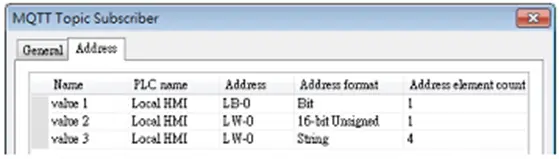
In this example, the order from value 1 to 3 should be: Bit, 16bit-unsigned, String.
The order cannot be changed, and the address element count should be identical.