
Licensing a cMT-SVR/cMT-HDMI
To use the OPC UA Server feature on cMT-SVR-100, cMT-SVR-102, and cMT-HDMI models, you must purchase a license for each device. This is a one-time purchase that is valid for the life of the product.
Note: cMT3000 and cMT-Gateway products do not require an additional license. The cMT-SVR-OPCUA comes with the license already installed.
To purchase the license, please contact Maple Systems sales support at 1-425-745-3229 or email us at [email protected].
After you have purchased an OPC UA license, you will receive a document from Maple Systems that contains the license serial number and activation code. You must download this information to the target cMT device using EasyBuilder Pro, in order to activate the license. This download only needs to happen once.
Steps to activate OPC UA Server license on a cMT-SVR or cMT-HDMI:
Follow these steps to activate your OPC UA Server license on your Headless HMI model.
Instructions: Steps to activate OPC UA Server license on a cMT-SVR or cMT-HDMI:
Get your OPC UA License Document
Get the document you received from Maple Systems which contains the license serial number and activation code.Example:
Product Name: cMT-SVR
License Serial: OPCAxxxxxx
Activation code: 1234-1234-1234-1234
Retrieve cMT Hardware Key: Connect cMT to your network
Retrieve the Hardware key from the cMT device. To do this, connect your cMT-SVR or cMT-HDMI to your local Ethernet network and start your web browser.Retrieve cMT Hardware Key: Enter IP Address of cMT unit
Type http:///into the URL address bar.The default IP address for the LAN2 port is 192.168.100.1.
The LAN1 port defaults to DHCP.
For more information on how to configure your cMT device, please consult the cMT Quick Start Guide (P/N 10101026).
Retrieve cMT Hardware Key: Navigate to EasyAccess 2.0 page
The Hardware key is located on the EasyAccess 2.0 page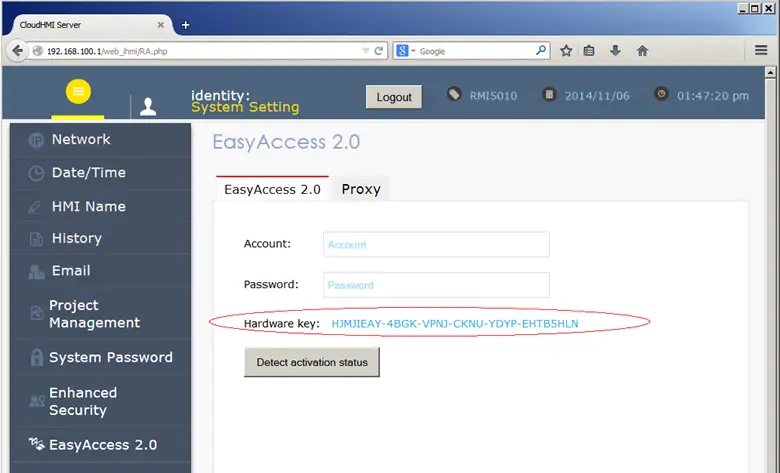
Activate OPC UA Server: Visit Activation Website
In a new Browser window, go to https://account.ihmi.net/opcua/activate.php to activate OPC UA Server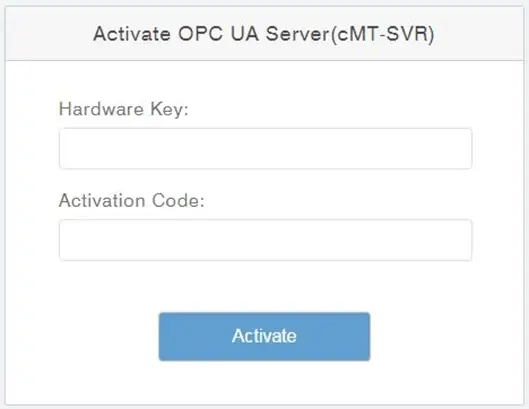
Activate OPC UA Server: Enter the required information
Type in the Hardware Key and the Activation Code. Then click the Activate button.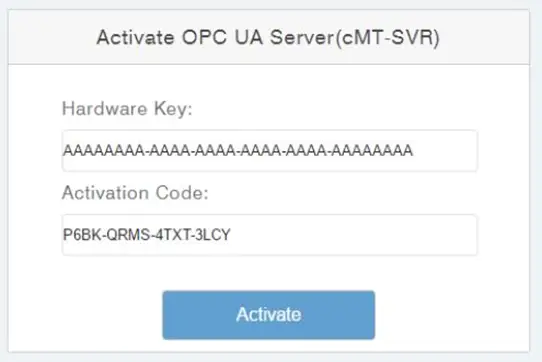
Activate OPC UA Server: Confirm the information is accurate
A confirmation window displays with the information above listed. If the information is accurate, click the Yes, activate button.Note: Once this step is completed, the activation cannot be undone.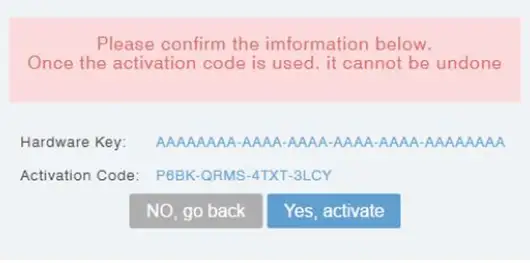
Activate OPC UA Server: Activation Successful!
The cMT-SVR or cMT-HDMI identified by the hardware key is now activated.But to use the OPC UA feature on the cMT device, we must download the “opcua.lic” license file to the cMT device.Download OPC UA License File to PC
Click the Download License Key button to save the “opcua.lic” file to your computer.Note: The license key is non-transferrable and valid only for the cMT device with the corresponding hardware key.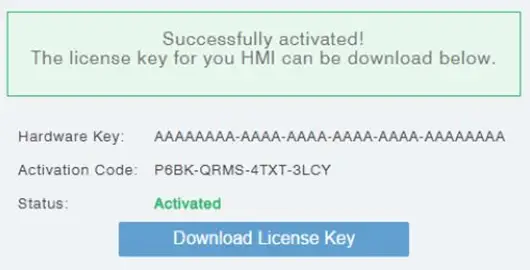
If your browser blocks your download:
Your browser may block your download because of a new pop-up window.
If so, follow the browser’s instruction to allow ‘account.ihmi.net’ to show pop-ups so that you can download the file.
For example, if using Google Chrome, simply click the icon on the right of the URL address bar, and then click the blue link from the dialog.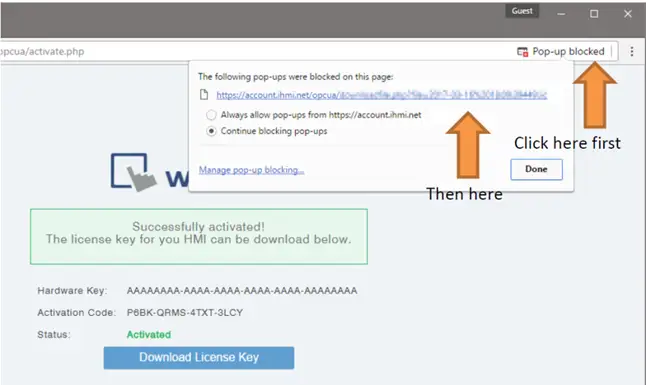
Transfer OPC UA License File to cMT unit (EasyBuilder Pro Download)
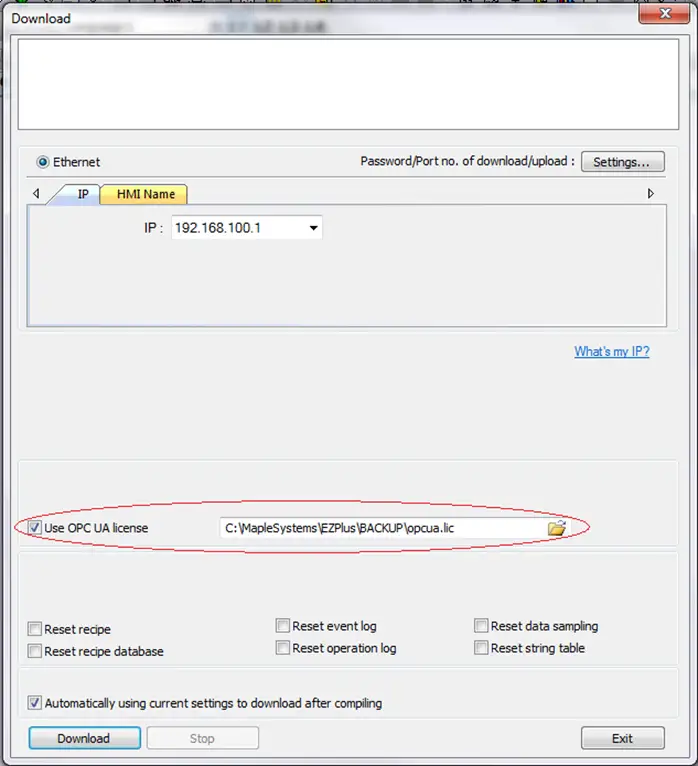
You can now transfer the downloaded opcua.lic license file to the cMT device using EasyBuilder Pro.Start EasyBuilder Pro and open your cMT project.
Click Tools->Download to display the Download window.
Check the Use OPC UA license option and link to the opcua.lic file you downloaded
Click the Download button.
Done!
You are now able to enjoy the features of OPC UA Server on your cMT-SVR or cMT-HDMI. The license file only needs to be downloaded to the unit once before use, unless you reset your unit to factory defaults.
If you lose your opcua.lic file, you can go back to the activation website page (https://account.ihmi.net/opcua/activate.php), enter the hardware key and activation code, and re-download the license key again.
If you are experiencing difficulties getting the OPC UA Server to operate, verify that the cMT device is activated:
- Place a Numeric Display object addressed to LW-11436 on a cMT project screen. Enable the OPC UA Server function in the project.
- Download the project to the cMT unit and read the value.
- If the value is 0 or 1, the OPC UA Server feature has been successfully activated.
- If the value is 2, the OPC UA Server feature is not activated. Verify that the license key file has the same hardware key as the cMT device you are activating. Try downloading the license key file again. If the OS of the cMT device has been updated, or the unit has been reset to factory defaults, the license key file may need to be downloaded to the cMT unit again.
If you are still experiencing difficulties, please call us or send an email to [email protected].