Overview & Concepts
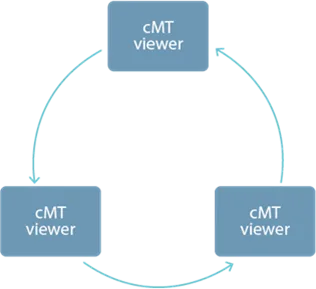
The Control Token feature in EasyBuilder Pro manages operational control when multiple clients connect to a cMT-series HMI via the cMT Viewer application. When several devices access the same HMI project, the Control Token determines which client is allowed to operate interface controls. This prevents multiple users from issuing conflicting commands.
Key concepts of Control Token operation include:
- Only one connected client can hold the control token at a time
- Other clients can view the interface but cannot operate controls
- Control can be transferred or released so another client may take control
This feature is commonly used when multiple monitoring stations or remote clients connect to the same HMI and singular, controlled access to operation is required.

Implementation
Click [Project] » [Control Token] to open the settings window.
![EBPro, Control Token settings window. This window is accessed via EBPro's main [Project] toolbar.](https://media.maplesystems.com/wp-content/uploads/2026/04/image-316.webp "EBPro Control Token window")
| Setting | Description |
|---|---|
| Description | Specify the name of the selected control token. Control Token – Local Only When this token is selected, only the local HMI can operate the object. This token is available only for models that have built-in cMT Viewer: cMT3072, cMT3090, cMT3151, cMT-HDMI…etc. |
| Acquire Type | Select an acquire type from [Auto] or [Manual]. Auto With this option selected, cMT Viewer will automatically acquire the control tokens set for all objects in the current window. The control token will be released after leaving this window. Manual The control token can be acquired or released by triggering an Action Trigger or a Combo Button. |
| Idle Timeout | Setting Idle Timeout helps avoid the issue that prevents other users from gaining operating right when the token possessor, having finished operation, does not release the control token. When the token possessor’s HMI remains inactive (no touch operation) for a given time period, the control token will be released. The setting range allowed for Idle Timeout is 0~86400 seconds. For “Control Token–Local Only”, the Idle Timeout can only be zero and is not adjustable. |
Notes:
- Control tokens are allocated on a first come first served basis, and a control token can be possessed by one cMT Viewer client at a time. Attempts made for acquiring a control token when it is unavailable will be put into a queue, and it becomes available, it will be passed to the next one in the queue.
- A cMT Viewer client can simultaneously possess multiple control tokens.
- In Auto mode, when changing to a new window, even if the object with the same control token appears in both previous and new window, the control token is reacquired upon entering the new window. If the object with the control token is placed in an overlay window or a common window, and the same overlay window is used in both previous and new window, then reacquiring control token will not take place.
- When cMT Viewer client is disconnected from the Server, and the connection is recovered within 30 seconds, reacquiring control token is not necessary. When the disconnection goes longer than 30 seconds, reacquiring control token is necessary.
Example:
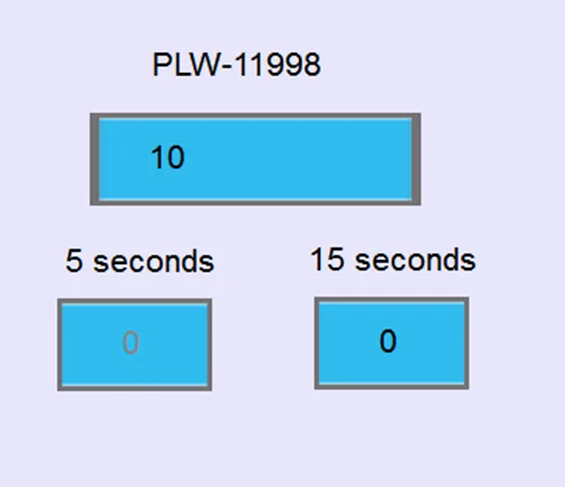
To monitor idle time countdown, use an ASCII object with system register PLW-11998. When two or more control tokens are used, this system register will count down from least idle time until elapsed.
In the following example, on the top, ASCII object shows idle time countdown from PLW-11998. The bottom two objects use two different control tokens, one with a 5-second idle time and the other 15-second. When running simulation, PLW-11998 will count down from five seconds.
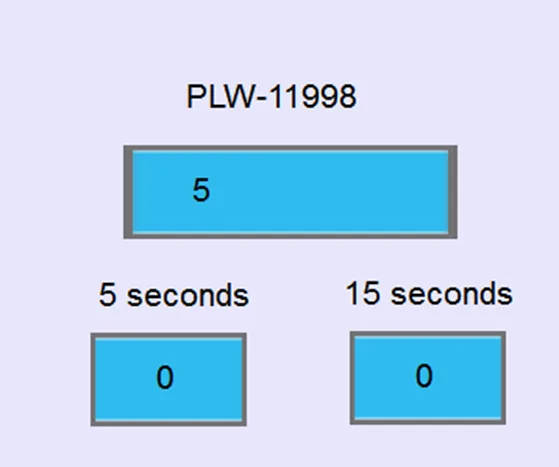
After 5 seconds, the bottom left object turns grey due to expired control token, and another object has 10 seconds left for countdown.