
EasyAccess 2.0 on Android
EasyAccess 2.0 is available for Android devices. With EasyAccess 2.0, users can easily use VNC or cMT Viewer to access a remote HMI. Even though the user-interface and available options on an Android device may be slightly different from that of a PC, the connection steps are just as simple and straight- forward.
Note:
- EasyAccess 2.0 on Android requires Android version 4.1.2 or later.
App Download
In addition to the main app, EasyAccess 2.0, the OpenVPN Connector application is required. Please download the apps (both are free) from the Google Play store and install them on your smartphone.

- App Name: EasyAccess 2.0
- App Provider: Weintek Labs, Inc.

- App Name: EasyAccess 2.0 OVPN Connector
- App Provider: Weintek Labs, Inc.
Step-by-step Connection Guide for Android
Follow these steps to connect to EasyAccess 2.0 with an Android device
Instructions: Step-by-step Connection Guide for Android
Launch EasyAccess 2.0
Launch the EasyAccess 2.0 Application from your PC.
Log Into the Domain with your user credentials
Enter the Domain Name, Username, and Password, and then click LoginRemember: Logging into the domain as a USER, not Domain Admin.
Choose an HMI
Once logged in, the program will list HMIs assigned to each user along with the HMI’s current status.Connect to the HMI
Click on the Connect button to establish a connection to an HMI that is “online”.
Once connected, the virtual IP address will be displayed. The top status bar will also display a VPN icon.
It is now possible to connect directly to the remote HMI using VNC software (installed separately) or using cMT Viewer.
You can also download or upload a project from an HMI remotely given its Virtual IP address.
Disconnect when Complete
When finished, return to the EasyAccess 2.0 app and click on the Disconnect button to terminate the session.
EasyAccess 2.0 on iPad/iPhone
EasyAccess 2.0 is available on iOS for iPad and iPhone users too. With EasyAccess 2.0, users can easily use a VNC client or cMT Viewer to access remote HMIs. However, due to iOS app restrictions, the connection steps vary slightly from those of a PC.
Note:
- EasyAccess 2.0 on iPad/iPhone requires iOS version 7.0 or later.
Download from the Apple App store
In addition to the main app, EasyAccess 2.0, the OpenVPN Connect app is required. Please download these apps from the Apple App store and install them.
- App Name: EasyAccess 2.0
- App Provider: Weintek Labs, Inc.

- App Name: OpenVPN Connect
- App Provider: Open VPN Technologies
Step-by-step Connection Guide for iOS Devices
Follow these steps to connect to EasyAccess 2.0 with an iOS device
Instructions: Step-by-step Connection Guide for iOS Devices
Launch EasyAccess 2.0
Launch the EasyAccess 2.0 Application from your PC.Log Into the Domain with your user credentials
Enter the Domain Name, Username, and Password, and then click LoginRemember: Logging into the domain as a USER, not Domain Admin.Choose an HMI
Once logged in, the program will list HMIs assigned to each user along with the HMI’s current status.Connect to the HMI
Click on the Connect button to establish a connection to an HMI that is “online”.
The dialog will pop up as shown in the screenshot (at right) with Action options. Select “Open in OpenVPN.”
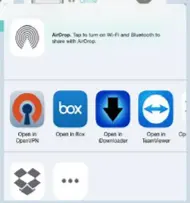
Initiate A Connection in OVPN App
From the OpenVPN app, add a Login Profile, and toggle the Connection button to initiate a connection.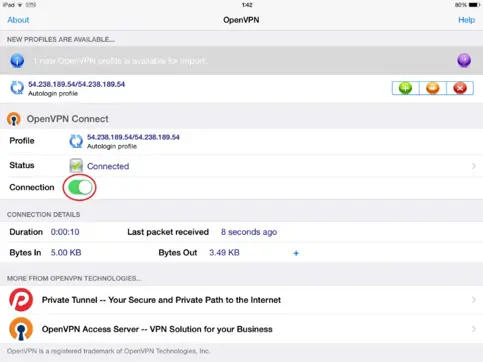
Connect to the HMI
Once connected, return to the EasyAccess 2.0 app and look for a Virtual IP address, which will be displayed next to the HMI.
The top status bar will also display a VPN icon.
It is now possible to connect directly to the remote HMI by using a VNC client or cMT Viewer.


Disconnect when Complete
When finished, click on the Disconnect button to terminate the session.