Overview
OPC UA [Open Platform Communications Unified Architecture] is a machine to machine communication protocol designed for use in the Industrial Automation industry. OPC UA features cross-platform interoperability, unified access, standardized communication, and security. In this environment, the cMT series with a built-in OPC UA server plays a key role as a Communication Gateway allowing OPC UA clients to access HMI or PLC data by subscribing to tags to receive real-time updates.
Supported cMT Devices:
- cMT3000X Models (all)
- cMT3000 models (currently cMT3070, cMT3090, cMT3103, & cMT3151)
- cMT-SVR models (currently cMT-SVR-100, cMT-SVR-102, cMT-SVR-OPCUA, & cMT-HDMI)
- cMT Communications Gateway models (currently cMT-G01 & cMT-G02)
Note: A one-time license fee is required for cMT-SVR-100, cMT-SVR-102, & cMT-HDMI units.
Minimum Software Requirements:
- EZwarePlus V5.05.01 or later
- EasyBuilderPro V6.01.01 or later
Recommended OPC UA Client:
- Indusoft Web Studio
Maple Systems HMIs and OPC UA
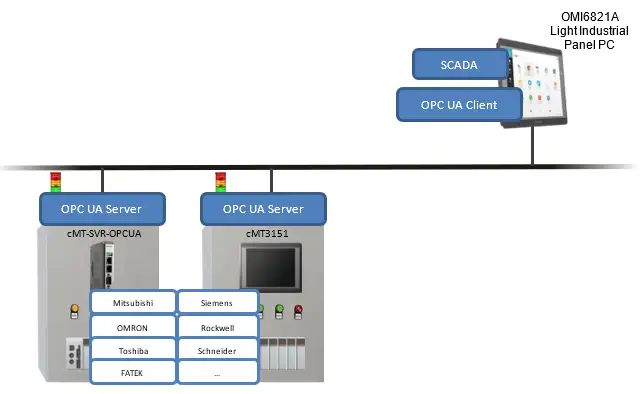
In the following example of an OPC Unified Architecture, we are running Indusoft Web Studio as our SCADA software on a Maple System Light Industrial Panel PC. The Panel PC is the OPC UA client and is used to access data in the OPC UA Server, running on a supported cMT device, to receive data updates from any of the PLCs connected to the cMT HMI. No additional Web Studio drivers required.
EasyBuilder Pro Settings
In an EasyBuilder Pro cMT project, from the top menu bar select IIoT -> OPC UA Server to open the OPC UA Server options.
Server Settings
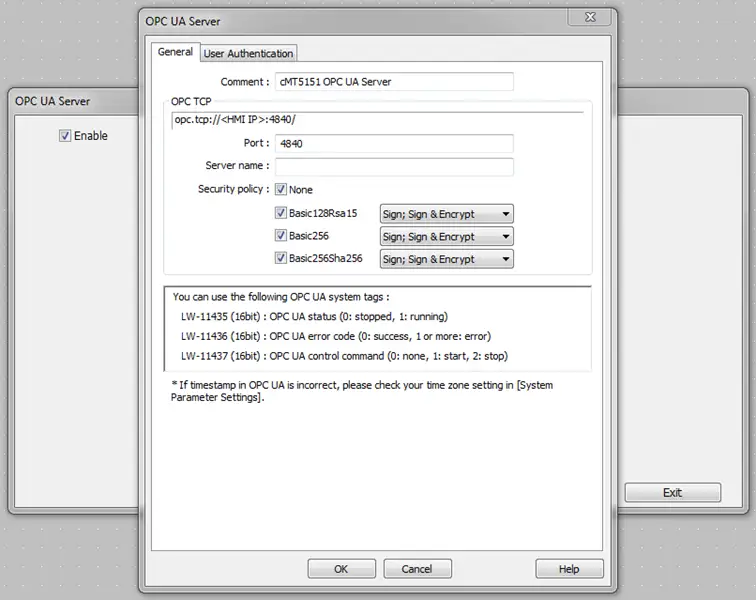
- Select the Enable check box to open the OPC UA Server settings dialog box.
- Enter a name for your OPC UA Server into the Comment field.
You may leave the rest of the settings at their defaults. EasyBuilder Pro provides the relevant system tags needed to monitor and control the server in the dialog box.
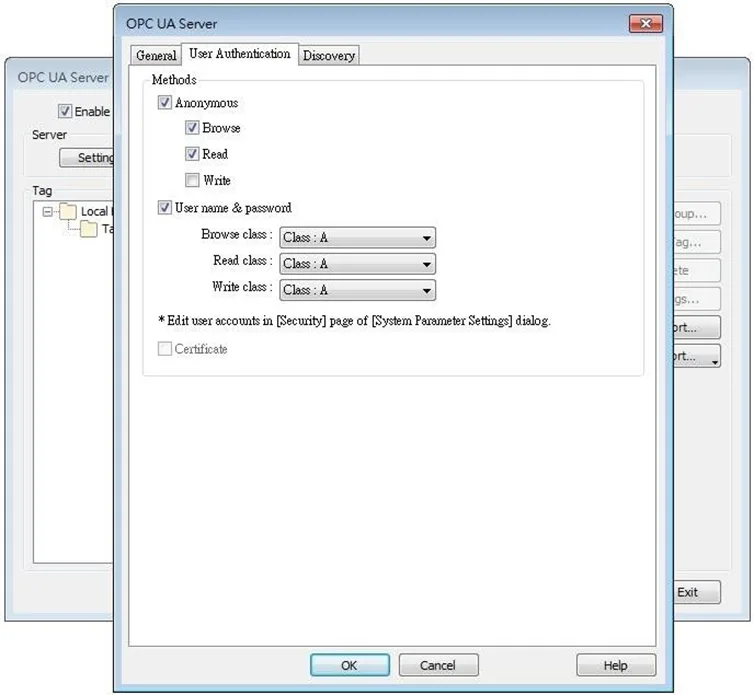
The User Authentication tab is used to select an authentication method when the client logs in. Browse, Read, and Write permissions can be granted to Anonymous logins or restricted to users with a username and password.
Usernames and passwords are specified on the Security tab of the System Parameter Settings (from the top menu bar select Edit -> System Parameters). These settings apply globally to all tags available to the OPC UA client. Access can also be restricted at the individual tag level when adding tags to the server as described below.
Click OK to create the OPC UA Server.
Creating Tags
Once the OPC UA Server has been created, tags can be added. The client program can browse these tags to monitor and control the automation system through the OPC UA Server.
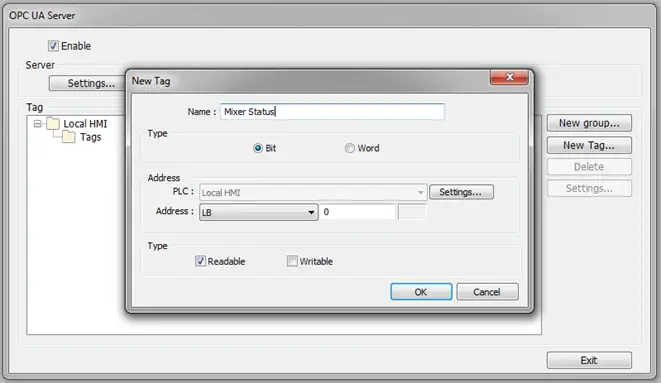
- Click the New Tag button to specify a new address to add to the OPC UA server.
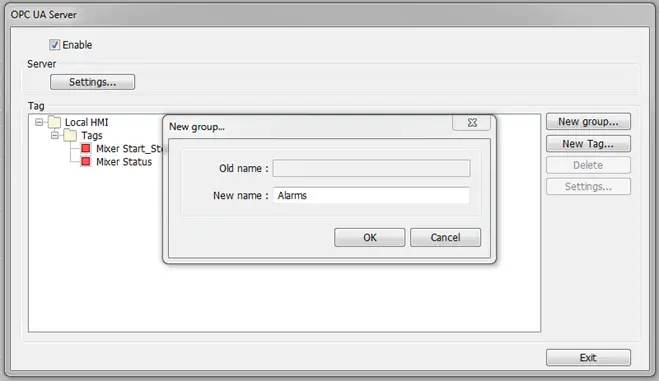
- The New group button is used to create a new node in the tag list under which tags can be added. The structure of the tag list created here will be visible when configuring the OPC UA client.
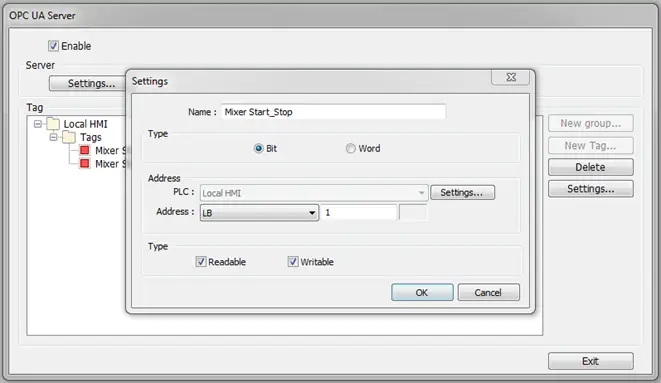
As shown in the following screenshots, Mixer Status is configured as readable bit address while Mixer Start_Stop is both a readable and writable bit address.
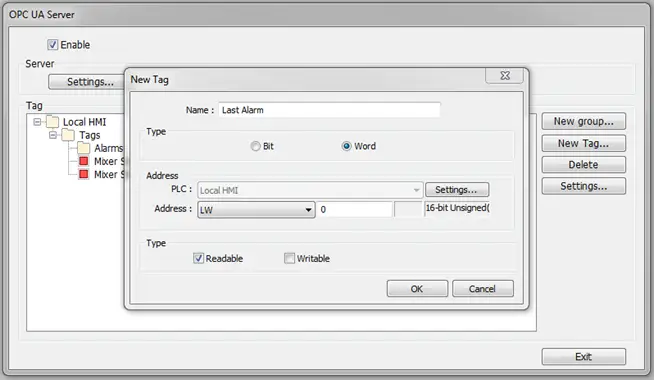
Similarly, Last Alarm and Current Alarm are read only word addresses underneath the Alarms grouping.
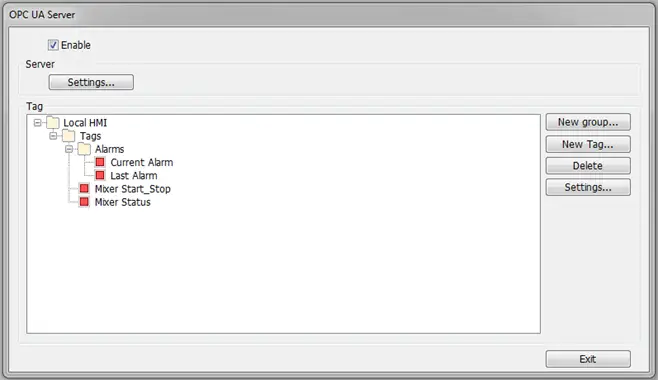
The addresses that can be monitored and controlled are not limited to Local HMI addresses; PLC addresses can be added as well.
Downloading the Project
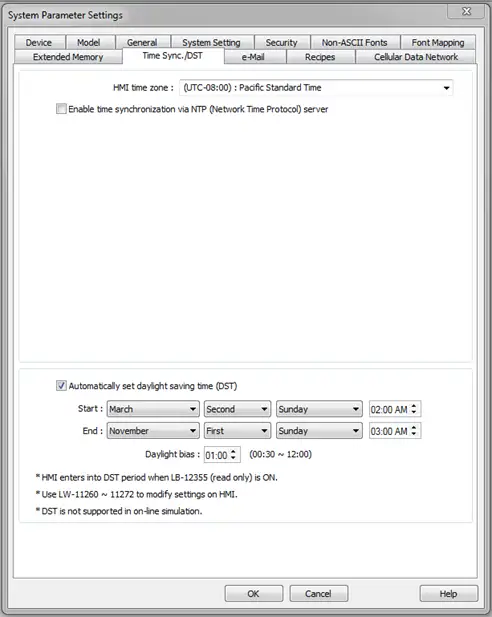
When downloading the project file to the cMT unit, you must make sure that the time and time-zone settings are correct. Otherwise, the client program may not be able to authenticate, and communication may fail due to an authentication error caused by an incorrect certificate valid time. If this happens, the only solution is to restore the cMT’s settings to default.