
Overview & Concepts
Cellular data connectivity allows an HMI to access a network using a mobile data connection instead of relying on a wired Ethernet or Wi-Fi network. In EasyBuilder Pro systems, this is typically achieved by connecting the HMI to a cellular-enabled device—most commonly through USB tethering with a mobile phone or cellular modem—which provides internet access to the HMI.
Once connected, the HMI uses the cellular connection as its network interface, enabling it to communicate with remote systems, cloud platforms, or engineering tools just as it would over a traditional network.
Key capabilities of cellular-connected HMIs include:
- Enabling remote access services such as EasyAccess 2.0
- Supporting cloud communication (MQTT, SQL, web APIs)
- Allowing remote diagnostics and monitoring from off-site locations
- Providing network access where no plant infrastructure exists
Typical use cases include:
- Remote or mobile equipment installations
- Field service and temporary commissioning setups
- Backup connectivity when primary networks are unavailable
Important considerations
- Requires a cellular device (phone or modem) to provide the data connection
- Network performance depends on cellular signal strength and carrier coverage
- Data usage and security should be managed appropriately
By using cellular data, HMIs can be deployed in locations without traditional network access while still maintaining connectivity to remote systems and services.
Implementation
Cellular data connectivity is managed in the Cellular Data Network tab of the EasyBuilder Pro System Parameter Settings menu.
There are 2 methods of connection:
- USB Dongle providing 3G or 4G signal
- USB Tethering with an Android based cell phone.
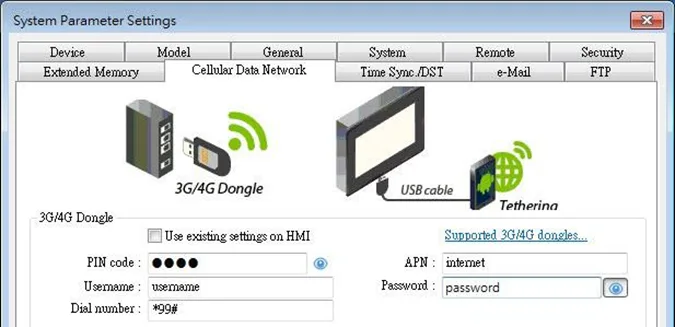
3G / 4G USB Dongle
Attaching a 3G/4G USB dongle to the USB port enables the HMI to connect to 3G/4G networks.
| Setting | Description |
|---|---|
| Use existing contact settings on HMI | If this check box is selected, the cellular data currently in HMI will be used. When no specific settings are required, generally, [PIN code] is “0000”, [APN] is “internet”, and [Username], [Password], [Dial number] are optional. |
System Registers for cellular network connection:
| System Register | Description |
|---|---|
| LW-11297 | (16 words) : PIN code of SIM card (cellular network) |
| LW-11313 | (16 words) : Access Point Name (cellular network) |
| LW-11329 | (16 words) : username (cellular network) |
| LW-11345 | (16 words) : password (cellular network) |
| LW-11361 | (16 words) : dial number (cellular network) |
| LW-11377 | (16bit) : stop (set 0) / start (set 1) connection (cellular network) |
| LW-11378 | (16bit) : last error code (0:success, 1:incorrect PIN code, 2:no SIM, 3:no device, 4:puk locked, 5:other) (cellular network) |
| LW-11379 | (16bit) : connection status (0:no device, 1:disconnect, 2:connecting, 3:connected) (cellular network) |
USB Tethering with Android Phones
By connecting an Android mobile phone with HMI using a USB data cable that is compatible with the phone, the internet connection of the phone can be shared with HMI. On the Android mobile phone please enable USB Tethering.
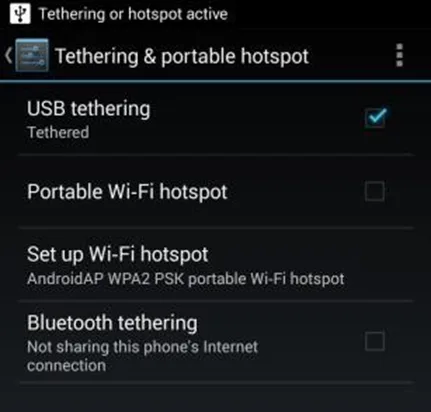
When successfully connected, the following registers can be used to monitor and control the connection status.
| System Register | Description |
|---|---|
| LW-11380 | (16bit) : stop (set 0) / start (set 1) connection (USB tethering) |
| LW-11381 | (16bit) : connection status (0:no device, 1:disconnect, 2:connected, 3:fail, 4:OS not support, 5:HMI not support) (USB tethering) |