
Overview & Concepts
The PLC Web Browser object in EasyBuilder Pro allows an HMI to display web-based content generated by a PLC directly within a project window. This object embeds a browser view inside the HMI interface so that web pages hosted by a PLC’s internal web server can be accessed without leaving the HMI environment.
The PLC Web Browser object is configured by specifying the URL of the PLC’s web server. When the window containing the object is opened, the HMI connects to the PLC over the network and loads the web page hosted by the controller. This allows operators to view PLC-generated information such as diagnostic pages, device status screens, or configuration interfaces directly from the HMI.
Typical uses of the PLC Web Browser object include:
- Viewing PLC diagnostic or status pages hosted by the controller
- Accessing built-in PLC web monitoring tools
- Displaying PLC-generated dashboards or system information
By embedding PLC web content directly into the HMI interface, the PLC Web Browser object allows engineers and operators to access controller information alongside standard HMI controls and process data.
Note:
- The PLC Web Browser Feature in EasyBuilder Pro is currently supported only on the High-Performance cMT3000X Series HMI models.

Implementation
Click [Object] » [Media] » [PLC Web Browser] icon on the toolbar to open a PLC Web Browser object property dialog box. Set up the properties, press OK button, and a new PLC Web Browser object will be created.
General Tab
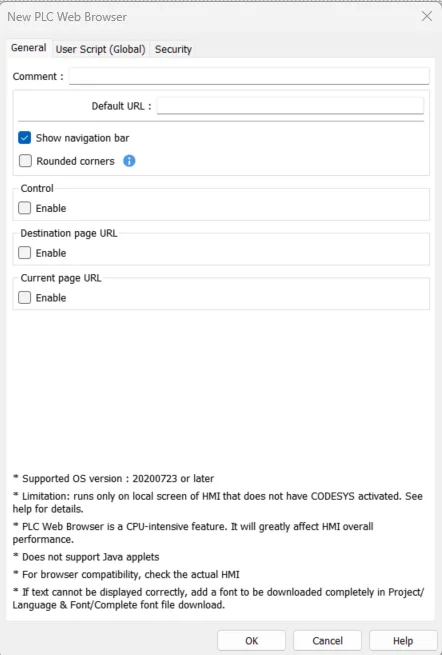
| Setting | Description |
|---|---|
| Default URL | Enter the URL into the provided field. |
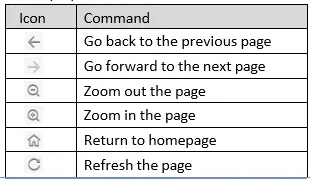
| Show navigation bar | With this option selected, users can directly change URL, refresh page, or zoom in/out web page by clicking the icons in the navigation bar displayed on HMI. See the Navigation Bar Icon Reference Table below. |
| Rounded corners | With this option selected, the browser window will be displayed with rounded corners. |
| Setting | Description |
|---|---|
| Control address | LW-n: Command ID Value 0: No Command Value 1: Go Destination Value 2: Reload Value 3: stop Value 4: Go back Value 5: Go forward Value 6: Clear cache Value 7: Clear cookies LW-n+1 Status Value 0: Load started Value 1: Load stopped Value 2: Load succeeded Value 3: Load failed LW-n+2 Error Code Value 0: No error Value 1: Internal error Value 2: Connection error Value 3: Certificate error Value 4: HTTP error Value 5: FTP error Value 6: DNS error |
| Destination page URL address | The designated register is for entering a URL with length limit 255 words. After entering the URL, please enter value 1 in the Command ID address to go to the destination page. |
| Current page URL address | Shows the URL of current page, the length limit is 255 words. |
User Script (Global) Tab
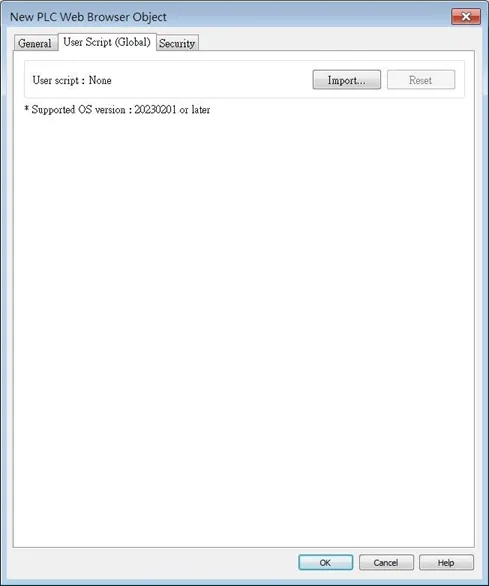
PLC Web Browser’s User Script settings allow users to import a JavaScript file, which can be used to modify the webpage code. This User Script JS file is shared globally within the project, meaning it will have the same effect on all the PLC Web Browsers in the project.
This feature requires OS version 20230201 or later.
Notes
PLC Web Brower object is designed specifically for connection to PLC’s built-in web server, allowing users to access PLC web page to configure PLC and view PLC data. Using PLC Web Browser to connect to other types of websites may lead to unexpected results or errors.
Displaying relatively complex web page using PLC Web Browser will occupy more memory and consume a large amount of CPU, which can significantly slow down HMI’s operating speed. Users are advised to use change page function or a Direct/Indirect window to display PLC Web Browser object only when it is needed, in order to prevent reduction of system performance.
As HMI memory is limited, when the PLC Web Browser occupies too much memory, the system will automatically stop PLC Web Browser to ensure proper operation of HMI. In consideration of performance, PLC Web Browser can only run on an HMI whose CODESYS is not activated.
Due to rapid change in web technologies, it is not guaranteed that all PLC web servers are supported by PLC Web Browser in EasyBuilder Pro, and certain PLC web pages may not be correctly displayed using PLC Web Browser.
When multiple PLC Web Browser objects are placed in a single window, only one of them will run while the rest remain ineffective.
PLC Web Browser object displays web page on top of everything else even if there are other objects placed above it.
When the PLC Web Browser is clicked or tapped in cMT Viewer running on a PC, smart phone or tablet device, the default browser for the device will be used to open the web page. Note that, in this case, to access the PLC within the same network as HMI, the device running cMT Viewer should also be in the same network as the PLC.
Browsing web pages using PLC Web Browser on cMT-iV5/cMT-iV6 is not possible.
Features not supported by PLC Web Browser:
- Save file as…
- Text selection
- Right-click menu
- Drag & Drop
- Windows prompt for entering account name and password (e.g., FTP login)
- Playing videos, e.g. YouTube…etc.
- Uploading / Download files.