
Overview & Concepts
The Picture Viewer object in EasyBuilder Pro is used to display image files on an HMI screen. It allows static or dynamically selected images to be shown during runtime. Images may be stored within the project or referenced from supported storage locations, depending on configuration. The object is commonly used to present machine layouts, diagrams, product images, status graphics, or instructional visuals.
Unlike objects that interact with register data, the Picture Viewer object is display-focused. Its function is to render graphical files rather than read or write memory values directly. However, it can be configured to change the displayed image based on a register value, enabling dynamic visual updates tied to machine state or operator selection.
Picture selection can be configured using:
- A fixed (static) image assigned in the object properties
- A register-controlled index that selects from multiple image files
- A file path selection method (based on configuration options)
This makes the object suitable for applications such as:
- Displaying different product images based on recipe selection
- Showing machine state diagrams based on PLC register values
- Switching instructional graphics depending on alarm condition or mode

Implementation
Click the Picture View icon on the toolbar to open the property dialog box. Set up the properties, press OK button, and a new Picture View object will be created.
General Tab
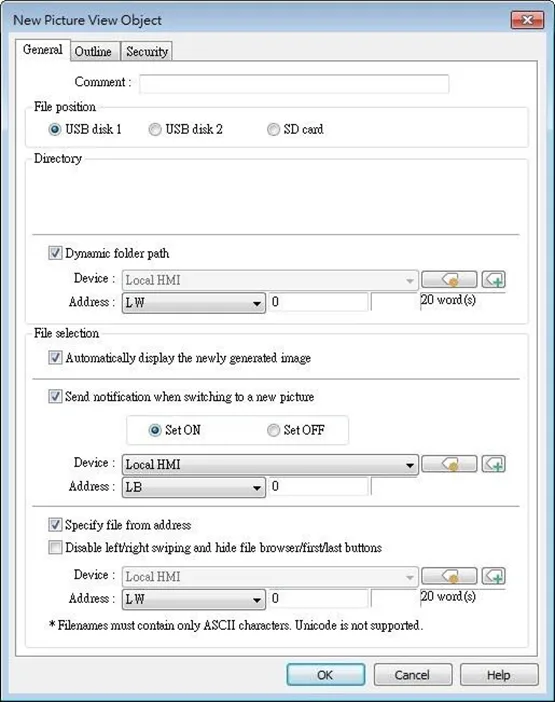
| Setting | Description |
|---|---|
| File position | Select the file source of the picture files from [SD card] or [USB disk]. |
| Directory | Specify the directory where the picture files are saved. The directory can be the one used for Video Input’s capture feature or Function Key’s screen hardcopy feature. The picture file saved in the external device can be immediately displayed. Dynamic folder path Designate folder path by a local address. |
| File selection | Automatically display the newly generated image When a new image is generated in the designated folder path, Picture View object will automatically display the new image. Send notification when switching to a new picture When [Automatically display the newly generated image] is selected, the state of the designated address changes to On/Off when the new picture is displayed on HMI. Specify file from address (hide toolbar) When enabled, the displayed picture is designated by a file name in a local address, and the toolbar will be hidden. |
Notes
- The file name must be all in ASCII characters, and the Unicode characters are not supported.
- The supported picture formats are: .jpg, .bmp, .gif, .png.
- The size of the picture that can be displayed on an iP/iE/eMT/XE/mTV model is calculated in the following formula:
- (image.width × image.height) < (screen.width × screen.height) × 4
- Pictures with sizes exceeding this range cannot be displayed on HMI.
- Two-finger zoom in / out gestures are supported on capacitive touchscreens.
Outline Tab
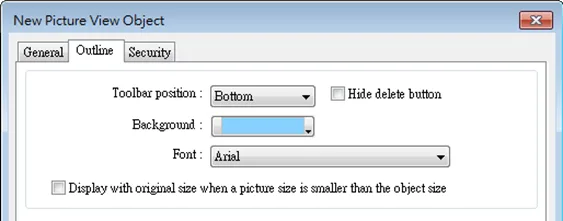
| Setting | Description |
|---|---|
| Outline | Specify the position, background color, and font of Picture View object. (Supported only on iP/iE/eMT/XE/mTV models.) Hide delete button When selected, the delete button for deleting the viewed picture will be hidden in the Picture view object. Display with original size when a picture size is smaller than the object size. When selected, the picture will be displayed in its original size if it is smaller than the Picture View object. This can avoid distortion caused by enlarging the picture. |