
What are tags?
Tags are names assigned to internal memory registers of the HMC, contacts of an expansion module, and any PLC data registers/coils of an external PLC. Some system tags are predefined when you first begin a project, and other tags are created by the programmer. For example, you must create and assign a tag to every PLC memory address that you wish to read/write to. When using the optional I/O Expansion modules tags are created in order to use them. The Tag Database collects and stores all tags for review and editing.
Once a tag is assigned, you can easily link any object (i.e. bit lamp, numeric register, etc.) to the tag. Tags have several advantages:
- Tags provide an organized method of tracking all memory addresses used in a project.
- Tags are much more descriptive of functionality than the name of the memory address.
- Tags are more easily edited, should a change be required.
- Tags can be exported and imported into other MAPware projects, regardless of which HMC unit is selected.
Tag Operations
Creating and Modifying a Tag
To create a new tag and assign it to an internal memory address or PLC address, you must first open the tag database:
- Click Define > Tag Database from the standard menus or
- Click the Tag Database icon located in the Layout Toolbar or
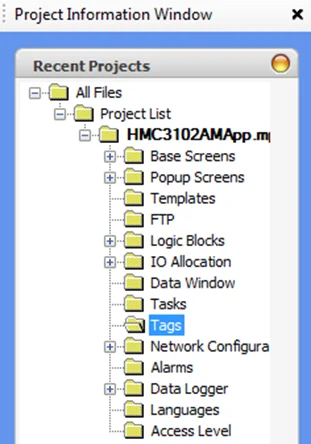
- Click the Tags folder in the Project Information Window.
The tag database displays:

Each assigned tag in the database has attributes arranged and presented as columns:
- Tag No. – This is the tag number assigned to the tag when created. Tags are assigned in numerical order.
- Tag Name – When you create a tag, you must provide a name for the tag.
- Data Type – Defines the type (BOOL, INT, DINT, etc.) of the tag.
- Attribute – Shows if the tag is “Read Only” (not editable) or “Read Write” (editable)
- Tag Address – this is the specific internal memory address or PLC memory address assigned to the tag.
- Port – If the address assigned to the tag comes from one of the external ports (i.e. Com1, Com2, Ethernet), then the port is shown.
- Node – The node number the Tag is associated with (0 by default for local HMC tags)
- Ethernet – The Modbus address to assign to the tag when the HMC is acting as a Modbus Slave/Server
- Node Name – where the tag memory address is located (i.e. internal memory or external connection to a PLC).
- Tag Category – either Default Tag (predefined tag) or User Defined Tag (programmer defined).
- Initial Value – The initial value of the tag on HMC start up
- Dimension – If the tag refers to an Array, this will show the length of the array
- Export Tag – checkbox to select which tags to export in a Tag Export operation.
- Publish & Subscribe (HMC4000 only) – shows if the tag is set to publish or subscribe to or from the MQTT Broker (refer to the MQTT section for more information).
- Topic Name (HMC4000 only) – The MQTT topic name this tag will be published to or subscribed from.
To modify the tag database, use the buttons displayed in the Tag Database popup window (see above) or right-click the Tags folder in the Project Information Window to display a popup dialog box:

Adding a New Tag
In the Tag Database, perform the following steps to add a new tag
Instructions: Adding a New Tag
Click the Add Button
Click the Add button to display the Add Tag dialog box:
Select the Node
Click the list to select the node (i.e. internal memory or PLC communications driver attached to the COM/Ethernet ports) where the target address is located.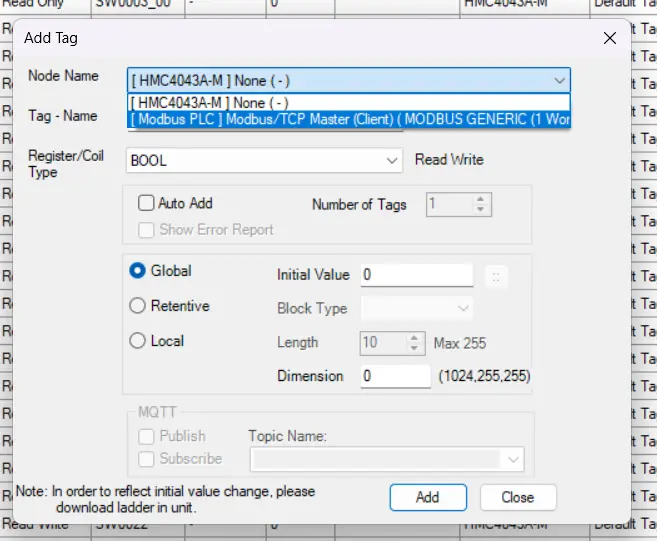
Register/Coil Type (local HMC tags)
Local HMC tags have a wide variety of tag types they can be.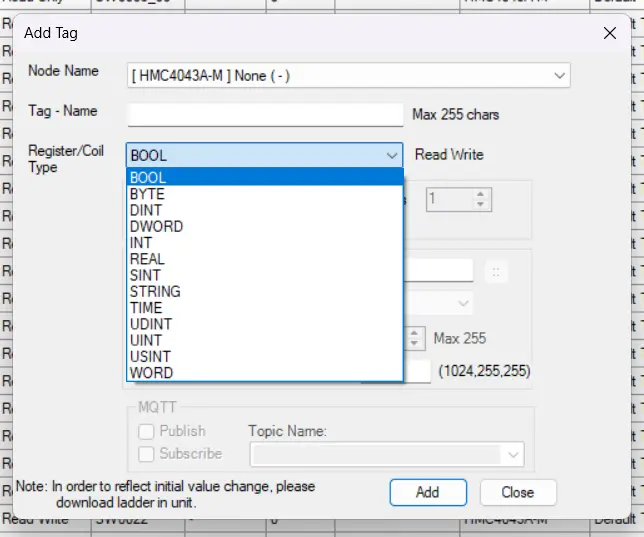
Register/Coil Type (for Modbus Nodes)
Modbus Tags have a slightly more limited selection of tag types, these are each based on Modbus addresses. Coils are 0x addresses, Input Coils are 1x addresses, Input Registers are 3x addresses, and Holding Registers are 4x addresses.Below are some examples: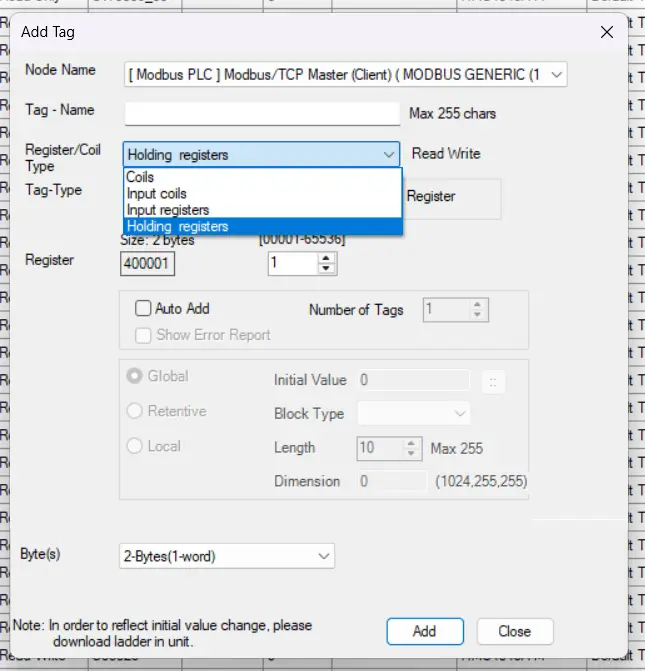
Auto-Add
Auto-add: By checking this option, you can quickly add a series of tags based upon a consecutive set of registers. When used, the Tag Name will have a five digit number appended (ex. 00000, 00001, etc.):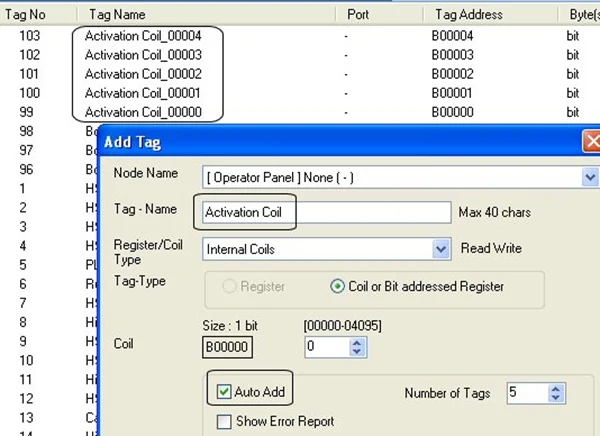
Number of Tags
Enter the total number of consecutive tags you wish to create when using the Auto-add feature.Show Error Report (optional)
If checked, then the MAPware software displays a Text Only file (ErrorTag_AutoAddTag.txt) that shows any errors that may have occurred when using the Auto-add feature: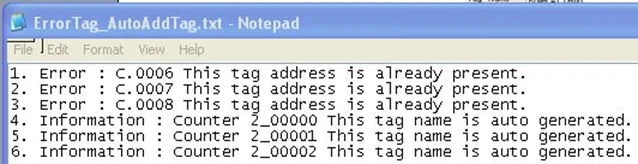
Tag – Name
The tag requires a name to be added to the tag database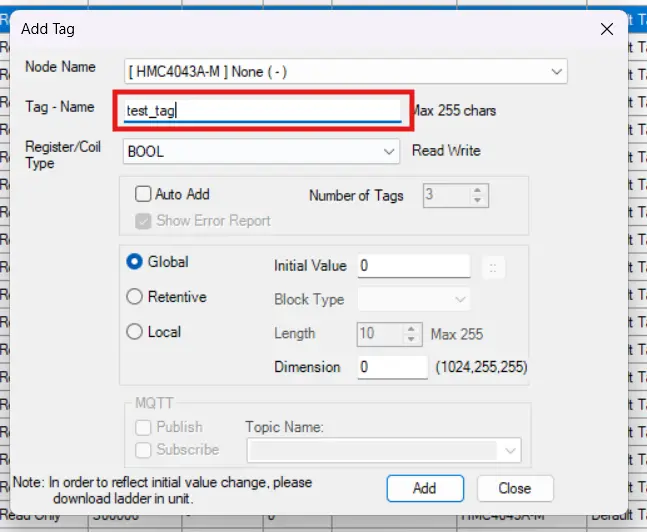
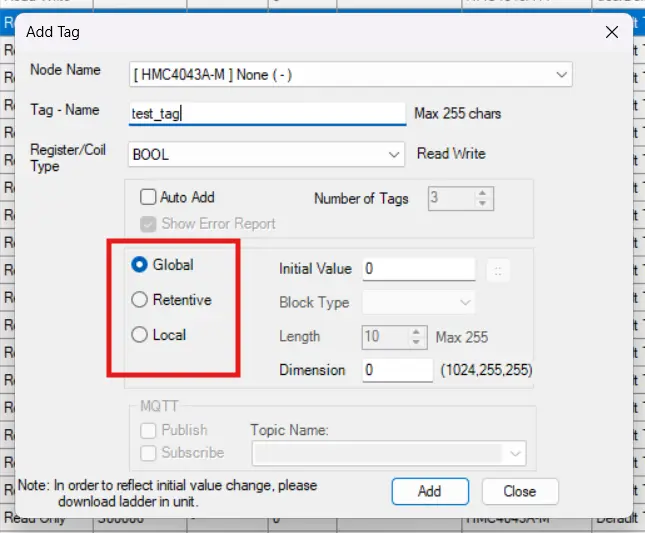
Scope (Global / Retentive / Local)
There are three radio buttons that can be selected to define a tag’s scope:Global – The tag can be used throughout the project. Tags created as Global can be changed to Retentive during project development.
Retentive – Same as Global but the value is retained through a power cycle. Tags created as Retentive can be changed to Global during project development.
Local – The tag can only be used in a specific logic block. The Block is selected in the Block Type dropdown list. Local tags can still be used in application objects such as screens and tasks.
Initial Value
Specify the default value the tag will have when the project starts. This option is not available for Strings or Retentive Registers or if Retentive is selected for the scope.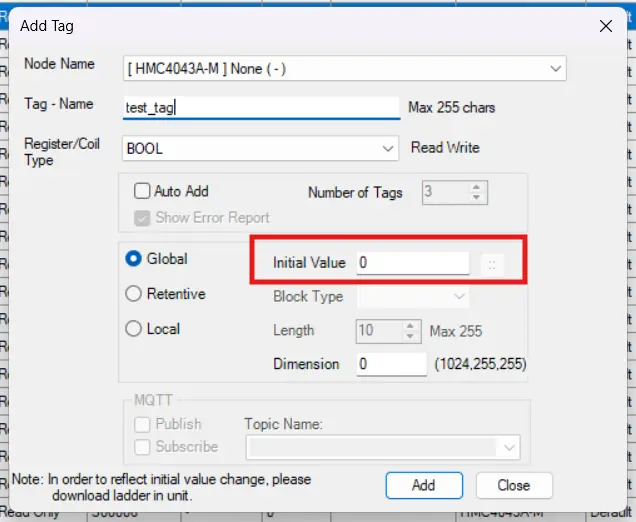
Block Type
Specify the block where a Local tag can be used when the Local option is chosen as the Scope.Length
Specify the length for a string. Available only when the Register / Coil Type is set to string.Dimension
The Dimension option allows you to turn your MAPware tag into an array with a set length of elements. The Dimension option has a hard limit of 1024 elements.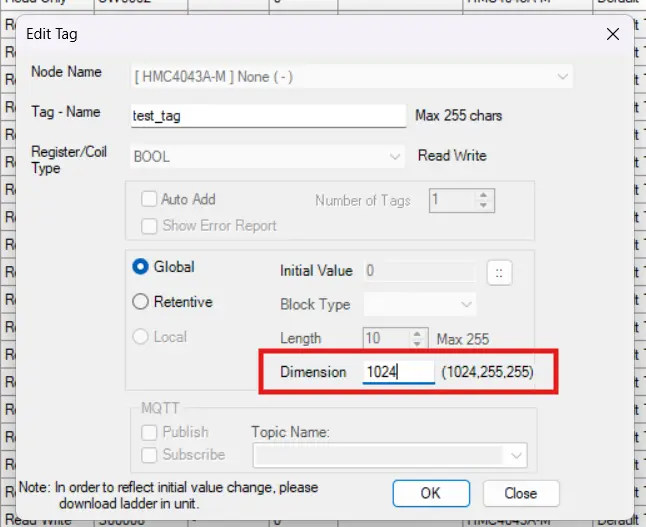
Click to Add
Click the Add button to add the new tag to the tag database. The Add dialog box remains on screen so that you can create other tags. When you have finished, click the Close button.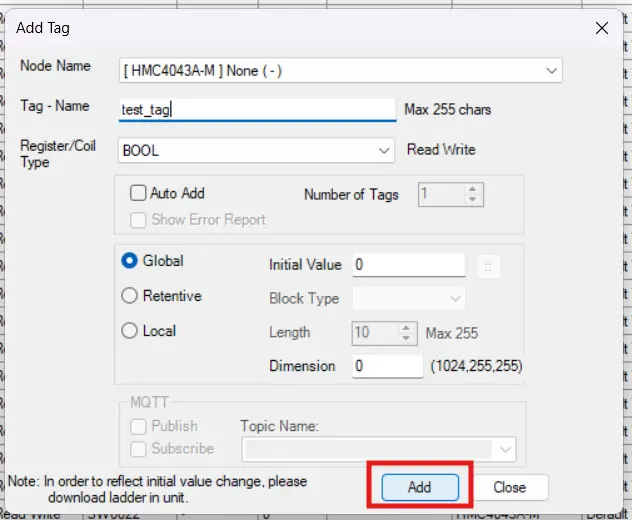
Deleting a Tag
This section will show you how to delete an existing tag that is in the tag database.
Instructions: Deleting a Tag
Open Tag DB
Open the Tag DatabaseHighlight Tag
Select the tag you wish to delete by clicking it (it will be highlighted to show it’s selected)Delete
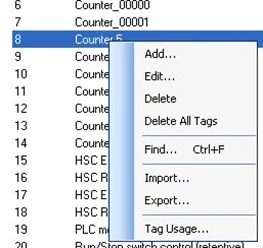
Right-Click to display a popup dialog box, and select the “Delete” option.You can delete multiple tags simultaneously by highlighting one tag in the tag database, and then hold down the CTRL (or SHIFT) key and clicking other tags.
You also have the option of deleting all user-defined tags in the tag database by clicking Delete All Tags.
Confirm
A popup dialog will appear, asking if you are sure you want to delete the tag. Click yes.Tags defined as Default Tags are system tags and cannot be deleted.
Editing a Tag
Open Tag DB
Open the Tag DatabaseHighlight Tag
Select the tag you wish to modify by clicking it (it will be highlighted to show it’s selected)Edit
Right-Click to display a popup dialog box; click the Edit optionIn Edit mode, you can only change the name of the tag and the target address. Any other changes require that you delete the tag entirely, and then recreate the tag.
Finding Tags
If you have created many tags and have a large database, it may be difficult to locate a particular tag. To help you locate a tag quickly, right-click anywhere in the tag database to display the popup dialog box:
Click the Find option to display the Find dialog box:
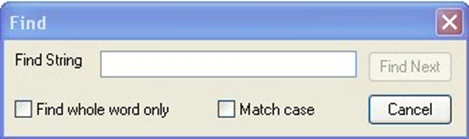
Enter the name of the tag or tag address – MAPware will then search through the database and highlight the tag.
You can also reorder the tag database by clicking any of the column headings. The tags reorder alphabetically according to the entries in that column.
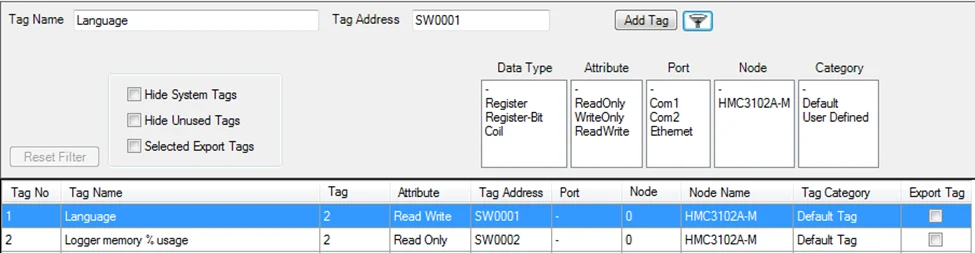
There is also the option to filter the Tag Database.

Clicking the filter button at the top of the Tag Database opens the filter options.
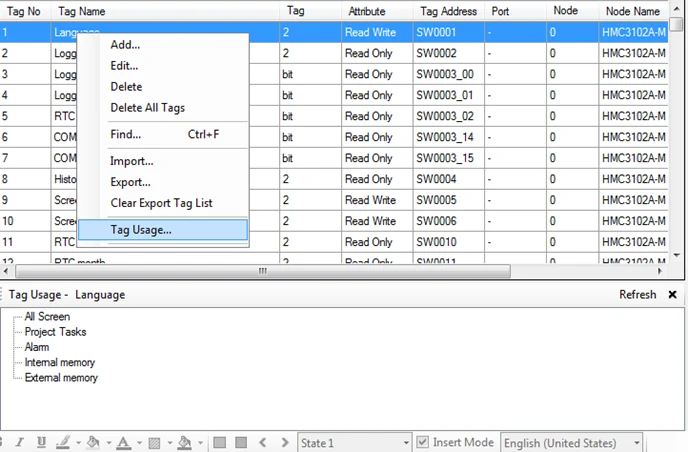
Tag Usage
This feature allows you to select a tag in the tag database and view where used in your project:
Importing and Exporting Tags
The tag database created in MAPware exports as a CSV (comma-separated value) file. You can edit this file then import back into MAPware. This provides the following advantages:
- Tag databases can be moved from one project to another without copying the entire project.
- If you wish to modify many tags, this is quickly done by editing a CSV file.
- In some cases, you may be able to import the PLC addresses you use in your external PLC ladder logic program, thus saving time.
How to Export Tags
Follow these steps to Export a tag file in .CSV format.
Instructions: How to Export Tags
Open Tag Database
Right-Click the Tags folder to display the popup dialog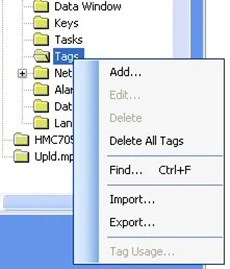
Export
Click the Export button to open the “Export Tags” window, where you can define the tag export file.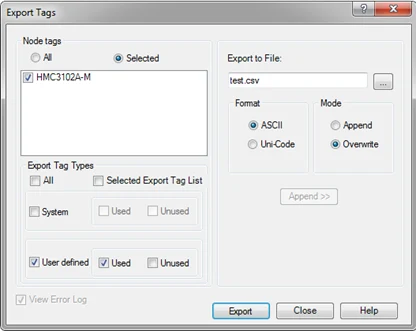
Node Tags
Select All to export all nodes (internal memory and tags assigned to all Com ports).
Check Selected to use the checkboxes to filter which nodes you wish to export.
Export Tag Types
Check All to export all tags in the program (All System and User defined check boxes below will become checked).
Check Selected Export Tag List to only export checked tags in the Tag Database.
Check System and Used and/or Unused to export internal system (S and SW register) memory tags in the tag database.
Export to File
Give the tag file a name.
For Format, select ASCII or Unicode.
For Mode, select Append (add to existing file) or Overwrite.
Use the … button to the right to save the exported file in a specific folder. Otherwise, the folder location will be in the “Tags” subfolder of the current project folder on your PC.Finish
Click the Export button. The file will created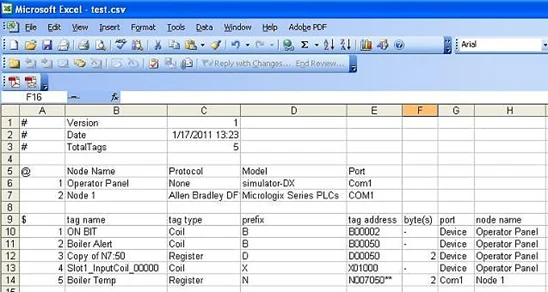
How to Import Tags
Once a tag file is exported and edited in Excel, you must import the updated tag file for MAPware-7000 to reference the newly-created tags.
Instructions: How to Import Tags
Open Tag Database
Right-Click the Tags folder to display the popup dialogImport
Click the Import option to open the Import Tags window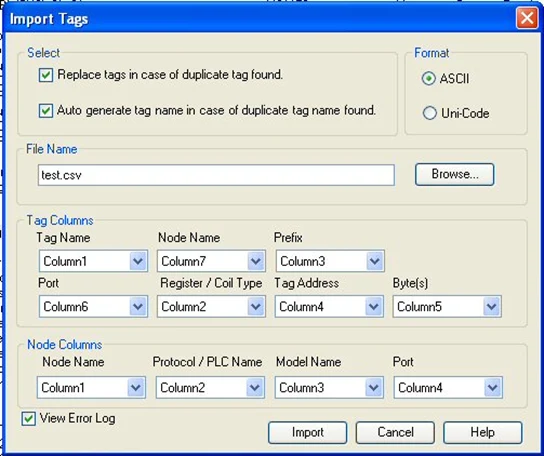
Configure Import Options
Replace tags in case of duplicate tag found – check this box if you wish MAPware to replace a tag name in the tag database with one of the same name in the imported file.
Auto generate tag name in case of duplicate tag name found – checking this box will make MAPware append a number to the duplicate tag name.
Tag Columns – in order to import a CSV file, you must specify where each tag column (i.e. Tag Name, Tag Address, Node Name, etc.) is located in the CSV file. By default, the columns arrange in the same format used when exporting the tag database as a CSV file.
View error log – if checked, this will display a text file after MAPware-7000 has finished importing that shows any errors that have occurred.
Click Import
Click the Import button and then the Tag Database will be populated with the tags that you just imported.
System Tag Memory
The following tables list all of the internal memory of the HMC which is reserved for specific purposes.
S memory (Boolean System Tags)
| Tag Address | Tag Name | Access | Models Supported | Description |
| S00000 | Carry bit | Read/Write | HMC2000 only | Overflow indication in math operations of ladder and also used in rotate with carry instruction. |
| S00003 | Minute Change status | Read Only | All HMC models | 1 for every change in minute for one scan cycle |
| S00004 | Hour Change status | Read Only | All HMC models | 1 for every change in hour for one scan cycle |
| S00005 | Date Change status | Read Only | All HMC models | 1 for every change in date for one scan cycle |
| S00006 | Month Change status | Read Only | All HMC models | 1 for every change in month for one scan cycle |
| S00007 | Year Change status | Read Only | All HMC models | 1 for every change in year for one scan cycle |
| S00008 | Screen saver Control | Read/Write | All HMC models | 0: Disable screen saver; 1: Enable screen saver. Can be changed during runtime. |
| S00009 | Beeper Control | Read/Write | HMC2000 only | 1: Enable Beeper; 0: Disable Beeper. Can be changed during runtime. |
| S00010 | RTC Battery status | Read Only | HMC2000 only | 0: Battery voltage is OK (i.e. above 2.2 V); 1: Low battery (i.e. below 2.2 V) |
| S00011 | Default Coil | Read Write | All HMC models | New objects added to the project will default to this address. Does not perform any function. |
| S00012 | Refresh historical trend | Read/Write | HMC2000 only | Refresh historical trend window when set to 1 |
| S00014 | Acknowledge all alarms | Read Only | HMC2000 only | 0: All alarms are acknowledged; 1: All alarms are not acknowledged in the Real and Historical alarm windows |
| S00016 | Valid key beeper Control | Read/Write | HMC2000 only | 1: Enable valid beeper; 0: Disable valid beeper. Can be changed during runtime |
| S00017 | Invalid key beeper Control | Read/Write | HMC2000 only | 1: Enable Invalid beeper; 0: Disable Invalid beeper. Run time you can change this bit |
| S00019 | Invalid RTC date entry | Read Only | HMC2000 only | 0=valid date; 1= Invalid date |
| S00020 | Popup Screen trigger | Read/Write | All HMC models | This bit triggers the popup screen number stored in SW23 |
| S00021 | COM1 failed node reconnect control | Read/Write | HMC2000 only | If this bit is set communication with the failed nodes is detected after scan time SW0018 for port1. By default : ON |
| S00022 | COM2 failed node reconnect control | Read/Write | HMC2000 only | If this bit is set communication with the failed nodes is detected after scan time SW0019 for port2. By default : ON |
| S00023 | COM3 failed node reconnect control | Read/Write | HMC2000 only | If this bit is set communication with the failed nodes is detected after scan time SW0022 for port3. By default : ON |
| S00028 | Datlog Group1 log Control | Read/Write | All HMC models | User can Start/Stop logging in Bit Task mode for Group1 by using this bit |
| S00029 | Datlog Group2 log Control | Read/Write | All HMC models | User can Start/Stop logging in Bit Task mode for Group2 by using this bit |
| S00030 | Datlog Group3 log Control | Read/Write | All HMC models | User can Start/Stop logging in Bit Task mode for Group3 by using this bit |
| S00031 | Datlog Group4 log Control | Read/Write | All HMC models | User can Start/Stop logging in Bit Task mode for Group4 by using this bit |
| S00032 | Data Entry Lock Control | Read/Write | HMC2000 only | User can Lock / Unlock the data entry. 1= Data_Entry Lock, 0= Data_Entry unlock. |
| S00035 | Real and Historical Alarm Control | Read/Write | HMC2000 only | 1: Alarm bits are not monitored. 0: Alarms bits are monitored |
| S00036 | RUN LED Control | Read/Write | HMC2000 only | 0: LED functionality works for upload/ RUN/ Communication status 1: LED OFF |
| S00037 | USB Host Menu Trigger | Read/Write | HMC2000 only | System tag to allow USB host operation to user |
| S00042 | Unit DHCP Enable/Disable | Read Only | HMC2000 only | 1: DHCP Enabled. 0: DHCP Disabled |
| S00043 | Logged Data Clear Bit | Read/Write | All HMC models | Set this bit to 1 to erase the Logged Data on the HMC |
| S00047 | I/O Expansion 1 Communication Status | Read Only | All HMC models | 1: Communication established with correct I/O card, 0: Error or no I/O card present |
| S00048 | I/O Expansion 2 Communication Status | Read Only | HMC models w/ Expansion I/O Modules | 1: Communication established with correct I/O card, 0: Error or no I/O card present |
| S00049 | I/O Expansion 3 Communication Status | Read Only | HMC models w/ Expansion I/O Modules | 1: Communication established with correct I/O card, 0: Error or no I/O card present |
| S00050 | I/O Expansion 4 Communication Status | Read Only | HMC models w/ Expansion I/O Modules | 1: Communication established with correct I/O card, 0: Error or no I/O card present |
| S00051 | I/O Expansion 5 Communication Status | Read Only | HMC models w/ Expansion I/O Modules | 1: Communication established with correct I/O card, 0: Error or no I/O card present |
| S00057 | Forced Buzzer Control | Read/Write | Touchscreen models | HMC Beep sounds continuously if bit is true |
| S00058 | DHCP Enable/Disable reconfigurable | Read/Write | HMC2000 only | Turn DHCP on or off during runtime. |
| S00059 | SD_Card_Menu_Trigger | Read/Write | HMC2000 only | |
| S00060 | Email_control_bit | Read/Write | HMC4000 only | |
| S00061 | USB_Status | Read Only | HMC4000 only | |
| S00062 | SD_Status | Read Only | HMC4000 only | |
| S00063 | Datalog_CSV_trigger | Read/Write | HMC4000 only | |
| S00064 | CSV_Error_Bit | Read Only | HMC4000 only | |
| S00065 | CSV_Done_Bit | Read Write | HMC4000 only | |
| S00088 | Screen_Login_Logout_Status_Coil | Read Only | All HMC models | |
| S00089 | DHCP_Status | Read Only | HMC2000 only | DHCP active or not. |
| S00090 | Change_Password_Status_Coil | Read Only | HMC2000 only | |
| S00091 | Bar graph Min-Max limit error bit | Read Only | HMC2000 only | |
| S00092 | Initialize__Port_Com1 | Read/Write | HMC2000 only | Update Com1 Port settings (SW239-243) during runtime. |
| S00093 | Initialize__Port_Com2 | Read/Write | HMC2000 only | Update Com2 Port settings (SW244-248) during runtime. |
| S00094 | Initialize_EthernetSettings | Read/Write | HMC2000 only | Update Ethernet settings (SW141-146, S58) during runtime. |
| S00096 | Screen_Capture_Trigger | Read/Write | HMC2000 only | |
| S00097 | Time_Based_CSV | Read/Write | HMC4000 only | |
| S00271 | Safely_Remove_USB_Stick | Read/Write | HMC4000 only | |
| S00272 | Safely_Remove_SD_CARD | Read/Write | HMC4000 only | |
| S00273 | Export_Datalog | Read/Write | HMC4000 only |
SW memory (System registers)
| Tag Address | Tag Name | Type | Access | Models Supported | Description |
| SW0000 | DefaultReg | WORD | Read/Write | All HMC models | Newly added objects will default to using this register, does not perform any function |
| SW0001 | Language | WORD | Read/Write | All HMC models | Value in this register controls what language is displayed in objects |
| SW0002 | Logger Memory % Usage | WORD | Read Only | All HMC models | Shows percentage use of logger memory.( 0 to 100) |
| SW0003_00 | Logger Memory full Status | BOOL | Read Only | All HMC models | 1 = Memory full |
| SW0003_01 | Logger Memory clear Status | BOOL | Read Only | All HMC models | 1 = Memory clear being executed |
| SW0003_02 | RTC Status | BOOL | Read Only | HMC2000 only | 1 = RTC fail |
| SW0003_13 | COM3 Status | BOOL | Read Only | All HMC models | 0 = Communication Error; 1= Communicating with PLC |
| SW0003_14 | COM1 Status | BOOL | Read Only | All HMC models | 0 = Communication Error; 1= Communicating with PLC |
| SW0003_15 | COM2 Status | BOOL | Read Only | All HMC models | 0 = Communication Error; 1= Communicating with PLC |
| SW0004 | Historical Alarm count | WORD | Read Only | All HMC models | Shows no. of alarms stored in history |
| SW0005 | Screen Trigger Register | WORD | Read/Write | All HMC models | Shows active screen no. You can change screen by writing any valid screen no. in this register |
| SW0006 | Screen saver time | WORD | Read/Write | HMC2000 only | Time of inactivity, in minutes, before screen saver is triggered. Can be changed in runtime. |
| SW0008 | IP conflict Status Register | WORD | Read Only | HMC2000 only | 1: IP conflict exists. 0: No IP conflict |
| SW0009 | Driver Scan time register for port 3 | WORD | Read Only | HMC2000 only | Shows time required to communicate with port 3 in milliseconds. Use ####.# format for display |
| SW0010 | RTC Day of Month | WORD | Read Only | All HMC models | RTC day in integer format (00-31) |
| SW0011 | RTC Month | WORD | Read Only | All HMC models | RTC month in integer format (012) |
| SW0012 | RTC Year | WORD | Read Only | All HMC models | RTC year in integer format (00-99) |
| SW0013 | RTC Hour | WORD | Read Only | All HMC models | RTC hour in integer format (00-23) |
| SW0014 | RTC Min | WORD | Read Only | All HMC models | RTC minute in integer format (00-59) |
| SW0015 | RTC Sec | WORD | Read Only | All HMC models | RTC sec in integer format (00-59) |
| SW0016 | RTC Day of Week | WORD | Read Only | All HMC models | RTC day of week in integer format (00-06) with 0=Sunday, …, Saturday=6 |
| SW0017 | Scan time register | WORD | Read Only | All HMC models | Shows time required to execute Screen, Screen task and global task in millisecond. Use ####.# format for display |
| SW0018 | COM1 failed node reconnect time (Sec) | WORD | Read/Write | All HMC models | Shows time in sec to recover the communication with failed nodes for port1. The default value is 60Sec |
| SW0019 | COM2 failed node reconnect time (Sec) | WORD | Read/Write | All HMC models | Shows time in sec to recover the communication with failed nodes for port2. The default value is 60Sec |
| SW0020 | Driver Scan time register for port1 | WORD | Read Only | HMC2000 only | Shows time required to communicate with port1 in milliseconds. Use ####.# format for display |
| SW0021 | Driver Scan time register for port2 | WORD | Read Only | HMC2000 only | Shows time required to communicate with port2 in milliseconds. Use ####.# format for display |
| SW0022 | COM3 failed node reconnect time (Sec) | WORD | Read/Write | All HMC models | Shows time in sec to recover the communication with failed nodes for port3. The default value is 60 Sec |
| SW0023 | Popup Screen number | WORD | Read/Write | All HMC models | Value stored in this register controls the popup screen shown when S00020 is set ON |
| SW0028 | HMC IP Address [LS Byte] | BYTE | Read Only | HMC2000 only | Least Significant byte of HMC’s IP Address i.e. 254 in 192.168.0.254 |
| SW0028 | HMC IP Address [2nd Byte] | BYTE | Read Only | HMC2000 only | Second byte of HMC’s IP Address i.e. 0 in 192.168.0.254 |
| SW0029 | HMC IP Address [3rd Byte] | BYTE | Read Only | HMC2000 only | Third byte of HMC’s IP Address i.e. 168 in 192.168.0.254 |
| SW0029 | HMC IP Address [MS Byte] | BYTE | Read Only | HMC2000 only | Most significant byte of HMC’s IP Address i.e. 192 in 192.168.0.254 |
| SW0030 | HMC Subnet Mask [LS Byte] | BYTE | Read Only | HMC2000 only | Least Significant byte of HMC’s Subnet Mask i.e. 0 in 255.255.255.0 |
| SW0030 | HMC Subnet Mask [2nd Byte] | BYTE | Read Only | HMC2000 only | 2nd byte of HMC’s Subnet Mask i.e. 255 in 255.255.255.0 |
| SW0031 | HMC Subnet Mask [3rd Byte] | BYTE | Read Only | HMC2000 only | 3rd byte of HMC’s Subnet Mask i.e. 255 in 255.255.255.0 |
| SW0031 | HMC Subnet Mask [MS Byte] | BYTE | Read Only | HMC2000 only | Most significant byte of HMC’s Subnet Mask i.e. 255 in 255.255.255.0 |
| SW0032 | HMC Default Gateway [LS Byte] | BYTE | Read Only | HMC2000 only | Least significant byte of HMC’s IP Address i.e. 255 in 192.168.0.255 |
| SW0032 | HMC Default Gateway [2nd Byte] | BYTE | Read Only | HMC2000 only | 2nd byte of HMC’s IP Address i.e. 0 in 192.168.0.255 |
| SW0033 | HMC Default Gateway [3rd Byte] | BYTE | Read Only | HMC2000 only | 3rd byte of HMC’s IP Address i.e. 168 in 192.168.0.255 |
| SW0033 | HMC Default Gateway [MS Byte] | BYTE | Read Only | HMC2000 only | Most significant byte of HMC’s IP Address i.e. 192 in 192.168.0.255 |
| SW0034 | Unit Download Port | WORD | Read Only | HMC2000 only | TCP port used to upload /download projects etc. to / from the HMC |
| SW0038 | Copy Screen Data to USB Status Register | WORD | Read Only | HMC2000 only | |
| SW0046 | Ladder Scan Time | WORD | Read Only | All HMC models | Value is multiple of 0.1 mSec |
| SW0047 | Timer Interrupt Ladder Execution Time | WORD | Read Only | HMC2000 only | |
| SW0064_00-SW0079_15 | Node Status Registers for COM1 | 1 bit per node | Read Only | All HMC models | 1: Node Present 0: Not Present. Total of 16 words are mapped for 256 nodes (0 – 255). Automatically added to database when the node is configured. |
| SW0080_00-SW0095_15 | Node Status Registers for COM2 | 1 bit per node | Read Only | All HMC models | 1: Node Present 0: Not Present. Total of 16 words are mapped for 256 nodes (0 – 255). Automatically added to database when the node is configured. |
| SW0096_00 – SW0111_15 | Node Status Registers for COM3 | 1 bit per node | Read Only | All HMC models | 1: Node Present 0: Not Present. Total of 16 words are mapped for 256 nodes (0 – 255). Automatically added to database when the node is configured. |
| SW113 | Datalog Upload Media Select Register | WORD | Read/Write | HMC2000 only | |
| SW0116 | Factory Application 1 | WORD | Read/Write | HMC2000 only | Reserved for factory application |
| SW0117 | Factory Application 2 | WORD | Read/Write | HMC2000 only | Reserved for factory application |
| SW0118 | Factory Application 3 | WORD | Read/Write | HMC2000 only | Reserved for factory application |
| SW0119 | Factory Application 4 | WORD | Read/Write | HMC2000 only | Reserved for factory application |
| SW0120 | Factory Application 5 | WORD | Read/Write | HMC2000 only | Reserved for factory application |
| SW0122 | Brightness set register (retentive) | WORD | Read/ Write | HMC2000 only | Set the screen brightness. Range: 0 to 100. 0 = backlight off, 100 = full brightness |
| SW0123 | Factory Application 6 | WORD | Read/Write | HMC2000 only | Reserved for factory application |
| SW0124 | Factory Application 7 | WORD | Read/Write | HMC2000 only | Reserved for factory application |
| SW0125 | Factory Application 8 | WORD | Read/Write | HMC2000 only | Reserved for factory application |
| SW0126 | Factory Application 9 | WORD | Read/Write | HMC2000 only | Reserved for factory application |
| SW0127 | Failed Expansion reconnect time (sec) | WORD | Read/Write | HMC2000 only | Set the time to re-establish coms with an expansion port. The default value is 60Sec |
| SW0128 | Screen Saver tag1 | WORD | Read/Write | HMC2000 only | |
| SW0129 | Screen Saver tag 2 | WORD | Read/Write | HMC2000 only | |
| SW0137 | Screen Saver tag 10 | WORD | Read/Write | HMC2000 only | |
| SW0139 | Number of users logged in | WORD | Read Only | HMC2000 only | Number of users logged in to the Web Server. Maximum is 10. |
| SW0140 | RTC milliseconds | WORD | Read Only | HMC2000 only | Milliseconds from real time clock. (0 to 999) |
| SW0141 | HMC IP Address Reconfigurable [LS Byte] | BYTE | Read Write | HMC2000 only | Least Significant byte of HMC’s IP Address i.e. 254 in 192.168.0.254 |
| SW0141 | HMC IP Address Reconfigurable [2nd Byte] | BYTE | Read Write | HMC2000 only | Second byte of HMC’s IP Address i.e. 0 in 192.168.0.254 |
| SW0142 | HMC IP Address Reconfigurable [3rd Byte] | BYTE | Read Write | HMC2000 only | Third byte of HMC’s IP Address i.e. 168 in 192.168.0.254 |
| SW0142 | HMC IP Address Reconfigurable [MS Byte] | BYTE | Read Write | HMC2000 only | Most significant byte of HMC’s IP Address i.e. 192 in 192.168.0.254 |
| SW0143 | HMC Subnet Mask Reconfigurable [LS Byte] | BYTE | Read Write | HMC2000 only | Least Significant byte of HMC’s Subnet Mask i.e. 0 in 255.255.255.0 |
| SW0143 | HMC Subnet Mask Reconfigurable [2nd Byte] | BYTE | Read Write | HMC2000 only | 2nd byte of HMC’s Subnet Mask i.e. 255 in 255.255.255.0 |
| SW0144 | HMC Subnet Mask Reconfigurable [3rd Byte] | BYTE | Read Write | HMC2000 only | 3rd byte of HMC’s Subnet Mask i.e. 255 in 255.255.255.0 |
| SW0144 | HMC Subnet Mask Reconfigurable [MS Byte] | BYTE | Read Write | HMC2000 only | Most significant byte of HMC’s Subnet Mask i.e. 255 in 255.255.255.0 |
| SW0145 | HMC Default Gateway Reconfigurable [LS Byte] | BYTE | Read Write | HMC2000 only | Least Significant byte of HMC’s IP Address i.e. 255 in 192.168.0.255 |
| SW0145 | HMC Default Gateway Reconfigurable [2nd Byte] | BYTE | Read Write | HMC2000 only | 2nd byte of HMC’s IP Address i.e. 0 in 192.168.0.255 |
| SW0146 | HMC Default Gateway Reconfigurable [3rd Byte] | BYTE | Read Write | HMC2000 only | 3rd byte of HMC’s IP Address i.e. 168 in 192.168.0.255 |
| SW0146 | HMC Default Gateway Reconfigurable [MS Byte] | BYTE | Read Write | HMC2000 only | Most Significant byte of HMC’s IP Address i.e. 192 in 192.168.0.255 |
| SW0147 | Monitor Port Reconfigurable | WORD | Read Write | HMC2000 only | TCP port used connect to the HMC for online monitoring |
| SW0148 | Download Port Reconfigurable | WORD | Read Write | HMC2000 only | TCP port used to upload /download projects etc. to / from the HMC |
| SW0149 | Display Ethernet Messages | WORD | Read/Write | HMC2000 only | |
| SW0201-SW0206 | Screen Login User Name | 6 Words | Read/Write | HMC2000 only | |
| SW0207-SW0212 | Screen Login User Password | 6 Words | Read/Write | HMC2000 only | |
| SW0214 | Screen Login Start Hour | WORD | Read Only | HMC2000 only | |
| SW0215 | Screen Login Start Minute | WORD | Read Only | HMC2000 only | |
| SW0216 | Screen Login Start Second | WORD | Read Only | HMC2000 only | |
| SW0217 | Screen Login Start Date | WORD | Read Only | HMC2000 only | |
| SW0218 | Screen Login Start Month | WORD | Read Only | HMC2000 only | |
| SW0219 | Screen Login Start Year | WORD | Read Only | HMC2000 only | |
| SW0220 | Logging Error Message | WORD | Read Only | HMC2000 only | |
| SW0221-SW0226 | Old Password | 6 Words | Read/Write | HMC2000 only | |
| SW0227-SW0232 | New Password | 6 Words | Read/Write | HMC2000 only | |
| SW0233-SW0238 | Confirm Password | 6 Words | Read/Write | HMC2000 only | |
| SW0239 | Baud Rate Com1 | WORD | Read/Write | HMC2000 only | 0: 4800 Baud 1: 9600 Baud 2: 19200 Baud 3: 38400 Baud 4: 57600 Baud 5: 115200 Baud 6: 187500 Baud Set bit S92 to update runtime setting. |
| SW0240 | Parity Com1 | WORD | Read/Write | HMC2000 only | 0: No Parity 1: Even Parity 2: Odd Parity Set bit S92 to update runtime setting. |
| SW0241 | Data Bits Com1 | WORD | Read/Write | HMC2000 only | 0: 7 Data Bits 1: 8 Data Bits Set bit S92 to update runtime setting. |
| SW0242 | Stop Bits Com1 | WORD | Read/Write | HMC2000 only | 0: 1 Stop Bit 1: 2 Stop Bits Set bit S92 to update runtime setting. |
| SW0243 | Node Address Com1 | WORD | Read/Write | HMC2000 only | 1 to 32. Set bit S92 to update runtime setting. |
| SW0244 | Baud Rate Com2 | WORD | Read/Write | HMC2000 only | 0: 4800 Baud 1: 9600 Baud 2: 19200 Baud 3: 38400 Baud 4: 57600 Baud 5: 115200 Baud 6: 187500 Baud Set bit S93 to update runtime setting. |
| SW0245 | Parity Com2 | WORD | Read/Write | HMC2000 only | 0: No Parity 1: Even Parity 2: Odd Parity Set bit S93 to update runtime setting. |
| SW0246 | Data Bits Com2 | WORD | Read/Write | HMC2000 only | 0: 7 Data Bits 1: 8 Data Bits Set bit S93 to update runtime setting. |
| SW0247 | Stop Bits Com2 | Word | Read/Write | HMC2000 only | 0: 1 Stop Bit 1: 2 Stop Bits Set bit S93 to update runtime setting. |
| SW0248 | Node Address Com2 | WORD | Read/Write | HMC2000 only | 1 to 32. Set bit S93 to update runtime setting. |
| SW0250 | Screen_Capture_Status | WORD | Read/Write | HMC2000 only | |
| SW0251 | Email_screen_number | WORD | Read/Write | HMC4000 only | |
| SW0252 | Email_group_number | WORD | Read/Write | HMC4000 only | |
| SW0253 | Email_status_reg | WORD | Read Only | HMC4000 only | |
| SW0255 | START_Time_of_Day_of_Month | WORD | Read/Write | HMC4000 only | |
| SW0256 | START_Time_month | WORD | Read/Write | HMC4000 only | |
| SW0257 | START_Time_Year | WORD | Read/Write | HMC4000 only | |
| SW0258 | START_Time_Hour | WORD | Read/Write | HMC4000 only | |
| SW0259 | START_Time_Minute | WORD | Read/Write | HMC4000 only | |
| SW0260 | START_Time_Second | WORD | Read/Write | HMC4000 only | |
| SW0261 | END_Time_of_Day_of_Month | WORD | Read/Write | HMC4000 only | |
| SW0262 | END_Time_month | WORD | Read/Write | HMC4000 only | |
| SW0263 | END_Time_Year | WORD | Read/Write | HMC4000 only | |
| SW0264 | END_Time_Hour | WORD | Read/Write | HMC4000 only | |
| SW0265 | END_Time_Minute | WORD | Read/Write | HMC4000 only | |
| SW0266 | END_Time_Second | WORD | Read/Write | HMC4000 only | |
| SW0269 | Datalog_CSV_Group | WORD | Read/Write | HMC4000 only | |
| SW0274 | Start_Time_CSV | STRING | Read/Write | HMC4000 only | |
| SW0275 | End_Time_CSV | STRING | Read/Write | HMC4000 only | |
| SW0276 | MQTT_Status | WORD | Read Only | HMC4000 only | |
| SW0277 | MQTT_Error | WORD | Read Only | HMC4000 only | |
| SW0278 | MQTT_Run_Stop | WORD | Read/Write | HMC4000 only | |
| SW0279 | Access_Level_Screen_Login_User_Name | STRING | Read Only | HMC4000 only |
M memory (I/O configuration Coils)
In addition to the tags listed here, M addressed tags are assigned when an I/O module is added to the project and are used to control the I/O module. For a list of MW tags available for each module and detailed information on how to use them, refer to the appropriate product line I/O Module Guide
| Tag Address | Tag Name | Type | Access | Models Supported | Description |
| M00480 | System timer coil for 0.1 sec interval | BOOL | Read Only | HMC2000 only | |
| M00481 | System timer coil for 0.2 sec interval | BOOL | Read Only | HMC2000 only | |
| M00482 | System timer coil for 0.4 sec interval | BOOL | Read Only | HMC2000 only | |
| M00483 | System timer coil for 0.8 sec interval | BOOL | Read Only | HMC2000 only | |
| M00484 | System timer coil for 1 sec interval | BOOL | Read Only | HMC2000 only | |
| M00485 | System timer coil for 2 sec interval | BOOL | Read Only | HMC2000 only | |
| M00486 | System timer coil for 4 sec interval | BOOL | Read Only | HMC2000 only | |
| M00487 | System timer coil for 8 sec interval | BOOL | Read Only | HMC2000 only | |
| M00512 | Always On | BOOL | Read Only | HMC2000 only | Always on bit |
| M00513 | Always Off | BOOL | Read Only | HMC2000 only | Always off bit |
MW memory (I/O configuration registers)
In addition to the tags listed here, MW addressed tags are assigned when an I/O module is added to the project and are used to control the I/O module. For a list of MW tags available for each module and detailed information on how to use them, refer to the appropriate product line I/O Module Guide
| Tag Address | Tag Name | Type | Access | Models Supported | Description |
| MW0000 | PLC Operation Mode | WORD | Read/Write | All HMC models | 0 = Initialization 1 = Halt mode 2 = Run mode 3 = Run in Forced mode 4 = Hold mode 6 = Fault mode Note: If an invalid number is entered into this register, then previous value will be retained. |
| MW0003 | Run/Stop Switch Control | WORD | Read/Write | HMC2000 only | 0= Run 1 = Halt Note: this value is stored in retentive memory |
| MW0032 | Always ON, OFF Bits | WORD | Read/ Write | HMC2000 only |