
Overview
Instruction List (IL) programming is the most basic of the five IEC 61131-3 programming languages. The format consists of a series of simple text statements. Each statement performs only one function.
Most instructions in IL are carried out using the accumulator (also known as current value). Instructions like Load (LD) and Addition (ADD) put a value into the accumulator according to the instruction. Other instructions like Store (ST) or Jump with Carry (JMPC) perform some action according to the value in the accumulator. Other instructions like Call Function Block (CAL) or Jump to Label (JMP) perform some action regardless of the current value in the accumulator.
Adding Logic to the Block
ST Instructions supported
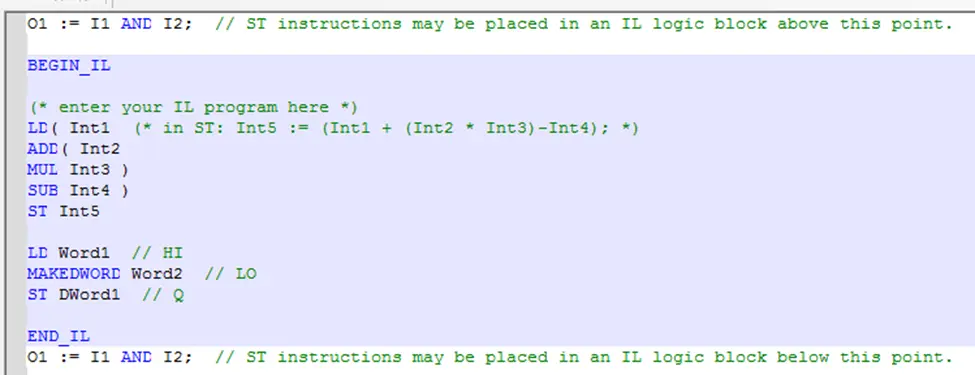
When creating an IL logic block, you must put all IL commands in between the BEGIN_IL and END_IL sections. Above and below this block, you are allowed to use ST instructions.
Instruction List (IL) Instructions
The table below shows the Instructions that can be used on the Instruction List editor:
| Instruction | Definition | Description | Example |
|---|---|---|---|
| LD | Loads the operand into the accumulator. The operand can be a tag variable of any data type or a constant value. Note: When using the LD instruction with the ST instruction, the Data Types must match. | LD Bool1 LD Int1 LD Real1 LD String1 LD 45 (ST must be DINT) LD 345.87 (ST must be REAL) LD ‘Hello’ (ST must be STRING) LD TRUE (ST must be BOOL) | |
| LDN | Loads the negated value of the operand into the accumulator. The operand must be data type BOOL. | LDN Bool2 {if Bool2 is TRUE, then acc. is FALSE} | |
| AND (&) | Boolean ANDs the value stored in the accumulator with the tag variable and stores the result in the accumulator. | B1 B2 & B3 0 0 0 0 1 0 1 0 0 1 1 1 | LD Bool1 AND Bool2 ST Bool3 |
| ANDN | Boolean ANDs the value stored in the accumulator with the negated value in the tag variable and stores the result in the accumulator. | __ B1 B2 & B3 0 0 0 0 1 0 1 0 1 1 1 0 | LD Bool1 ANDN Bool2 ST Bool3 |
| OR | Boolean ORs the value stored in the accumulator with the tag variable and stores the result in the accumulator. | B1 B2 | B3 0 0 0 0 1 1 1 0 1 1 1 1 | LD Bool1 OR Bool2 ST Bool3 |
| ORN | Boolean ORs the value stored in the accumulator with the negated value in the tag variable and stores the result in the accumulator. | __ B1 B2 | B3 0 0 1 0 1 0 1 0 1 1 1 1 | LD Bool1 ORN Bool2 ST Bool3 |
| XOR | Boolean exclusive ORs the value stored in the accumulator with the tag variable and stores the result in the accumulator. | B1 B2 ⊕ B3 0 0 0 0 1 1 1 0 1 1 1 0 | LD Bool1 XOR Bool2 ST Bool3 |
| XORN | Boolean exclusive ORs the value stored in the accumulator with the negated value in the tag variable and stores the result in the accumulator. | __ B1 B2 ⊕ B3 0 0 1 0 1 0 1 0 0 1 1 1 | LD Bool1 XORN Bool2 ST Bool3 |
| ADD | Adds the value stored in the accumulator with the value in the tag variable and stores in the accumulator. Note: the current accumulator value and tag variable must be the same data type. ST Equivalent: Dint3 := Dint1 + Dint2; | LD Dint1 ADD Dint2 ST Dint3 | |
| SUB | Subtracts the value in the tag variable from the value stored in the accumulator and stores in the accumulator. Note: the current accumulator value and tag variable must be the same data type. ST Equivalent: Dint3 := Dint1 – Dint2; | LD Dint1 SUB Dint2 ST Dint3 | |
| MUL | Multiplies the value stored in the accumulator with the value in the tag variable and stores in the accumulator. Note: the current accumulator value and tag variable must be the same data type. ST Equivalent: Dint3 := Dint1 * Dint2; | LD Dint1 MUL Dint2 ST Dint3 | |
| DIV | Divides the value in the accumulator by the value stored in the tag variable and stores in the accumulator. Note: the current accumulator value and tag variable must be the same data type. ST Equivalent: Dint3 := Dint1 / Dint2; | LD Dint1 DIV Dint2 ST Dint3 | |
| GT | Compares the value in the accumulator with the value in the tag variable. If the accum. value is greater than the tag variable, then a value of 1 (true) is placed into the accumulator. If the accum. value is less or equal to the tag variable, then a value of 0 (false) is placed into the accumulator. Note: the current accumulator value and tag variable must be the same data type. ST Equivalent: Bool1 := Int1 > Int2; | LD Int1 GT Int2 ST Bool1 | |
| GE | Compares the value in the accumulator with the value in the tag variable. If the accum. value is equal or greater than the tag variable, then a value of 1 (true) is placed into the accumulator. If the accum. value is less than the tag variable, then a value of 0 (false) is placed into the accumulator. Note: the current accumulator value and tag variable must be the same data type. ST Equivalent: Bool1 := Int1 >= Int2; | LD Int1 GE Int2 ST Bool1 | |
| LT | Compares the value in the accumulator with the value in the tag variable. If the accum. value is less than the tag variable, then a value of 1 (true) is placed into the accumulator. If the accum. value is greater or equal to the tag variable, then a value of 0 (false) is placed into the accumulator. Note: the current accumulator value and tag variable must be the same data type. ST Equivalent: Bool1 := Int1 < Int2; | LD Int1 LT Int2 ST Bool1 | |
| LE | Compares the value in the accumulator with the value in the tag variable. If the accum. value is equal or less than the tag variable, then a value of 1 (true) is placed into the accumulator. If the accum. value is greater than the tag variable, then a value of 0 (false) is placed into the accumulator. Note: the current accumulator value and tag variable must be the same data type. ST Equivalent: Bool1 := Int1 <= Int2; | LD Int1 LE Int2 ST Bool1 | |
| EQ | Compares the value in the accumulator with the value in the tag variable. If the accum. value is equal to the tag variable, then a value of 1 (true) is placed into the accumulator. If the accum. value is not equal to the tag variable, then a value of 0 (false) is placed into the accumulator. Note: the current accumulator value and tag variable must be the same data type. ST Equivalent: Bool1 := Int1 = Int2; | LD Int1 EQ Int2 ST Bool1 | |
| NE | Compares the value in the accumulator with the value in the tag variable. If the accum. value is not equal to the tag variable, then a value of 1 (true) is placed into the accumulator. If the accum. value is equal to the tag variable, then a value of 0 (false) is placed into the accumulator. Note: the current accumulator value and tag variable must be the same data type. ST Equivalent: Bool1 := Int1 <> Int2; | LD Int1 NE Int2 ST Bool1 | |
| Function Call | Use a function from the Keywords List. Note: not all functions are supported in IL programming. ST Equivalent: Real3 := POW( Real1, Real2 ); | LD Real1 POW Real2 ST Real3 | |
| Parenthesis | Determines the order in which mathematical operators (ex. +,-,*, /, <, AND, NOT, etc.) are processed in a complex instruction. ST Equivalent: Int5 := (Int1 + (Int2* Int3) – Int4); | LD( Int1 ADD( Int2 MUL Int3 ) SUB Int4 ) ST Int5 | |
| ST | Loads the contents of the accumulator into the operand. The operand can be a tag variable of any data but, generally, must match the data currently stored in the accumulator. | ST Bool1 ST Int1 ST Real1 ST String1 | |
| STN | Loads the negated contents of the accumulator into the operand. The operand can be a tag variable of any data but, generally, must match the data currently stored in the accumulator. | Ex. If accumulator = 0, then STN Bool1 would put 1 in Bool1. | STN Bool1 STN Int1 STN Real1 STN String1 |
| JMP | Jumps to the specified label. Contents of accumulator are ignored. | ||
| JMPC | Jumps to the specified label, if the accumulator is TRUE. | ||
| JMPNC or JMPCN | Jumps to the specified label, if the accumulator is FALSE. | ||
| Label: | Places a label in front of the instruction. | ||
| S | Sets the operand to TRUE, if the accumulator is TRUE. | Note: operand remains TRUE after accumulator transitions from TRUE to FALSE. | |
| R | Sets the operand to FALSE, if the accumulator is TRUE. | Note: operand remains FALSE after accumulator transitions from TRUE to FALSE. | |
| CAL | Calls a function block (locate in an FBD logic block). Contents of accumulator are ignored. | ||
| CALC | Calls a function block, if the accumulator is TRUE. | ||
| CALNC or CALCN | Calls a function block, if the accumulator is FALSE. |
Quick Select Menu Options
The sections that follow detail the options available in the Quick Select Menu of the IL editor.
Insert Variable
Displays the Variable Dialog box:
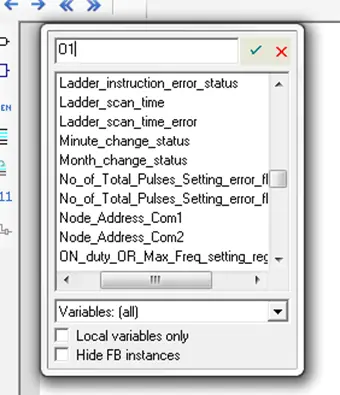
The Variable Dialog box is used to select/create a tag variable and place it onto the IL work area.
By default, all of the System Tags, global tags, and Local tags for the selected logic block are listed. You can select a tag from the list or create a new one by typing a new tag name, then clicking the Accept button. Note: if you only want to see local tags for the selected logic block, check the Local variables only box.
In this example, we will add a local Boolean variable O4. If the tag is new, clicking the Accept button displays a new dialog:
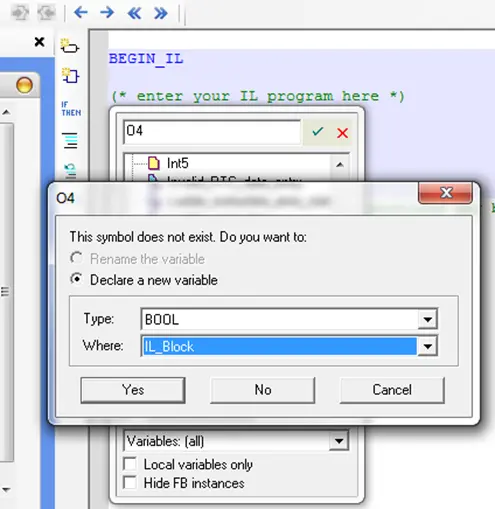
When creating a new variable, you must determine the data type (i.e. BOOL, INT, STRING, etc.) and visibility of the variable. If Global is selected, the variable can be used in any of the logic blocks you create. If you select Local (by selecting the name of the logic block you are in), then the tag variable can only be used and seen by the logic block. Selecting RETAIN stores the tag in non-volatile memory of the MLC so that the value is retained after power is recycled on the MLC.
Click Yes to return to the logic block work area:
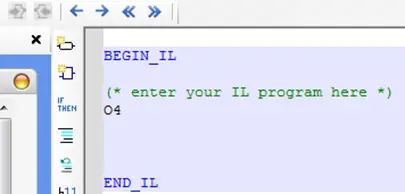
The variable is placed into the IL code area and is also stored in the Tags library.
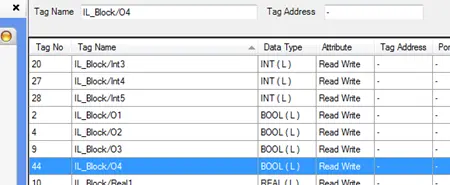
In IL Programming, you may prefer to write the code statements, then assign variables afterwards.
For example, let’s add a statement to the variable O4 that we already created by typing:
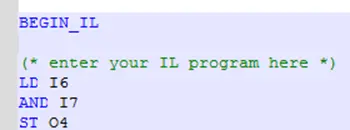
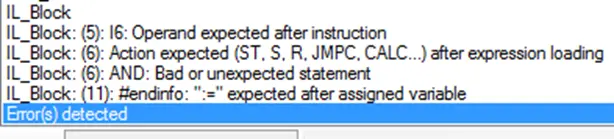
If we try to compile, we will get errors because the new variables, I6 and I7 are not yet added to the Tag library:
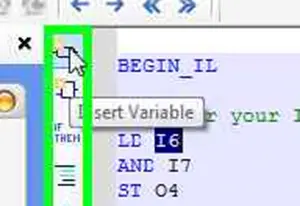
You can add a new variable that has already been written into the code by double-clicking the variable (to highlight the entire name), then clicking the Insert Variable button:
Once a variable has been added to the Tag library, you do not have to use the Insert Variable button again to reference the tag- simply type the name of the tag into the code.
Insert (FB) Function Block
Click to add a function block (see Block Name section on right side of work area) to the logic code work area. The Function Block dialog box appears:
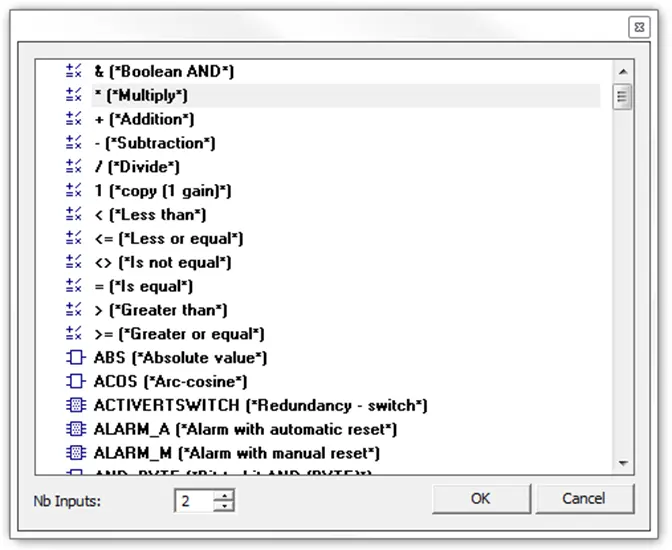
Select the Function Block that you wish to use. With some functions, you can change the number of inputs using the Nb Inputs option. Since IL programming is limited, not all functions are supported.
Suppose we want to calculate the volume of various cubes using the power (pow) function. For a cube, this would simply be the length of one of the sides to the power of 3:
Area := POW(length, 3);
With IL Programming, you could click the Insert FB button, then click the POW function block:
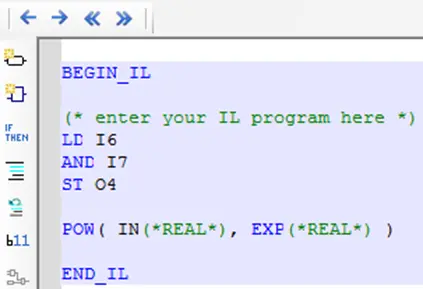
The MAPware-7000 software indicates that the POW function requires two input parameters: IN and EXP. Both parameters must be Data Type Real and the result must be stored in a variable of Data Type Real. So we will create three variables for this function: Area, Length, and Cube- all configured as REAL.
With IL programming, you cannot load more than one input value into the accumulator at one time. When using a function that requires two inputs in IL programming, you generally load the first variable into the accumulator, then bring in the second variable when invoking the function:

To finish, you would use another variable to store the result:
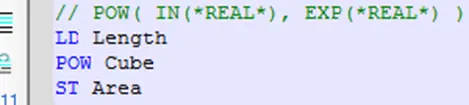
Note: To determine what data type is required for any outputs of a function block, double-click the function block in the Block List to display the help file for that function block.
As with entering a variable, when using IL programming, it is acceptable to type in the statement- including all variables and the function. After pressing the ENTER key, MAPware-7000 checks all variables and displays the Variable Dialog Box if any variables are new.
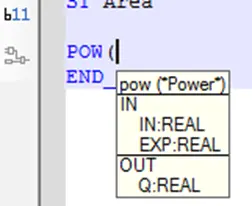
When typing the function block directly into the work area, you will also see a popup box that displays the proper format for the selected function block:
List Key Words
The selection tool displays the Variable Dialog box with the Keywords and Functions option selected:
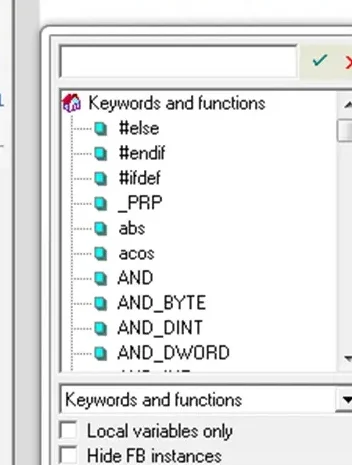
Keywords are words that have a predefined meaning in the ST programming language. Keywords are not supported in the IL programming language. Functions such as AND, POW, or any_to_uint are function blocks. They usually require at least one input parameter and one output parameter.

Insert Comment
This key places double-slash marks at the beginning of any highlighted text or line of code (see ST Programming section for more details).

Remove Comment
Removes double-slash marks at the beginning of any highlighted text or code. (See ST Programming section for more details).

Show Value in Text
This button is used when testing the logic using Simulation Mode (click Mode > Start Simulation > Logic Only). It shows the value of each variable (see ST Programming section for more details).

Show Expression
When this button is pressed while an expression is highlighted in the code, it will display a popup window that shows the expression in FBD format. This tool is not very useful when programming using IL, it is more appropriate when using ST programming language (see ST Programming section for more details).