7.0" WiFi Capable High-Resolution High Performance HMI With CODESYS
$838.00
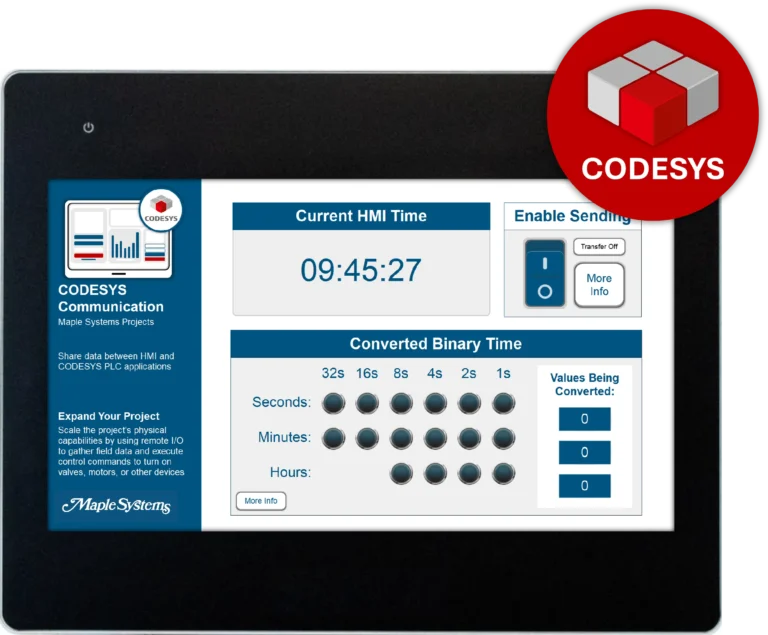
The cMT3072XH3 HMI display with activated CODESYS license, features a powerful CPU, remote access capabilities, IIoT functionality, and our most advanced feature set, making this HMI touch panel a powerful solution for your application. Pair this operator interface with our remote IO and CODESYS license for soft PLC functionality.
Try Before You Buy: Follow along to learn how EBPro, our 100% free HMI configuration software, allows you to develop and simulate your HMI program entirely free of charge.
Wi-Fi Expansion Module
Our wireless M02 Wi-Fi Expansion Module adds Wi-Fi connectivity capable of providing either a Wi-Fi connection or acting as a Wi-Fi Hotspot. Adding Wi-Fi to your plant network greatly reduces costs on expensive cabling, faster and easier troubleshooting, and improved scalability since a single Wi-Fi Router can serve hundreds of devices at a time.
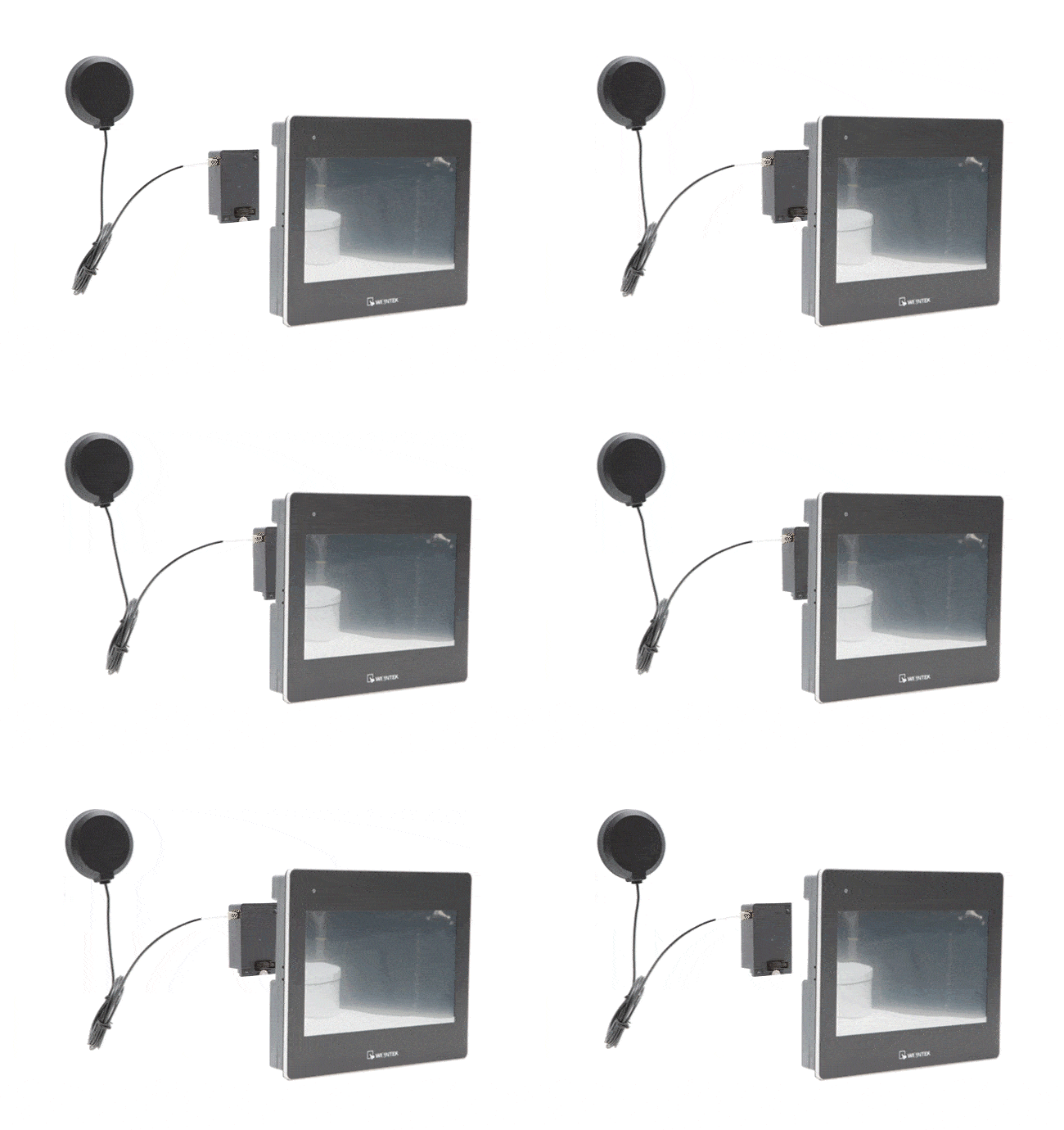
- Low-Profile, Simple Installation on Rear of HMI
- 6ft magnetic “puck” antenna
- Supports IEEE 802.11b/g/n Wi-Fi Standards
- M02 Expansion Module Data Sheet
- Customize product with your company logo. Minimum quantities apply.
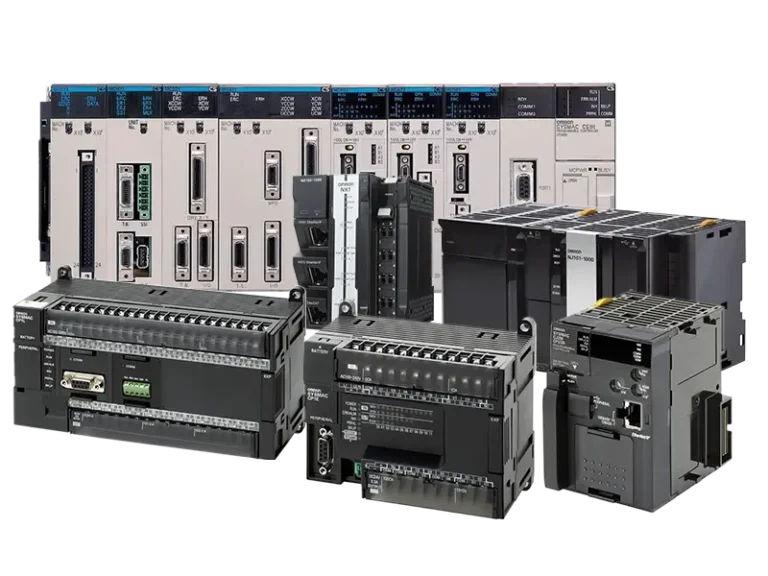
- Connect to +400 PLCs and Controllers.
- US-based technical support.
Share the product:
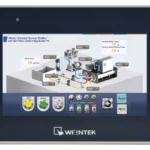
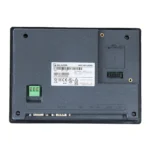

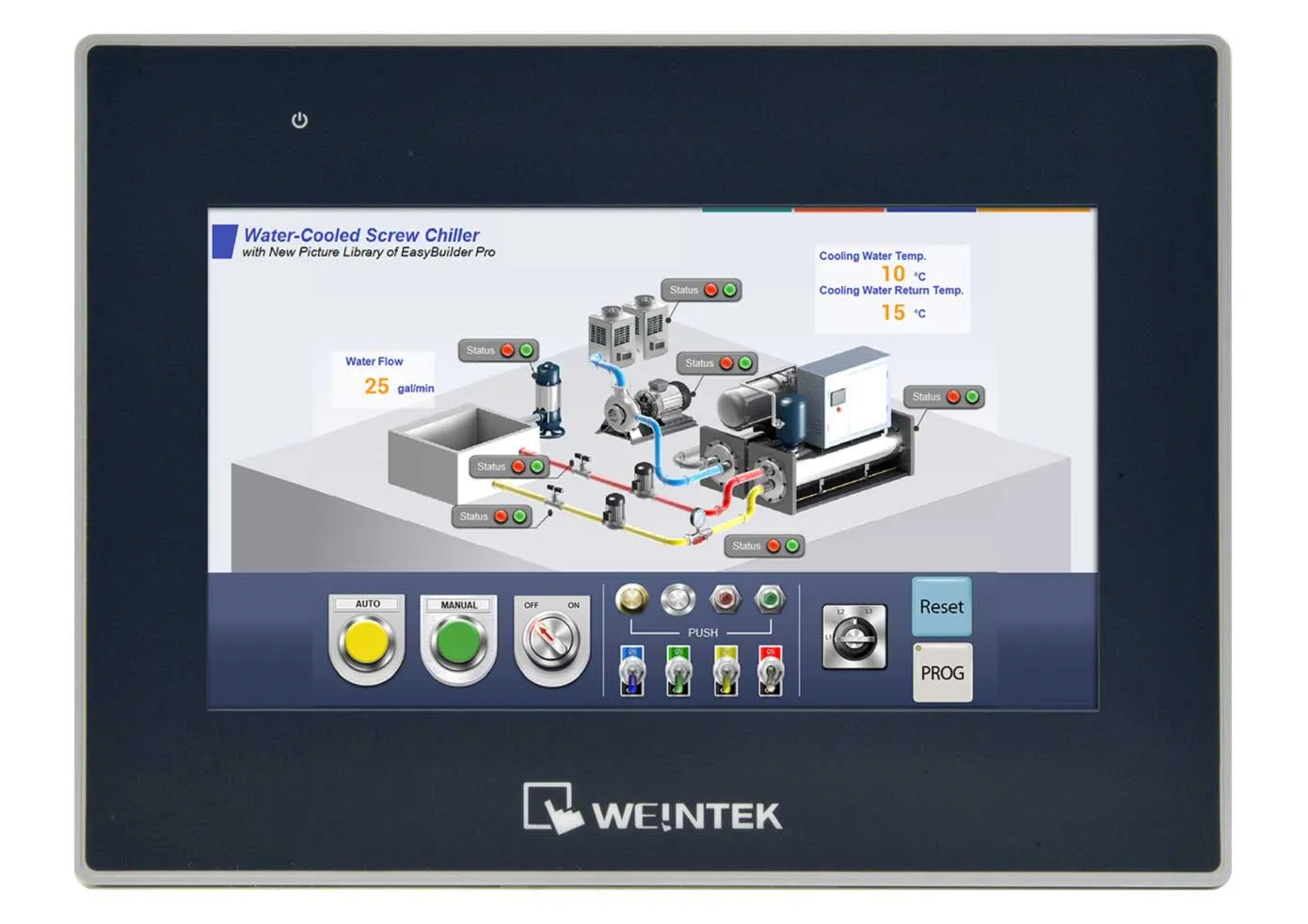
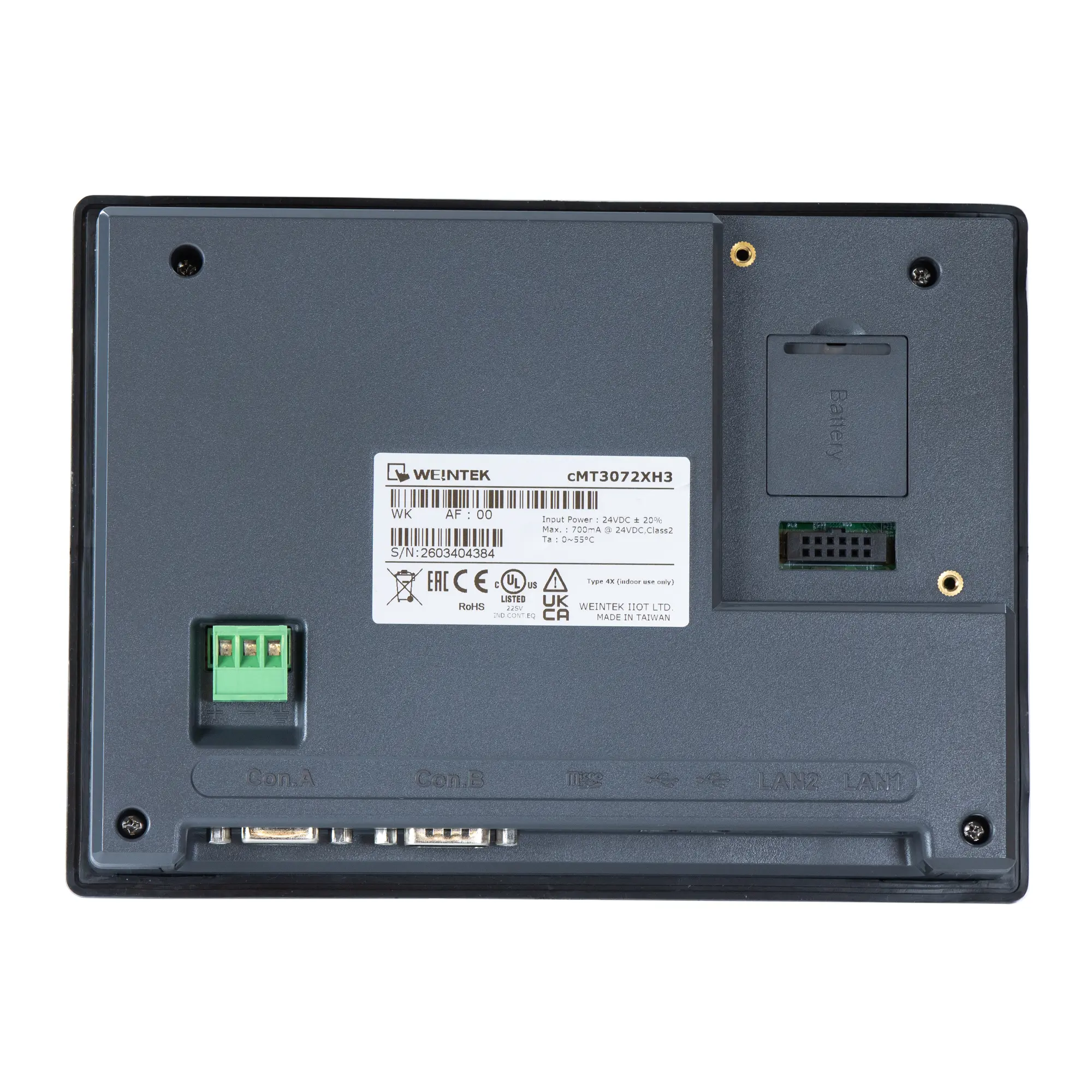
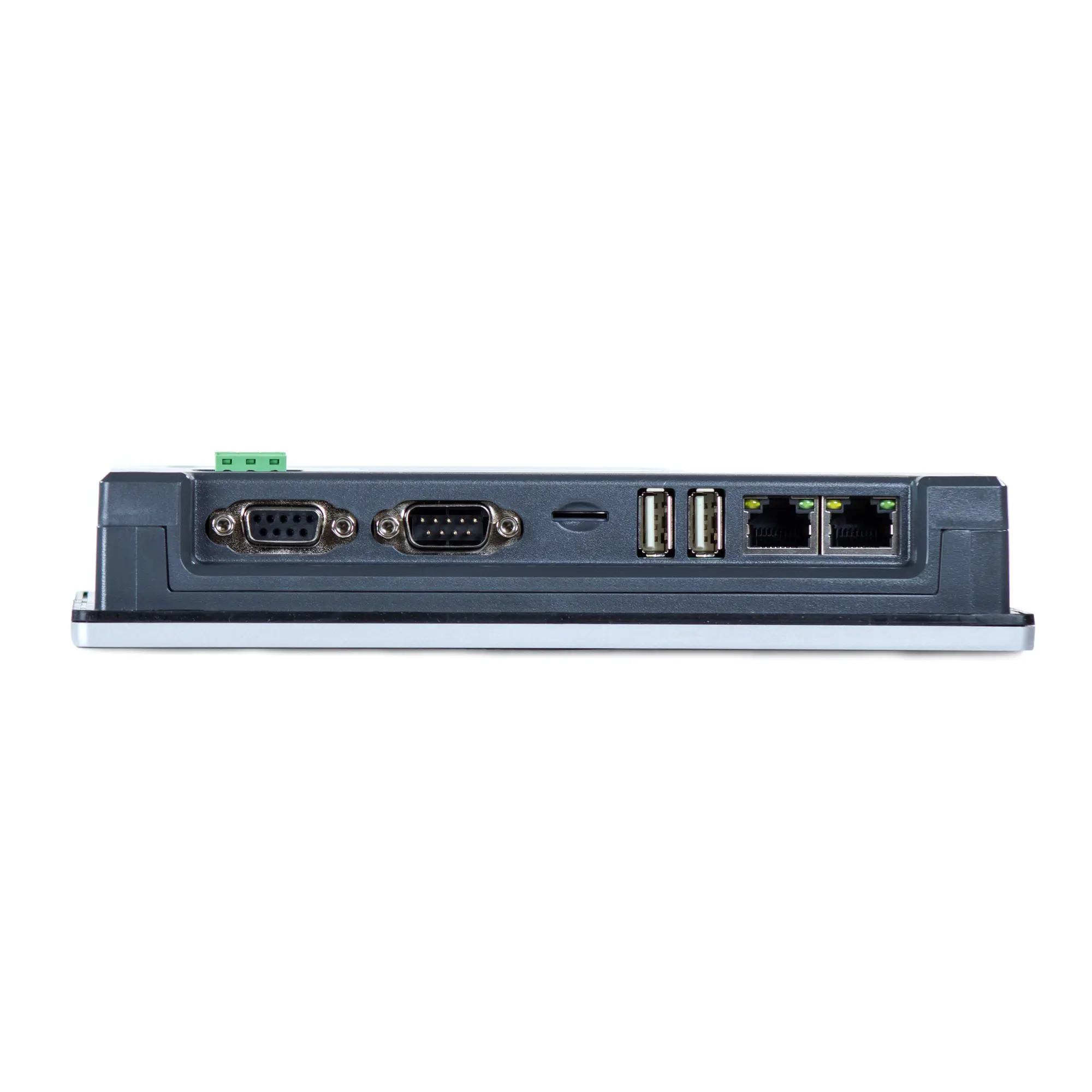
- 1024 x 600 High Resolution Touch Panel
- Activated CODESYS License, cULus, CE, RoHS, IP66, NEMA4
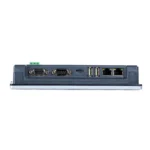
- 2 Ethernet, 2 USB, 2 Serial Ports, Wi-Fi Capable via Expansion Module
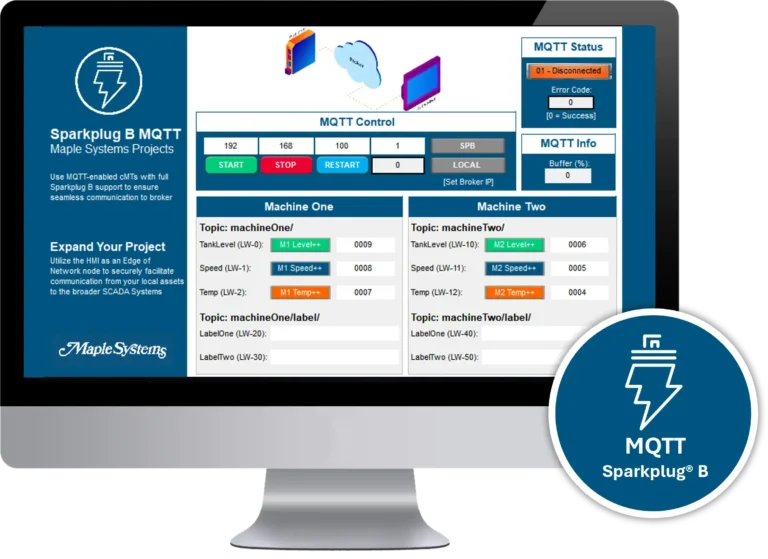
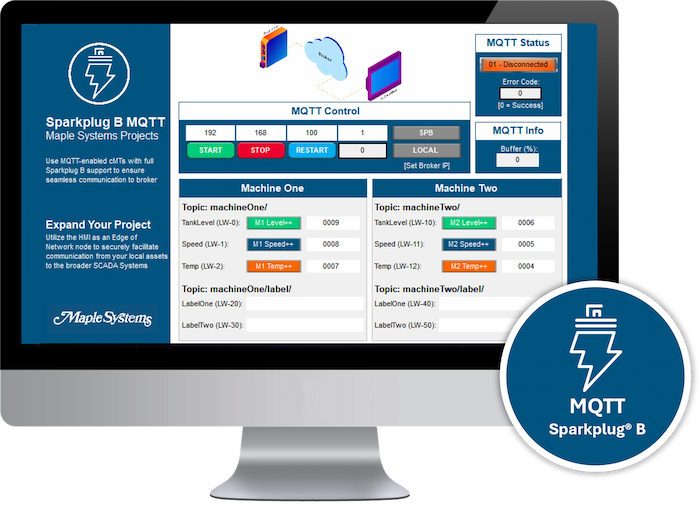
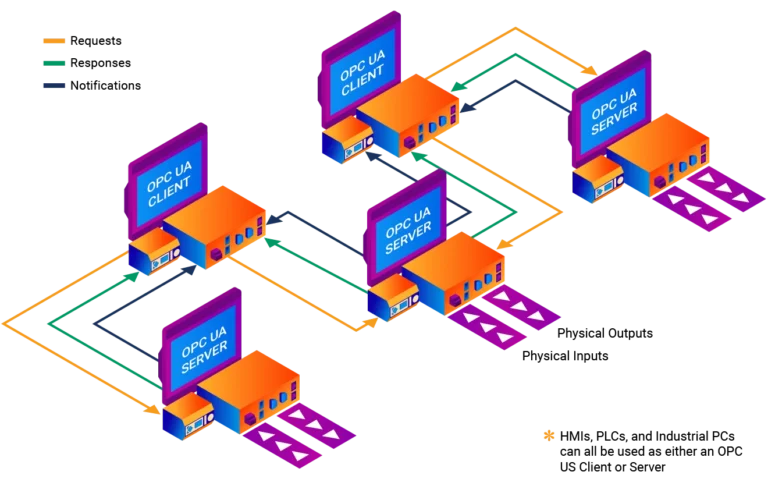
- MQTT, OPC UA Client / Server Built-in
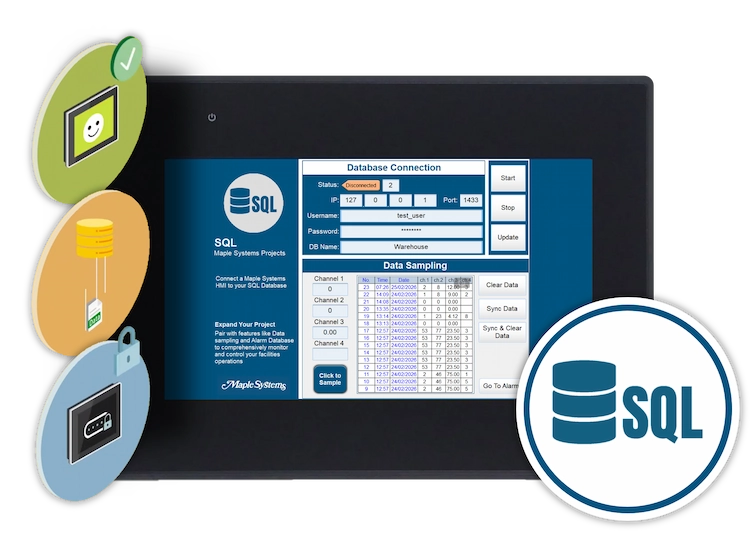
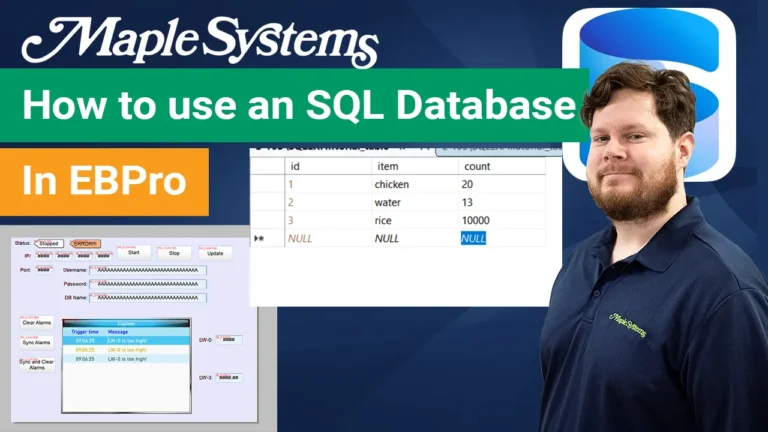
- SQL Database Integration, Web Browser
System
| CPU | Quad-Core RISC |
|---|---|
| Memory (RAM) | 1 GB |
| Memory (Flash) | 4 GB |
| RTC | Built-in |
| Programming Software | EBPro (Latest Version) |
I/O Ports
| Ethernet/LAN | 10/100 Base-T x 2 |
|---|---|
| CANbus | N/A |
| Audio Output | N/A |
| SD Card Slot | Micro SD HC |
| USB Host Ports | USB 2.0 x 2 |
| USB Client Ports | N/A |
| Wi-Fi | MO2 Wifi – Expansion Module (Optional) |
| COM Port | 1 x DE9S COM2: RS-485 2 or 4 wire, COM3: RS-485 2 wires 1 x DE9P COM1: RS-232, COM3: RS-232 |
| RS-485 Dual Isolation | N/A |
| HDMI Port | N/A |
| Video Input | N/A |
| Serial Ports | 2 |
Display
| Display Size | 7" WVA LCD |
|---|---|
| Resolution | 1024 x 600 |
| Luminance (cd/m^2) | 550 |
| Contrast Ratio | 800:1 |
| Backlight Type | LED |
| Backlight Lifetime (hrs) | 30,000+ |
| Colors | 16.7 M |
| Display Type | 7" WVA |
| Viewing Angle (H°/V°) | 170/170 |
| Size (W x H) | 6.02 x 3.39 inches [153 x 86 mm] |
Touch Screen
| Type | 4-wire resistive touch |
|---|---|
| Accuracy | Length (X) ±2%, width (Y) ±2% |
Electrical
| Input Power | 19.7 W |
|---|---|
| Power Isolation | Built-in |
| Power Dissipation | N/A |
| Current for Internal Bus | N/A |
| Current Consumption | N/A |
| Isolation Resistance | Exceed 50 MO – @ 500 VDC |
| Input Voltage | 24 ± 20% VDC |
| Input Current | 820 mA @ 24 VDC |
Mechanical
| Vibration Endurance | 10 to 25 Hz (X, Y, Z direction, 2G, 30 minutes) |
|---|---|
| Enclosure Material | Plastic, charcoal grey |
| PCB Coating | Yes |
| Dimensions WxHxD | 7.89 x 5.77 x 1.38 inches [200.4 x 146.5 x 35 mm] |
| Panel Cutout (inches) [mm] | 7.56 x 5.43 [192 x 138] |
| Weight | Approx. 1.32 lbs. [0.6 kg] |
| Mounting | Panel mount |
Environmental
| Operating Temperature | 32° ~ 131°F (0° ~ 55°C) |
|---|---|
| Storage Temperature | -4° ~ 140°F (-20° ~ 60°C) |
| Relative Humidity | 10% ~ 90% (non-condensing) |
Certification
| CE UKCA | Yes |
|---|---|
| UL Type Rating | UL Type 4X (indoor use only) |
| NEMA Rating | NEMA4 |
| IP Rating | IP66 Compliant Front Panel |
| CE | Yes |
| UL | cULus Listed |
| Class 1 Div 2 | N/A |
| ATEX | N/A |
| RoHS | Yes |
Unboxing a cMT3072XH3
We'll unbox, show the I/O ports and accessories it comes with, connect the optional M02 Wi-Fi module and power it up
FREE User Friendly HMI Software
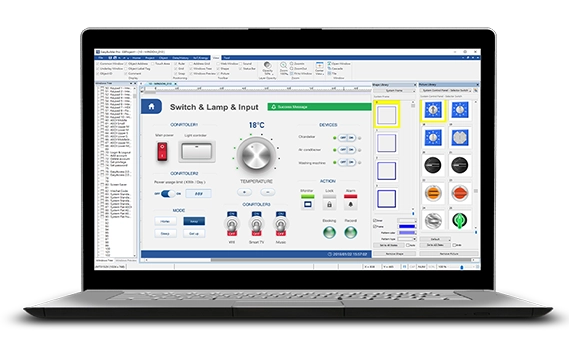
Download our free, full-featured HMI configuration software to create custom control applications for your industrial process. EBPro supports over 300 PLC & controller protocols, ensuring seamless integration with new or existing systems. No license or key required.
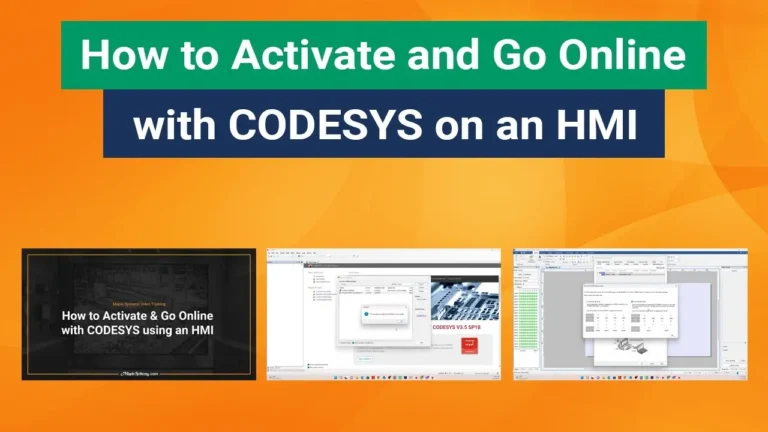
How do I get started with CODESYS on Maple Systems devices?
First you’ll want to make sure your device supports CODESYS:
Next, you’ll need to install the CODESYS Development System on your PC. This installs the IDE only, not the runtime on your device (we’ll get there):
- Go to Maple Systems Software Downloads and Upgrades
- Click on the download link for CODESYS IDE (32bit or 64bit)
Then, make sure to install our add on package. This ensures CODESYS knows how to talk to your cMT device:
- Go to Maple Systems Software Downloads and Upgrades
- Click on the download link for CODESYS & Remote IO Package
Now, we’re going to install and update the CODESYS Runtime on your Maple Systems device:
- If you don’t have EBPro installed, go to Maple Systems Software Downloads and Upgrades and click the download link for EBPro.
- Once that’s installed, open EBPro Utility Manager and choose the model number of the device you’re using.
- Select CODESYS Firmware Upgrade. The latest Firmware can be found in the Software Downloads and Upgrades page.
Your HMI has now become a PLC runtime that can execute IEC 61131-3 Logic!
Ensure your PC and cMT device are on the same network/subnet. Your device will show a CODESYS runtime IP address on the screen, you’ll need this IP to connect from CODESYS IDE.
To create a new CODESYS project, in the CODESYS IDE system:
- Click on File – New Project
- Choose the model number (this will only show up after you’ve installed the CODESYS & Remote IO Package)
- Select your preferred programming language (LD, ST, FBD, SFC, etc.)
Now you’re ready to create your project, download it, run and debug!
Manuals & Guides
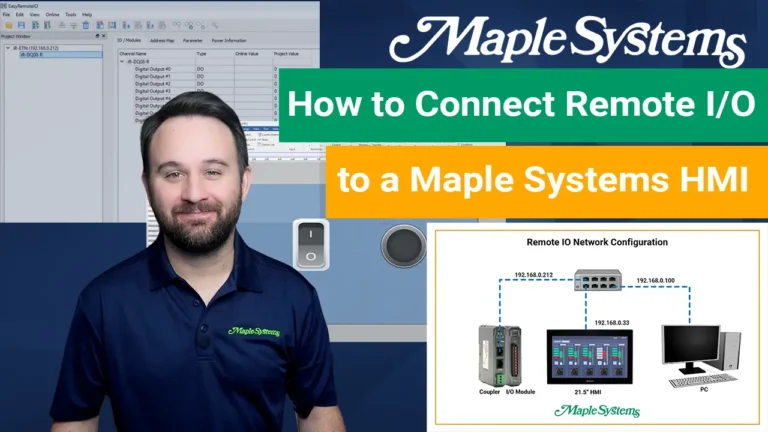
- EasyRemote IO User Manual
- iR Series Remote I/O Product Data Sheet
- iR-ETN40R/P User Manual
- iR-ETN User Manual
- iR-ECAT User Manual
- iR-COP User Manual
- cMT-CTRL01 User Manual
- iR-AQ04-VI, iR-AM06-VI, iR-AI04-VI User Manual
- iR-AI04-TR User Manual
- CODESYS Activation Instructions
Sample Projects
- Communicating to I/O Module Sample Project
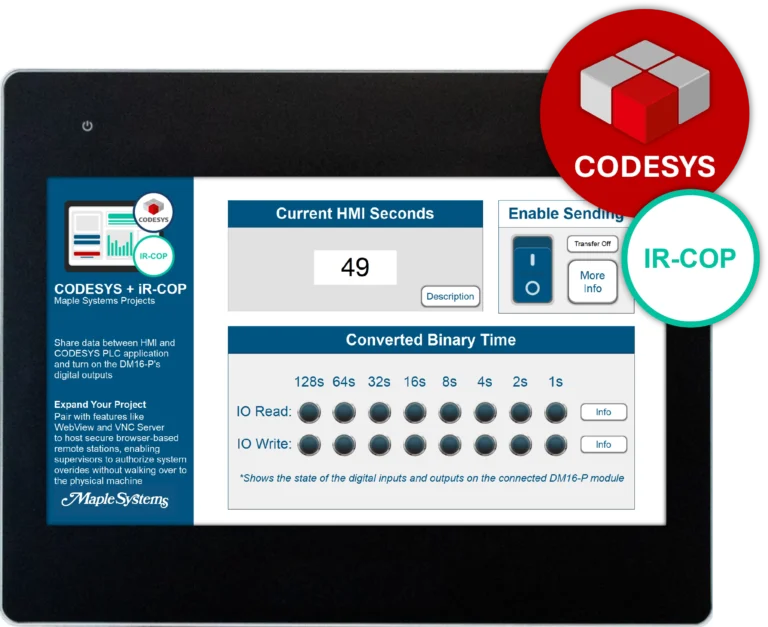
- iR-COP Sample Project
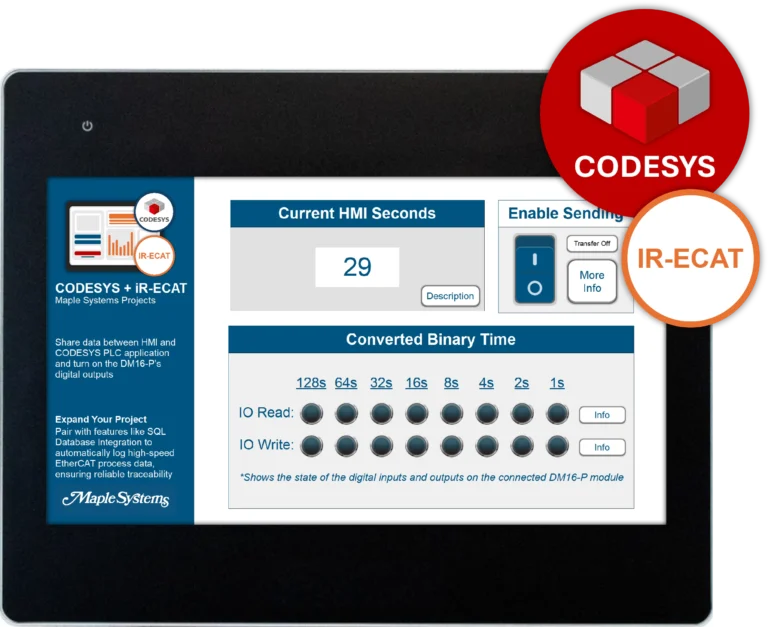
- iR-ECAT Sample Project
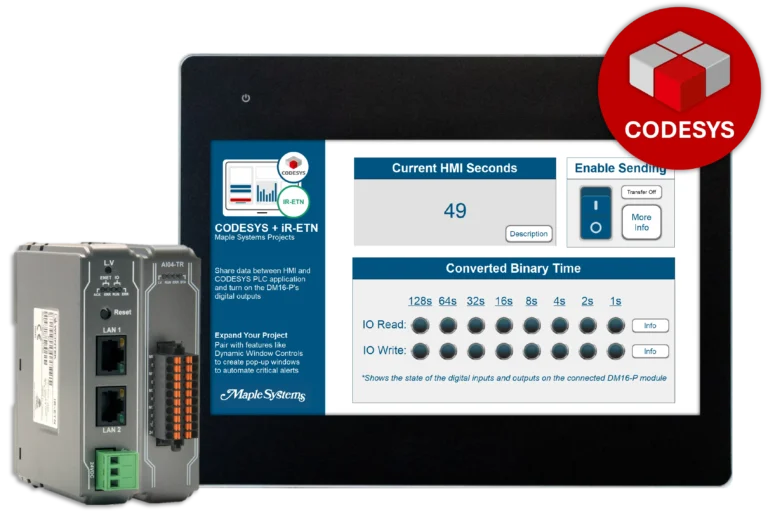
- iR-ETN Sample Project
- iR-ETN40R Sample Project
Tutorials
Tech Notes
- See our list of Tech Notes
Solutions
- See our Case Studies & Solutions
Controller Information Sheets
- See our list of Controller Information Sheets
Videos
- See our list of Training Videos
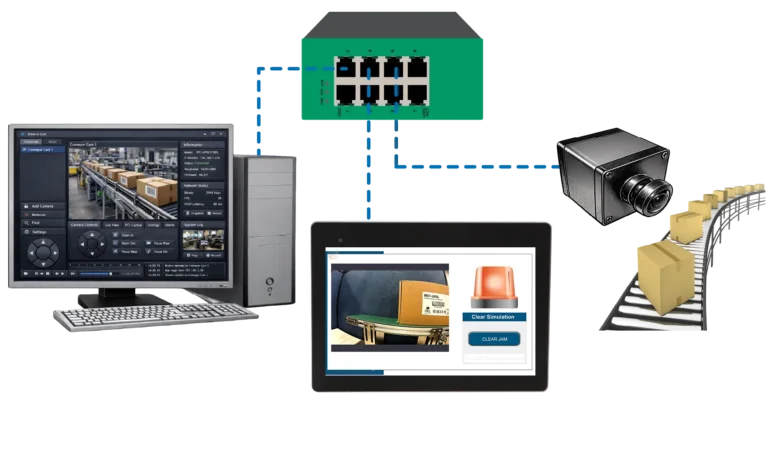
I need to use an IP camera and other peripherals in my project. Do Maple Systems HMIs support these devices?
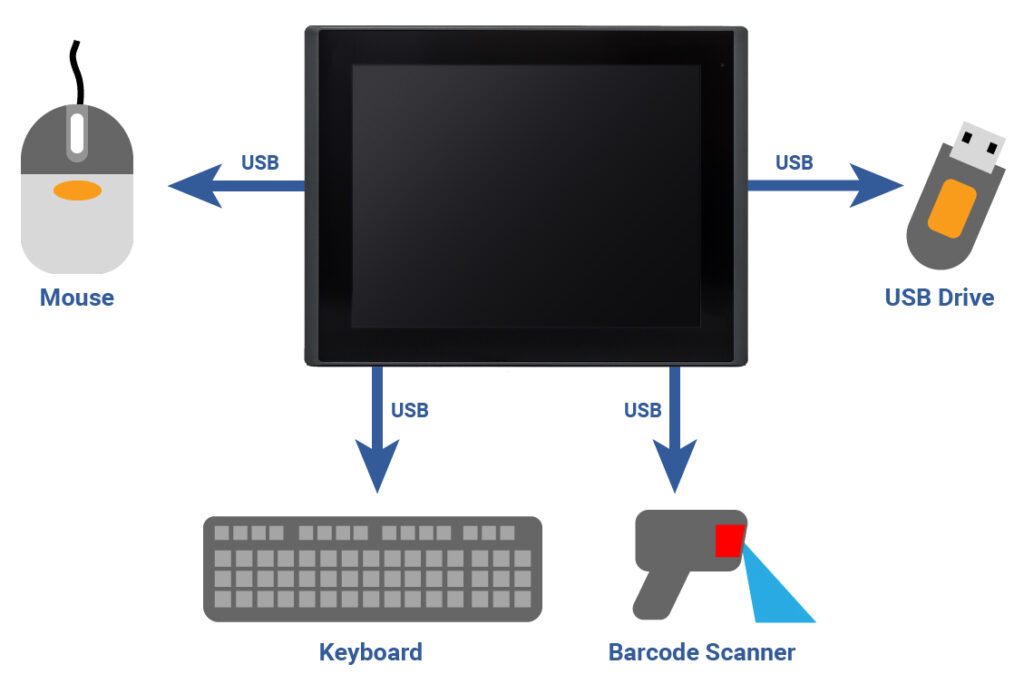
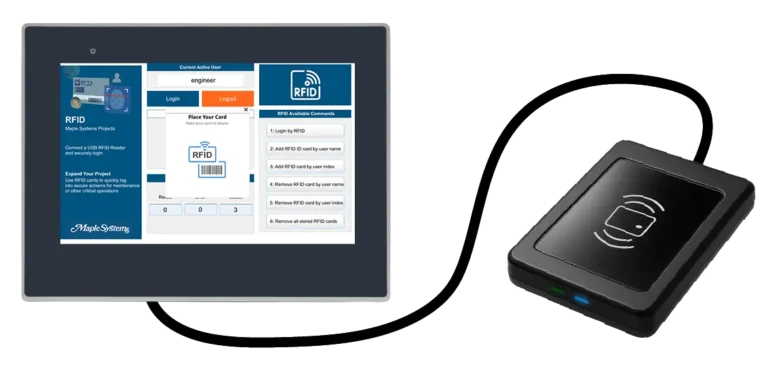
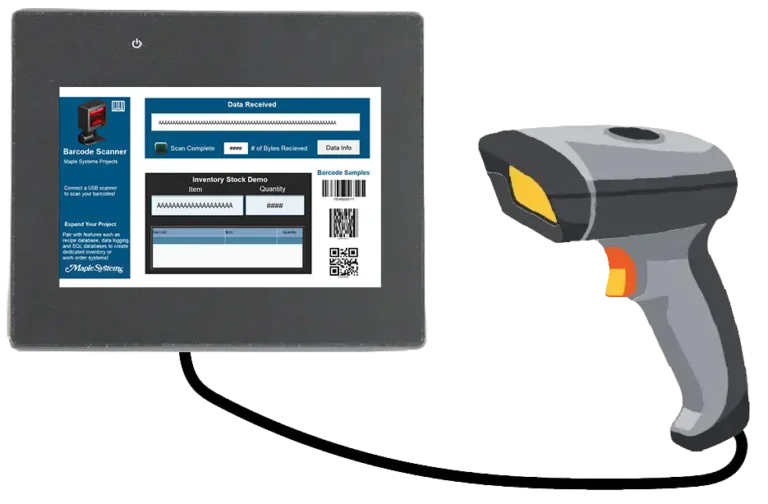
Yes. Maple Systems HMIs are compatible with a wide range of peripheral devices such as printers, barcode scanners, cameras, keyboards, mice, flash storage drives, and more. For projects using multiple USB devices at once, a USB hub can expand a single USB port into many, allowing several devices to connect simultaneously.
Note: USB ports on Maple HMIs do not support charging for mobile phones, tablets, or unpowered speakers. The USB ports on our HMIs are for data storage or keyboard/mouse connection only. Using the ports in a manner inconsistent with their documented purpose can potentially damage the device.
Product
Software Downloads & Upgrades
Manuals & Guides
Tech Notes
Solutions
See our
Controller Information Sheets
Communication Cables
Videos
How do I implement EasyAccess 2.0 on my Maple Systems HMI?
Implementing EasyAccess 2.0 is easy. For complete instructions, refer to the EasyAccess 2.0 Manual available in our Support Center.
Step 1: Create Domain Account:
An HMI Panel must belong to a domain in order to use EasyAccess 2.0. Anyone can create a new domain for free, all you need is a valid e-mail address. The Domain Management System is the basic system used to organize and handle HMI’s under a particular domain.
An Administrator then runs the domain and adds users and HMI panels to the domain. To create a new domain go to the EasyAccess 2.0 Domain Management System (DMS) website (https://account.ihmi.net).
Step 2: Manage Your Domain:
When you create a domain account, you become the domain’s administrator. It’s the administrator’s responsibility to create new user accounts and to assign HMIs to specific users and HMI groups. Your domain can contain multiple HMIs, groups, and users.
Step 3: Activation:
In order to use EasyAccess 2.0, you must activate the HMI in the domain. Some HMIs have EasyAccess 2.0 pre-installed and some require purchasing an activation card.
For HMIs requiring an activation card: The HMI can be activated by purchasing an activation card from Maple Systems. The activation code (from the activation card) and the hardware key are required to activate EasyAccess 2.0 in these units.
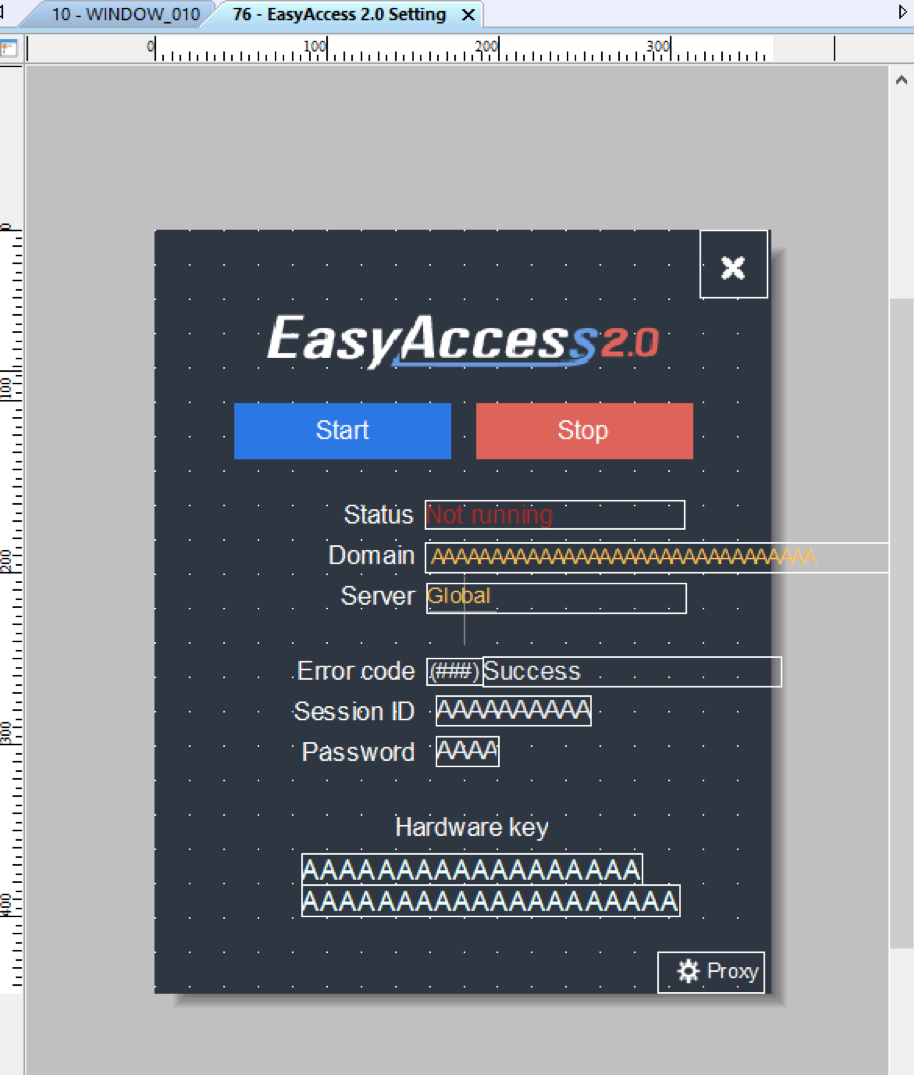
The HMI’s hardware key is located in the HMI’s system settings window. Select the EasyAccess 2.0 tab and locate the 30 digit hardware key. You may also find it on Window 76 – EasyAccess 2.0 Setting.
Select “Add HMI” in the domain and enter the hardware key and activation code. When an HMI is activated by an activation code, it is automatically added to the domain under which it was activated. Open window 76 – “EasyAccess 2.0 Setting” on the HMI. With the HMI connected to the Internet, push the Start button to initiate the connection to the EasyAccess 2.0 server.
For HMIs with EasyAccess 2.0 pre-installed: The HMI can be activated by obtaining a Session ID and Password from the domain. Open window 76 – “EasyAccess 2.0 Setting.” With the HMI connected to the Internet, push the Start button to initiate the connection to the EasyAccess 2.0 server. If the HMI has not been assigned to a domain yet, a Session ID and Password will be assigned to the HMI and appear on window 76. Select “Add HMI” in the domain and enter the Session ID and Password. It should now be added to the domain.
Step 4: Download and Launch EasyAccess 2.0:
Download the EasyAccess 2.0 app on your PC/ iPad/ iPhone/ Android Tablet, Launch EasyAccess 2.0, enter the User ID and password. Once logged in, the program will list all HMIs assigned to this ID including all HMIs under an HMI group. Select an HMI and establish a remote connection. You can now monitor any HMI in your HMI list.
Software Downloads & Upgrades
Manuals & Guides
Videos
Controller Information Sheets
Communication Cables
Does Maple Systems offer technical support?
Yes. Maple Systems provides 100% free, US-based technical support for all customers. Our Support Center includes extensive documentation, tutorials, and resources. However, if you’re unable to find what you need, our technical support team is ready to assist. You can reach our technicians by phone at (425) 745-3229 or by email at [email protected].
- Human Machine Interface (HMI)
- Industrial Panel PCs
- Industrial Box PCs
- Waterproof PCs
- PLCs and Control
- Network Switches
- HMI + PLC Combo Units
- Industrial Monitors
- Alphanumeric OIT
- Rugged Tablets
Need More Help?
- [email protected]
- 425.745.3229
How do I setup and connect my HMI to a Wi-Fi network?
Select Maple Systems HMI wifi models feature a wireless network connection (Wi-Fi) that allows users to connect to a local wireless access point or the Internet without using an Ethernet cable.
Tech Note 5121, “Wi-Fi Configuration” explains how to setup and connect your HMI to a Wi-Fi Network.

Software Downloads & Upgrades
Manuals & Guides
Tech Notes
- Multiple HMIs connecting to one PLC
- Target PLC IP Address Updated Using the HMI Screen
- Using the Modbus Gateway
- What is my IP Address?
- Wi-Fi Configuration
Controller Information Sheets
Communication Cables
CODESYS runtime supported protocols
The built-in CODESYS runtime for the cMT and cMT X series supports the following protocols for communicating with external party devices:
- Modbus TCP/IP (Master, AKA. Client), up to 32 devices
- EtherCAT (Master, AKA. Client), up to 65,535 devices
- EtherNet/IP (Master, AKA. Client), up to 32 devices
- CANopen (Master, AKA. Client), up to 126 devices
- PROFINET (Controller, AKA. Master), up to 64 devices
When structuring a project in CODESYS IDE for the cMT Series’ built-in CODESYS runtime, users are advised to utilize the following drivers:
| CODESYS IDE Device | Recommended Version |
|---|---|
| Ethernet adapter (added above any drivers for connecting to ethernet devices) | 3.5.15.0 |
| EtherNet/IP Scanner | 3.5.15.50 |
| Modbus TCP Master/Modbus TCP Client | 3.5.15.0 |
| EtherCAT Master/EtherCAT Client | 3.5.12.0 |
| CANbus | 3.5.15.0 |
| CANopen Manager | 3.5.15.0 |
| PN-Controller | 3.5.12.60 |
Note: The built-in CODESYS runtime is not natively able to act as a Modbus TCP Slave/Server using a single Modbus Slave/Modbus Server device in the Device Tree of a CODESYS IDE project. Users can, however, utilize function blocks provided by the ModbusTCP Slave library to achieve similar functionality.
Note: The built-in CODESYS runtime must be running on a cMT series device featuring a CANbus interface to offer CANopen functionality in CODESYS IDE projects.
Software Needed
Manuals & Guides
- EasyRemote IO User Manual
- iR Series Remote I/O Product Data Sheet
- iR-ETN40R/P User Manual
- iR-ETN User Manual
- iR-ECAT User Manual
- iR-COP User Manual
- cMT-CTRL01 User Manual
- iR-AQ04-VI, iR-AM06-VI, iR-AI04-VI User Manual
- iR-AI04-TR User Manual
- CODESYS Activation Instructions
Sample Projects
- Communicating to I/O Module Sample Project
- iR-COP Sample Project
- iR-ECAT Sample Project
- iR-ETN Sample Project
- iR-ETN40R Sample Project
Tutorials
Tech Notes
- See our list of Tech Notes
Solutions
- See our Case Studies & Solutions
Controller Information Sheets
- See our list of Controller Information Sheets
Videos
- See our list of Training Videos
Can I use the iR Series Remote I/O without CODESYS?
Yes, the iR series remote I/O couplers and modules can be used with any device that supports the following protocols:
| Coupler | Protocol |
| iR-COP | CANopen Slave |
| iR-ECAT | EtherCat® Slave |
| iR-ETN | Modbus TCP/IP Server, EtherNet/IP Adapter |
| iR-ETN40-P | Modbus TCP/IP Server, EtherNet/IP Adapter |
| iR-ETN40-R | Modbus TCP/IP Server, EtherNet/IP Adapter |

Manuals & Guides
- EasyRemote IO User Manual
- iR Series Remote I/O Product Data Sheet
- iR-ETN40R/P User Manual
- iR-ETN User Manual
- iR-ECAT User Manual
- iR-COP User Manual
- cMT-CTRL01 User Manual
- iR-AQ04-VI, iR-AM06-VI, iR-AI04-VI User Manual
- iR-AI04-TR User Manual
- CODESYS Activation Instructions
Sample Projects
- Communicating to I/O Module Sample Project
- iR-COP Sample Project
- iR-ECAT Sample Project
- iR-ETN Sample Project
- iR-ETN40R Sample Project
Tutorials
Tech Notes
- See our list of Tech Notes
Solutions
- See our Case Studies & Solutions
Controller Information Sheets
- See our list of Controller Information Sheets
Videos
- See our list of Training Videos
Do your CODESYS-activated HMIs support WebVisu?
WebVisu is primarily intended for browser based deployment. Our CODESYS-activated HMIs concentrate on local visualization, providing fast performance, reliable operation and simplified configurations for machine-level applications.
If more supervisory-level devices are needed, our IPCs support CODESYS WebVisu. Offering Linux or Windows based flexibility, larger storage, more processing power with the option to run multiple WebVisu clients simultaneously, making the ideal for centralized supervisory visualization with distributed operator access.
Pairing one of our IPCs with our Web HMIs, you’re getting a durable, industrial-grade touchscreen interface with minimal setup. You can display any WebVisu project hosted on our IPC, with no additional CODESYS licensing or programming required on the HMI.
If you’d like to learn more about how to use CODESYS WebVisu with our product, check out our how-to article, giving you step by step instructions on how to set up our WP4000 Series or our cMT Series Web HMIs with an IPC running CODESYS Linux SL Runtime using the CODESYS WebVisu functionality:
How to use CODESYS WebVisu on a Web HMI

Products
Manuals & Guides
- IPC2110A Series Operations Manual
- IPC2200A Series Operations Manual
- IPC2400A Series Operations Manual
- IPC2550A Series Operations Manual
- IPC2600A Series Operations Manual
- IPC2700A Series Operations Manual
- BPC2300 Operations Manual
- AEX Series Operations Manual
- CODESYS Activation Instructions
Tutorials
Tech Notes
- See our list of Tech Notes
Solutions
- See our Case Studies & Solutions
Controller Information Sheets
- See our list of Controller Information Sheets
Videos
- See our list of Training Videos
Does Maple Systems CODESYS SoftPLC Platform support PROFINET?
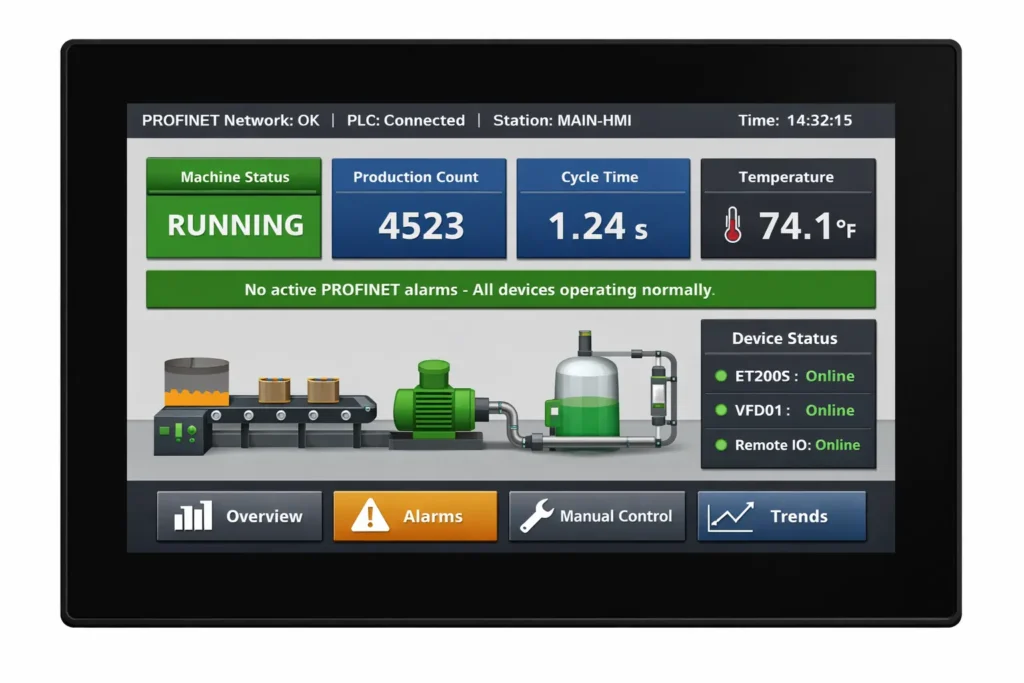
Yes! Our CODESYS SoftPLC Platform does support PROFINET IO Master functionality now! This enhancement allows our advanced and high-performance HMIs and cMT-CTRL01 to function as a PROFINET IO controller, facilitating command transmission to various PROFINET IO devices, such as remote IO, drives, and sensors. This upgrade significantly boosts system integration and scalability, delivering a comprehensive PROFINET communication protocol solution.
Some of the key features of CODESYS SoftPLC Profinet IO Master:
- Diverse Device Communication: With our CODESYS activated devices functioning as a PROFINET IO Master, you can seamlessly connect to multiple major brand PROFINET IO Slave devices, enabling easy selection and rapid deployment of field devices for enhanced communication and control.
- Easy Setup via CODESYS: PROFINET device GSDML files can be imported into the CODESYS development environment, streamlining configuration and datapoint setup with minimal learning barriers.
- Real-Time, Stable Performance: Real-time control that addresses the most demanding industrial applications, PROFINET provides high-speed data transmission, combined with our CODESYS Runtime System built in on our pre-activated cMT-CODESYS devices.
- Multi-Protocol Integration: Supporting Modbus TCP, EtherNet/IP, CANopen, EtherCAT, and now PROFINET, our CODESYS activated SoftPLC devices serve as a multi-protocol integrated controller, ideal for complex environments with devices from various brands and mixed systems.
If you’d like more information on how to configure a cMT-CODESYS project as a PROFINET Controller, check out our Technical note 5160
Software Needed
Manuals & Guides
- EasyRemote IO User Manual
- iR Series Remote I/O Product Data Sheet
- iR-ETN40R/P User Manual
- iR-ETN User Manual
- iR-ECAT User Manual
- iR-COP User Manual
- cMT-CTRL01 User Manual
- iR-AQ04-VI, iR-AM06-VI, iR-AI04-VI User Manual
- iR-AI04-TR User Manual
- CODESYS Activation Instructions
Sample Projects
- Communicating to I/O Module Sample Project
- iR-COP Sample Project
- iR-ECAT Sample Project
- iR-ETN Sample Project
- iR-ETN40R Sample Project
Tutorials
Tech Notes
- See our list of Tech Notes
Solutions
- See our Case Studies & Solutions
Controller Information Sheets
- See our list of Controller Information Sheets
Videos
- See our list of Training Videos
How many devices can a Maple Systems CODESYS-activated HMI communicate with?
It depends on which protocol you’re using:
| Modbus TCP/IP | 32 devices |
| EtherCAT | 65,535 devices |
| CANopen | 126 devices |
| EtherNet/IP | 32 devices |
| PROFINET | 32 devices |
See our full list of CODESYS-activated HMIs.
Software Needed
Manuals & Guides
- EasyRemote IO User Manual
- iR Series Remote I/O Product Data Sheet
- iR-ETN40R/P User Manual
- iR-ETN User Manual
- iR-ECAT User Manual
- iR-COP User Manual
- cMT-CTRL01 User Manual
- iR-AQ04-VI, iR-AM06-VI, iR-AI04-VI User Manual
- iR-AI04-TR User Manual
- CODESYS Activation Instructions
Sample Projects
- Communicating to I/O Module Sample Project
- iR-COP Sample Project
- iR-ECAT Sample Project
- iR-ETN Sample Project
- iR-ETN40R Sample Project
Tutorials
Tech Notes
- See our list of Tech Notes
Solutions
- See our Case Studies & Solutions
Controller Information Sheets
- See our list of Controller Information Sheets
Videos
- See our list of Training Videos
What libraries are compatible with the cMT CODESYS runtime?
The cMT series‘ built-in CODESYS runtime is compatible with wide range of standard libraries and features available in CODESYS IDE, with some limitations. Generally, libraries that do not require OS and hardware support are compatible with the cMT series’ CODESYS runtime.
The table below lists libraries known to be compatible with the cMT series’ built-in CODESYS runtime:
| Sys Library | Cmp Library | CAA Library |
|---|---|---|
| SysTimeRtc | CmpTraceMgr | CAAType |
| SysTimer | CmpSrv | CAATick |
| SysTime | CmpSettings | CAATickUtil |
| SysTask | CmpSchedule | CAAStorage |
| SysTarget | CmpRouter | |
| SysSocket | CmpPlcShell | |
| SysMem | CmpLog | |
| SysFile | CmpIoMgr | |
| SysExcept | CmpIoDrvC | |
| SysEvent | CmpIecVarAccess | |
| SysEthernet | CmpIecTask | |
| SysDir | CmpEventMgr | |
| SysCpuHandling | CmpDynamicText | |
| SysCom | CmpCheckSum | |
| CmpChannelServer | ||
| CmpBinTagUtilIec | ||
| CmpAsyncMgr | ||
| CmpAppBP |
Libraries incompatible with the cMT series’ CODESYS runtime can be added to a CODESYS IDE project and compiled or downloaded without issue. However, they may cause “unresolved reference” errors when logging in via CODESYS IDE, or certain function blocks may not operate correctly, leading to compile errors. This indicates incompatibility, and such libraries should be removed from the project.
Compatible libraries may still have limitations. For instance, using the SysTimeRtcSet function from the SysTimeRtc library will result in a “Not implemented” error in CODESYS IDE, as the cMT’s CODESYS runtime does not control the hardware clock.
The cMT series’ built-in CODESYS runtime does not support the following features:
- OPC UA features
- Network Variable List
- Alarm Configuration (Alarm Manager)
- Redundancy Configuration
- CODESYS TargetVisu
- CODESYS WebVisu
- CODESYS HMI
- SoftMotion
- CODESYS IIoT Libraries SL
- CODESYS OPC UA Client SL
- CODESYS OPC UA Server SL
- CODESYS Safety for EtherCAT Safety Module SL
Note: It is always suggested users verify functionality of any CODESYS IDE logic prior to using external libraries & function blocks in a production environment.
Software Needed
Manuals & Guides
- EasyRemote IO User Manual
- iR Series Remote I/O Product Data Sheet
- iR-ETN40R/P User Manual
- iR-ETN User Manual
- iR-ECAT User Manual
- iR-COP User Manual
- cMT-CTRL01 User Manual
- iR-AQ04-VI, iR-AM06-VI, iR-AI04-VI User Manual
- iR-AI04-TR User Manual
- CODESYS Activation Instructions
Sample Projects
- Communicating to I/O Module Sample Project
- iR-COP Sample Project
- iR-ECAT Sample Project
- iR-ETN Sample Project
- iR-ETN40R Sample Project
Tutorials
Tech Notes
- See our list of Tech Notes
Solutions
- See our Case Studies & Solutions
Controller Information Sheets
- See our list of Controller Information Sheets
Videos
- See our list of Training Videos
Documents
Manuals
- cMT3072XH3 Installation Guide
- EBPro Programming Manual
- EBPro Quick Start Guide
- EasyWeb 2.0 Operations Manual
- cMT Quick Start Guide
- CMT2000, CMT3000X Series User Manual
- MQTT User Manual
- cMT Microsoft SQL Quick Start Guide
- cMT MySQL Quick Start Guide
- OPC-UA Set-up Overview
- CODESYS Quick-Start Guide
- AWS IoT User Manual
- Azure IoT User Manual
Certifications
- UL Certification Declaration – cMT Series
- CE UKCA Declaration of Conformity – cMT3072XH3
- RoHS Declaration of Conformity (all series)
- REACH EU Declaration of Conformity
- Trade Agreement Act Declaration of Conformity
- Russian Iron and Steel Declaration
- Country of Origin Certification
- EU Declaration of Conformity (Battery Regulations)
CAD Files
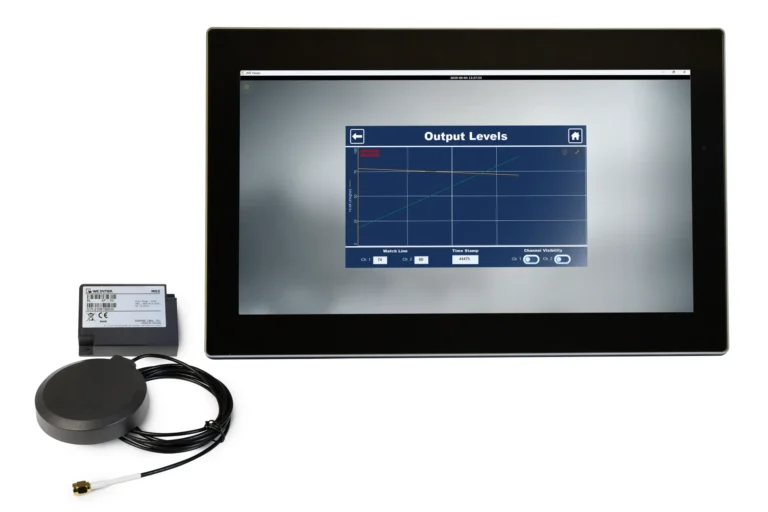





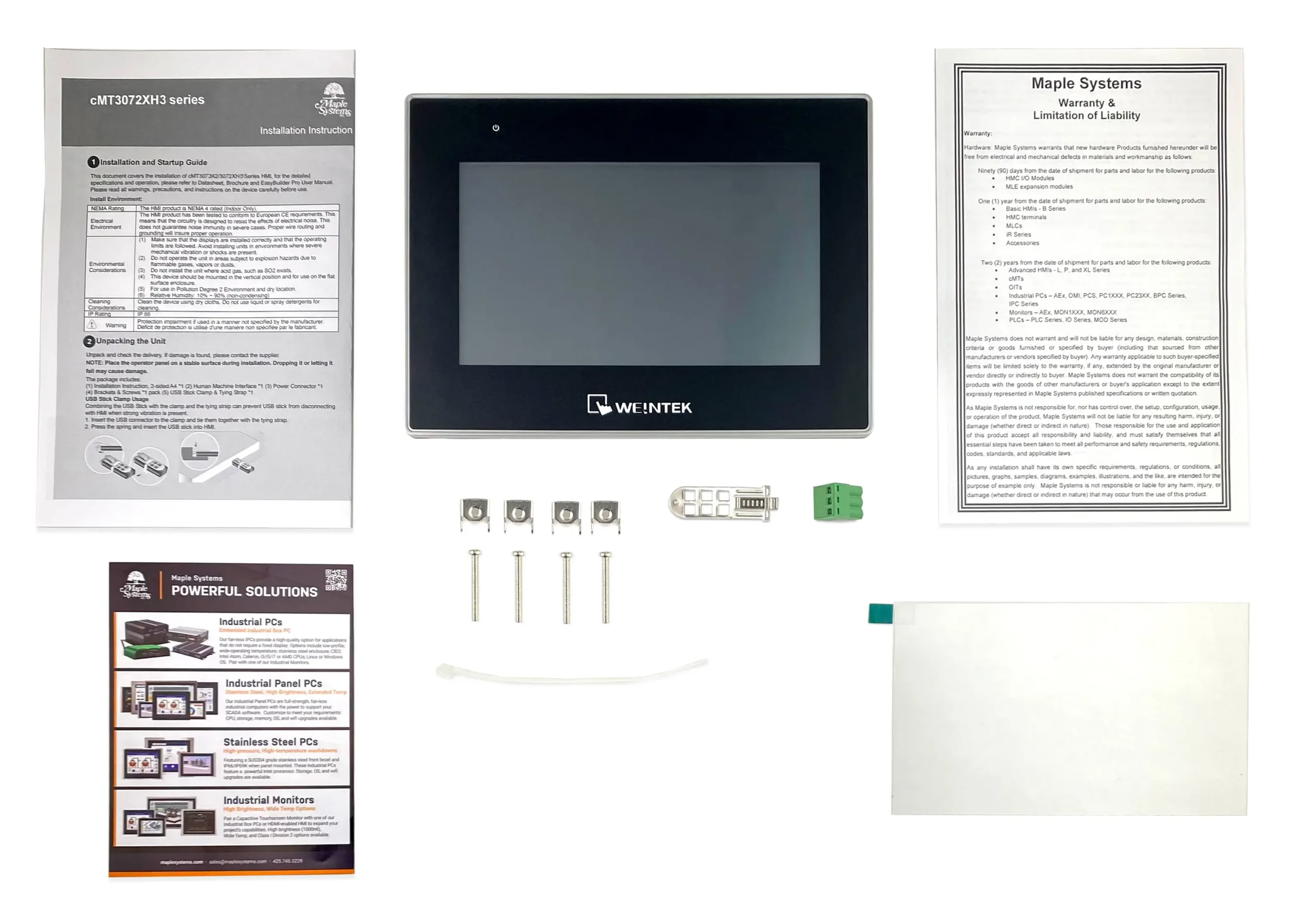
When you order the cMT3072XH3-CODESYS the following items are included in the box:
- cMT3072XH3 Touchscreen HMI with activated CODESYS License
- Warranty Statement
- Installation Instruction
- Product Flyer
- Power Connector
- Mounting Clips
- Screen Cover
- USB Stick Clamp & Tying Strap