
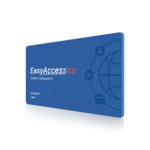
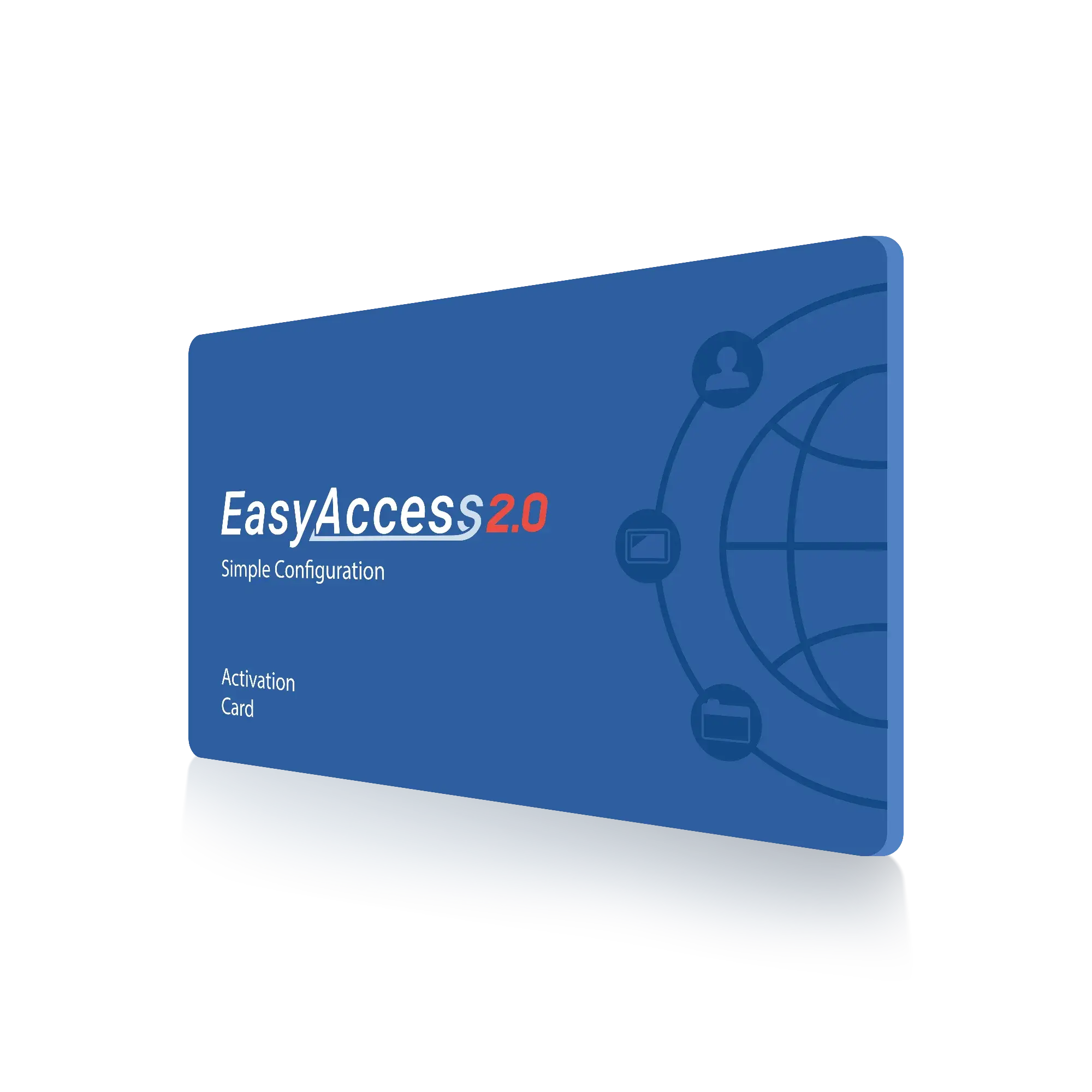
EasyAccess 2.0 Activation Card for Remote Access
$99.00
An EasyAccess 2.0 license enables you to remotely access your Maple Systems HMI from anywhere in the world.
EasyAccess 2.0 creates a 128-bit SSL encrypted VPN (Virtual Private Network) connection between an HMI and a user, enabling off-site monitoring, data acquisition, and project download capability. Upload/download PLC projects using pass-through functionality built into the Utility Manager. Troubleshooting can be performed remotely, which saves operational costs.
For use with all cMT/HMI, cMT Web HMIs
Visit the EasyAccess2.0 page for additional information on the setup and operation of this feature.
What comes in the box: An activation card.
How to use: See EasyAccess2.0 page.
- US-based technical support.
Share the product:


For use with all HMI/cMT product
EasyAccess 2.0
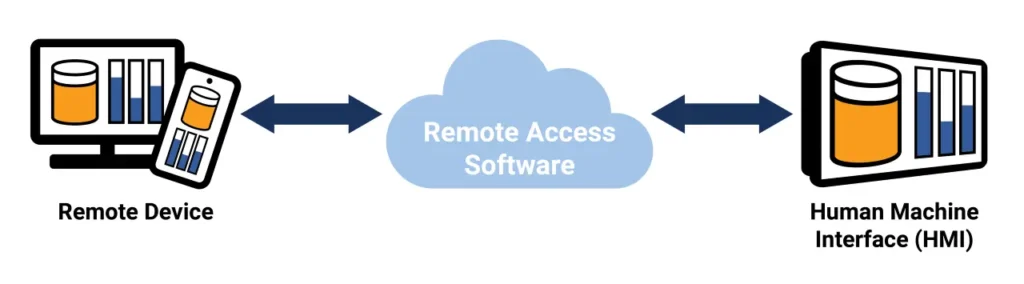
EasyAccess 2.0 is a secure access utility that enables remote access to Maple Systems HMIs. View and control any remote HMI with EasyAccess 2.0 from a PC or mobile device as long as there is an internet connection, using a highly secure SSL VPN Technology. EasyAccess is also used for remote pass through to control and monitor the connected PLC project.
Can I add EasyAccess2.0 to a cMT iV Display unit?
Yes, adding EasyAccess2.0 will give you access to your system from anywhere in the world, not just the manufacturing floor
Software Downloads & Upgrades
Manuals & Guides
- cMT iV Series Display User Manual
- cMT3108XP(IV) Installation Instruction
- cMT3162X(IV) Installation Instruction
- EBPro Programming Manual
Technical Articles
Products
Products
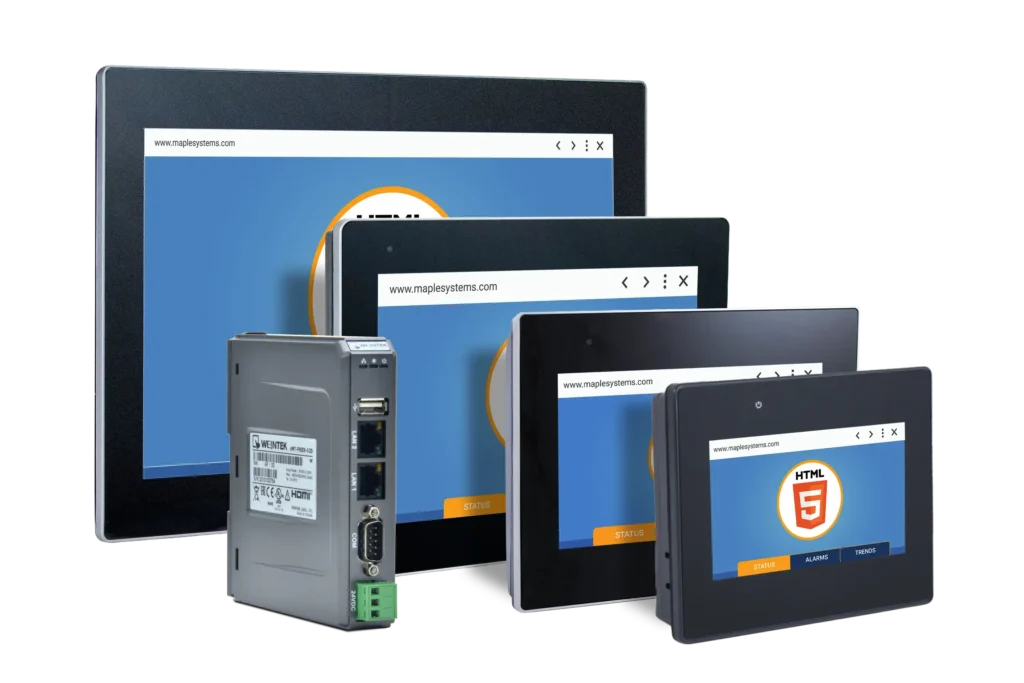
Does EasyAccess2.0 work with your cMT Series Web HMIs?
Yes, with EasyAccess2.0, you can remotely access your cMT Series Web HMI and interact with any of the other connected devices through the HMI interface.
When connected via EasyAccess2.0, your remote device (PC, Smartphone, Tablet) mirrors the HMI screen in real time. This allows you to operate the system exactly as you would locally, sending commands, adjusting settings, monitoring data, and clearing alarms.
Key benefits:
- Full remote control of the HMI interface
- Access to connected PLCs and devices via the HMI
- Real-time monitoring and operation from anywhere
- No need for direct remote access to each individual device
- Simplified remote support and troubleshooting
This setup is ideal for applications where the HMI serves as the central point, allowing for users to manage the entire system remotely without modifying existing network configurations and eliminating costly onsite visits.
Products
Manuals and Guides
Technical Articles and Case Studies
Integrations
Support
- [email protected]
- 425.745.3229
- maplesystems.com
How can EasyAccess 2.0 help my business save money and reduce downtime?
Maple Systems and EasyAccess 2.0 can help your business by:Saving Money: EasyAccess 2.0 reduces travel costs including gas, airfare, and overnight hotel accommodations. It reduces the cost of man-hours paid to send personnel onsite for troubleshooting and repair, as well as reduces the number of pricey technical support phone calls. But most of all, EasyAccess 2.0 will reduce the (very) expensive cost of downtime at the plant.
Facilitating Troubleshooting: With EasyAccess 2.0, you can easily monitor and troubleshoot HMIs/PLCs from a remote location as long as an Internet connection exists. EasyAccess 2.0 manages all network settings and security issues so the user simply connects to the HMI as if they were on the local network. Instantaneously view screens or implement updates to an HMI project or PLC. Change what is seen on screen LIVE by the operator or update the project without disrupting what the operator is doing.
Reducing Down Time: Time is money. With EasyAccess 2.0 you can bring the plant up faster, minimizing expensive downtime. Consider a machine builder who sells machines with Maple HMIs installed. If a customer reports an issue, the machine builder remotely connects to the HMI using EasyAccess 2.0 and investigates the problem. He can quickly review and update the HMI project, monitor the PLC using Pass-Through mode, and even update the PLC program. With EasyAccess 2.0, you’ll enjoy the ability to resolve your problem almost as quickly as it occurs.
Software Downloads & Upgrades
Manuals & Guides
Videos
Controller Information Sheets
Communication Cables
How can I disconnect someone who forgot to log off an HMI in EasyAccess 2.0?
To force someone to disconnect from an HMI in EasyAccess 2.0, you must be the administrator of the domain to which the HMI belongs.Log in to EasyAccess 2.0 using the app (not the domain) with your admin credentials.
Locate the HMI that is occupied and click on the red circle in front of the word “Occupied.” The “Forced disconnect” window will pop up asking you to confirm that you want to disconnect the user.
Click OK to disconnect the user and make the HMI available again.
Software Downloads & Upgrades
Manuals & Guides
Videos
Controller Information Sheets
Communication Cables
How do I implement EasyAccess 2.0 on my Maple Systems HMI?
Implementing EasyAccess 2.0 is easy. For complete instructions, refer to the EasyAccess 2.0 Manual available in our Support Center. Step 1: Create Domain Account:An HMI must belong to a domain in order to use EasyAccess 2.0. Anyone can create a new domain for free, all you need is a valid e-mail address. The Domain Management System is the basic system used to organize and handle HMI’s under a particular domain.
An Administrator then runs the domain and adds users and HMIs to the domain. To create a new domain go to the EasyAccess 2.0 Domain Management System (DMS) website (https://account.ihmi.net). Step 2: Manage Your Domain:When you create a domain account, you become the domain’s administrator. It’s the administrator’s responsibility to create new user accounts and to assign HMIs to specific users and HMI groups. Your domain can contain multiple HMIs, groups, and users.
Step 3: Activation:In order to use EasyAccess 2.0, you must activate the HMI in the domain. Some HMIs have EasyAccess 2.0 pre-installed and some require purchasing an activation card.
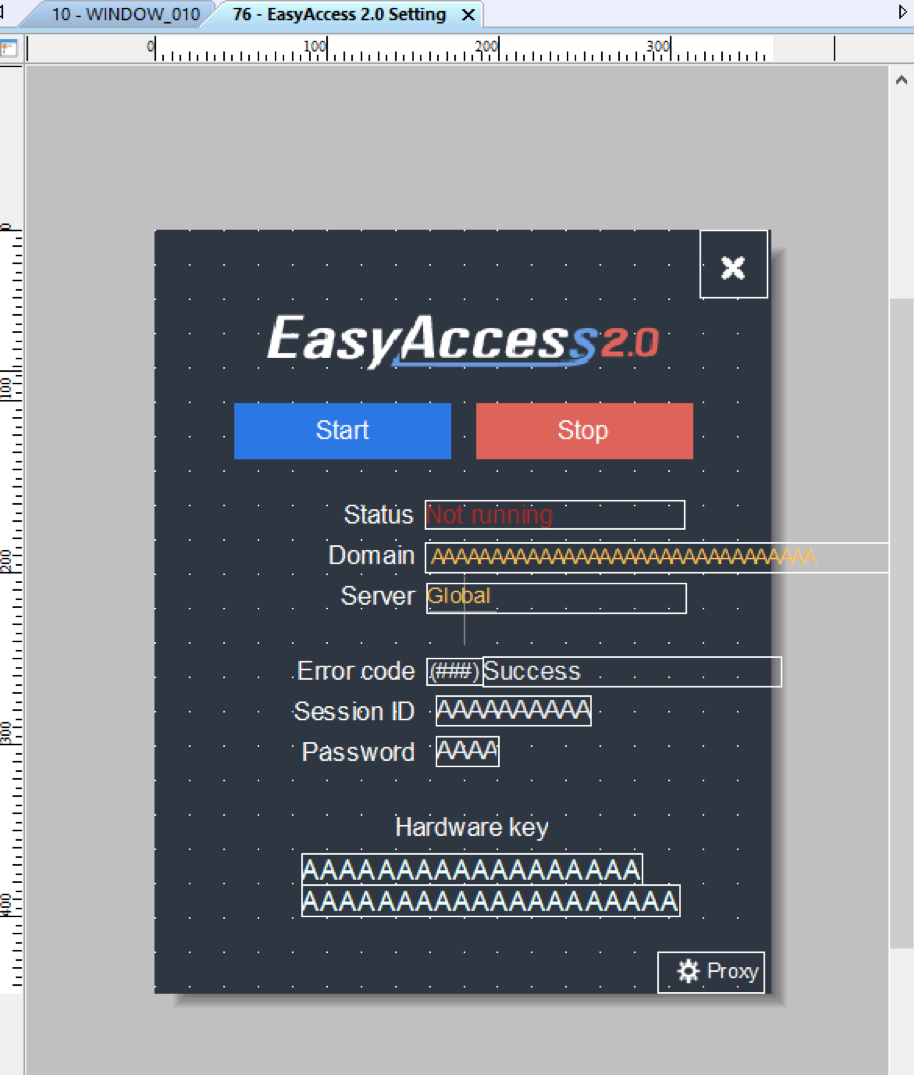
For HMIs requiring an activation card: The HMI can be activated by purchasing an activation card from Maple Systems. The activation code (from the activation card) and the hardware key are required to activate EasyAccess 2.0 in these units. The HMI’s hardware key is located in the HMI’s system settings window. Select the EasyAccess 2.0 tab and locate the 30 digit hardware key. You may also find it on Window 76 – EasyAccess 2.0 Setting. Select “Add HMI” in the domain and enter the hardware key and activation code. When an HMI is activated by an activation code, it is automatically added to the domain under which it was activated. Open window 76 – “EasyAccess 2.0 Setting” on the HMI. With the HMI connected to the Internet, push the Start button to initiate the connection to the EasyAccess 2.0 server. For HMIs with EasyAccess 2.0 pre-installed: The HMI can be activated by obtaining a Session ID and Password from the domain. Open window 76 – “EasyAccess 2.0 Setting.” With the HMI connected to the Internet, push the Start button to initiate the connection to the EasyAccess 2.0 server. If the HMI has not been assigned to a domain yet, a Session ID and Password will be assigned to the HMI and appear on window 76. Select “Add HMI” in the domain and enter the Session ID and Password. It should now be added to the domain. Step 4: Download and Launch EasyAccess 2.0:Download the EasyAccess 2.0 app on your PC/ iPad/ iPhone/ Android Tablet, Launch EasyAccess 2.0, enter the User ID and password. Once logged in, the program will list all HMIs assigned to this ID including all HMIs under an HMI group. Select an HMI and establish a remote connection. You can now monitor any HMI in your HMI list.
Software Downloads & Upgrades
Manuals & Guides
Videos
Controller Information Sheets
Communication Cables
How does EasyAccess 2.0 preserve bandwidth?
With EasyAccess 2.0, only live data (no graphics) is communicated across the network between the local HMI and the remote device, preserving bandwidth and enabling faster data transfer.Software Downloads & Upgrades
Manuals & Guides
Videos
Controller Information Sheets
Communication Cables
How to test Connection to EasyAccess2.0?
TCP Connection Test:
To use EasyAccess 2.0 VPN connection, multiple TCP connection would be made from your HMI or PC to our vpn servers.
On PC, you can download our analyzer tool ea_connection_test.zip to check connections to those servers.
Please run “analyze.bat” and check the result from “analyze_result.txt”
On the HMI, you need to make sure HMI can connect to EasyAccess 2.0 servers
Here is the EasyAccess 2.0 Server List:
EasyAccess 2.0 server list
- If EasyAccess 2.0 app can not login server or hmi can not go online, check connection to these servers
- Authentication server
- auth.ihmi.net (54.238.174.31:443)
- Account server
- account.ihmi.net (54.171.161.211:443)
- Weincloud server
- www.weincloud.net (52.211.224.169:443)
- Authentication server
- If vpn connection can not be established, check connection to these servers
- Vpn server
- ireland.wvpn.ihmi.net (34.253.91.245:443)
- japan.wvpn.ihmi.net (13.114.36.115:443)
- us.wvpn.ihmi.net (13.56.221.131:443)
- Vpn server
If any error happens, please help check your network settings (Ex: firewall).
DNS Test:
Please run “analyze.bat” and check the result from “analyze_result.txt” in dns_check.zip.
Driver Install Fail:
1. Please help check if there’s any anti-virus program running (Ex: Eset Nod32 Antivirus). If yes, please disable it and reboot operating system. Then open EasyAccess 2.0 again
2. If driver is still install fail. Please create a folder C:tmp, open EasyAccess 2.0 again and send us the log file C:tmpeasy_access_master_app.log to [email protected]
Software Downloads & Upgrades
Manuals & Guides
Tech Notes
Solutions
Controller Information Sheets
Communication Cables
Videos
Can I access my HMI from a remote network location?
Yes. Our HMIs support remote access features via the EasyAccess 2.0 application. EasyAccess provides a simple built-in solution for creating a secure VPN connection to a remote network, which will allow you to monitor and control your HMI from anywhere in the world.
Once the VPN tunnel has been established, the HMI can be accessed using the cMT Viewer application included with EBPro, or through VNC client software.
Using the EasyAccess 2.0 application does require a one-time license activation fee, which allows for 3 GB of monthly high-speed data at no additional cost. Our HMIs can also be purchased with a pre-activated license for EasyAccess 2.0 already installed.
Product
Software Downloads & Upgrades
Manuals & Guides
Tech Notes
Solutions
See our
Controller Information Sheets
Communication Cables
Videos
-
J
Very happy with the remote capabilities. It is going to increase our response time for remote troubleshooting and diagnostics. This will save having to send a team member clear across the country to diagnose something we could have done in our shop. Very happy, and am looking forward to utilizing this service in all our manufacturing products.
Good Job Maple Systems, really well implemented, and easy to setup!
-
G
This is the best add-on if you want complete access remotely to view and or reprogram your PLC and or Touch Screen.
Thank You Maple Systems,
Greg Torres
Review EASYACCESS2.0
Share your thoughts and help others make the best choice