Legacy 7.0" High Performance HMI with CODESYS
This is a Legacy product and is no longer available for purchase. Please review the information on this page and call (425)-745-3229 or email [email protected] if you have further questions.
cMT3072XH2v2-CODESYS replaces the cMT3072X2v2-CODESYS
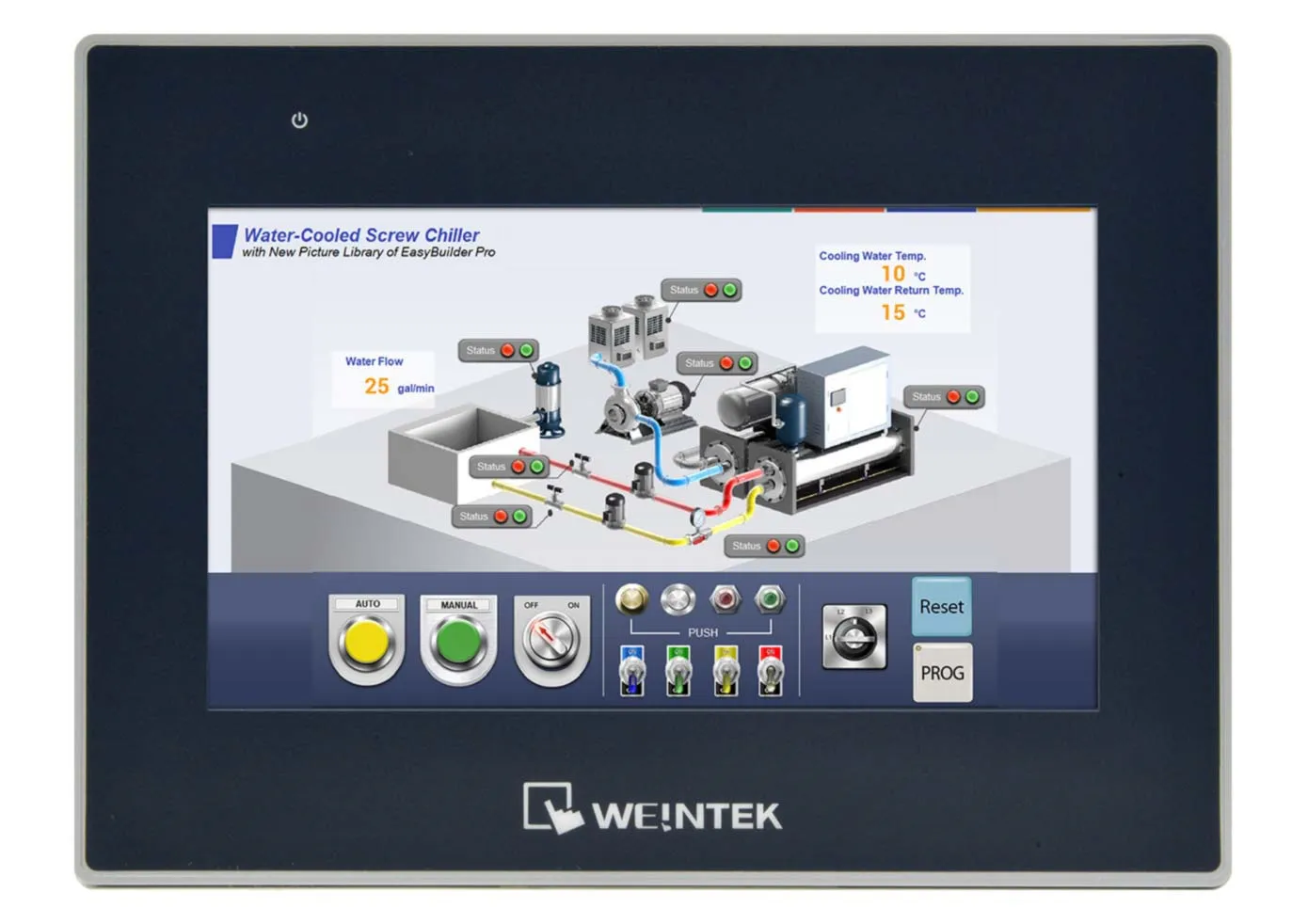
The cMT3072X2v2 is a high performance HMI with an activated CODESYS license that provides powerful performance for applications requiring our most advanced feature set, remote access, and IIoT functionality. Pair this operator interface with our remote IO for soft PLC functionality.
Try Before You Buy: Follow along to learn how EBPro, our 100% free HMI configuration software, allows you to develop and simulate your HMI program entirely free of charge.
Share the product:
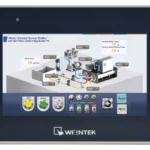
cMT3072X2v2 has reached end of life. All of the current cMT3072 HMIs are replacement options and will fit in the same panel cut-out. They also have more features like higher screen resolution and CANbus, but your project should work just the same in the newer HMI.
If your new HMI comes with a higher resolution than the legacy HMI, the aspect ratio will be different. EBPro will scale your images accordingly, however, if they do not look high quality you will need to reimport them into your project.

Need help planning the upgrade? Tell us how this product is used in your system and we will work out the right path forward, and what stays the same in your existing project.
Video Center
How-to, troubleshooting and webinar videos across HMIs, PLCs, HMCs and the rest of the range.
Controller Connection Guides
Per-controller wiring and setup details for connecting your panel to a specific PLC.
Communication Cables
Hundreds of ready-made cables and wiring drawings for the most popular PLC manufacturers.
Software Tutorials
Step-by-step tutorials with sample projects for our HMI and PLC software.
FREE User Friendly HMI Software
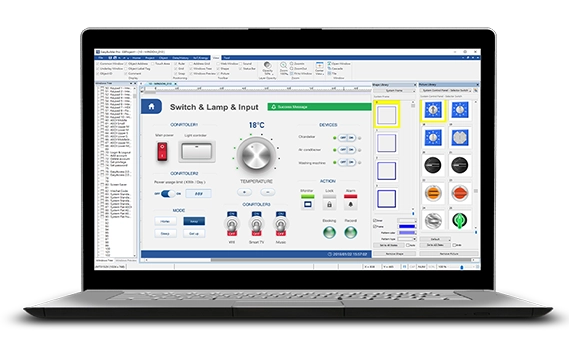
Download our free, full-featured HMI configuration software to create custom control applications for your industrial process. EBPro supports over 300 PLC & controller protocols, ensuring seamless integration with new or existing systems. No license or key required.
How do I get started with CODESYS on Maple Systems devices?
First you’ll want to make sure your device supports CODESYS:
Next, you’ll need to install the CODESYS Development System on your PC. This installs the IDE only, not the runtime on your device (we’ll get there):
- Go to Maple Systems Software Downloads and Upgrades
- Click on the download link for CODESYS IDE (32bit or 64bit)
Then, make sure to install our add on package. This ensures CODESYS knows how to talk to your cMT device:
- Go to Maple Systems Software Downloads and Upgrades
- Click on the download link for CODESYS & Remote IO Package
Now, we’re going to install and update the CODESYS Runtime on your Maple Systems device:
- If you don’t have EBPro installed, go to Maple Systems Software Downloads and Upgrades and click the download link for EBPro.
- Once that’s installed, open EBPro Utility Manager and choose the model number of the device you’re using.
- Select CODESYS Firmware Upgrade. The latest Firmware can be found in the Software Downloads and Upgrades page.
Your HMI has now become a PLC runtime that can execute IEC 61131-3 Logic!
Ensure your PC and cMT device are on the same network/subnet. Your device will show a CODESYS runtime IP address on the screen, you’ll need this IP to connect from CODESYS IDE.
To create a new CODESYS project, in the CODESYS IDE system:
- Click on File – New Project
- Choose the model number (this will only show up after you’ve installed the CODESYS & Remote IO Package)
- Select your preferred programming language (LD, ST, FBD, SFC, etc.)
Now you’re ready to create your project, download it, run and debug!
Manuals & Guides
- EasyRemote IO User Manual
- iR Series Remote I/O Product Data Sheet
- iR-ETN40R/P User Manual
- iR-ETN User Manual
- iR-ECAT User Manual
- iR-COP User Manual
- cMT-CTRL01 User Manual
- iR-AQ04-VI, iR-AM06-VI, iR-AI04-VI User Manual
- iR-AI04-TR User Manual
- CODESYS Activation Instructions
Sample Projects
- Communicating to I/O Module Sample Project
- iR-COP Sample Project
- iR-ECAT Sample Project
- iR-ETN Sample Project
- iR-ETN40R Sample Project
Tutorials
Tech Notes
- See our list of Tech Notes
Solutions
- See our Case Studies & Solutions
Controller Information Sheets
- See our list of Controller Information Sheets
Videos
- See our list of Training Videos
Does Maple Systems CODESYS SoftPLC Platform support PROFINET?
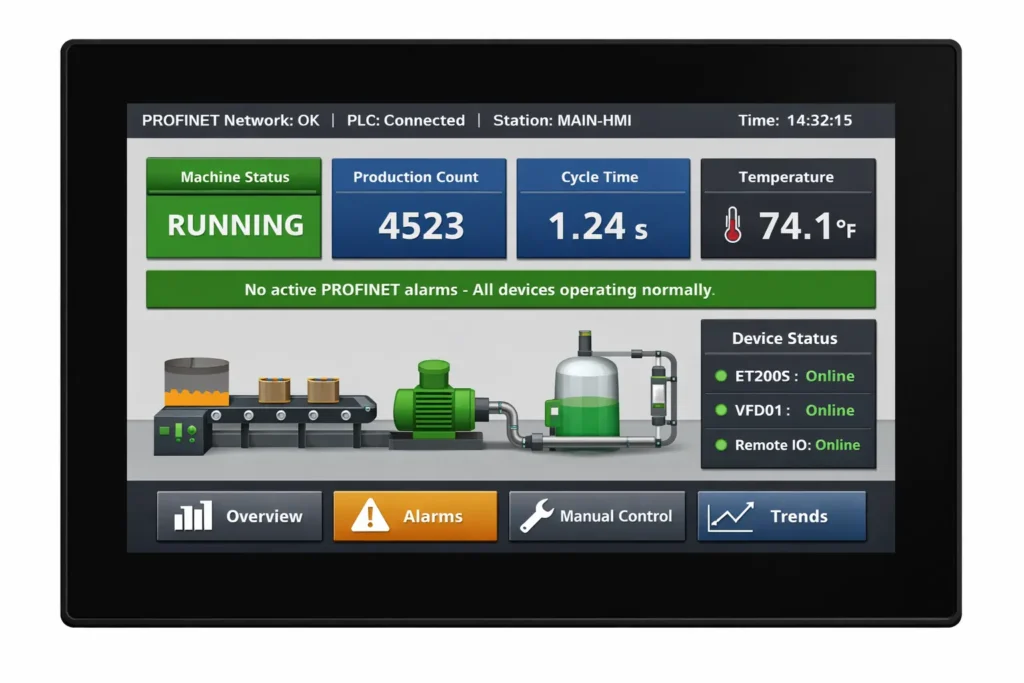
Yes! Our CODESYS SoftPLC Platform does support PROFINET IO Master functionality now! This enhancement allows our advanced and high-performance HMIs and cMT-CTRL01 to function as a PROFINET IO controller, facilitating command transmission to various PROFINET IO devices, such as remote IO, drives, and sensors. This upgrade significantly boosts system integration and scalability, delivering a comprehensive PROFINET communication protocol solution.
Some of the key features of CODESYS SoftPLC Profinet IO Master:
- Diverse Device Communication: With our CODESYS activated devices functioning as a PROFINET IO Master, you can seamlessly connect to multiple major brand PROFINET IO Slave devices, enabling easy selection and rapid deployment of field devices for enhanced communication and control.
- Easy Setup via CODESYS: PROFINET device GSDML files can be imported into the CODESYS development environment, streamlining configuration and datapoint setup with minimal learning barriers.
- Real-Time, Stable Performance: Real-time control that addresses the most demanding industrial applications, PROFINET provides high-speed data transmission, combined with our CODESYS Runtime System built in on our pre-activated cMT-CODESYS devices.
- Multi-Protocol Integration: Supporting Modbus TCP, EtherNet/IP, CANopen, EtherCAT, and now PROFINET, our CODESYS activated SoftPLC devices serve as a multi-protocol integrated controller, ideal for complex environments with devices from various brands and mixed systems.
If you’d like more information on how to configure a cMT-CODESYS project as a PROFINET Controller, check out our Technical note 5160
Software Needed
Manuals & Guides
- EasyRemote IO User Manual
- iR Series Remote I/O Product Data Sheet
- iR-ETN40R/P User Manual
- iR-ETN User Manual
- iR-ECAT User Manual
- iR-COP User Manual
- cMT-CTRL01 User Manual
- iR-AQ04-VI, iR-AM06-VI, iR-AI04-VI User Manual
- iR-AI04-TR User Manual
- CODESYS Activation Instructions
Sample Projects
- Communicating to I/O Module Sample Project
- iR-COP Sample Project
- iR-ECAT Sample Project
- iR-ETN Sample Project
- iR-ETN40R Sample Project
Tutorials
Tech Notes
- See our list of Tech Notes
Solutions
- See our Case Studies & Solutions
Controller Information Sheets
- See our list of Controller Information Sheets
Videos
- See our list of Training Videos
How many devices can a Maple Systems CODESYS-activated HMI communicate with?
It depends on which protocol you’re using:
| Modbus TCP/IP | 32 devices |
| EtherCAT | 65,535 devices |
| CANopen | 126 devices |
| EtherNet/IP | 32 devices |
| PROFINET | 32 devices |
See our full list of CODESYS-activated HMIs.
Software Needed
Manuals & Guides
- EasyRemote IO User Manual
- iR Series Remote I/O Product Data Sheet
- iR-ETN40R/P User Manual
- iR-ETN User Manual
- iR-ECAT User Manual
- iR-COP User Manual
- cMT-CTRL01 User Manual
- iR-AQ04-VI, iR-AM06-VI, iR-AI04-VI User Manual
- iR-AI04-TR User Manual
- CODESYS Activation Instructions
Sample Projects
- Communicating to I/O Module Sample Project
- iR-COP Sample Project
- iR-ECAT Sample Project
- iR-ETN Sample Project
- iR-ETN40R Sample Project
Tutorials
Tech Notes
- See our list of Tech Notes
Solutions
- See our Case Studies & Solutions
Controller Information Sheets
- See our list of Controller Information Sheets
Videos
- See our list of Training Videos
How much available memory on the cMT CODESYS runtime?
The allocated memory for “Data, Input, Output, Memory, Code” is the maximum size of a CODESYS IDE project. Project files may not exceed the available memory on the cMT series’ CODESYS runtime, or else “Out of code memory…No download possible” errors will occur.
Memory limits on CODESYS firmware revisions prior to v20240703 are as follows:
| Subsystem | Available Memory |
|---|---|
| Data, Input, Output, Memory, Code | 3 MB |
| Retain area (Data persisting after reboots) | 16 KB (Data is saved every 1 minute) |
| Persistent area (Data persisting after project downloads) | 16 KB (Data is saved every 1 minute) |
| File system | 8 MB |
Additional memory is available on cMT/cMT X series devices running version v20240703 or higher of the CODESYS firmware. Memory limits on CODESYS firmware revisions v20240703 and higher are as follows:
| Subsystem | Available Memory |
|---|---|
| Data, Input, Output, Memory, Code | 5 MB |
| Retain area (Data persists after reboots) | 32 KB (Data is saved every 1 minute) |
| Persistent area (Data persists after downloads) | 32 KB (Data is saved every 1 minute) |
| File system | 12 MB |
NOTE: “CODESYS & Remote IO Package” version 1.5.3.500 or later must be used in CODESYS IDE for cMT/cMT X series devices is running CODESYS firmware v20240703 or higher.
Software Needed
Manuals & Guides
- EasyRemote IO User Manual
- iR Series Remote I/O Product Data Sheet
- iR-ETN40R/P User Manual
- iR-ETN User Manual
- iR-ECAT User Manual
- iR-COP User Manual
- cMT-CTRL01 User Manual
- iR-AQ04-VI, iR-AM06-VI, iR-AI04-VI User Manual
- iR-AI04-TR User Manual
- CODESYS Activation Instructions
Sample Projects
- Communicating to I/O Module Sample Project
- iR-COP Sample Project
- iR-ECAT Sample Project
- iR-ETN Sample Project
- iR-ETN40R Sample Project
Tutorials
Tech Notes
- See our list of Tech Notes
Solutions
- See our Case Studies & Solutions
Controller Information Sheets
- See our list of Controller Information Sheets
Videos
- See our list of Training Videos
Can I use the iR Series Remote I/O without CODESYS?
Yes, the iR series remote I/O couplers and modules can be used with any device that supports the following protocols:
| Coupler | Protocol |
| iR-COP | CANopen Slave |
| iR-ECAT | EtherCat® Slave |
| iR-ETN | Modbus TCP/IP Server, EtherNet/IP Adapter |
| iR-ETN40-P | Modbus TCP/IP Server, EtherNet/IP Adapter |
| iR-ETN40-R | Modbus TCP/IP Server, EtherNet/IP Adapter |

Manuals & Guides
- EasyRemote IO User Manual
- iR Series Remote I/O Product Data Sheet
- iR-ETN40R/P User Manual
- iR-ETN User Manual
- iR-ECAT User Manual
- iR-COP User Manual
- cMT-CTRL01 User Manual
- iR-AQ04-VI, iR-AM06-VI, iR-AI04-VI User Manual
- iR-AI04-TR User Manual
- CODESYS Activation Instructions
Sample Projects
- Communicating to I/O Module Sample Project
- iR-COP Sample Project
- iR-ECAT Sample Project
- iR-ETN Sample Project
- iR-ETN40R Sample Project
Tutorials
Tech Notes
- See our list of Tech Notes
Solutions
- See our Case Studies & Solutions
Controller Information Sheets
- See our list of Controller Information Sheets
Videos
- See our list of Training Videos
What kind of communication ports are available on your cMT HMIs?
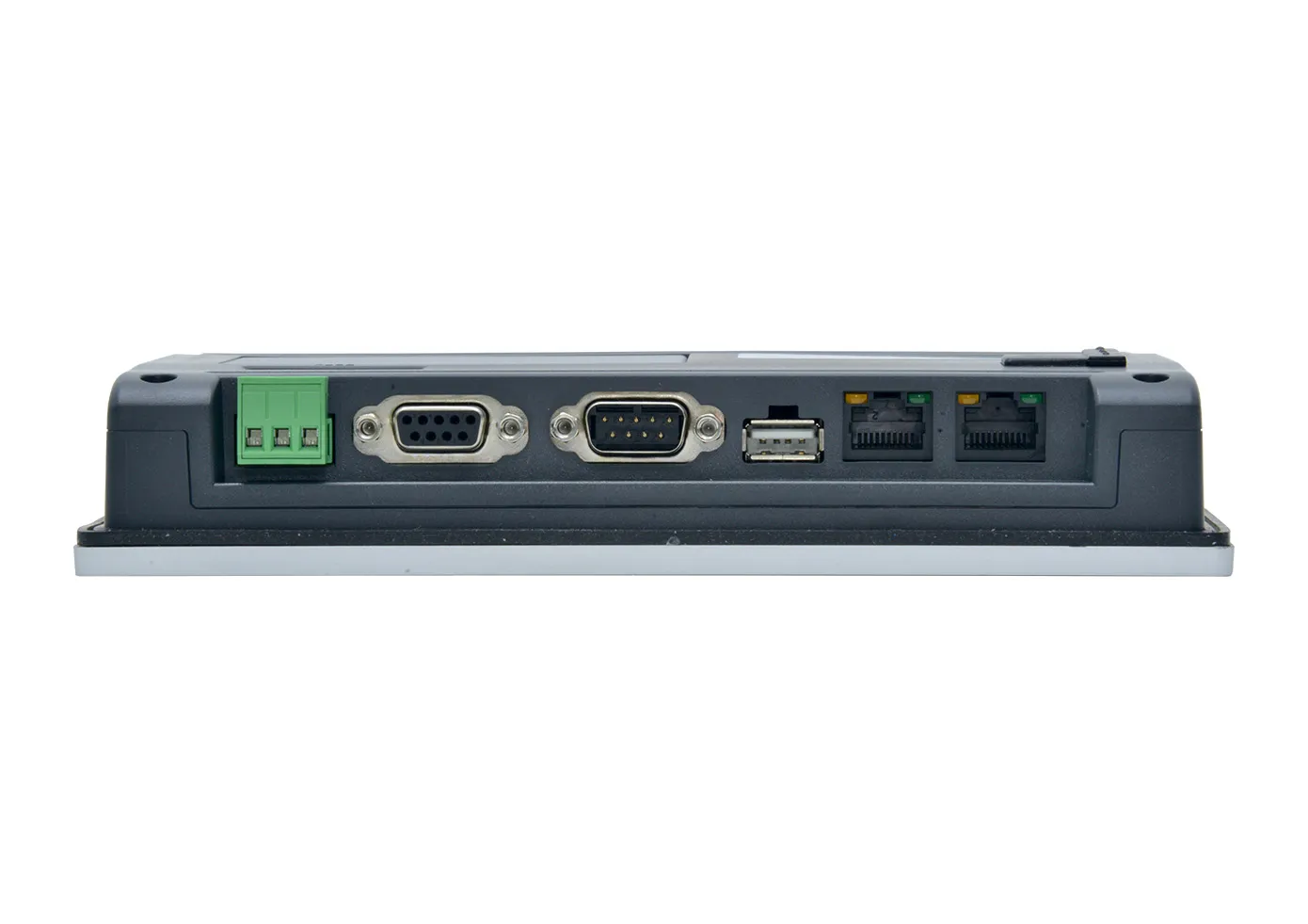
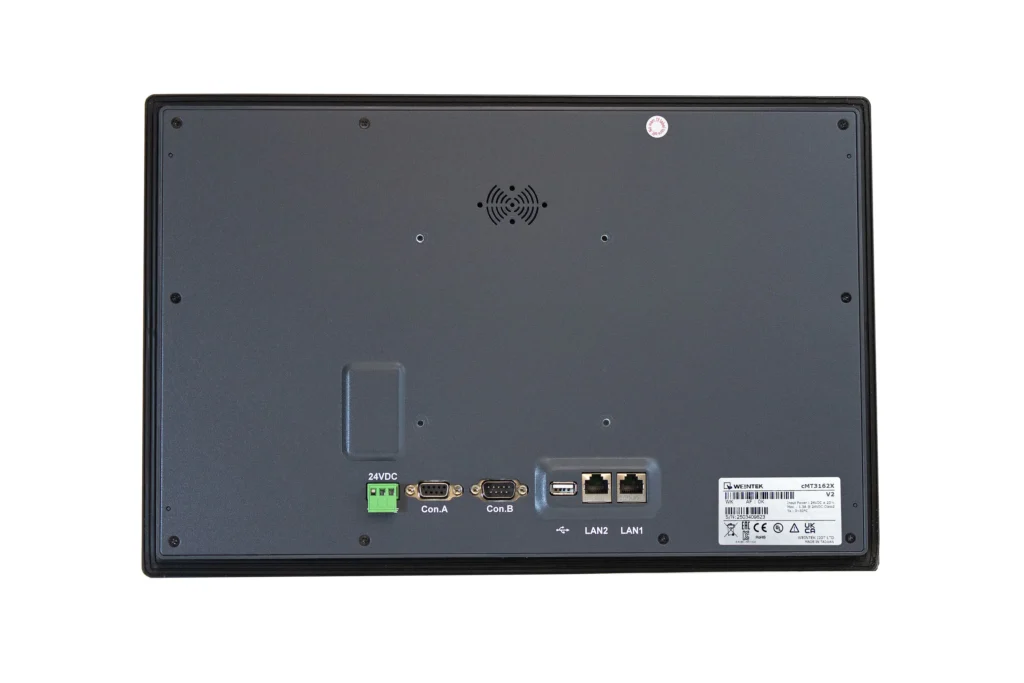
Our HMIs come equipped with the standard communication ports that you would expect to find in an industrial control device. Ethernet, serial, and USB ports are present on our HMIs, allowing connections to hundreds of different devices.
As an example, the cMT3162X (V2) includes two ethernet ports, two serial ports, and a USB port for device connection. Dual-ethernet models such as the cMT3162X include two separate ethernet ports, one for local devices, and the other for internet communication.
Product
Software Downloads & Upgrades
Manuals & Guides
Tech Notes
Solutions
See our
Controller Information Sheets
Communication Cables
Videos
I need to use an IP camera and other peripherals in my project. Do Maple Systems HMIs support these devices?
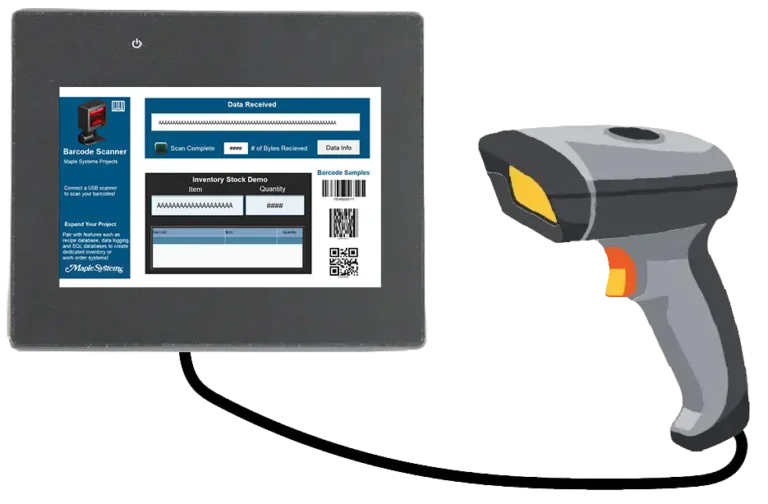
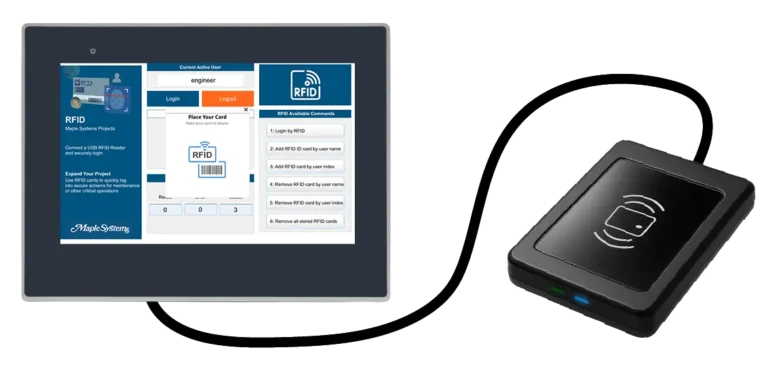
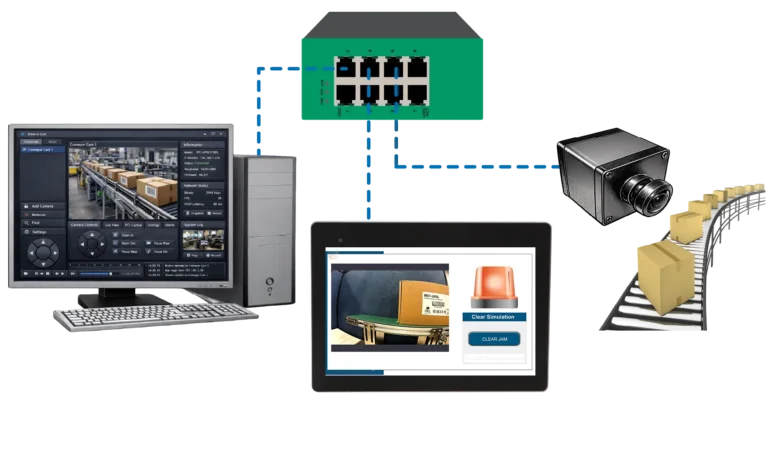
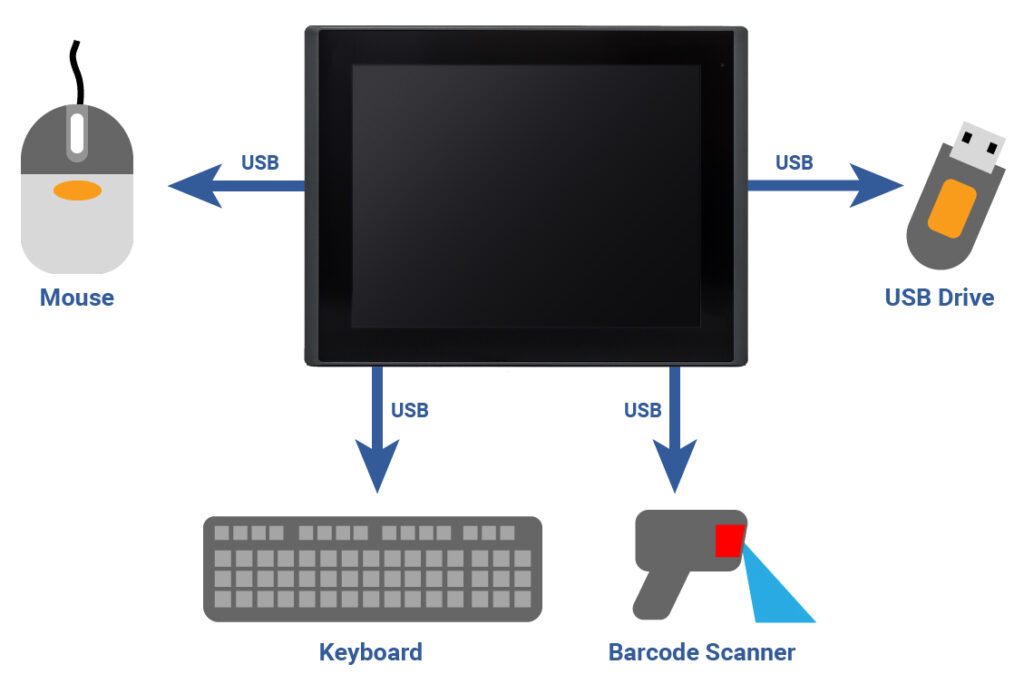
Yes. Maple Systems HMIs are compatible with a wide range of peripheral devices such as printers, barcode scanners, cameras, keyboards, mice, flash storage drives, and more. For projects using multiple USB devices at once, a USB hub can expand a single USB port into many, allowing several devices to connect simultaneously.
Note: USB ports on Maple HMIs do not support charging for mobile phones, tablets, or unpowered speakers. The USB ports on our HMIs are for data storage or keyboard/mouse connection only. Using the ports in a manner inconsistent with their documented purpose can potentially damage the device.
Product
Software Downloads & Upgrades
Manuals & Guides
Tech Notes
Solutions
See our
Controller Information Sheets
Communication Cables
Videos
How do I implement EasyAccess 2.0 on my Maple Systems HMI?
Implementing EasyAccess 2.0 is easy. For complete instructions, refer to the EasyAccess 2.0 Manual available in our Support Center.
Step 1: Create Domain Account:
An HMI Panel must belong to a domain in order to use EasyAccess 2.0. Anyone can create a new domain for free, all you need is a valid e-mail address. The Domain Management System is the basic system used to organize and handle HMI’s under a particular domain.
An Administrator then runs the domain and adds users and HMI panels to the domain. To create a new domain go to the EasyAccess 2.0 Domain Management System (DMS) website (https://account.ihmi.net).
Step 2: Manage Your Domain:
When you create a domain account, you become the domain’s administrator. It’s the administrator’s responsibility to create new user accounts and to assign HMIs to specific users and HMI groups. Your domain can contain multiple HMIs, groups, and users.
Step 3: Activation:
In order to use EasyAccess 2.0, you must activate the HMI in the domain. Some HMIs have EasyAccess 2.0 pre-installed and some require purchasing an activation card.
For HMIs requiring an activation card: The HMI can be activated by purchasing an activation card from Maple Systems. The activation code (from the activation card) and the hardware key are required to activate EasyAccess 2.0 in these units.
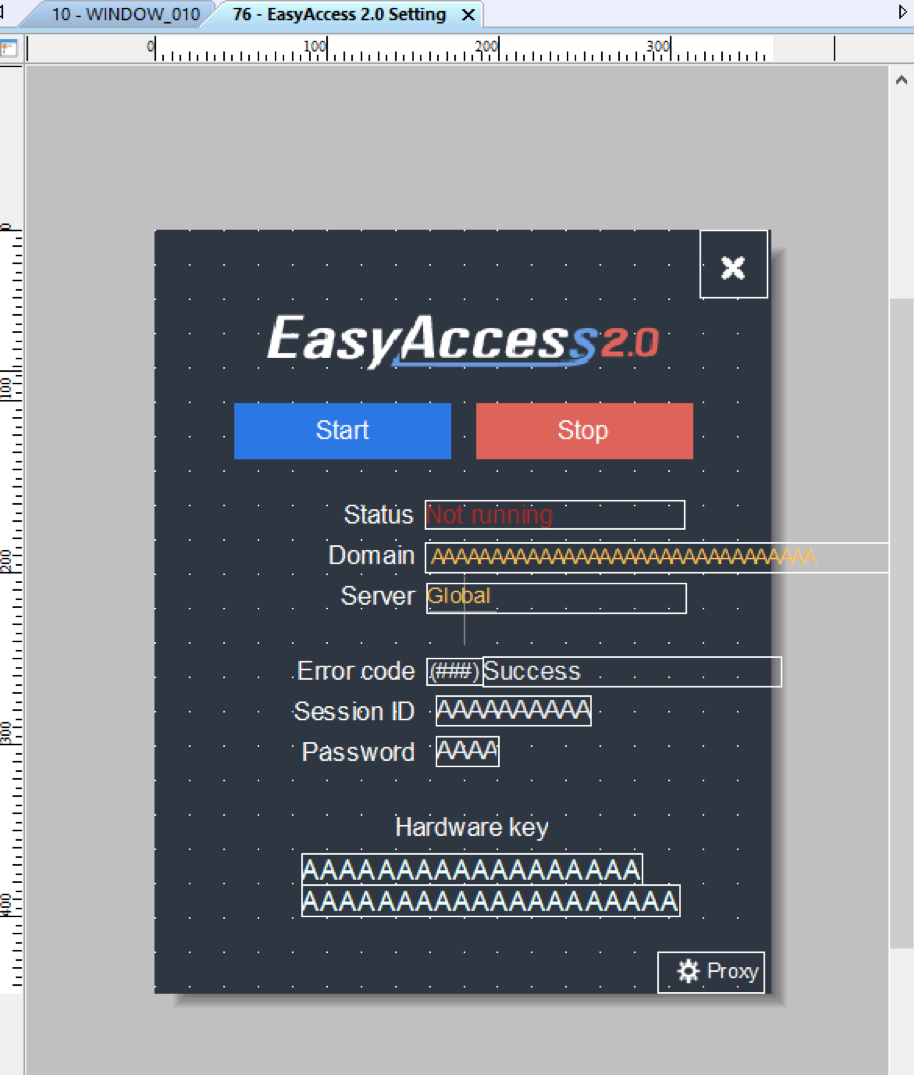
The HMI’s hardware key is located in the HMI’s system settings window. Select the EasyAccess 2.0 tab and locate the 30 digit hardware key. You may also find it on Window 76 – EasyAccess 2.0 Setting.
Select “Add HMI” in the domain and enter the hardware key and activation code. When an HMI is activated by an activation code, it is automatically added to the domain under which it was activated. Open window 76 – “EasyAccess 2.0 Setting” on the HMI. With the HMI connected to the Internet, push the Start button to initiate the connection to the EasyAccess 2.0 server.
For HMIs with EasyAccess 2.0 pre-installed: The HMI can be activated by obtaining a Session ID and Password from the domain. Open window 76 – “EasyAccess 2.0 Setting.” With the HMI connected to the Internet, push the Start button to initiate the connection to the EasyAccess 2.0 server. If the HMI has not been assigned to a domain yet, a Session ID and Password will be assigned to the HMI and appear on window 76. Select “Add HMI” in the domain and enter the Session ID and Password. It should now be added to the domain.
Step 4: Download and Launch EasyAccess 2.0:
Download the EasyAccess 2.0 app on your PC/ iPad/ iPhone/ Android Tablet, Launch EasyAccess 2.0, enter the User ID and password. Once logged in, the program will list all HMIs assigned to this ID including all HMIs under an HMI group. Select an HMI and establish a remote connection. You can now monitor any HMI in your HMI list.
Software Downloads & Upgrades
Manuals & Guides
Videos
Controller Information Sheets
Communication Cables
Does Maple Systems offer technical support?
Yes. Maple Systems provides 100% free, US-based technical support for all customers. Our Support Center includes extensive documentation, tutorials, and resources. However, if you’re unable to find what you need, our technical support team is ready to assist. You can reach our technicians by phone at (425) 745-3229 or by email at [email protected].
- Human Machine Interface (HMI)
- Industrial Panel PCs
- Industrial Box PCs
- Waterproof PCs
- PLCs and Control
- Network Switches
- HMI + PLC Combo Units
- Industrial Monitors
- Alphanumeric OIT
- Rugged Tablets
Need More Help?
- [email protected]
- 425.745.3229
Documents
Manuals
- EBPro Programming Manual
- cMT3072X2v2, cMT3072XH2v2 Installation Guide
- EBPro Quick Start Guide
- EasyWeb 2.0 Operations Manual
- cMT Quick Start Guide
- cMT MySQL Quick Start Guide
- cMT Microsoft SQL Quick Start Guide
- OPC-UA Set-up Overview
- CODESYS Quick-Start Guide
- Activate CODESYS on cMT Models Quick Start Guide
Certifications
- CE UK Declaration of Conformity – cMT2078X, cMT3072x2, cMT3072XH2
- UL Certification Declaration – cMT Series
- RoHS Declaration of Conformity (all series)
- REACH EU Declaration of Conformity
- Trade Agreement Act Declaration of Conformity
- Russian Iron and Steel Declaration
- EU Declaration of Conformity (Battery Regulations)
- Country of Origin Certification