
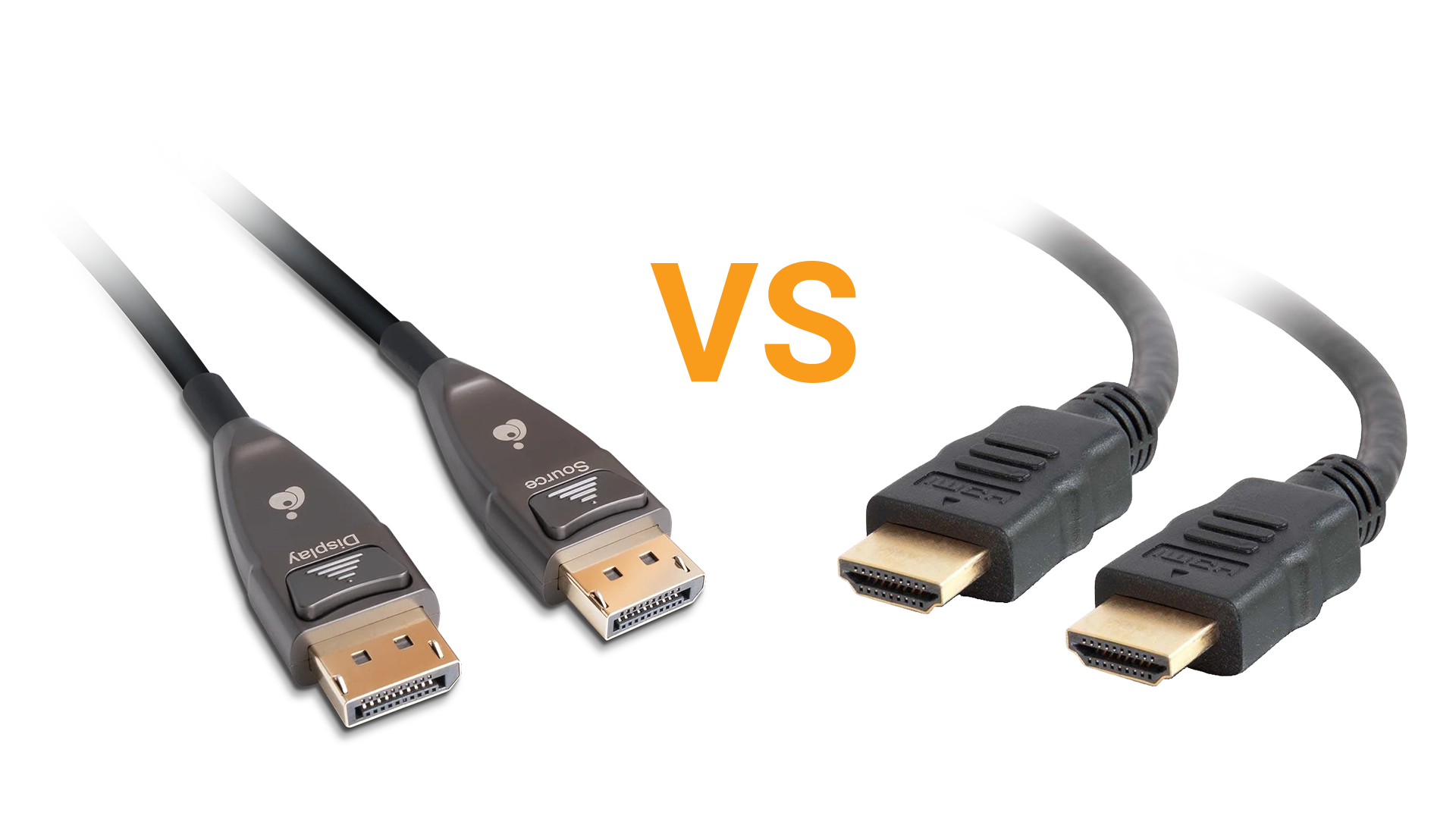
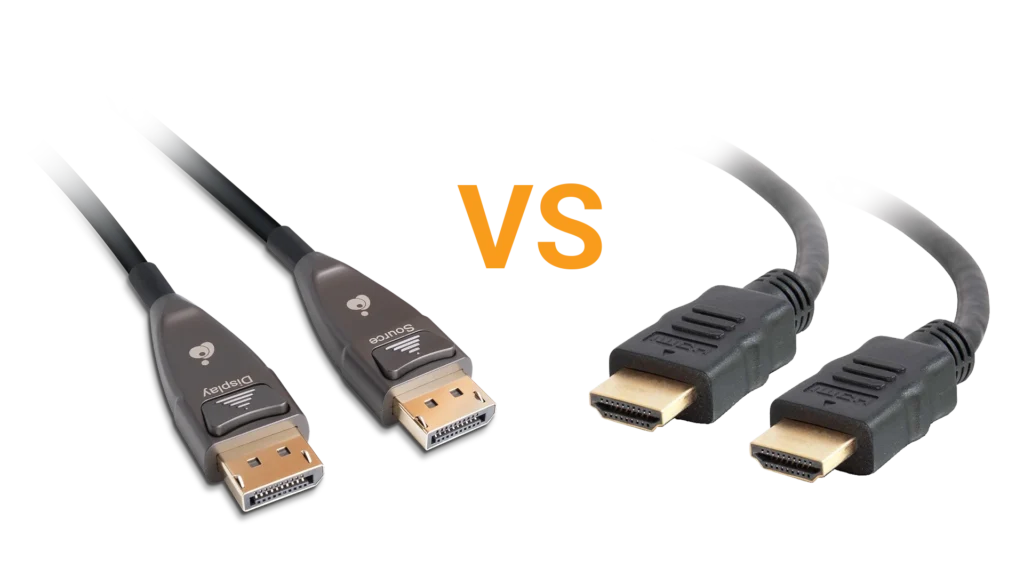
HDMI and DisplayPort can both carry high-resolution video and audio from a digital signage player to one or more displays. When configured for the same resolution, refresh rate, and color format, neither interface inherently produces a better image. Their practical differences involve hardware compatibility, multi-display support, cabling, and signal conversion. This article examines those differences to determine where each interface fits within a digital signage system.
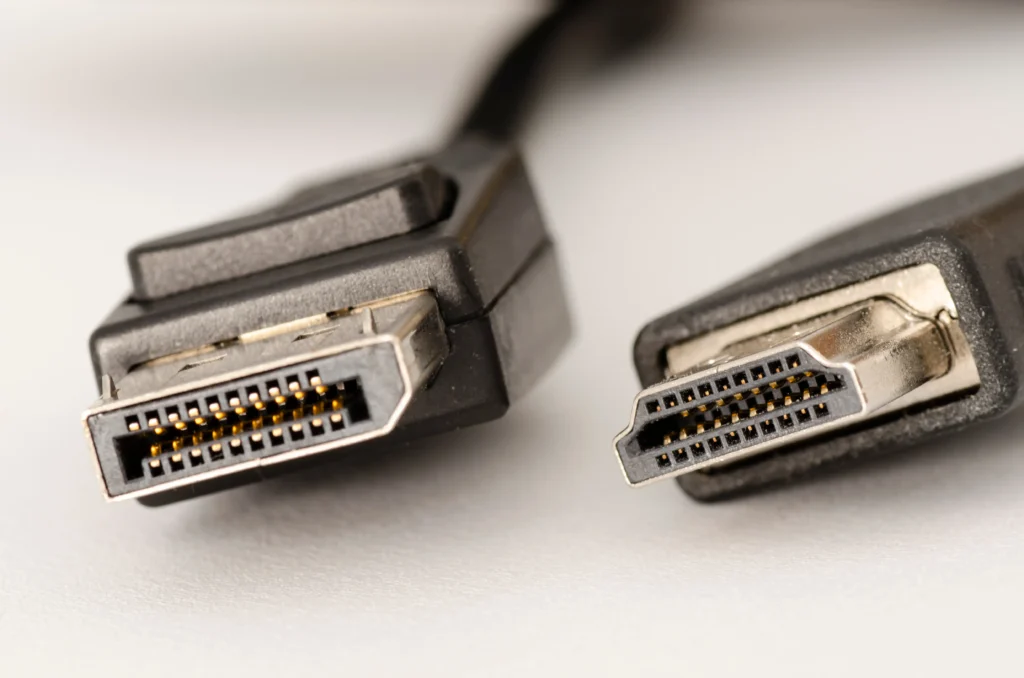
What are HDMI and DisplayPort?
Before we go about choosing which is the best for a particular installation, we should first define both interfaces.
High-Definition Multimedia Interface (HDMI)
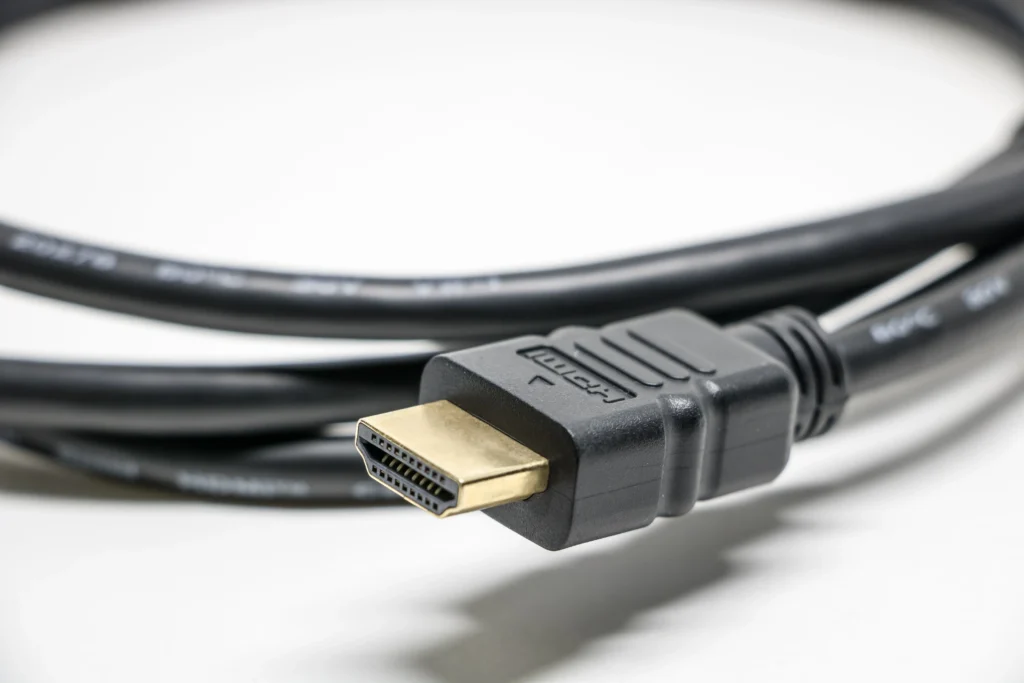
In 2002, a group of consumer-electronics manufacturers set out to create an AV (audio-visual) cable that would unify the current separate analog AV cables into a single cable. This single cable would need to be capable of carrying high-definition video, multichannel audio, device-control data, and built-in content protection. When HDMI was released later that year, it became the standard connection for televisions, Blu-ray players, game consoles, and many other consumer-electronics. Because of its presence in the consumer electronic space (primarily televisions) HDMI is the most widespread of the two digital formats.
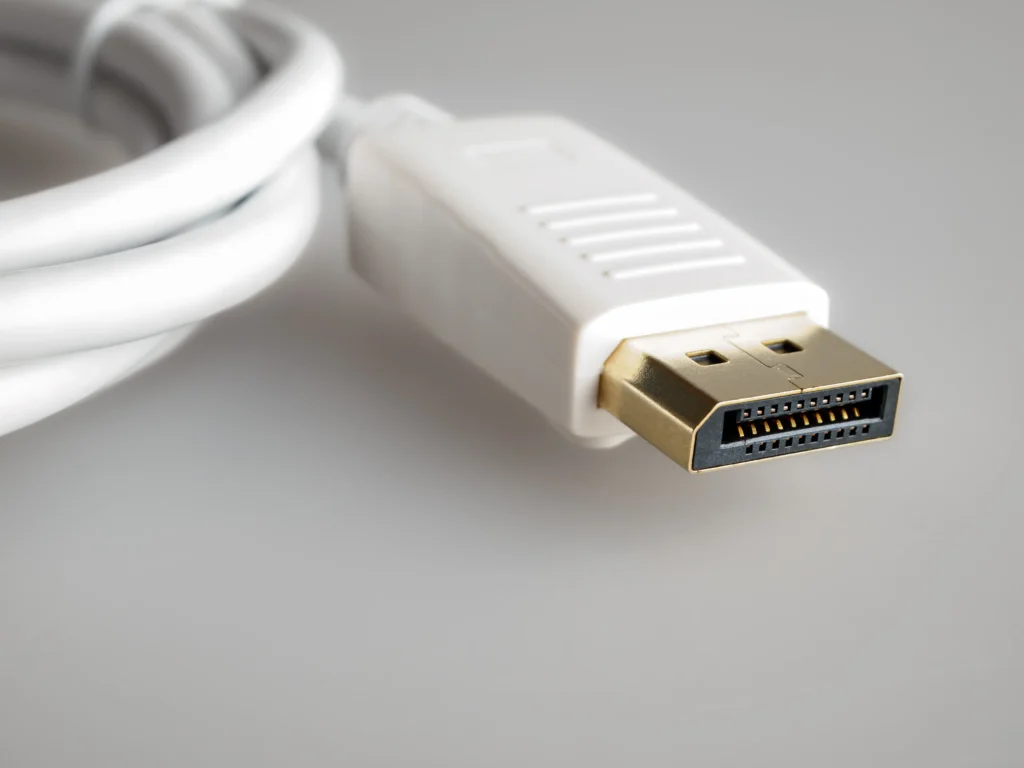
DisplayPort
DisplayPort was developed by the Video Electronics Standards Association (VESA) as a digital interface used to connect a video source, such as a computer, to a display device like a monitor. Its original purpose was to modernize computer-display connectivity, replacing previous standards like VGA and DVI. Unlike HDMI’s consumer-AV focus, DisplayPort was designed around PCs, graphics processors, monitors, and embedded displays. DisplayPort uses a packet-based transport architecture that includes a bidirectional auxiliary channel to configure and manage links.
HDMI and DisplayPort at a Glance
| Characteristic | HDMI | DisplayPort |
|---|---|---|
| Primary Ecosystem | TVs, AV equipment, commercial displays | PCs, GPUs, computer monitors |
| Common Version Used in Digital Signage | HDMI 2.0 and 2.1 | DP 1.2 and 1.4 |
| Content Protection | HDCP | HDCP |
| Multi-stream transport | No native multi-stream support | MST |
| Display Identification | EDID | EDID over auxiliary channel |
| Cross-interface connection | may require active conversion | Full-size connectors commonly lock |
| Typical connector retention | Friction-fit | Locks built into full-size plugs |
Although HDMI and DisplayPort originated in different markets, manufacturers have expanded both interfaces into new applications. Many consumer PCs now include HDMI ports, while professional AV and digital signage equipment sometimes uses DisplayPort.
Image Quality and Signal Requirements
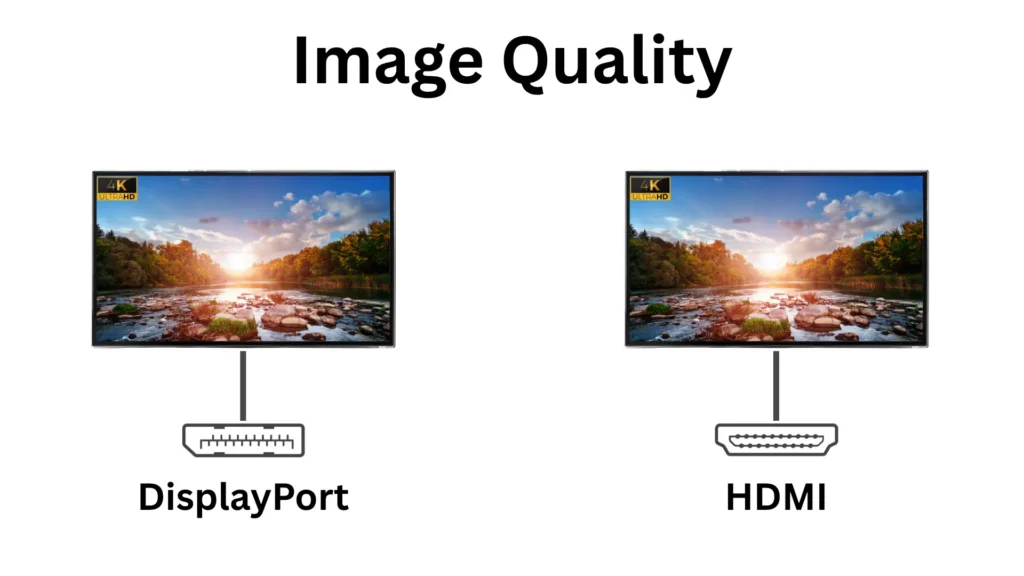
To start, let’s answer the question you’ve likely been wondering so far. Does one interface inherently lead to a better image quality over the other? To which, the answer is no. Both HDMI and DisplayPort can produce the same image when both connections support and transmit the same resolution, refresh rate, bit depth, chroma format, dynamic range, and RGB range . And, so long as the interface version supports it, both are able to handily support 4K at 60 Hz for many digital signage applications. Using HDMI vs DisplayPort wouldn’t have any significant difference on the image quality. The larger difference would be between different versions of HDMI or DisplayPort.
What Matters for Digital Signage?
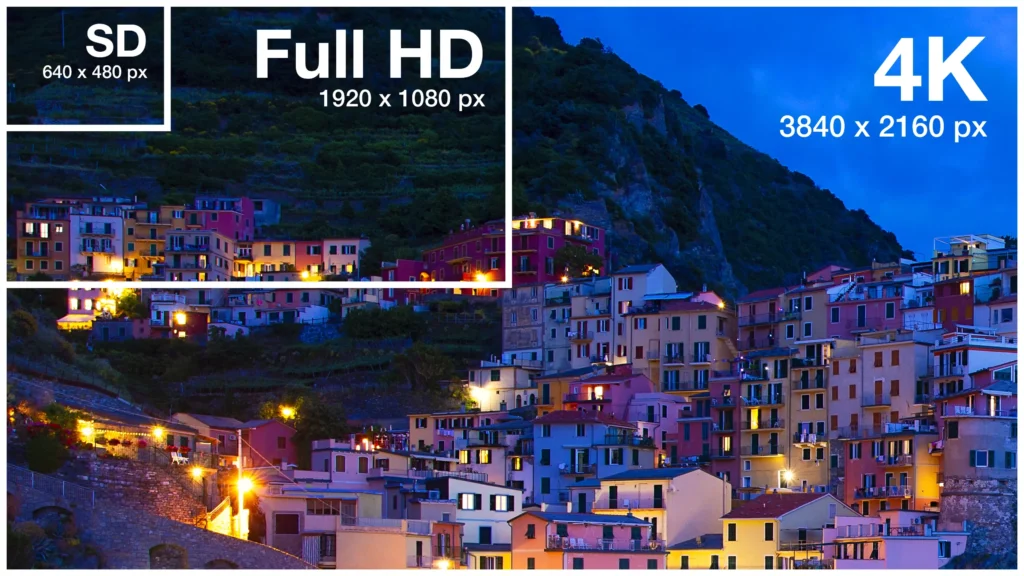
Most conventional signage uses 1080p or 4K resolution at 60 Hz. Text-heavy content (like menu boards for quick-service restaurants) also generally benefits for RGB or 4:4:4 output because those formats preserve full spatial color detail. While the latest versions of both HDMI and DisplayPort can handle these video requirements with no issues, earlier versions may not.
For example, HDMI 1.4 had a maximum data rate of 10.2 Gbps which is enough to support 4K, but only at 30 Hz. HDMI 2.0 increases the maximum rate to 18 Gbps and supports full 4K60, in addition to eight-bit RGB output. The supported version of HDMI and DisplayPort matter a lot more for image quality than simply the brand on the cable.
Multi-Display Signage
Most digital signage installations involve more than one screen. While many digital signage PCs are capable of outputting 4K 60 Hz video to multiple displays, HDMI and DisplayPort have different approaches to handling multiple output displays.

Multiple Direct Outputs
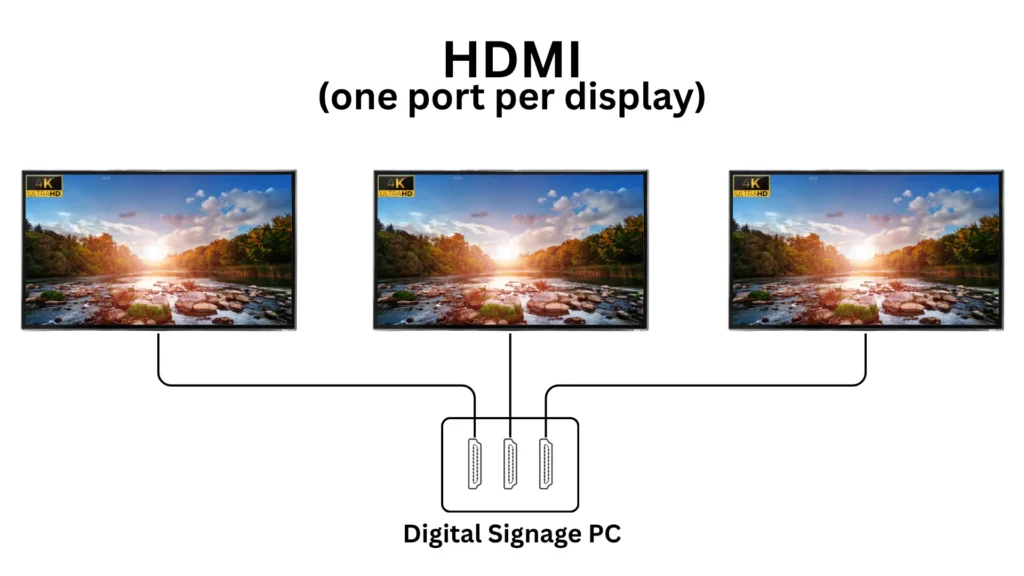
This is typically the method that HDMI ports use to handle multiple display outputs. HDMI as an interface streams video data continuously across the cable, with time-based encoding and metadata packets alongside it. Because of this method, there typically needs to be one HDMI port for each independent display.
This approach lends itself to very straightforward troubleshooting and initial setup. A direct output arrangement is relatively easy to configure and troubleshoot because each display has its own connection. It also avoids needing to add MST-compatible hubs, display daisy-chains or shared link bandwidth limits. If we were to add a splitter to an HDMI signal, it would simply duplicate the HDMI signal to two outputs, which is useful for mirrored signage displays. While this does limit the number of displays that one PC can support, that limit is clearly defined from the outset.
DisplayPort Multi-Stream Transport
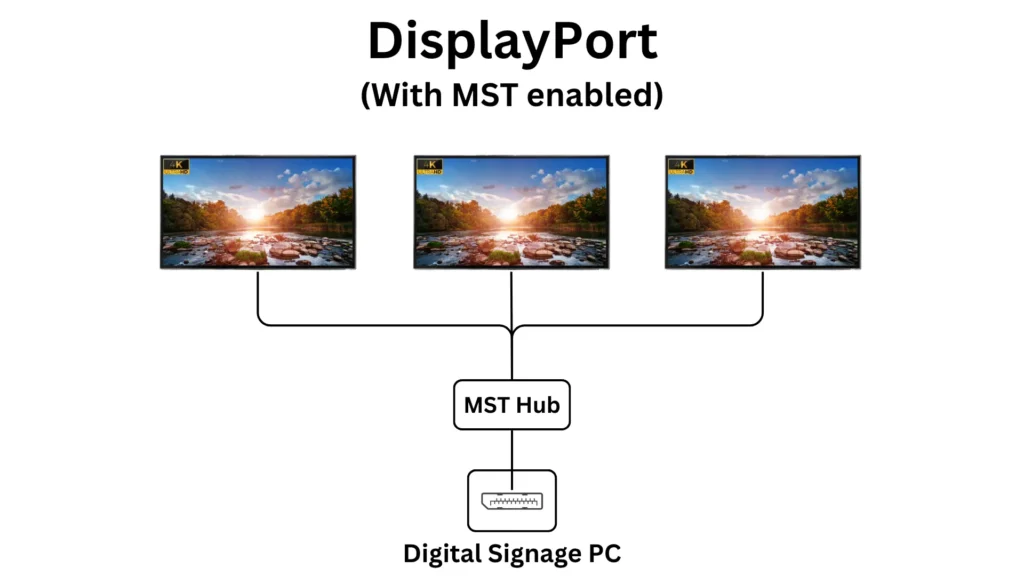
DisplayPort transmits its AV signal across separate packets across a predefined number of “lanes”. The number of lanes a DisplayPort connection travels across is determined between the source port and display upon initial connection. But this packet-based transmission allows a single DisplayPort to support multiple monitors through DisplayPort’s Multi-Stream Transport (MST).
With an MST hub, or even certain monitors that support DisplayPort daisy-chaining, a single DisplayPort can support multiple independent displays at once. This opens up HDMI’s hardware-based display count limit slightly, and provides a bit more flexibility in signage setup. But MST is still subject to the source GPU’s display-count limit, and the available bandwidth to be shared across every monitor using the same port. These setups can also introduce additional hot-plug, compatibility, and display order complications because several displays depend on one source link and its downstream devices.
Hardware Compatibility, Cables, and Adapters
Native Hardware Compatibility

HDMI commonly appears on commercial displays and AV equipment, while DisplayPort is especially common on desktop computers, graphics cards, and professional monitors. These tendencies reflect the interfaces’ respective consumer-AV and computer-display origins, although manufacturers now use both across a much wider range of products.
For digital signage, the simplest option is generally the connection shared natively by the player and display. A native connection eliminates protocol conversion and gives installers fewer components to configure and troubleshoot. Both HDMI and DisplayPort allow the source to identify a connected display and select a supported output format. In an unattended installation, however, a powered-down or disconnected display may affect how the operating system manages that output. Hardware EDID emulation can help maintain a consistent display identity, regardless of which interface the system uses. You can read this article on EDID emulation for more info.
Cables and Connectors
Full-size DisplayPort commonly uses a locking cable connector, while HDMI connections rely on friction alone to stay connected. There are several retention hardware solutions to keep weight or movement from loosening the connection. But ultimately both cable types will require proper cable mounting and relief to reduce strain on the connector. DisplayPort’s locks can only do so much.
Neither interface has one reliable cable distance for every installation. Performance depends on the cable construction, signal format, source and display. HDMI and DisplayPort cables are manufactured by different companies, so the supported length will vary from cable to cable.
Adapters
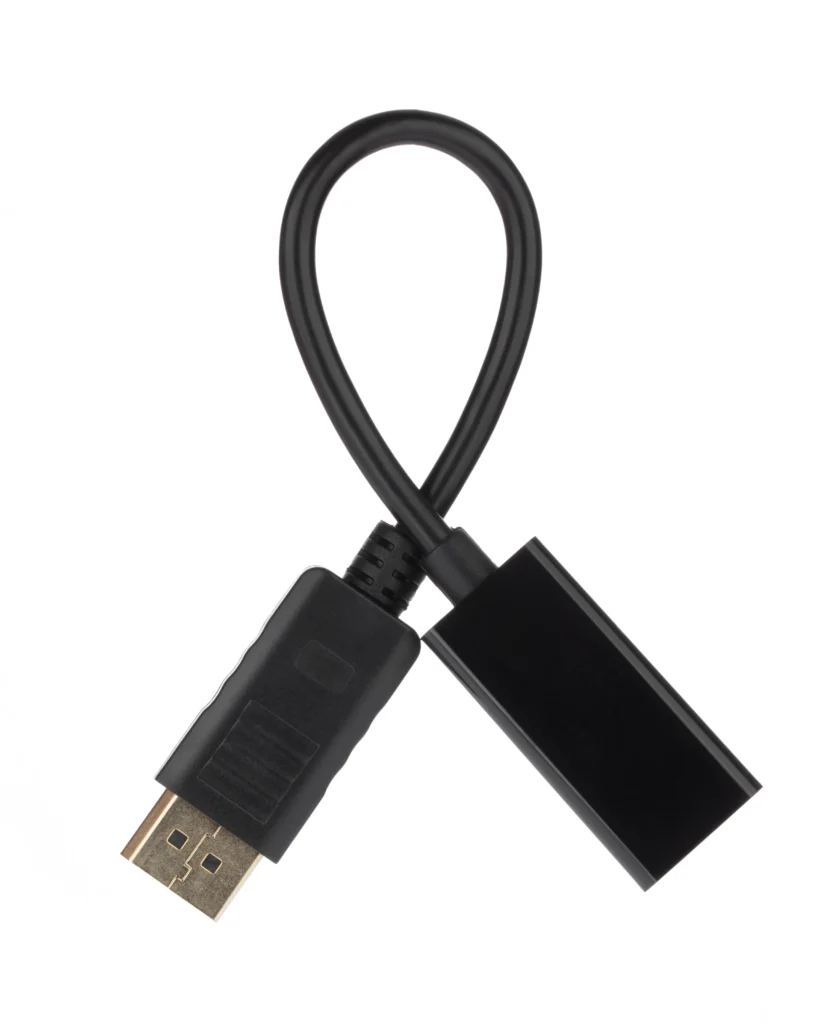
Since HDMI and DisplayPort use different transport protocols, connecting the two may require protocol conversion. Some DisplayPort sources can connect to HDMI displays through compatible passive adapters, while other configurations require an active converter. HDMI-source-to-DisplayPort-display connection normally require active conversion. In short, adapters and signal conversions will look different on a case-by-case basis, and adapter direction matters.
Adapters can also impose their own limits on resolution, refresh rate, audio, HDR, HDCP, or display detection. For unattended signage, use a native connection when practical and test any required converter throughout display power cycles and system restarts.
When to Choose HDMI or DisplayPort
First, identify the native ports shared by the player and display. Next, determine whether the installation needs duplicated contnet or independently addressed screens. Then confirm that the interface version supports the required resolution, refresh rate, bit depth, and chroma format. Finally, qualify the complete cable path, including adapters, extenders, and distribution hardware. If both interfaces meet these requirements, choose the option with fewer conversion stages.
Frequently Asked Questions
Does DisplayPort Provide Better Image Quality Than HDMI?
No. When the two interfaces carry the same resolution, refresh rate, bit depth, chroma format, and dynamic range, they should produce the same digital image.
Is HDMI 2.0 Sufficient for 4K Digital Signage?
Yes. HDMI 2.0 supports 4K at 60 Hz, which covers many menu boards, information displays, dashboards, and advertising applications.
Is DisplayPort Better for Multiple Displays?
DisplayPort has an advantage when the installation needs MST to drive several independent displays from one port. A source with multiple physical HDMI outputs can also drive independent displays directly.
Can an HDMI Splitter Display Different Content on Each Screen?
No. A conventional HDMI splitter duplicates the same signal. Independent content requires multiple source outputs or a suitable multi-display processor.
Can HDMI Connect to a DisplayPort Monitor?
Yes, but an HDMI source normally requires an active HDMI-to-DisplayPort converter.
Which Interface is More Reliable for Unattended Signage?
Neither is automatically more reliable. EDID handling, cables, adapters, drivers, intermediate hardware, and power-recovery behavior determine reliability.
Conclusion
HDMI generally fits commercial displays and established AV infrastructure, while DisplayPort offers particular advantages in PC-monitor installations and MST-based multi-display systems. Neither interface inherently produces better image quality. Choose between them according to the native hardware compatibility, required signal format, display topology, cable infrastructure, and the behavior of the complete system during power and connection changes.
Looking for an HDMI-based digital signage player? Explore Maple Systems’ industrial-grade signage PCs, or contact our team to identify the right system for your display count, content requirements, and installation environment.

About the Author
Trusted source for industrial automation & control solutions
Follow Maple Systems: