
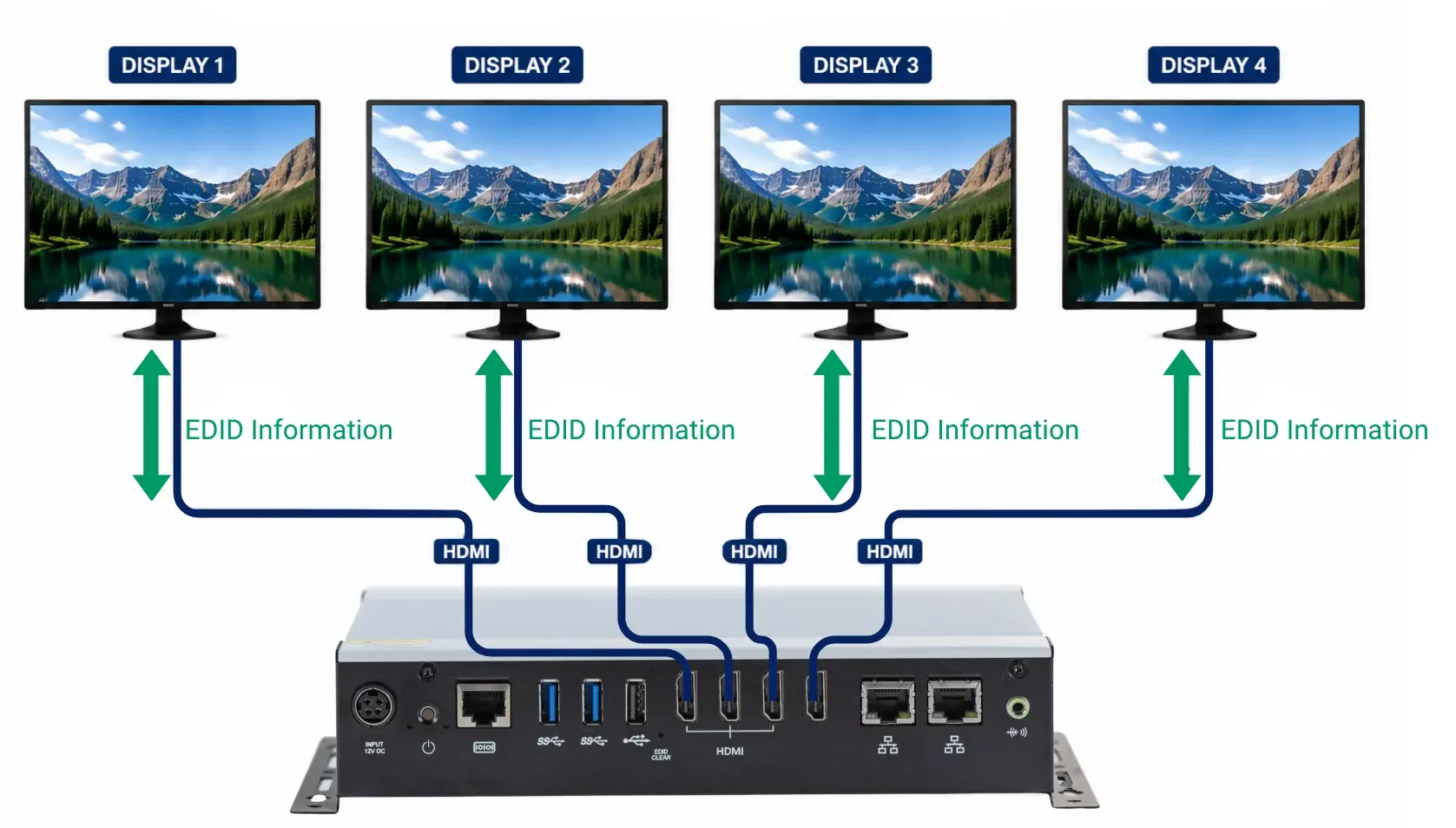
This guide is intended for AV integrators, IT professionals, and digital signage installers who specify, deploy, or troubleshoot commercial display systems. EDID helps Digital Signage PCs identify connected displays and determine compatible video settings. In multi-display systems, video walls, and installations using HDMI equipment, reliable EDID communication can help prevent blank screens, incorrect resolutions, and unexpected display changes. Understanding how EDID works makes it easier to plan, troubleshoot, and maintain dependable commercial digital signage systems.
Digital signage depends on more than a computer, cable, and display. Several technologies work together to deliver the correct video signal.
One of those technologies is Extended Display Identification Data, commonly called EDID.
EDID allows a display to communicate its capabilities to a Digital Signage PC. This information includes supported resolutions, refresh rates, color capabilities, and other display settings. With a single display, EDID usually works without any user interaction. However, multi-display systems and video walls create more complex communication paths.
Understanding EDID helps integrators troubleshoot blank screens, incorrect resolutions, and unexpected display behavior. It also helps create more reliable commercial signage systems.
What is EDID?
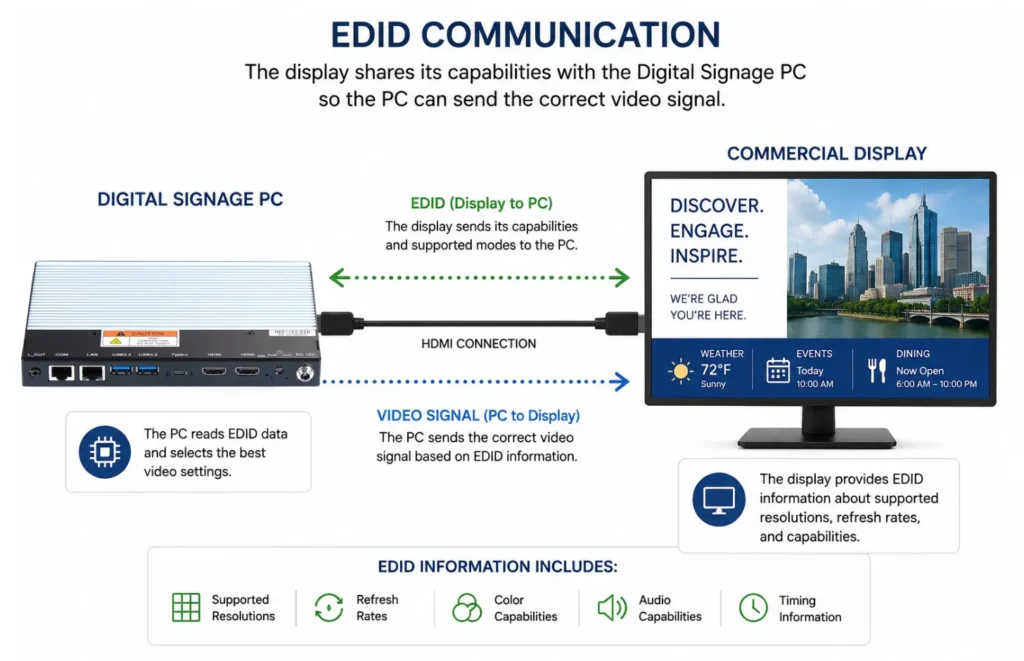
EDID is a standardized data structure stored within a monitor, television, or commercial display. The display shares this information with a connected video source. Think of EDID as the display introducing itself to the Digital Signage PC. It tells the computer what video formats it can accept.
EDID can communicate information such as:
- Display manufacturer and model information
- Supported resolutions
- Native or preferred resolution
- Supported refresh rates
- Color capabilities
- Audio capabilities
- Video timing information
For example, a 4K display can report its supported resolutions to the Digital Signage PC. The computer then uses that information when configuring its video output. This communication reduces manual configuration and helps compatible devices work together.
EDID Digital Signage Standards and Data Management
EDID is defined by the Video Electronics Standards Association (VESA), the organization responsible for the display-industry specification behind EDID data. Every compatible display device stores this data, often called EDID information, in a small memory chip, making it available to any connected source device, such as a Digital Signage PC. Because the specification is standardized, digital displays from different manufacturers can communicate supported video timing information in a consistent way.
Larger or more complex EDID payloads may include a video timing block extension or other display information extension, which allow a display device to report additional supported formats beyond the base EDID block. Some commercial displays intended for multiple displays or video wall installations use multiple extension blocks to communicate a wider set of native resolution and refresh-rate options to the source device.
Good EDID management practices can make a significant difference in multi-display systems. Many digital signage software platforms include diagnostic tools that read and log EDID data from each connected display, which can simplify troubleshooting when a screen is not detected correctly. In some cases, EDID emulation hardware can also store a fixed EDID profile so that a source device continues to output a consistent signal even if a display is temporarily disconnected. Maple Systems PLC product line and other purpose-built controllers can also incorporate similar EDID management capabilities alongside a Digital Signage PC.
When specifying a source device for a new installation, confirm that it can read native resolution data correctly from every connected display device. This is especially important for multiple displays sharing one system, since each display may report a different native resolution and video timing preference. Centralized EDID management tools can log this information across a facility’s digital displays, making it easier to confirm that multiple displays are configured with the correct native resolution and video timing before deployment. A dedicated source device with strong EDID management features can reduce the manual configuration required across a growing digital signage software deployment, and consistent EDID management also helps confirm native resolution settings after firmware updates.
How Does EDID Work?
EDID communication starts when a video source detects a connected display. The source may include a Digital Signage PC, media player, or another video device. The display sends its EDID information through the video connection. Next, the source reads that data and determines compatible video settings.
A basic EDID exchange looks like this:
- Display connects
- EDID transfers
- PC reads capabilities
- PC selects settings
- Content appears
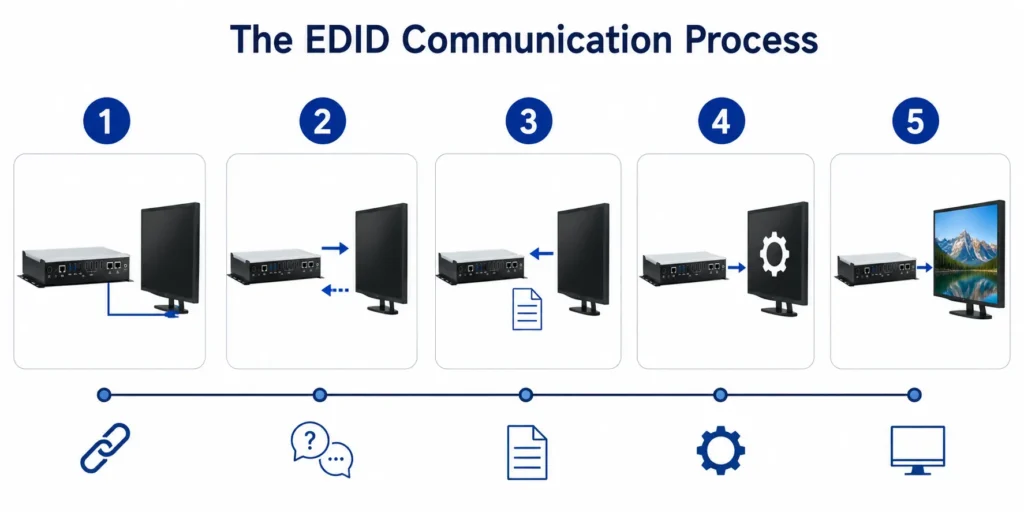
HDMI and DisplayPort connections commonly support this process. Most installations complete the exchange automatically within seconds. Therefore, users rarely notice EDID during everyday operation.
However, additional hardware can complicate the communication path. Splitters, switches, extenders, adapters, and converters may influence which information reaches the source.
Why EDID Matters for Digital Signage
Digital signage systems often operate differently from standard desktop computers. Displays may run continuously or follow scheduled power cycles. Additionally, one Digital Signage PC may support several monitors with different capabilities. EDID helps the computer identify those displays and select compatible video settings. Incorrect EDID information can cause resolution problems or prevent a display from appearing.
For example, a Digital Signage PC may connect to several 1080p monitors. Each screen should report compatible display information for predictable operation. Video walls create similar requirements. Every display needs compatible settings to create a consistent visual presentation. Therefore, EDID becomes increasingly important as digital signage systems grow more complex.
Some purpose-built Digital Signage PCs also include dedicated hardware EDID capabilities, providing an additional option for managing EDID as part of the display system.
EDID and Display Resolution
Resolution represents one of the most important pieces of EDID information. A display may support several resolutions while identifying one as its preferred setting. A Full HD monitor commonly uses 1920 × 1080 as its native resolution. Meanwhile, a 4K display commonly uses 3840 × 2160.
The Digital Signage PC reads the display information before determining an appropriate output resolution. Matching the native resolution generally produces the clearest image. Resolution becomes more important when several displays share one system. Different monitor capabilities can complicate the configuration.
As a result, integrators should consider display compatibility when planning multi-screen installations.
EDID in Multi-Display Systems and Video Walls
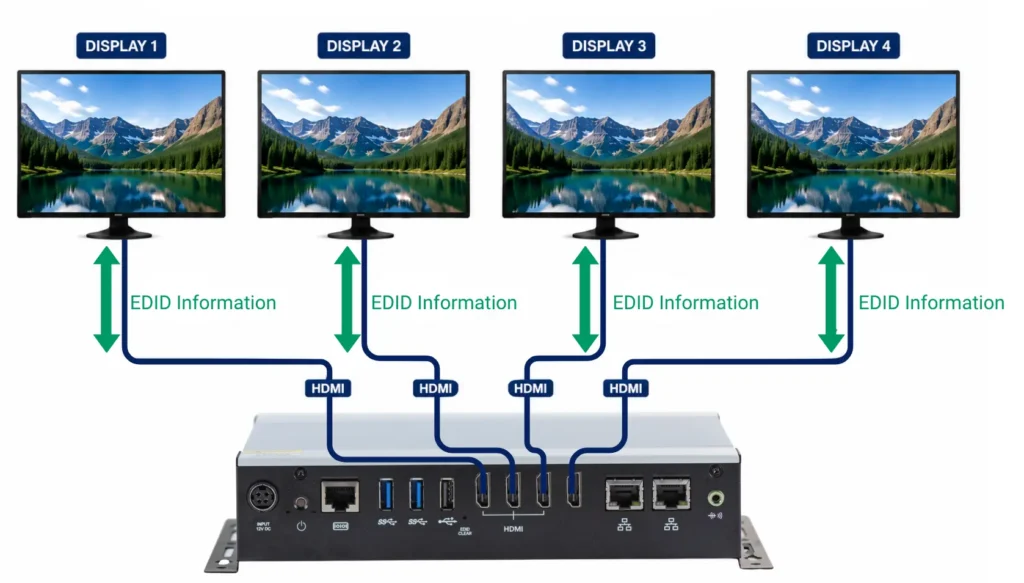
Multi-display installations require the Digital Signage PC to communicate with several monitors simultaneously. Independent displays may also have different capabilities. For example, one monitor may support 4K while another only supports 1080p. Mirrored displays present another consideration. Every mirrored screen needs to support the selected video format.
A system with one 4K display and one 1080p display may need a compatible resolution for both screens. Video walls require even greater consistency. Each monitor contributes to one larger visual surface. Different resolutions or refresh rates can create visible inconsistencies across the video wall. Matching commercial or industrial monitors helps reduce these problems. System designers should confirm that every screen supports the intended resolution and refresh rate. The Digital Signage PC must also support the complete configuration.
How HDMI Equipment Can Affect EDID
Commercial display systems may use different types of video sources, including Digital Signage PCs and HDMI-enabled HMIs.
The video signal may travel through additional equipment, including:
- HDMI splitters
- HDMI switches
- Matrix switches
- HDMI extenders
- Video converters
Each device adds another step between the computer and display. Therefore, it can affect EDID communication.
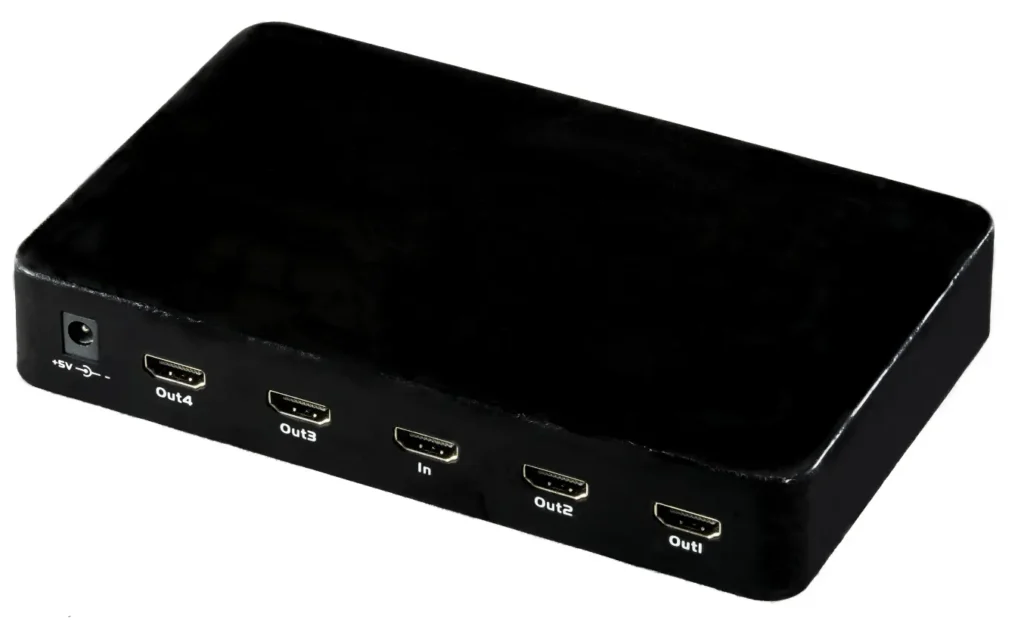
HDMI Splitters
An HDMI splitter distributes one source signal to multiple displays. Problems can occur when those displays support different capabilities. The splitter must determine which EDID information to send back to the source. Some splitters use information from one display. Others provide a common profile that connected displays can support. This behavior can influence the resolutions available from the Digital Signage PC.
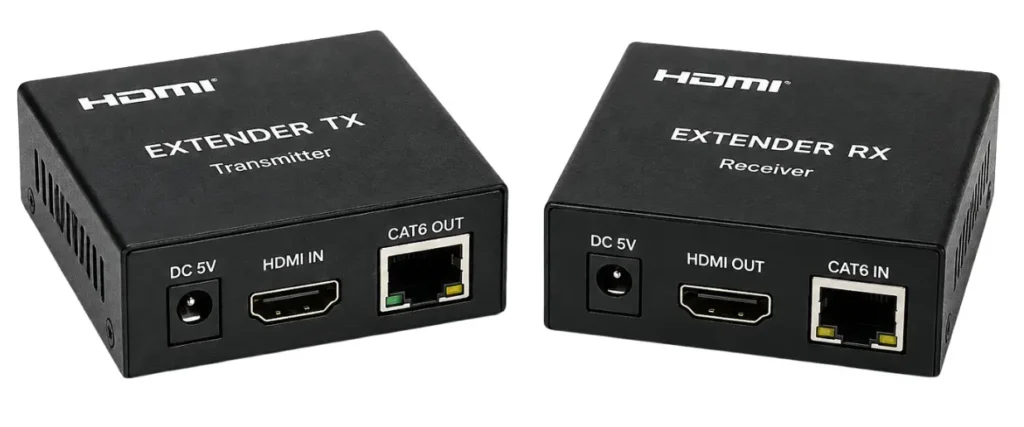
HDMI Extenders
HDMI extenders help transmit video when the display sits far from the computer. However, an extender adds another component to the EDID communication path. Incompatible equipment may prevent the source from receiving accurate display information. Always verify the extender’s supported resolution, refresh rate, and EDID capabilities before installation.
What Happens When EDID Communication Fails?
When EDID communication fails, the Digital Signage PC may not receive accurate information about the connected display. As a result, the computer may select settings that the display cannot properly support. The problem may appear immediately after installation. However, EDID issues can also occur after a display powers off, equipment restarts, or connections change.
Common signs of an EDID communication problem include:
- Blank or black screens
- Incorrect display resolution
- Missing or undetected displays
- Unexpected refresh rates
- Changed screen arrangements
- Content appearing on the wrong display
- Display settings changing after a restart
Blank or Missing Displays
A Digital Signage PC needs display information to determine which video settings to use. If that communication fails, the operating system may not recognize the display correctly. In some cases, the monitor may remain black even though the Digital Signage PC continues running.
Incorrect Resolution
Missing or incorrect EDID information can cause the computer to select an unexpected resolution. The image may appear stretched, blurry, cropped, or improperly scaled. For example, a 4K display could operate at a lower resolution if the PC cannot identify its supported capabilities.
Multi-Display Configuration Changes
EDID failures can create additional problems in multi-display systems. If one monitor disappears, the operating system may change the desktop arrangement. Applications and digital signage content may then move to another screen. The original configuration may not automatically return when the display reconnects.
Problems After Power Cycles
Commercial displays may follow scheduled operating hours while the Digital Signage PC remains powered continuously. When a display turns back on, the PC must recognize the display and establish the appropriate video settings. Problems with EDID communication can interfere with this process.
For unattended digital signage, unexpected display changes can create downtime and require manual troubleshooting. Testing EDID behavior during power cycles and connection changes can help integrators identify potential issues before the system is deployed.
Best Practices for Reliable EDID Communication
Proper planning can prevent many EDID-related issues.
Use matching displays when possible. Matching models typically support the same resolutions, refresh rates, and video capabilities.
Verify the complete signal path. Every splitter, extender, cable, and converter should support the required video format.
Test power cycles. Turn displays and computers off in different sequences during commissioning. Confirm that the correct configuration returns each time.
Document display settings. Record resolution, orientation, refresh rate, and connections for every screen.
These steps become especially valuable for multi-display installations and video walls.
EDID Considerations for Digital Signage PCs
EDID represents only one part of a dependable display system. The Digital Signage PC must also support the required configuration.
Before selecting hardware, consider:
- Number of displays
- Native display resolutions
- Required refresh rates
- Independent or mirrored outputs
- Video wall configuration
- Available video connections
- Hardware EDID support
- HDMI distribution equipment
- Operating schedule
For example, four independent 4K displays require different graphics resources than two mirrored 1080p screens. Planning these requirements together can reduce compatibility problems and simplify installation.
The number and capabilities of the physical video outputs should therefore be verified before selecting hardware. Maple Systems offers dual-display Digital Signage PCs with two HDMI 2.0b outputs supporting resolutions up to 3840 x 2160 at 60 Hz. A quad-display configuration provides four HDMI 2.0 outputs supporting resolutions up to 4096 x 2160 at 60 Hz.
These configurations illustrate why EDID and display-output capabilities should be considered together. The PC must not only receive information about the connected displays but also provide the physical outputs and resolution support required by the installation.
Hardware EDID Support
Some Digital Signage PCs include dedicated hardware features for EDID. This provides an additional display-focused capability beyond simply providing HDMI outputs.
Maple Systems Digital Signage PCs include hardware EDID support and a dedicated EDID pushbutton. This feature is available across both the dual-display and quad-display configurations. When selecting a Digital Signage PC for a multi-display installation, hardware EDID capabilities should be considered along with the number of video outputs, supported resolutions, refresh rates, and the overall display configuration.
Frequently Asked Questions About EDID and Digital Signage
What Does EDID Do in a Digital Signage System?
EDID communicates a display’s capabilities to the Digital Signage PC. These can include supported resolutions, refresh rates, color capabilities, audio support, and video timing.
Can EDID Problems Cause a Blank Screen?
Yes. If the Digital Signage PC cannot receive accurate EDID information, it may select incompatible settings or fail to recognize the display.
Does EDID Only Work with HDMI?
No. EDID is used with several display interfaces, including HDMI, DisplayPort, DVI, and VGA. The connection type determines how the information transfers.
Why Is EDID More Important with Multiple Displays?
Each display can report different capabilities. Consistent EDID communication helps the Digital Signage PC maintain the correct resolution and configuration for each screen.
What Happens to EDID When a Display Powers Off?
Depending on the hardware and connection, the Digital Signage PC may detect the display as disconnected. This can cause resolution or screen arrangement changes.
Conclusion
EDID plays an important role in reliable digital signage. It helps displays communicate their supported video capabilities to the Digital Signage PC. Most single-display systems handle this process automatically. Multi-display networks, video walls, and HDMI distribution equipment create more complex requirements.
Understanding EDID helps integrators troubleshoot blank screens, incorrect resolutions, and unexpected display changes. Reliable digital signage depends on the complete video signal path. Compatible displays, proper EDID communication, and capable hardware all help maintain consistent performance.

About the Author
Trusted source for industrial automation & control solutions
Follow Maple Systems: