
Introduction
All Maple Systems HMIs programmed with EBPro (EasyBuilder Pro), including every cMT X Series and cMT Series model, are compatible with a Barcode/RFID Reader. Configure your Controller and HMI/cMT with the following parameters to establish reliable communication.
Supported Devices: Barcode Scanner, RFID Reader in interrupt communication mode
HMI Settings
| Parameters | Recommended | Options | Notes |
|---|---|---|---|
| PLC type | Barcode/RFID Reader | ||
| PLC I/F | USB |
Tag Manager
Add a New Device
Click [Add] to add a new device.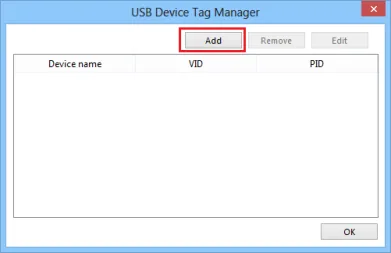
Select Reader Type
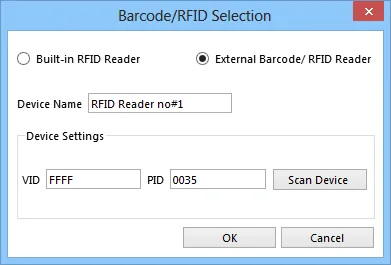
Select Build-in RFID Reader or External Barcode/RFID Reader.Only models supported by the built-in RFID Reader will display this setting item.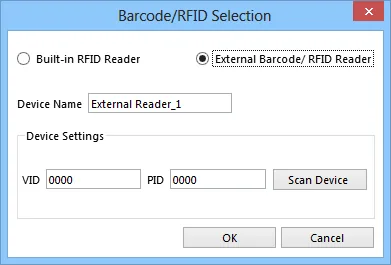
Set Device Name and Scan
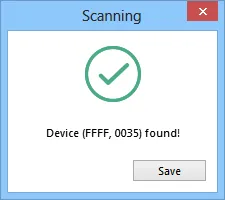
Modify the [Device Name] — it cannot be modified after confirmation. Next click [Scan USB Device].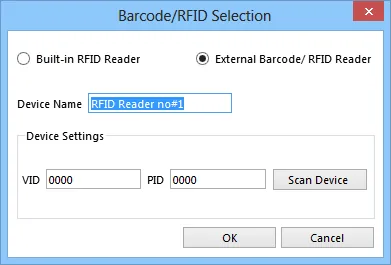
Insert USB Device and Save
Insert the USB Device into the PC, scan the [VID] and [PID] of the device and click [Save] → [OK].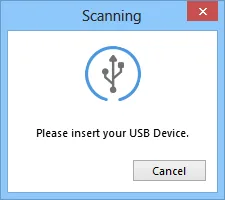
Review Device List
The user can see that the device has been displayed in the list. In this window, other USB devices can be added. Devices added to the list can also edit or delete settings. Device Name, VID/PID — no duplicates allowed.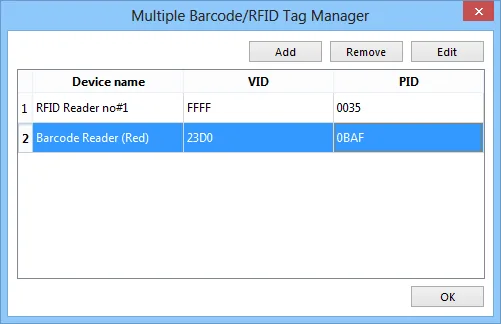
Select Device Address in Object
After adding the settings, the user can select the corresponding device address in the object. No duplicates allowed.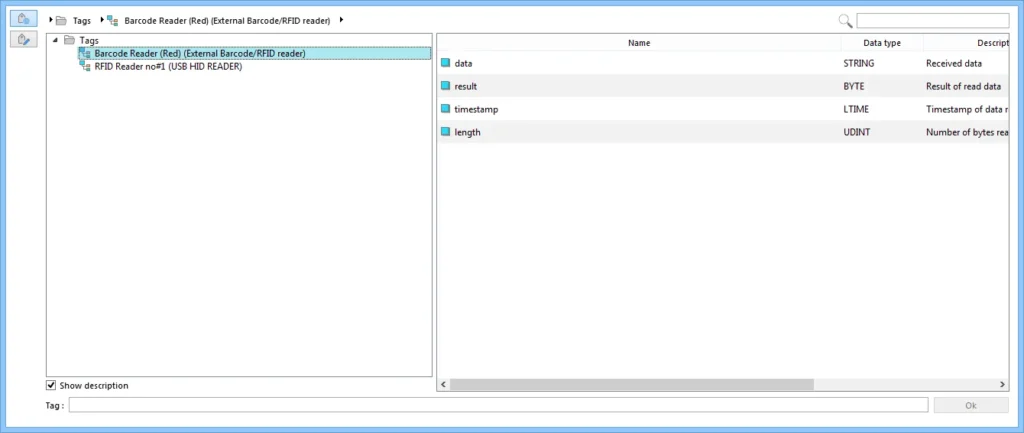
Driver Capability
| Bit | Describe |
|---|---|
| Bit 0 | The device supports the basic functions of the USB driver. |
| Bit 1 | Device supports hot plug detection. |
Status
| Status | Describe |
|---|---|
| 0 | The device is offline. |
| 1 | The device is online. |
Read Completed
| Status | Describe |
|---|---|
| 0 | Read not completed. |
| 1 | Read completed. |
Reset
| Status | Describe |
|---|---|
| 0 | No action. |
| 1 | Reset data, length, read_completed, timestamp, result. |
NOTE: Action when bit off → on.
Result
| Status | Describe |
|---|---|
| 0 | Reading data. |
| 1 | Reading data completed. |
| 2 | Reading data format error. |
Other Address Description
| Status | Describe |
|---|---|
| Length | Length of read data. |
| Timestamp | Timestamp for reading data. |
| Data | The content of the data read. |