
Introduction
All Maple Systems HMIs programmed with EBPro (EasyBuilder Pro), including every cMT X Series and cMT Series model, are compatible with a Rockwell/Allen-Bradley CompactLogix Free Tag Names Controller. Configure your Controller and HMI/cMT with the following parameters to establish reliable communication.
Website: rockwellautomation.com
HMI Settings
| Parameters | Recommended | Options | Notes |
|---|---|---|---|
| PLC type | Rockwell CompactLogix – Free Tag Names | ||
| PLC I/F | RS232 | ||
| Baud rate | 19200 | 9600, 19200, 38400 | |
| Data bits | 8 | 8 | |
| Parity | None | Even, Odd, None | |
| Stop bits | 1 | 1 | |
| Turn around delay | 10 | 10 ~ 100 | *Note |
| HMI sta. no. | 0 | ||
| PLC sta. no. | 1 | 1-31 |
NOTE: When communication is not stable, please adjust [Turn around delay].
PLC Settings
| Communication mode | Value |
|---|---|
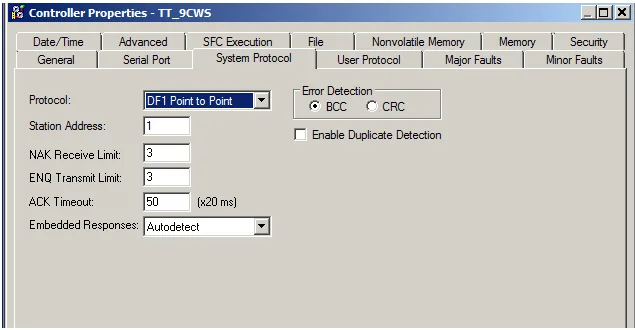
| DF1 Point to Point Protocol | Error Check: BCC, Station Address: 1 |
Working with Tags
Create new tags (Controller Tags and Program Tags supported).
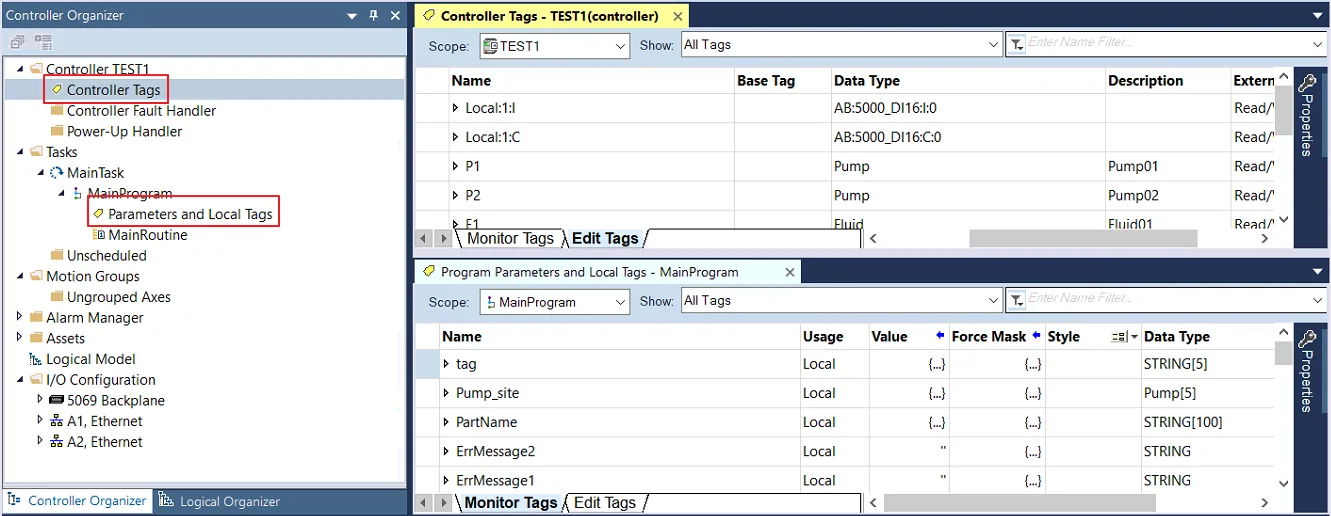
There are two ways to get tags: import .L5X or .CSV files (click Import Tags…), or connect to the PLC (click Get Tag Info…). After creating a project by one of these methods, use the same method in future for maintenance to prevent compilation failure.
- Recommended for PLC Offline: Import
.L5X - Recommended for PLC Online: Get Tag Info
Comparison
| L5X | CSV | |
|---|---|---|
| Can Description be Imported? | Yes | Yes |
| Need Adding Data Type? | No | Yes |
NOTE: Description is only supported for atomic tags. Not supported for structure or array.
Import Tag (L5X)
Export L5X from RSLogix 5000
In RSLogix 5000, go to File u0026gt; Save as u0026gt; *Logix Designer XML File (.L5X)** to export the.L5Xfile.Import Tags in EBPro (EasyBuilder Pro)
Add the driver in EBPro (EasyBuilder Pro), click [Import Tags], select *Import Files (.L5X), and then click [OK]**.
Review Imported Tag Information
View the imported tag information in Tag Manager and click the close icon [X] to leave.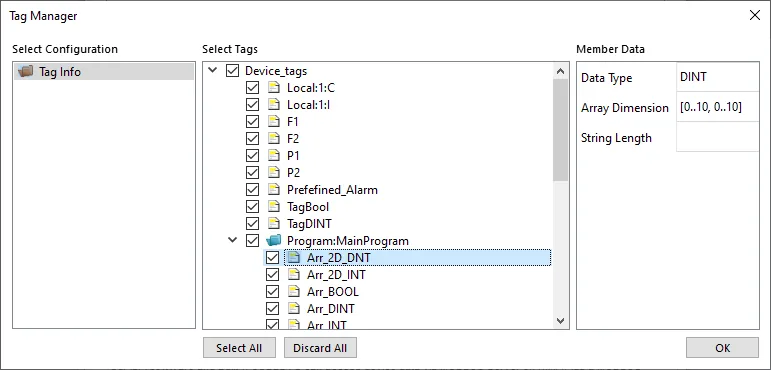
Confirm Successful Import
Click [OK] after tag information is imported successfully.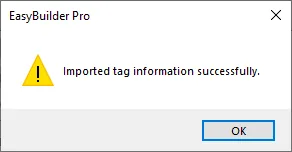
Import Tag (CSV)
Export Tag Data to CSV
In RSLogix5000, go to [Tools] u0026gt; [Export] u0026gt; [Tags and Logic Comments] to export the tag data to a.CSVfile.The separator character in the CSV file must be a comma,; otherwise the file is invalid. To change this: [Control Panel] u0026gt; [Date, Time, Language, and Regional Options] u0026gt; [Change the format of numbers, dates, and times] u0026gt; [Customize] u0026gt; [List separator]. Select,and then export the CSV file.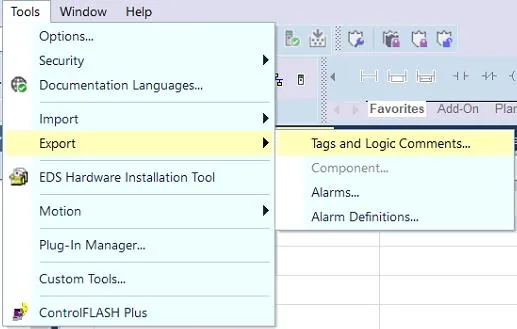
Import CSV in EBPro (EasyBuilder Pro)
In [System Parameters], click [Import Tags], select *Import Files (.CSV), and then click [OK]**.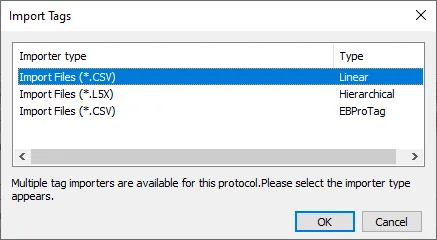
Choose Data Type Handling
Decide whether to keep the current data type (User-Defined, Strings, Predefined, Module-Defined) or replace it with the default data type.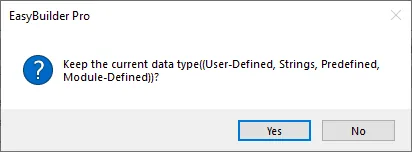
Review Unsupported Tag Warnings
A Warning window appears when unsupported tags are used. Check whether these tags use data types and add the necessary ones. The ‘Imported tag information successful’ message appears when tags are successfully imported.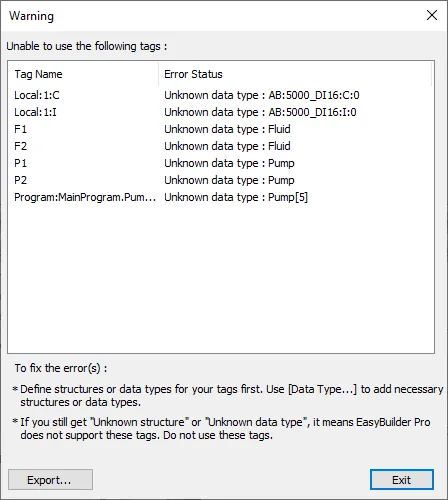
Device Address
| PLC Data Type | Bit/Word | EasyBuilder Data Format | Memo |
|---|---|---|---|
| BOOL | Boolean | Bit object | |
| BitArray | |||
| SINT | -128 ~ 127 | ||
| INT | Integer | 16-bit signed, ASCII | -32768 ~ 32767 |
| DINT | Double Integer | 32-bit signed | -231 ~ (231-1) |
| REAL | Single Precision Float | 32-bit float | IEEE 754 |
| LINT | Long Integer | 64-bit signed | *Note1 |
| ULINT | Long Integer | 64-bit unsigned | *Note1 |
| LREAL | Double Precision Float | 64-bit double | *Note1 |
| STRING | *Note4 |
- Note 1: EBPro V6.03.02 or later supports 64-bit data types (cMT Series only), but note that the address limit range is 48 bits maximum.
- Note 2: Avoid using
.in the tag name, as this may influence macro execution. - Note 3: Shorter tag names are recommended for enhancing communication efficiency.
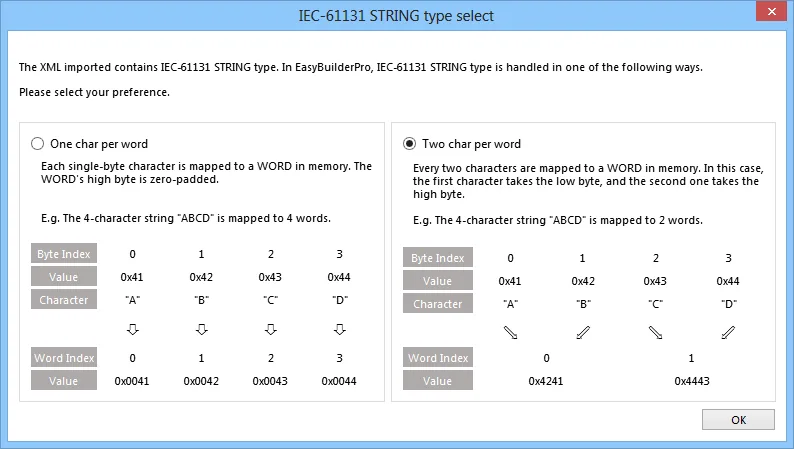
- Note 4: When importing, there are two modes — one char per word or two char per word. When importing one char per word, choose Unicode data format for ASCII objects; choose UTF-8 (Default) data format for two char per word.
- Note 5: Data format supported for Binary Access: INT, DINT, and SINT.
Wiring Diagram
NOTE: The serial port pin assignments may vary between HMI models.
RS-232
| HMI | Direction | PLC |
|---|---|---|
| Pin assignments | AB CPU CH0 RS232 9P D-Sub Female | |
| Rx | ↔ (bidirectional) | 3 TD |
| Tx | ↔ (bidirectional) | 2 RD |
| GND | ↔ (bidirectional) | 5 GND |