Introduction
All Maple Systems HMIs programmed with EBPro (EasyBuilder Pro), including every cMT X Series and cMT Series model, are compatible with Schneider Electric SoMachine M Series Ethernet. Configure your Controller and HMI/cMT with the following parameters to establish reliable communication.
Supported series: Schneider SoMachine M238/M241/M251/M258
HMI Settings
| Parameters | Recommended | Options | Notes |
|---|---|---|---|
| PLC type | Schneider SoMachine M Series (Ethernet) | ||
| PLC I/F | Ethernet | Use UDP | |
| Port no. | 1740 | ||
| Source port no. | 1742 | 1740 / 1742 | M258: 1740 — Other: 1742 |
| Protocol | Nodename (UDP) | Nodename (UDP) / IP Address (Fast TCP) | |
| User name, Password |
PLC will randomly allocate UDP Port: 1740–1743; use Scan Network to get the correct port number.
PLC Setting
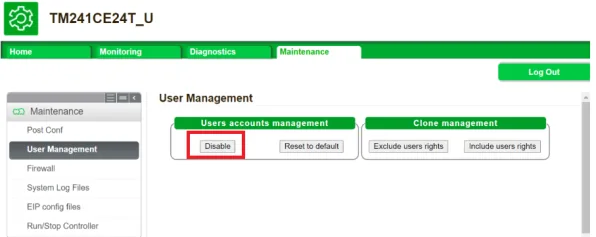
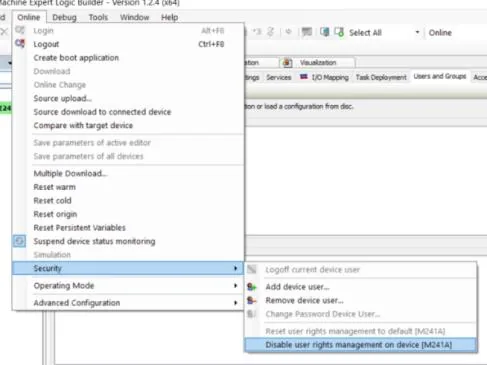
Schneider EcoStruxure Machine Expert software requires user restrictions to be disabled. There are two methods:
Method 1: Maintenance Menu
Navigate to Maintenance → User Management → Users accounts management → Disable.
Method 2: Online Menu
Navigate to Online → Security → Disable user rights management on device.
How to Import Tags and Scan the Network
Set POU Under MAST
Under the MAST task, set the POU.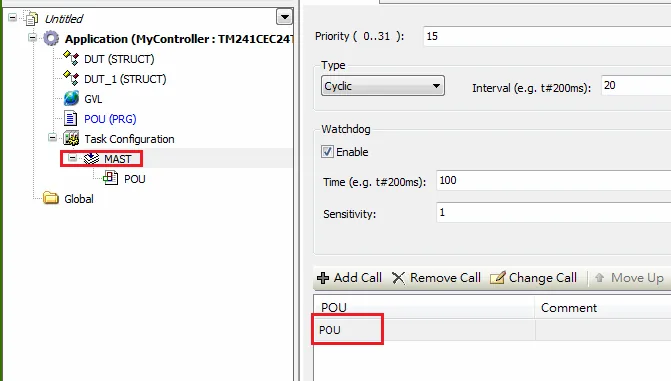
Add Symbol Configuration Object
In the Tools tree, right-click Application → Add Object → Symbol configuration.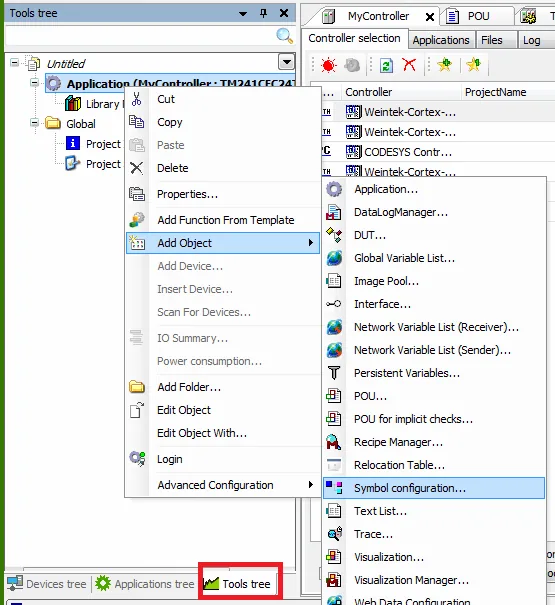
Select PLC_PRG and Build
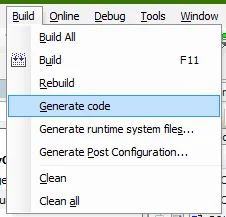
Select PLC_PRG — its tag information will be shown. Build the project: Build → Generate Code. An*.xmlfile is generated in the project directory.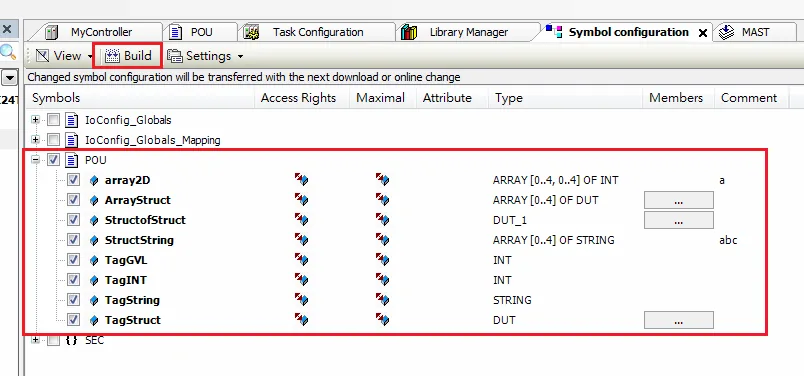
Add Driver and Import Tag in EBPro (EasyBuilderPro)
In EBPr0 (EasyBuilderPro), open System Parameter Settings, click New to add the Schneider SoMachine M Series driver to the device list, then click Import Tag.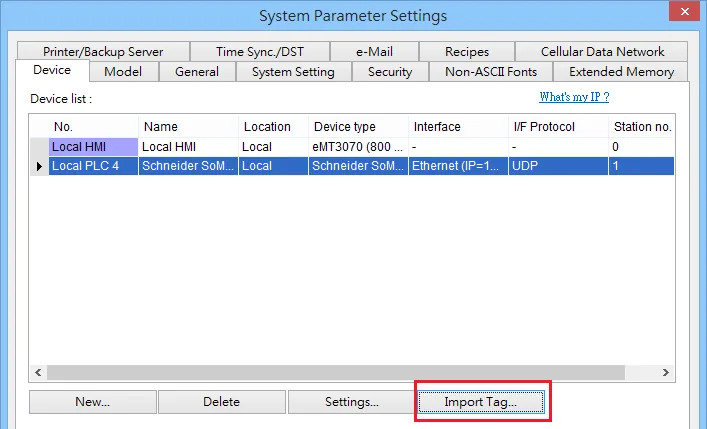
Confirm Import Success
An import successful dialog confirms the tag information was imported.The Get Tag Info function may return incomplete addresses. Use the Import Tags function instead.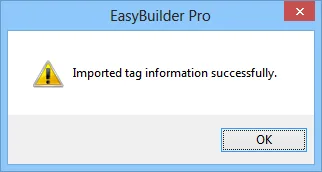
Click Scan Network in Driver Settings
In the driver settings, click Scan Network inside the IP Address Settings dialog.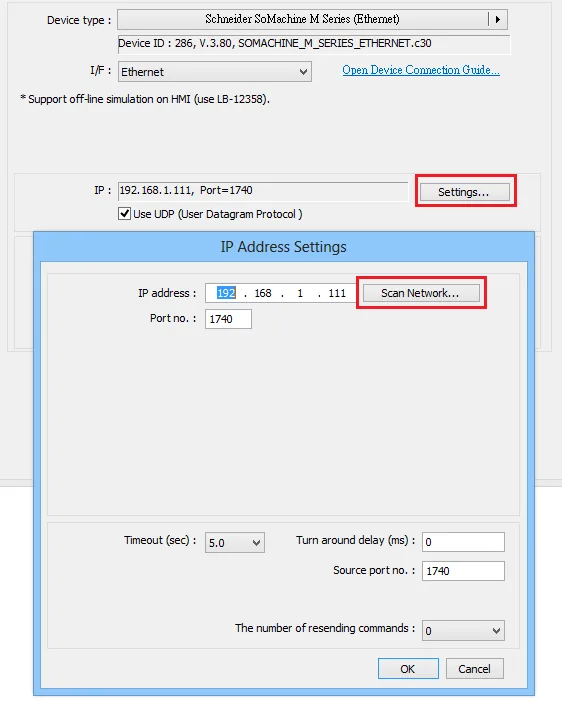
Select Network Adapter
The Adapter Select dialog lists available network adapters. Select the adapter whose IP address matches the PLC network.Confirm that the PLC and PC network settings are the same. If the settings differ, the network scan may not succeed.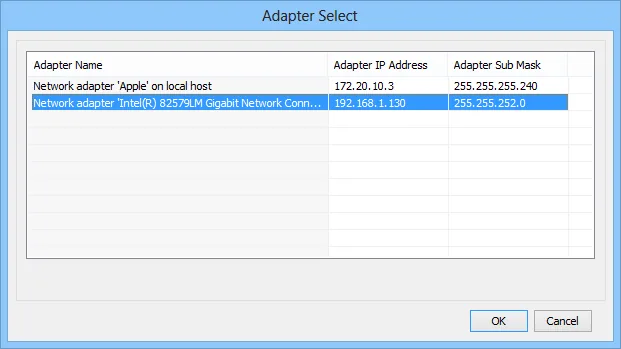
View Connection Details
A network connection details dialog appears showing the properties of the selected network adapter. Verify the IP address and subnet settings match your PLC network.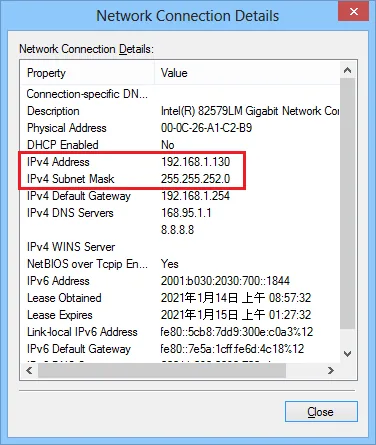
Select Device from Scan Results
The devices found on the network are listed. Select the device you want to connect to and click OK.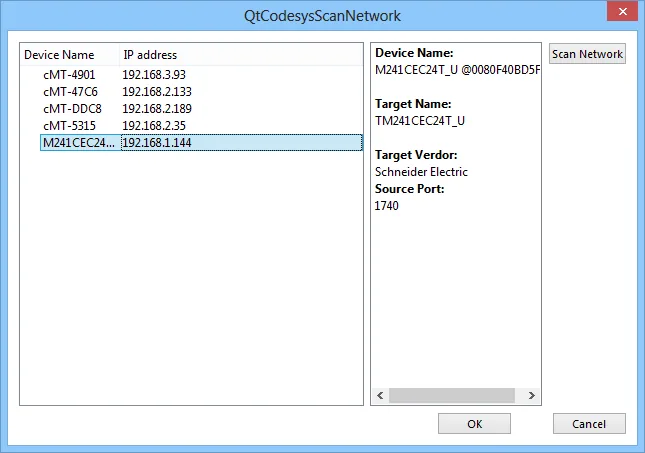
Confirm Communication Parameters
After confirming the communication parameters, click OK.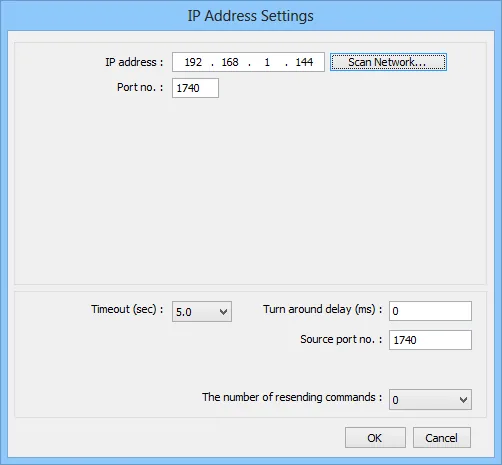
Support Device Type
| Data Type | EBPro (EasyBuilder) Data Format | Memo |
|---|---|---|
| Bool | bit | |
| Byte | 16-bit BCD, Hex, Binary, Unsigned | 8-bit |
| SInt | 16-bit BCD, Hex, Binary, Signed | 8-bit |
| USInt | 16-bit BCD, Hex, Binary, Unsigned | 8-bit |
| Word | 16-bit BCD, Hex, Binary, Unsigned | 16-bit |
| Int | 16-bit BCD, Hex, Binary, Signed | 16-bit |
| UInt | 16-bit BCD, Hex, Binary, Unsigned | 16-bit |
| DWord | 32-bit BCD, Hex, Binary, Unsigned | 32-bit |
| DInt | 32-bit BCD, Hex, Binary, Signed | 32-bit |
| Real | 32-bit Float | 32-bit |
| UDInt | 32-bit BCD, Hex, Binary, Unsigned | 32-bit |
| TIME | 32-bit BCD, Hex, Binary, Unsigned | 32-bit |
| TIME_OF_DAY | 32-bit BCD, Hex, Binary, Unsigned | 32-bit |
| DATE | 32-bit BCD, Hex, Binary, Unsigned | 32-bit |
| DATE_AND_TIME | 32-bit BCD, Hex, Binary, Unsigned | 32-bit |
| LInt | 64-bit Signed | 64-bit |
| ULInt | 64-bit Unsigned | 64-bit |
| LWord | 64-bit Unsigned | 64-bit |
| Double | 64-bit Float | 64-bit |
| String | Word array for ASCII input and display | Length = word |
NOTE 1: String length must be set identical to the length set in software.
NOTE 2: EasyBuilderPro V6.03.02 or later supports 64-bit data types (cMT Series only). The address limit range is 48 bits maximum.
NOTE 3: Tag name does not support more than 80 characters.
NOTE 4: EasyBuilderPro V6.09.01.514 and later versions support communication with MachineExpert 2.2.
NOTE 5: Array of Struct [Array] is not supported.
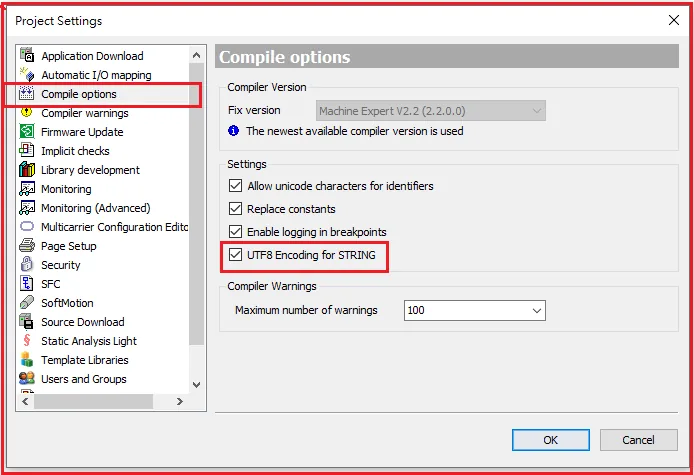
NOTE 6: Support UTF8 Encoding for STRING. Enable this in Machine Expert under Project Settings → Compile options → UTF8 Encoding for STRING.
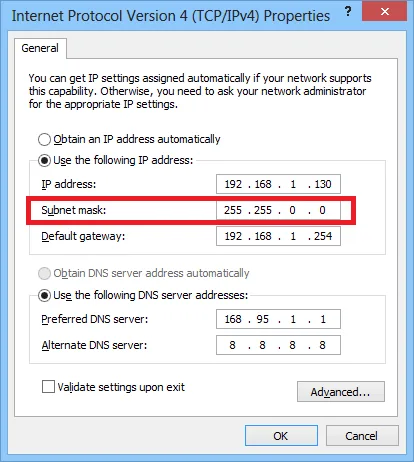
How to Use Subnet Mask 255.255.0.0
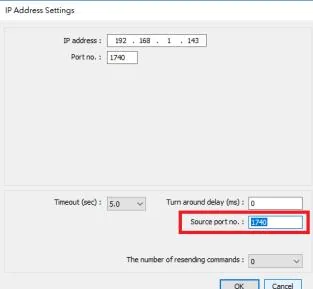
- Confirm that the subnet mask of the network environment is 255.255.0.0 for both the PC/HMI and the PLC.
2. Set the Source port no. to 1740.
EasyAccess 2.0 PassThrough
How to use Schneider SoMachine / Machine Expert for EasyAccess 2.0 PassThrough:
- Use Nodename via NAT (Remote TCP). Enter the actual PLC IP address and Port
1105in the NAT Address field.

2. Click the refresh button.

3. After reading the device list, click the device on the list.
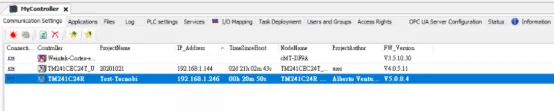
4. Select the machine found, enter the nodename, then go online and log in.
Wiring Diagram
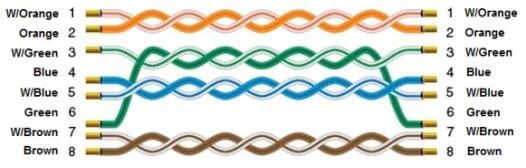
NOTE: Use a standard Ethernet (RJ-45) straight-through cable.
The diagram below shows the Ethernet cable wiring.