Introduction
All Maple Systems HMI Touch Screens programmed with EBPro (EasyBuilder Pro), including every cMT X Series and cMT Series model, are compatible with Beckhoff TwinCAT 3 ADS/AMS (Ethernet). Configure your Controller and HMI/cMT with the following parameters to establish reliable communication.
Supported Series: CX8000,CX90x0,CX1010,CP62xx,CX5010,CP62xx,CX1020,CX2020,CPxxxx,C6920,CX2030,CPxxxx,CP6930,CX2040,C65xx,C69xx
Website: infosys.beckhoff.com
HMI Settings
| Parameters | Recommended | Options | Notes |
|---|---|---|---|
| PLC type | Beckhoff TwinCAT 3 ADS/AMS (Ethernet) | ||
| PLC I/F | Ethernet | ||
| Port no. | 48898 | ||
| ADS port | 851 | 851, 852, 853, 854 |
Device Address
| Bit/Word | Device | Format | Range | Memo |
|---|---|---|---|---|
| B | IX | DDDDDdd | 0 ~ 6553515 | *Note |
| B | QX | DDDDDdd | 0 ~ 6553515 | *Note |
| B | MX | DDDDDdd | 0 ~ 6553515 | |
| B | IX_Bit | DDDDDo | 0 ~ 65537 | *Note |
| B | QX_Bit | DDDDDo | 0 ~ 65537 | *Note |
| B | MX_Bit | DDDDDo | 0 ~ 65537 | |
| W | IW | OOOOOO | 0 ~ 65535 | *Note |
| W | QW | DDDDD | 0 ~ 65535 | *Note |
| W | MW | DDDDD | 0 ~ 65535 | |
| W | ID | DDDDD | 0 ~ 65535 | *Note |
| W | QD | DDDDD | 0 ~ 65535 | *Note |
| W | MD | DDDDD | 0 ~ 65535 |
NOTE: The I addresses and Q addresses are mapped to M addresses. To use I addresses or Q addresses, please use Beckhoff TwinCAT PLC – Free Tag Names (Ethernet) driver instead.
TwinCAT 3 PLC Settings
To connect Beckhoff devices, HMI’s information must be registered to PLC first. The following steps describe how to register HMI’s information into Beckhoff devices.
-
Choose Target System Device
Double click [SYSTEM], and then select [Choose Target System]. Select the device you are connecting.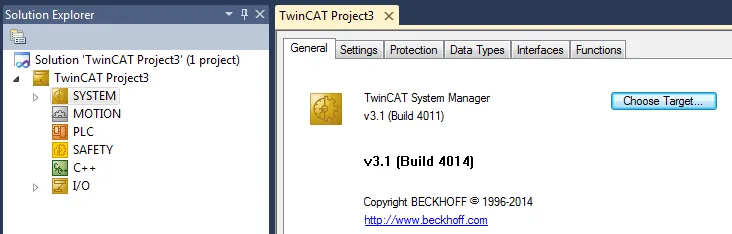
-
Add HMI Route Information
Expand the SYSTEM layer, select [Routes]. Click [Add] to add HMI information as below.n- Name: A user-defined namen- AMS Net ID: must be HMI’s IP address + u0022.1.1u0022n- Transport Type: TCP_IPn- Address: HMI’s IP address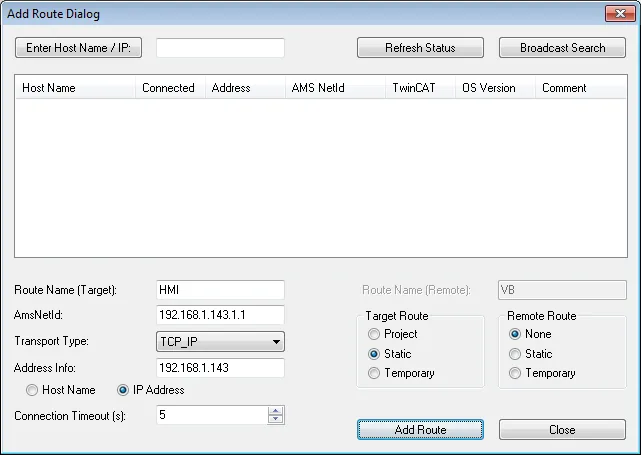
-
Verify and Apply Route Configuration
If added successfully, you will see a new item in Remote Computers. Click [Apply] to apply the configuration.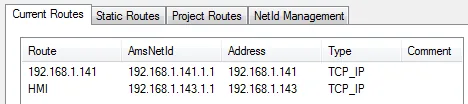
-
Activate TwinCAT Configuration Settings
Select [TwinCAT] menu, and then select [Activate Configuration] to apply the new settings.
Wiring Diagram
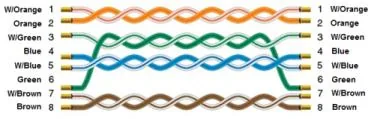
The diagram below shows the Ethernet cable wiring.