
Not long at all, it super quick and easy:
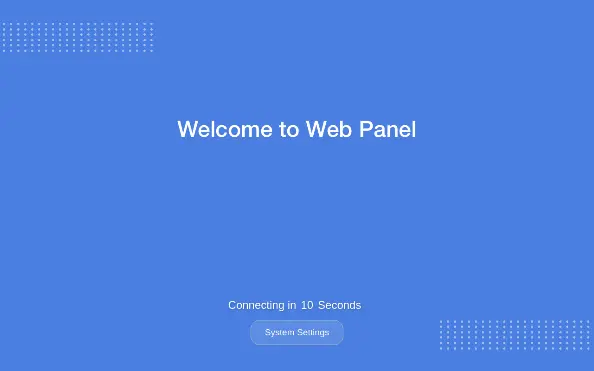
After powering on the HMI, a countdown screen will be displayed. If no action is taken within the countdown period, the screen redirects to the designated Default Website.
Click the [System Settings] button and enter the system password (default: 111111, if not try m1111111) to access the system settings menu. Here, configure the Web Browser, Network, change the system password and adjust any other settings to your preference.
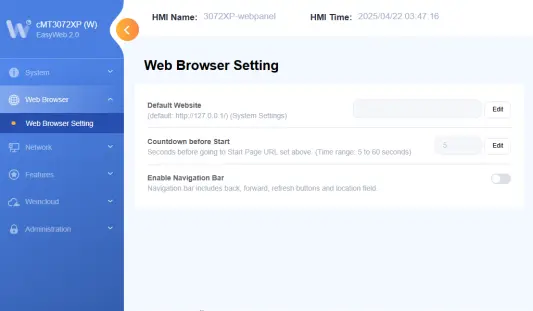
The built-in browser will browse to the default website after seconds defined in [Countdown before Start] setting. To change the default website and countdown time, open the [Web Browser Setting] tab.
Increase the countdown time if the web server starts slower than the browser.
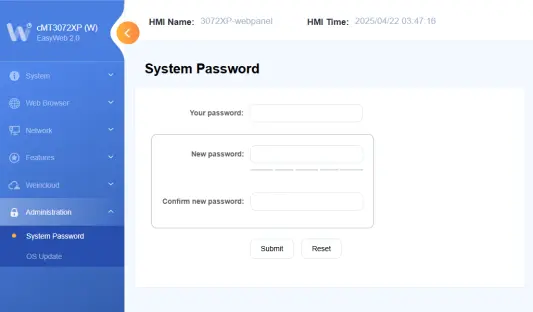
To change the system password, open the [Administration] tab. Enter the current password, then the new password, and confirm the new password to complete the update.
Products
Manuals & Guides
Video
Technical Articles
- 9 Things to Consider when Choosing a Web HMI
- What is a Web HMI
- What is a SCADA System and How Does it Work
- Remote Desktop with Web HMI, Raspberry Pi, and noVNC
- Everything You Need to Know about HMIs
- How to use CODESYS WebVisu on WEB HMIs
- Cleaner control and monitoring with Maple Systems cMT Web HMIs
- Connecting a Maple Systems Web HMI to an Arduino Web Server
Need more support