This outlines basic VNC and WebView settings for access, security, users, and control behavior.
VNC Settings
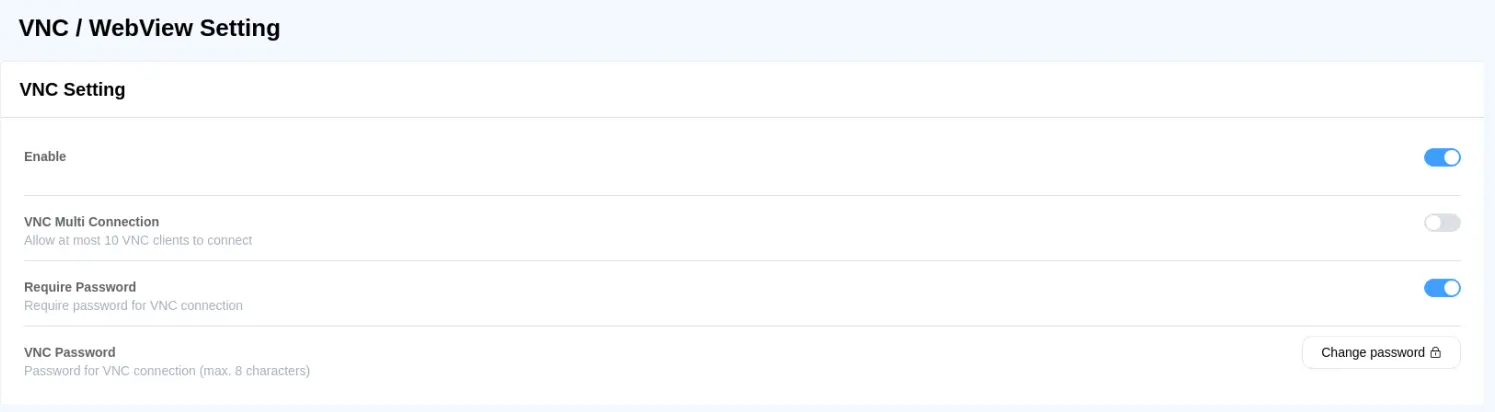
| Setting | Description |
| Enable | When enabled, VNC clients are allowed to connect and interact with the screen. |
| VNC Multi Connection | When enabled, up to 3 VNC clients can connect simultaneously. |
| Require Password | When enabled, a password must be used to log in to the VNC function. |
| VNC Password | Configure and modify the VNC login password. |
WebView General Settings
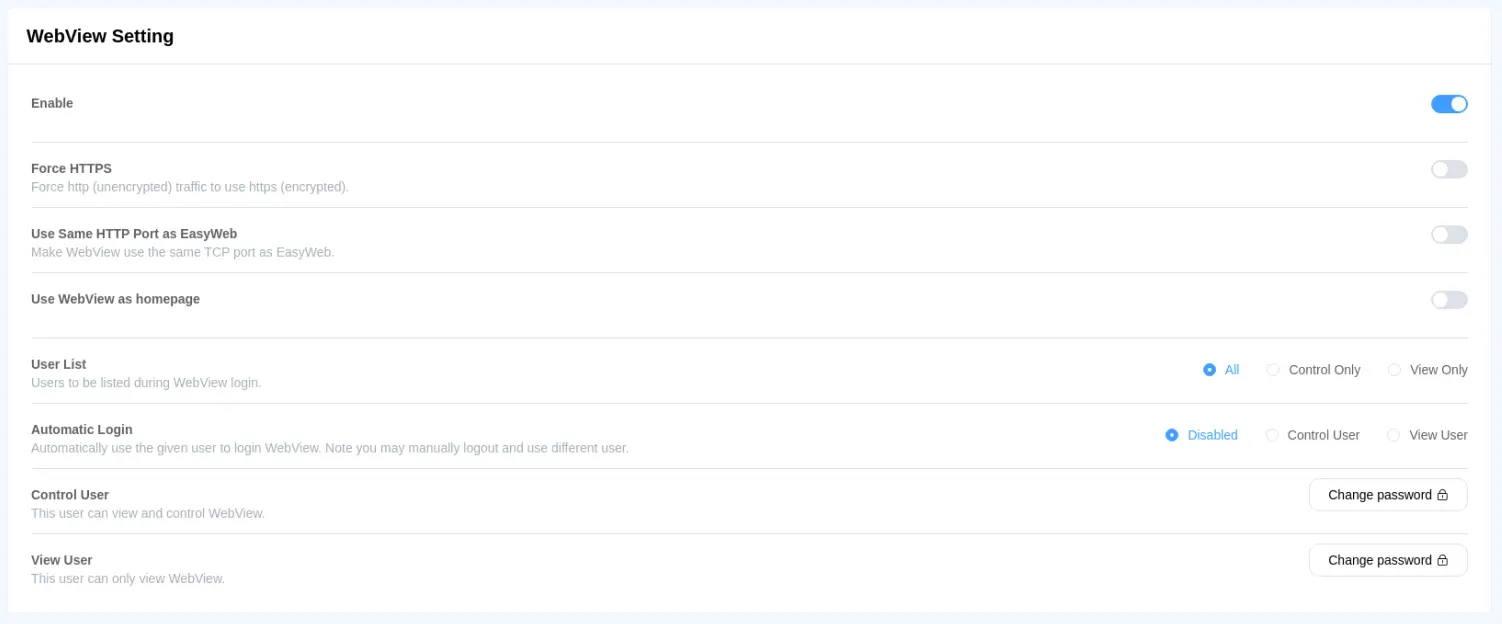
| Setting | Description |
| Enable | When enabled, VNC clients are allowed to connect and interact with the screen. |
| Force HTTPS | When enabled, the WebView page will be forced to use the HTTPS protocol. |
| Use Same HTTP Port as EasyWeb | When enabled, the WebView page will connect to the VNC server on port 80 when using HTTP. |
| Use WebView as home page | When enabled, entering the IP address in the browser will directly access the WebView page. |
| User List | Select the user to log in to WebView. |
| Automatic Login | Automatically log in to WebView using the selected user. Note that users can log out manually and log in with a different user. |
| Control User | This user can view and control WebView. The login password can be modified. |
| View User | This user can only view WebView. The login password can be modified. |
Timeout Settings

| Setting | Description |
| Enable Timeout | When enabled, WebView will close according to the idle timeout settings. |
| Idle Timeout (minutes) | Set the duration for the idle timeout. |
VNC/WebView Interlock

| Setting | Description |
| Enable | Enable the screen lock function. Users of the cMT Web HMI / VNC / WebView will not be affected by each other. |
| Timeout (seconds) | Set the timeout duration. After this period, control will be released, allowing the next client in line to gain control. |
| Status Bar Style | Regular or Minimal (refer to screenshot above for visual) |
