This outlines the administrative functions such as changing system passwords, updating the OS, and restoring factory settings, along with methods for safely performing OS updates.
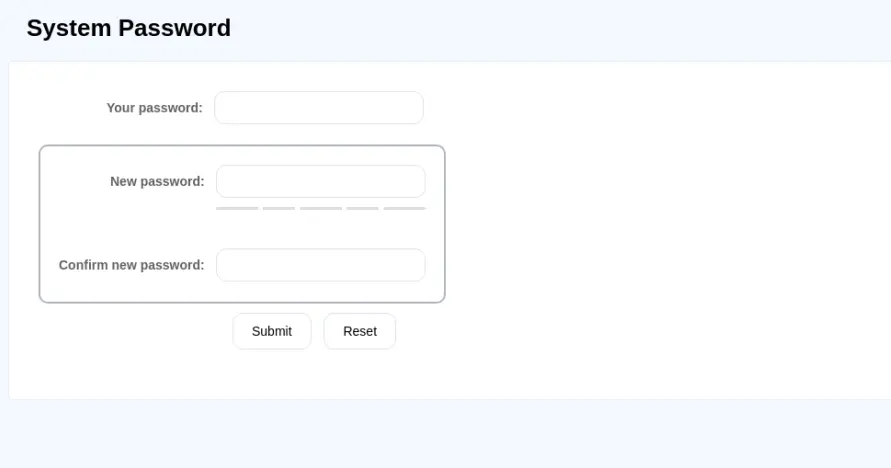
System Password
Modify the login password for the system settings pages.
Navigate to Administration > System Password
Updating the OS
Navigate to Administration > OS Update
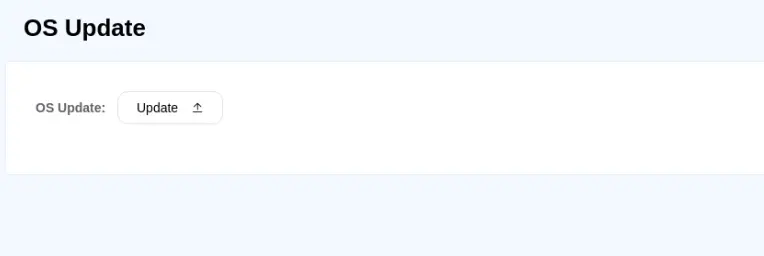
The OS version on the cMT Web HMI can be updated via Ethernet or USB drive.
Please note that OS update failures can render the cMT Web HMI unusable, so care must be taken during the update. Ensure a stable power supply throughout the process.
Updating via EasyAccess 2.0:
- Open a web browser (Windows Edge, Chrome, Firefox) and enter the IP address of the cMT Web HMI (e.g., 192.168.255.119). Enter the password on the login page to access the settings.
- Under the Administrator tab, find and open the OS Update tab.
- Click Update, select the OS file, and then click Update to start the process.
Updating via USB Drive:
- Place the OS file (.bin) onto a USB drive and insert it into the cMT Web HMI.
- Enter the password on the login page to access the settings.
- Under the Administrator tab, find and open the OS Update tab.
- Tap Update, select the OS file in the USB drive, then tap Update to start the process.
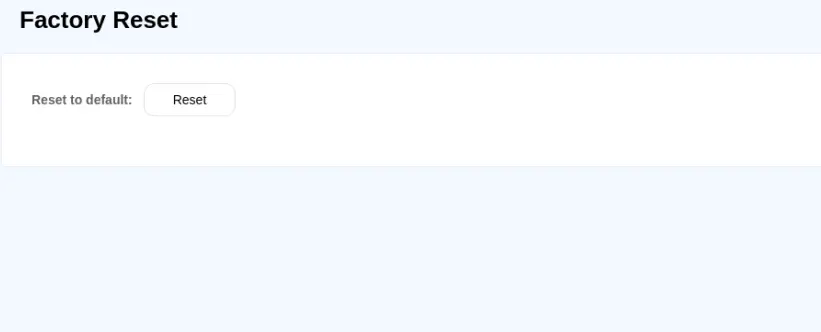
Restore Factory Default
Reset the web browser and all local settings to restore them to factory default values. This can only be performed on the HTML Web Panel.
Navigate to Administration > Factory Reset