
Getting Started
Unpacking the Unit
Carefully unpack the Industrial Panel PC. Check all material in the container against the packing list. Maple Systems will not accept responsibility for shortages against the packing list unless notified within 30 days. The equipment and accessories were inspected and tested by Maple Systems before shipment.
Examine the equipment carefully; if any shipping damage is evident, notify the carrier immediately. Maple Systems is not responsible for claim negotiations with the carrier.
Save the shipping container and packing material in case the equipment needs to be stored, returned to Maple Systems, or transported for any reason.
| Packing List: AEx-800 Series |
|---|
| AEx-800 Series Industrial Panel PC |
| DC Power Cable (M12 to leads – 5’ and 15’) |
| I/O Cables: USB 2.0 Cable (M12 to 2x USB 2.0 Type A, 10’) VGA Cable (M12 to VGA, 10’) Ethernet Cable x2 (M12 to RJ45 Ethernet, 10’) Serial Cable (M12 to DE9, 10’) |
| Warranty Statement Insert |
Safety Precautions
Please observe the following precautions when installing the Industrial Panel PC Series. Failure to comply with these restrictions could result in loss of life, serious personal injury, or equipment damage.

Warning: Disconnect this equipment from any power before cleaning. Do not use liquid or spray detergents for cleaning. Use a damp cloth.
Warning: Keep this equipment away from humidity.
Warning: Before applying power the unit make sure the voltage of the power source is within the input voltage rating of the unit.
Operating the unit outside of this voltage specification can damage the unit and void your Warranty.
Warning: Never open the equipment and do not operate equipment with its heatsink cover removed- there are dangerous high voltages present inside. For safety reasons, the equipment should be opened only by a qualified service technician.
Warning: This equipment generates, uses and can radiate radio frequency energy and if not installed and used in accordance with the instruction’s manual, it may cause interference to radio communications. It has been tested and found to comply with the limits for a Class A computing device pursuant to FCC Rules, which are designed to provide reasonable protection against such interference when operated in a commercial environment. Operation of this equipment in a residential area is likely to cause interference in which case the user at his own expense will be required to take whatever measures may be required to correct the interference.
Warning: If any of the following situations arise, get the equipment checked by qualified service personnel.
- The power cord or plug is damaged.
- Liquid has penetrated into the equipment.
- The equipment has been exposed to moisture.
- The equipment does not work well, or you cannot get it to work according to this operations manual.
- The equipment has been dropped and damaged.
- The equipment has obvious signs of breakage.
Warning: Risk of explosion if the battery is replaced with an incorrect type.
Batteries should be recycled where possible. Disposal of used batteries must be in accordance with local environmental regulations.
Warning: Do not leave this equipment in an uncontrolled environment where the storage temperature is below -30°C (-22°F) or above 70°C (158°F). It may damage the equipment.
Overview
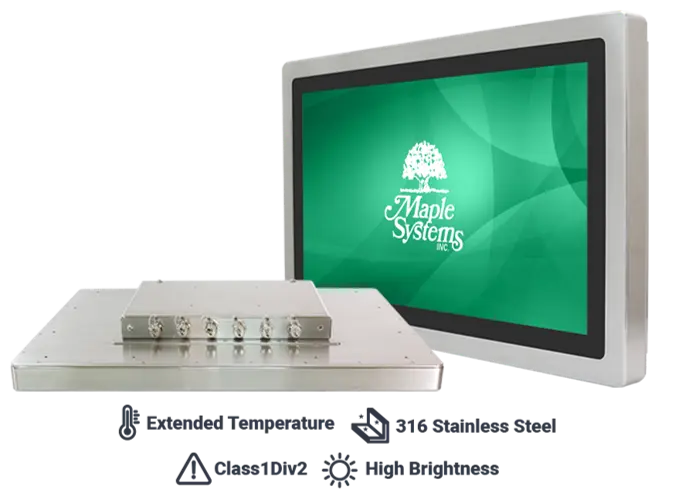
The AEx-800 Series Industrial Projected Capacitive Panel PC is available in 15.0” and 19.0” screen sizes. The AEx-800 Series Panel PCs are constructed of 316 Stainless Steel and are ideal for use in hazardous locations thanks to their CSA Class I, Division 2, Class II Division 2, Class III, and ATEX/IECEx Zone 2, Zone 22 certifications.
AEx-800 Series Panel PCs are powered by Intel® Celeron™ N2900 Quad-Core Processors, running at 1.83GHz. They come with 8GB of onboard DDR3L 1333MHz RAM, and have both a 128GB 2.5” MLC SATA III SSD as well as a 64GB mSATA MLC SSD.
The AEx-800 Series Panel PCs are IP66 rated and can operate in extended temperature (-20~60°C) environments, as well as locations where high brightness is a requirement. AEx-800 Series Panel PCs feature high brightness, sunlight readable displays (1000 Nits) via their optically bonded construction.
The AEx-800 Series feature Projected Capacitive Touch Screens, which allow for a more natural, intuitive user touch experience compared to traditional analog-resistive touch screen terminals. Benefits of projected capacitive touchscreens include multi-touch response (pinch and zoom functionality) and personal tablet-like operation. Finally, projected capacitive touchscreens do not require calibration.
I/O Ports and Cables
The below section provides information on the I/O connectors and cables for your AEx-800 Series Panel PC. All connections at the PC are M12 style; M12 connections are durable, rugged, and carry an IP67 rating against dust and water intrusion. AEx-800 Series Panel PCs come with one of each of the below cables (unless specified otherwise).
Power Input (9-36 VDC)
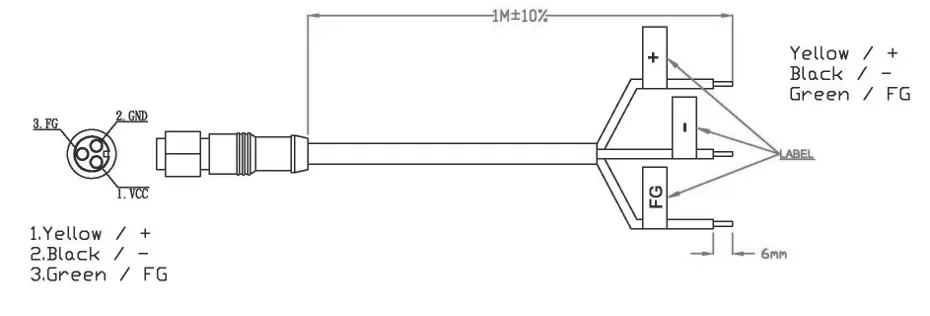
Your AEx-800 Series Panel PC comes with both a 1M (~3’, p/n 7431-0134) as well as a 5M (~15’) DC power input cable (p/n 7431-0129). 3’ DC power cable drawing shown above.
VGA
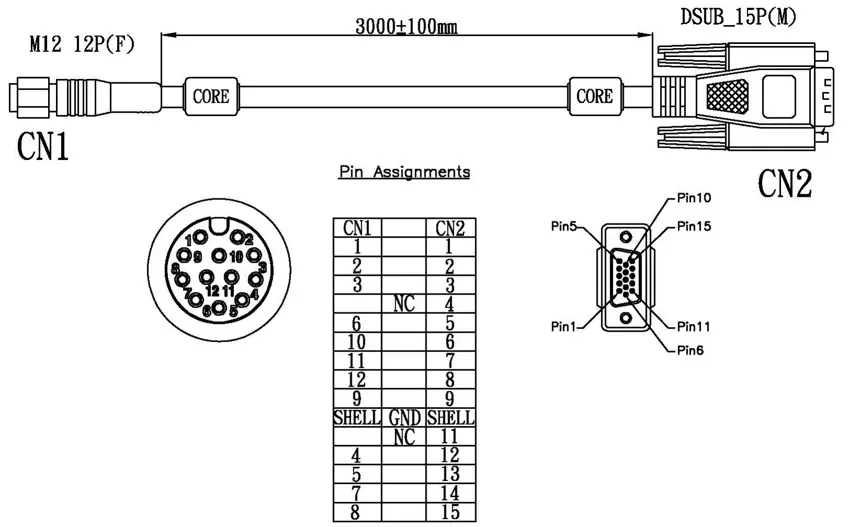
VGA cable allows for connection to an external monitor, enabling the AEx-800 Series Panel PC to output video signals to any VGA-equipped device.
USB
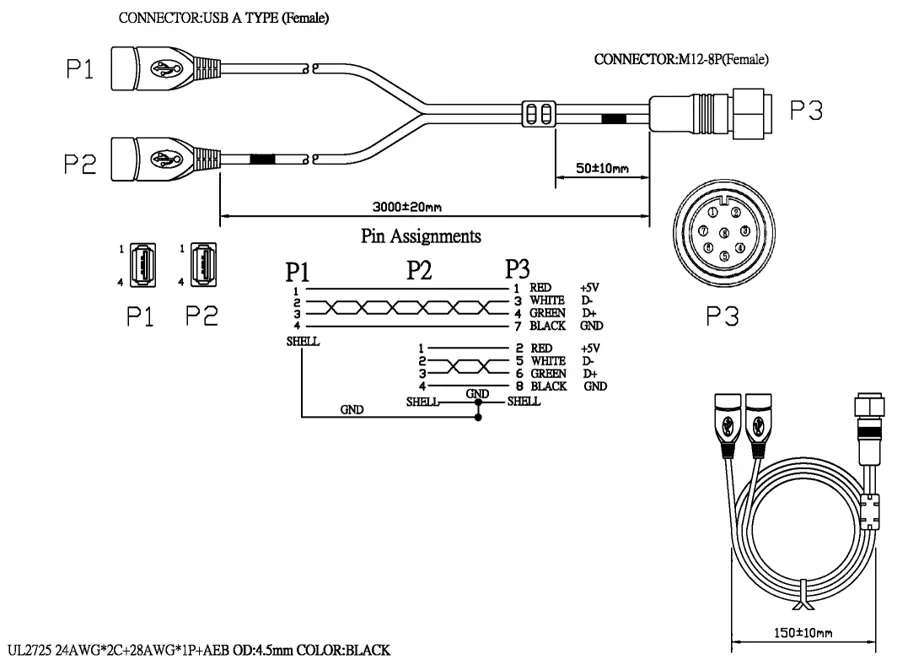
USB 2.0 Y-Style cable allows for two independent USB 2.0 devices to be plugged into your AEx-800 Series unit. Examples include keyboard, mouse, or USB Storage device.
RJ45 LAN (2 qty)
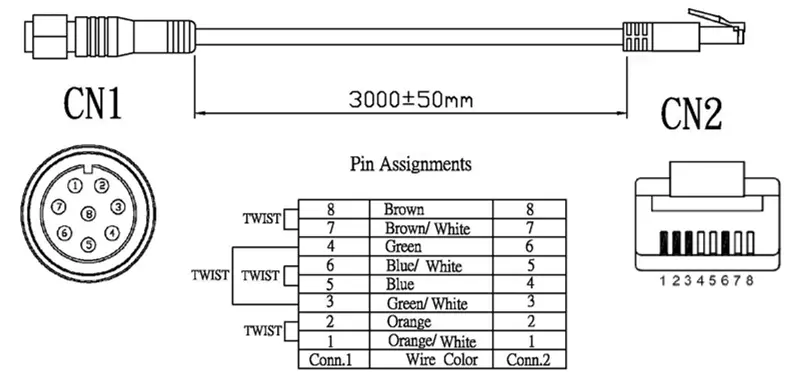
M-12 to RJ45 connection cables provide standard RJ45 Ethernet connectivity for the AEx-800 Series Panel PC. There are 2 of these cables, which allows the AEx-800 Series to simultaneously connect to two different networks.
Serial
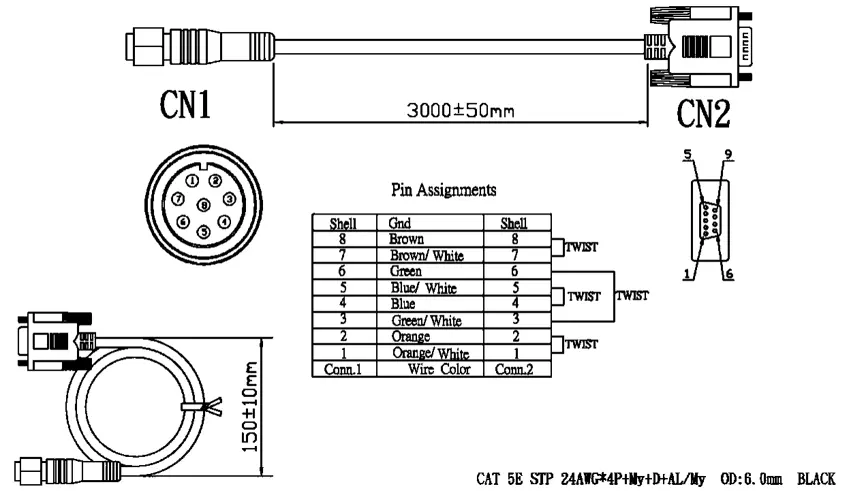
M-12 to DE9 cables allow for serial communication with the AEx-800 Series Panel PC.
Mounting Options
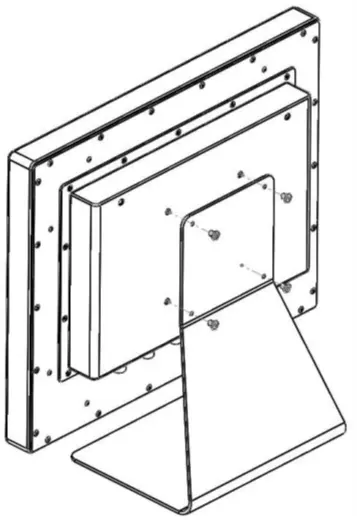
The AEx-800 Series offer VESA mounting as an option. VESA 100 x 100mm threaded inserts are located on the rear of the unit. Use M4 threaded mounting screws included with the VESA mounting hardware to mount the AEx-800 Series as illustrated in the figure below.
Use mounting hardware suitable for your intended application; Maple Systems is not responsible for damage to unit, mounting surface, or to other components caused by improper mounting.
BIOS Configuration Options
The BIOS (Basic Input/Output System) installed in the ROM of your AEx-800 Series supports Intel® processors. The BIOS provides critical low-level support for standard devices such as disk drives and serial ports. The BIOS also provides a Setup utility program that allows the user to specify system configuration and setting options.
Warning: Changing settings or configurations within the BIOS of your Panel PC can adversely impact the operation of your unit if incorrectly performed.
Maple Systems provides the below instructions solely for the operations specified, and is not responsible for improper unit operation caused by changing settings or entries other than those explicitly listed below.
How to set COM Port Configuration
Follow these steps to set the COM Port configiration of your Panel PC.
Instructions: How to set COM Port Configuration
Enter the BIOS Setup Utility
Enter the BIOS Setup Utility by pressing [Delete] key during POST.
The Main menu containing the system summary information will appear.
Enter the SuperIO Configuration menu
Navigate to the Advanced Tab and then enter the F81216SEC Super IO Configuration Menu.Select Serial Port 1 Configuration
Select RS-232, RS-485, or RS-422 from the UART1 Mode Selection submenu of the Serial Port 1 Configuration menu.
Hit Enter to change the mode accordingly.
Save and Exit BIOS
Hit the F4 key to Save your changes and exit the BIOS.
Technical Resources and Troubleshooting
Driver Installation
Your AEx-800 Series Panel PC comes with all necessary drivers pre-installed. As such, driver installation is not normally needed. If you think you need to re-install drivers, contact your Maple Systems Sales Engineer for instructions.
Windows Operating System Reinstallation
In the unlikely event of a system failure requiring reinstallation of the Windows Operating System, contact your Maple Systems Sales Engineer for instructions. You will need to re-activate Windows using the Product Key located on the rear panel of your unit, adjacent to the product label.
If you wish to update your Windows Operating System, simply connect the AEx-800 Series unit to the Internet and run the Windows Update utility.
AEx-800 Series units do not come with an OS Recovery DVD. In the extremely unlikely event the Windows OS needs to be reinstalled, contact your Maple Systems Sales Engineer for instructions.
Windows 10 Enterprise LTSC
Windows 10 IoT Enterprise LTSC is a full Professional version of Windows 10, available on all AEx-800 models. This powerful operating system delivers enterprise manageability and security to IoT solutions. Additionally, all the features and functionality that customers expect to find on their desktop PC are available in this version. The Long Term Servicing Channel (LTSC) version ensures long term stability that critical production systems require by updating only necessary operating system components, with significantly fewer update interruptions.