Introduction
All Maple Systems HMIs programmed with EBPro (EasyBuilder Pro), including every cMT X Series and cMT Series model, are compatible with VIPA 300S (Ethernet). Configure your Controller and HMI/cMT with the following parameters to establish reliable communication.
HMI Settings
| Parameters | Recommended | Options | Notes |
|---|---|---|---|
| PLC type | VIPA 300S (Ethernet) (Siemens) | ||
| PLC I/F | Ethernet | ||
| Port no. | 102 | ||
| PLC sta. no. | 1 | 0–31 |
Device Address
| Bit/Word | Device type | Format | Range | Memo |
|---|---|---|---|---|
| B | I | DDDDo | 0 ~ 40957 | Input (I) |
| B | Q | DDDDo | 0 ~ 40957 | Output (O) |
| B | M | DDDDo | 0 ~ 40957 | Bit Memory |
| B | DBnBit | FFFFFDDDDo | 0 ~ 6553599997 | |
| B | DBxBit | FFFFFDDDDDo | 0 ~ 10700655357 | |
| B | DB0Bit–DB99Bit | DDDDDo | 0 ~ 655357 | Data Register Bit |
| W | IW | DDDD | 0 ~ 4095 | Input (I) |
| W | QW | DDDD | 0 ~ 4095 | Output (O) |
| Byte | MB | DDDD | 0 ~ 4095 | Bit Memory Byte |
| W | MW | DDDD | 0 ~ 4095 | Bit Memory |
| DW | MD | DDDD | 0 ~ 4094 | |
| Byte | DBBn | FFFFFDDDD | 0 ~ 655359999 | |
| Byte | DBBx | FFFFFDDDDD | 0 ~ 1070065535 | |
| W | DBn | FFFFFDDDD | 0 ~ 655359999 | Data Register (must be even) |
| W | DBx | FFFFFDDDDD | 0 ~ 1070065535 | Data Register (must be even) |
| DW | DBDn | FFFFFDDDD | 0 ~ 655359999 | Data Register Double Word (must be multiple of 4) |
| DW | DBDx | FFFFFDDDDD | 0 ~ 1070065535 | Data Register Double Word (must be multiple of 4) |
| W | DBn_String | FFFFFDDDD | 0 ~ 655359999 | |
| W | DBx_String | FFFFFDDDDD | 0 ~ 1070065535 | |
| W | DBn_String1 | FFFFDDDD | 0 ~ 40969999 | |
| W | DBx_String1 | FFFFFDDDDD | 0 ~ 1070065535 | |
| DW | DBDn_String | FFFFFDDDD | 0 ~ 655359999 | |
| DW | DBDx_String | FFFFFDDDDD | 0 ~ 1070065535 | |
| W | DB0–DB99 | DDDDD | 0 ~ 65535 | Data Register |
NOTE: Double word and floating point value must use DBDn device type.
EBPro (EasyBuilder) Device Setting Steps
Open EBPro (EasyBuilder) and Create New Project
Open EBPro (EasyBuilder), select File u0026gt; New, choose your HMI model, and press OK.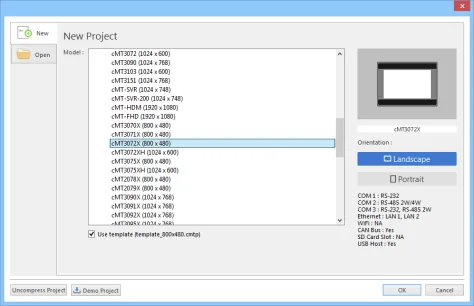
Open System Parameter Settings
The System Parameter Settings window appears. Click New Device/Server.Select VIPA 300S Ethernet Device
In the Device Properties dialog, set the manufacturer filter to VIPA GmbH, then select VIPA 300S (Ethernet) from the list.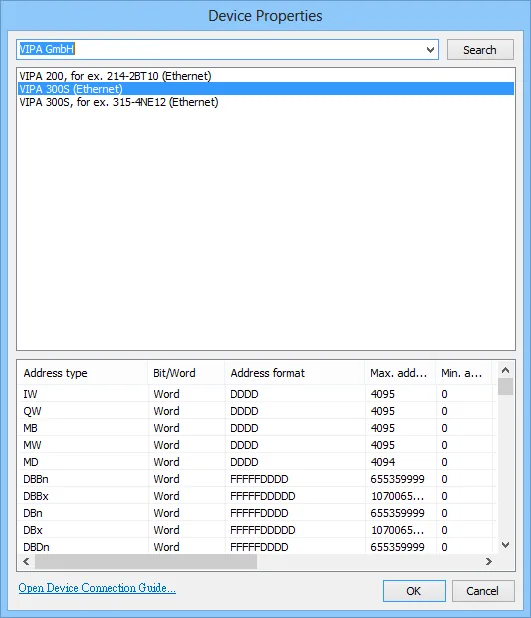
Open IP Address Settings
Press Settings to configure the network connection.Set IP Address and Port Number
Enter the PLC IP address and set the Port no. to 102, then click OK.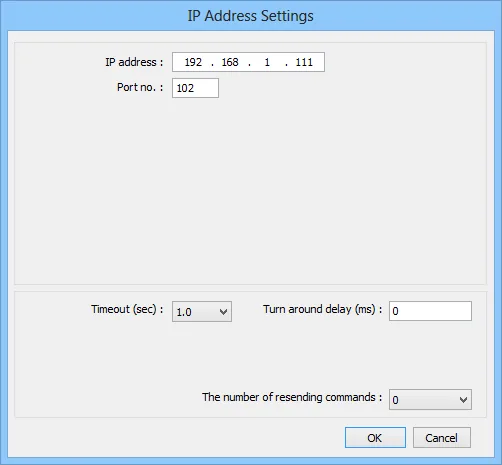
Confirm Device Settings
The Device Settings dialog confirms the completed configuration with device type VIPA 300S (Ethernet), interface set to Ethernet, and the IP address and port displayed.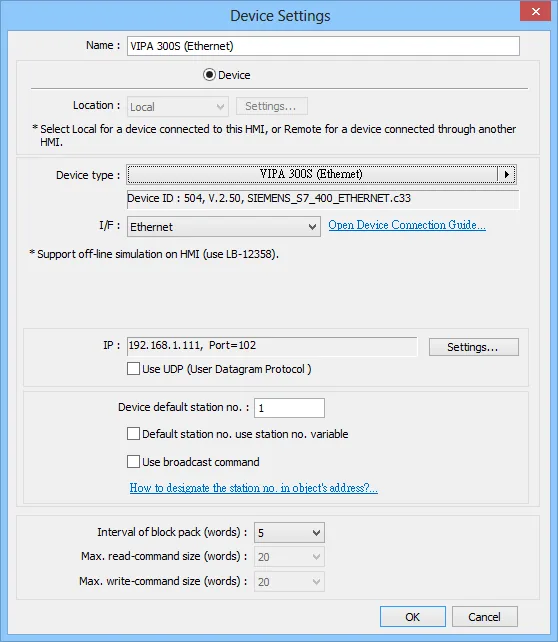
How to Import Tag
SIEMENS STEP 7 allows building user-defined tag files (*.dif and *.AWL) that can be imported into EasyBuilderPro via System Parameter Settings. The following describes how to build and import both file types.
Building a *.dif File
Create User-Defined Tags in Symbols
In SIMATIC Manager, open Symbols and create your user-defined tags in the Symbol Editor.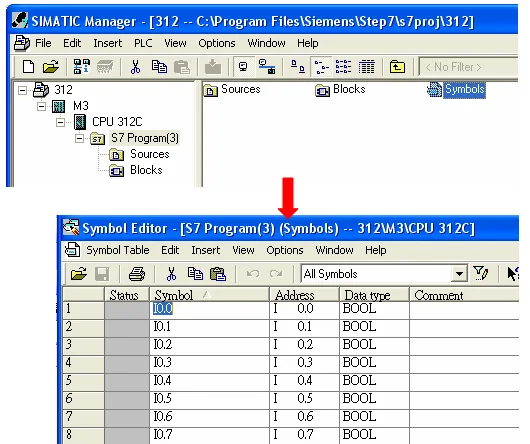
Export the Symbols as DIF File
In the Symbol Table, go to Symbol Table u0026gt; Export, choose a save location, enter a filename (e.g.PLC_Tag.dif), set the file type to *Data Interchange Format (.DIF), and click Save**.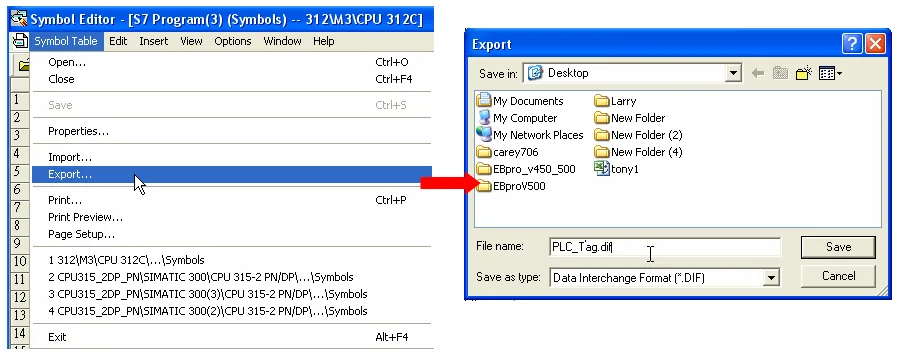
Building a *.AWL File
Create Data Blocks in SIMATIC Manager
In Blocks, create the required DB items. The blocks list shows all defined data blocks (DB1, DB2, DB3, etc.).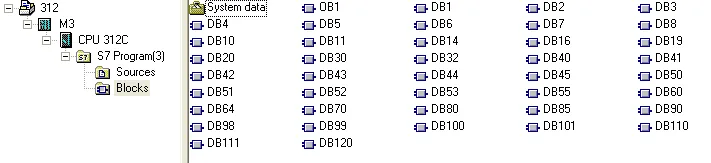
Open Generate Source in LAD/STL/FBD
From the Windows Start menu, open LAD, STL, FBD – Programming S7 Blocks, then click File u0026gt; Generate Source.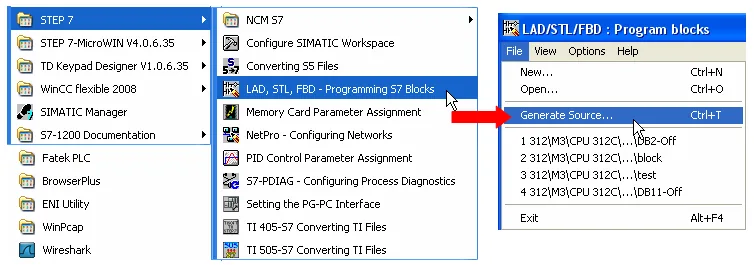
Set Sources Storage Path and Object Name
In the New dialog, select Sources as the storage path and specify a filename (e.g.Object_Tag), then click OK.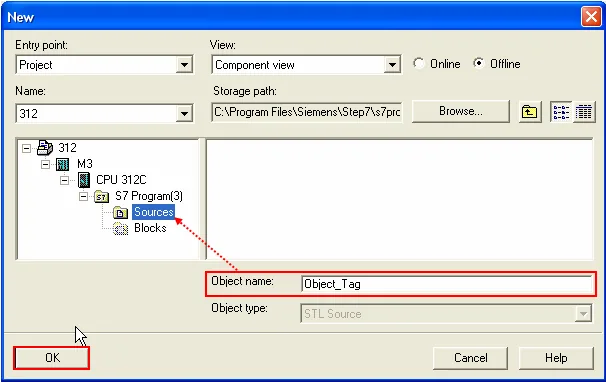
Select Data Blocks to Export
In the Generate Source dialog, move the desired blocks from the Blocks Not Selected list to the Blocks Selected list, then click OK.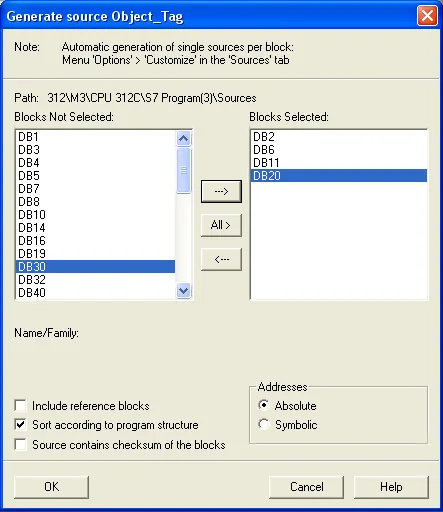
Export Source to Build AWL File
In SIMATIC Manager, under Sources, right-click the saved object and select Export Source. In the save dialog, specify the filename and click Save.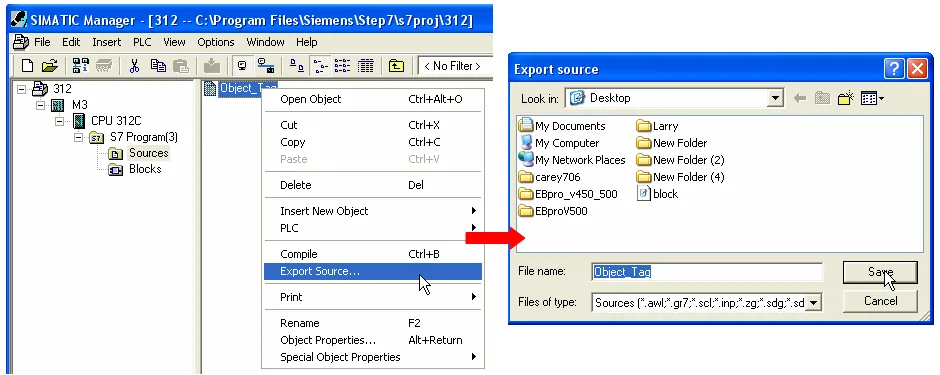
The generated *.DIF/*.S7P and *.AWL files can be imported in EasyBuilderPro System Parameter Settings by clicking Import Tag.
Import Tags in EBPro (EasyBuilderPro)
Open Import Tag in System Parameter Settings
In EBPro (EasyBuilderPro), open System Parameter Settings and click Input Tags.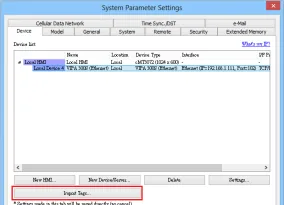
Specify DIF and AWL Files to Import
In the Import Address Tag dialog, enable Import DIF/S7P file and Import AWL file, browse to the respective files, and click Import.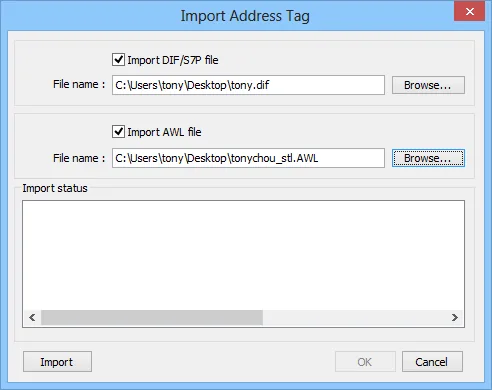
Select Tags to Import
The Add Tags dialog lists all available address tags. Select the tags to import and click OK.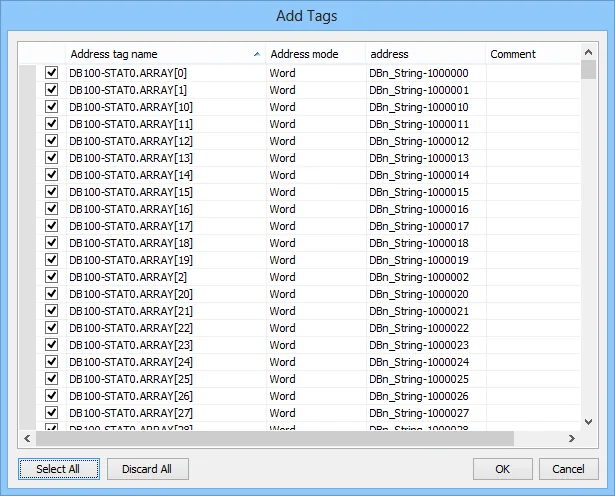
Confirm Successful Tag Import
EBPro (EasyBuilderPro) displays a confirmation dialog: Imported tag information successfully.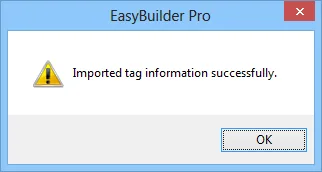
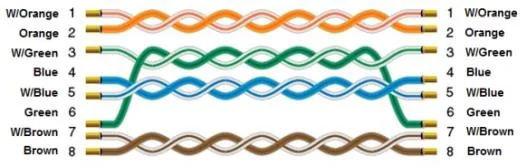
Wiring Diagram
The diagram below shows the Ethernet cable wiring.