
Introduction
All Maple Systems HMI Displays programmed with EBPro (EasyBuilder Pro), including every cMT X Series and cMT Series model, are compatible with Siemens S7-200 PPI. Configure your Controller and HMI/cMT with the following parameters to establish reliable communication.
Supported Series: Siemens S7-200 series PLC (CPU212/214/215/216/221/222/224/226/226XM)
Website: www.siemens.com
HMI Settings
| Parameters | Recommended | Options | Notes |
|---|---|---|---|
| PLC type | SIEMENS S7-200 PPI | ||
| PLC I/F | RS485 2W | RS485 2W | |
| Baud rate | 9600 | 9600, 19200, 187.5K | Only MT6000/8000V2 support baud rate 187.5K |
| Data bits | 8 | 7, 8 | |
| Parity | Even | Even, Odd, None | |
| Stop bits | 1 | 1, 2 | |
| Turn around delay | 5 | ||
| ACK delay time (ms) | 30 | ||
| PLC sta. no. | 2 | 1 ~ 126 | |
| Online simulator | YES | ||
| Extend address mode | YES | ||
| Broadcast command | NO |
PLC Settings
PLC sta. no. cannot be the same as HMI sta. no.
Device Addresses
| Bit/Word | Device Type | Format | Range | Memo |
|---|---|---|---|---|
| B | I | DDDDo | 0 ~ 40957 | Input (I) |
| B | Q | DDDDo | 0 ~ 40957 | Output (O) |
| B | M | DDDDo | 0 ~ 40957 | Bit Memory |
| B | VW_Bit | DDDDDo | 0 ~ 102397 | V Memory Bit Address |
| B | S | DDDDo | 0 ~ 40957 | SCR |
| B | SM | DDDDo | 0 ~ 40957 | Special Memory |
| B | T_Bit | DDD | 0 ~ 255 | Timer |
| B | C_Bit | DDD | 0 ~ 255 | Counter |
| Byte | VB | DDDDD | 0 ~ 10239 | |
| W | VW | DDDDD | 0 ~ 10239 | V Memory |
| W | VW_Odd | DDDDD | 0 ~ 10239 | V Memory |
| W | VW_String | DDDDD | 0 ~ 10239 | String |
| W | VW_String_Odd | DDDDD | 0 ~ 10239 | String |
| DW | VD | DDDDD | 0 ~ 10239 | V Memory Double Word |
| DW | VD_Odd | DDDDD | 0 ~ 10239 | V Memory Double Word |
| DW | VD_String | DDDDD | 0 ~ 10239 | String |
| DW | VD_String_Odd | DDDDD | 0 ~ 10239 | String |
| Byte | MB | DDDDD | 0 ~ 10239 | Byte Memory |
| W | MW | DDDDD | 0 ~ 10239 | Word Memory |
| W | MW_Odd | DDDDD | 0 ~ 10239 | Word Memory |
| DW | MD | DDDDD | 0 ~ 10239 | Word Memory |
| Byte | SB | DDDDD | 0 ~ 10239 | SCR |
| W | SW | DDDDD | 0 ~ 10239 | SCR |
| DW | SD | DDDDD | 0 ~ 10239 | SCR |
| Byte | SMB | DDDDD | 0 ~ 10239 | Special Memory |
| W | SMW | DDDDD | 0 ~ 10239 | Special Memory |
| DW | SMD | DDDDD | 0 ~ 10239 | Special Memory |
| W | T | DDD | 0 ~ 255 | Timer |
| W | C | DDD | 0 ~ 255 | Counter |
| W | TIME_OF_DAY | D | 0 ~ 7 | Time of day (HEX) *Note1 |
Double Word and floating point value must use VD device type.
NOTE: *Note1: TIME_OF_DAY address description is as follows:
| Address | Description | Value Range |
|---|---|---|
| 0 | Year | 0 ~ 99 |
| 1 | Month | 1 ~ 12 |
| 2 | Day | 1 ~ 31 |
| 3 | Hour | 0 ~ 23 |
| 4 | Minute | 0 ~ 59 |
| 5 | Second | 0 ~ 59 |
| 6 | Sec_10_100 | 0 |
| 7 | Weekday | 0: Disable, 1: Sunday, 2: Monday, 3: Thursday, 4: Wednesday, 5: Thursday, 6: Friday, 7: Saturday |
Multi-HMI Multi-PLC Communication Settings
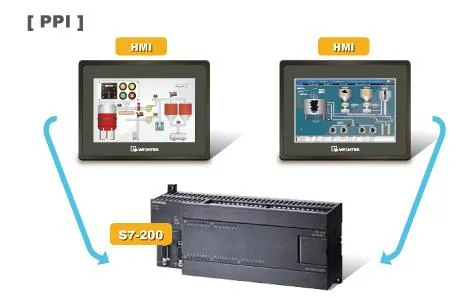
For S7-200 PLC, Multi-HMIs-Multi-PLCs communication can be achieved using the S7-200 PPI driver. Refer to the settings below.
In EBPro (EasyBuilder) COM Port Settings, two important parameters must be set:
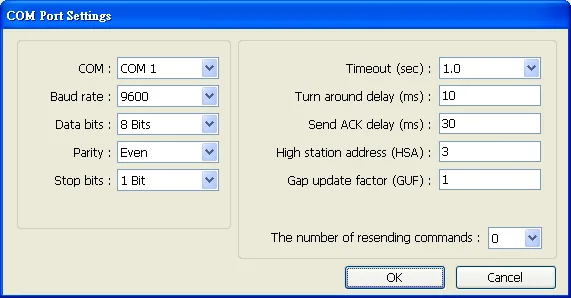
High Station Address (HSA)
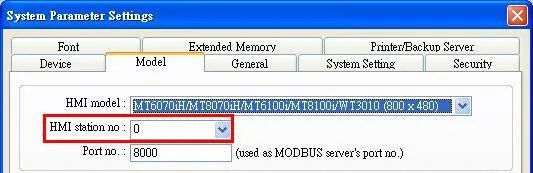
Sets the maximum station number of HMI units in the PPI network. For the effectiveness of system operation, it is highly recommended that the HMI station number starts from zero and goes on sequentially. If there are 4 HMIs in the PPI network, set station numbers from 0–3 and set High station address (HSA) to 3.
Set the HMI station number in System Parameters > Model > HMI station no.:
Gap Update Factor (GUF)
The condition to pass a Token. In a PPI network, only HMIs can hold a Token; PLCs can only be controlled.
When the HMI that holds the Token communicates with the PLC for a number of times equal to the value set here, the HMI passes the Token (control of PLC) to the next HMI. For example, if GUF is set to 1, the HMI passes control of the PLC to the next HMI after each read or write operation.
If GUF is set to a larger value, the HMI holding the Token will control the PLC for a longer time, potentially preventing other HMIs from communicating with the PLC.
A complete communication means the HMI reads or writes a PLC value one time.
NOTE: HMI sta. no. cannot be the same as PLC sta. no. It is highly recommended that HMI station numbers start from 0 and go on sequentially for the effectiveness of operation.
How to Import Tag
Tags created in the Symbol Table in Step 7-MicroWIN software can be imported to EBPro (EasyBuilder).
Create tags in Symbol Table
In the Symbol Table, create the tags. Select all tags, right-click, and copy them.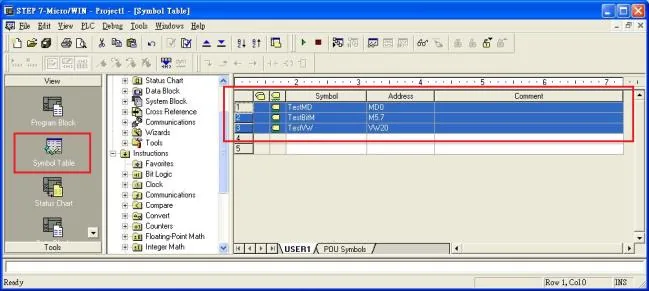
Add driver and click Import Tag
Launch EBPro (EasyBuilder), add the driver in the device list in System Parameter Settings, and then click Import Tag.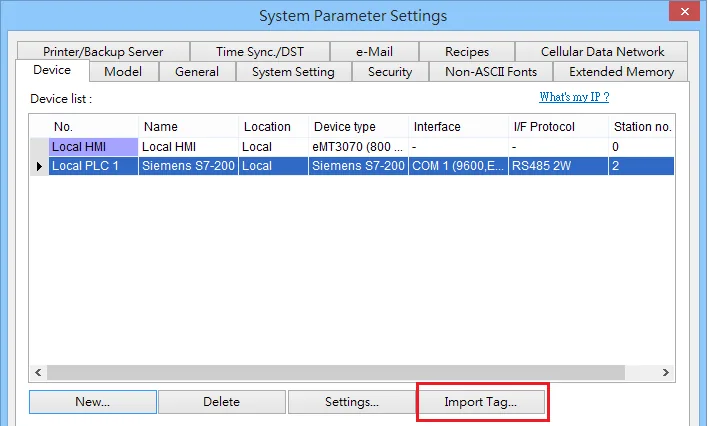
Paste copied tags and confirm
Paste the tags copied in step 1 into the Paste dialog, then click OK.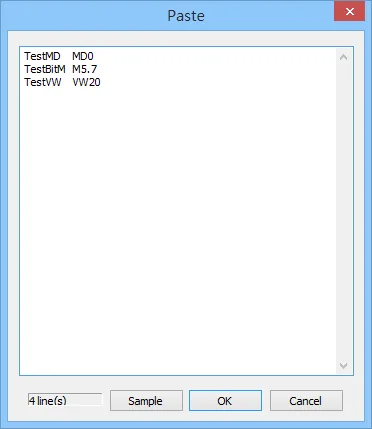
Select all tags and confirm
In the Add Tags dialog, select all tags and click OK.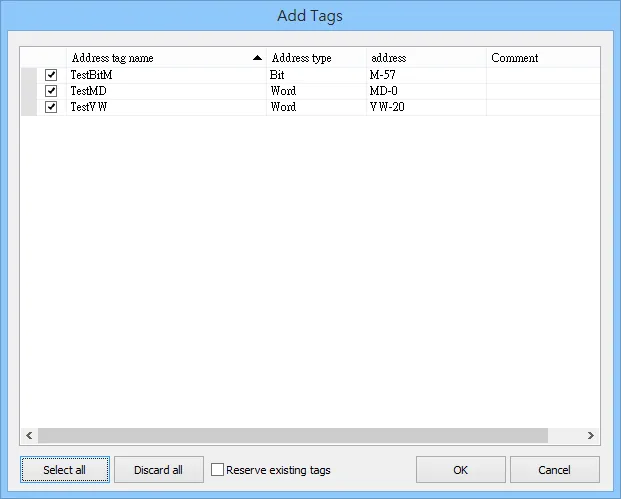
Verify successful import
If the import succeeds, a confirmation message window appears.
Pass-Through Settings
Designate client IP: In Pass-through mode, designate the client IP address to connect to the HMI. The “client” usually refers to the Siemens Step 7 application.
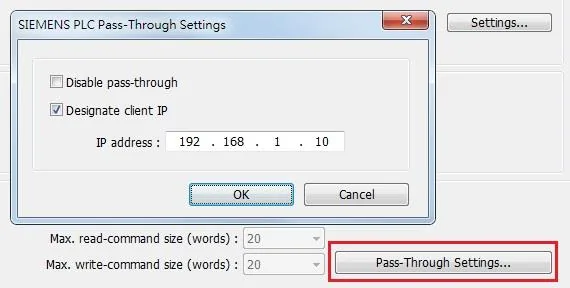
The following lists the system registers relevant to Siemens S7-200 PPI and Siemens S7-300 MPI Pass-through:
LW-10850: disable/enable (0: disable, 1: normal, 2: IP limited) (Siemens pass-through)LW-10851: destination COM port (Siemens pass-through) — generally refers to the COM port connected with the PLCLW-10852: destination PLC station no. (Siemens pass-through)LW-10853: communication protocol (0: invalid, 1: PPI, 2: MPI) (Siemens pass-through)LW-10854toLW-10857: IP of connecting client (Siemens pass-through) — displays current client IP address connected with HMILW-10858toLW-10861: IP of designated client (Siemens pass-through) — ifLW-10850is set to 1, use these registers to designate the client IP connected with HMILW-10862: connection status (0: ready, 1: client connecting) (Siemens pass-through)LW-10863: execution status (0: normal, 1: error) (Siemens pass-through)LW-10864: the last error (Siemens pass-through)
The following table lists the error codes, descriptions, and possible reasons.
| Error Code | Description | Possible Reason |
|---|---|---|
| 0 | Successfully executed | |
| 1 | Prohibit client from connecting HMI | HMI is already running pass-through and will not accept any request from other clients. |
| 2 | Prohibit client from connecting HMI | When LW-10850 is set to 1, the client IP connecting to the HMI is different from the IP specified in LW-10858 ~ LW-10861. |
| 3 | Invalid communication protocol | Invalid setting in LW-10853. |
| 4 | Invalid PLC station number | The PLC station number specified in LW-10852 does not exist. |
| 5 | Delayed communication | PLC connection failure. |
| 6 | Busy communication | PLC does not accept pass-through request. Confirm PLC settings. |
| 7 | Invalid pass-through request | Environment setup failure. |
Wiring Diagram
NOTE: The serial port pin assignments may vary between HMI models.
RS-485 2W
| HMI | Direction | PLC |
|---|---|---|
| Pin assignments | RS485 2W 9P D-Sub Male | |
| Data- | ↔ (bidirectional) | 8 Data- |
| Data+ | ↔ (bidirectional) | 3 Data+ |
| GND | ↔ (bidirectional) | 5 GND |